Writing on the canvas
A text frame is a box whose face is a Markdown document. Use frames for notes, outlines, instructions, research and connected thoughts, alongside the boxes that do the work. Their text is saved with the Field document and available to AI4.
Press ⇧+N to make one. Double-click a passage to write directly in the formatted text, or select a frame and press Enter. Click away, press Esc, or press ⌘/⌃+Enter to finish. Native spellcheck is enabled.
The toolbar follows your caret along the left edge of the frame. Use it for headings, bold, and italic. ⌘/⌃+B and ⌘/⌃+I also work. Paste a PNG, JPEG, GIF, or WebP up to 1 MiB to embed it in the frame's Markdown. For tables, code, and other advanced formatting, use the → button in the toolbar or choose Edit Markdown in the marking menu. Hold ⇧ while double-clicking to edit Markdown inline at the point you clicked.
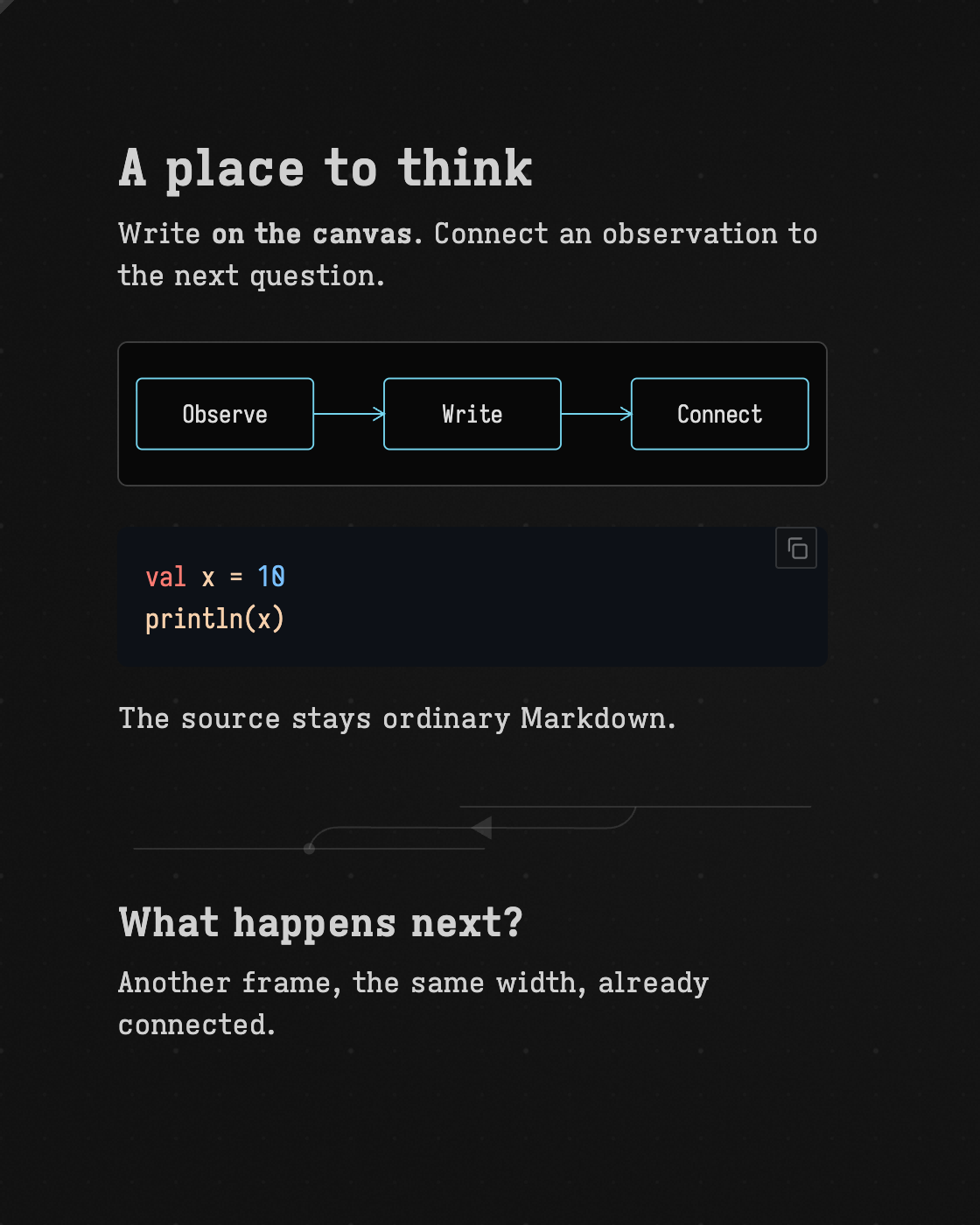
Markdown, then typeset text
The Markdown source editor uses Field's normal Iosevka at 12px. Reading uses Iosevka Etoile, a text face with Field's reverse-slashed zero, including light, regular, bold and italic faces. Headings, emphasis, links, lists, tables, fenced code, images, and inline or display math are supported.
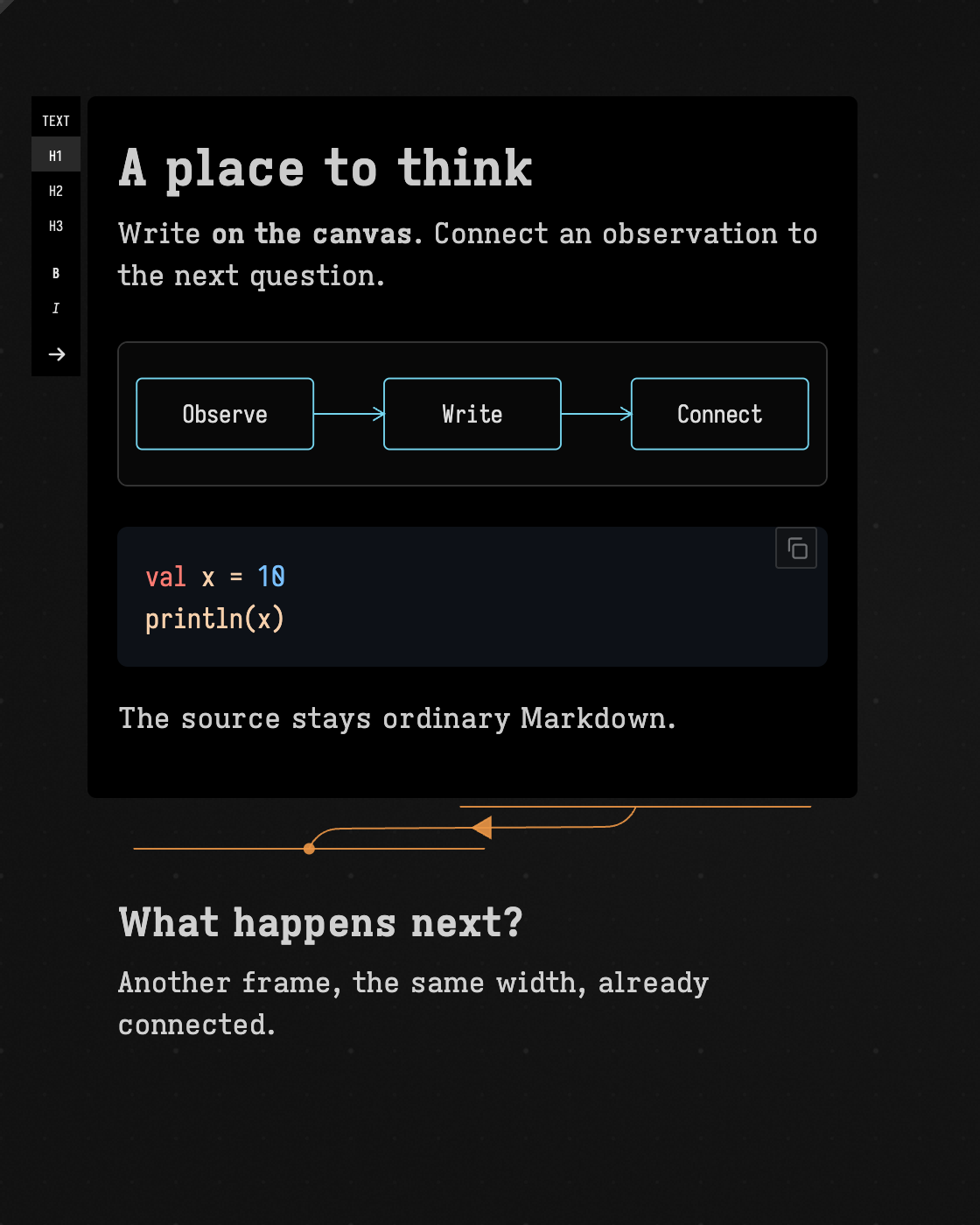
Selection draws Field's cyan border. While editing, the background is black and the border disappears.
The existing Automatically Open Editor on Box Selection preference applies here too; turn it off
if you want to work entirely on the canvas. Markdown is also available in the normal property editor
as contents.
A growing frame fits its formatted content and keeps its width. Expansion pushes colliding text frames down; contraction pulls frames wholly below it up. Other columns and ordinary boxes stay put. A fixed frame clips excess text and shows a +; click it to open the scrollable visual editor. Markdown source can be taller than the typeset result, so it scrolls inside the same frame while you write.
Images and other content
The quickest way to add a picture is to paste it from the clipboard while editing the formatted text: a PNG, JPEG, GIF, or WebP up to 1 MiB is embedded in the frame's Markdown. Ordinary Markdown image syntax also works:
Replace the URL with a FileManager path for a local image: %document/diagram.png,
%pictures/reference.webp, or a plain filename such as reference.webp.
Local image paths use FileManager: %document/ means the document's files/
folder, %project/ uses project files, and a registered %name/ selects a named directory.
A plain filename searches the normal document, project and configured search directories. Home and
absolute paths work too, but depend on that machine. Keep shared images in the document's files folder
when you want the document to travel. PNG, JPEG, GIF, WebP, SVG and AVIF files up to 20 MiB are supported.
Remote HTTP(S) images and inline raster data images also work. Loading an image updates frame sizing.
Raw HTML, scripts and arbitrary iframes are displayed as text. For interactive output, use Field's controls and visualizers; text frames retain their normal box output areas.
Typography and layout
⌥-click a text frame and choose Open settings to open its textFrame property as YAML in the
normal editor. Missing defaults are filled in; your comments and additional keys survive.
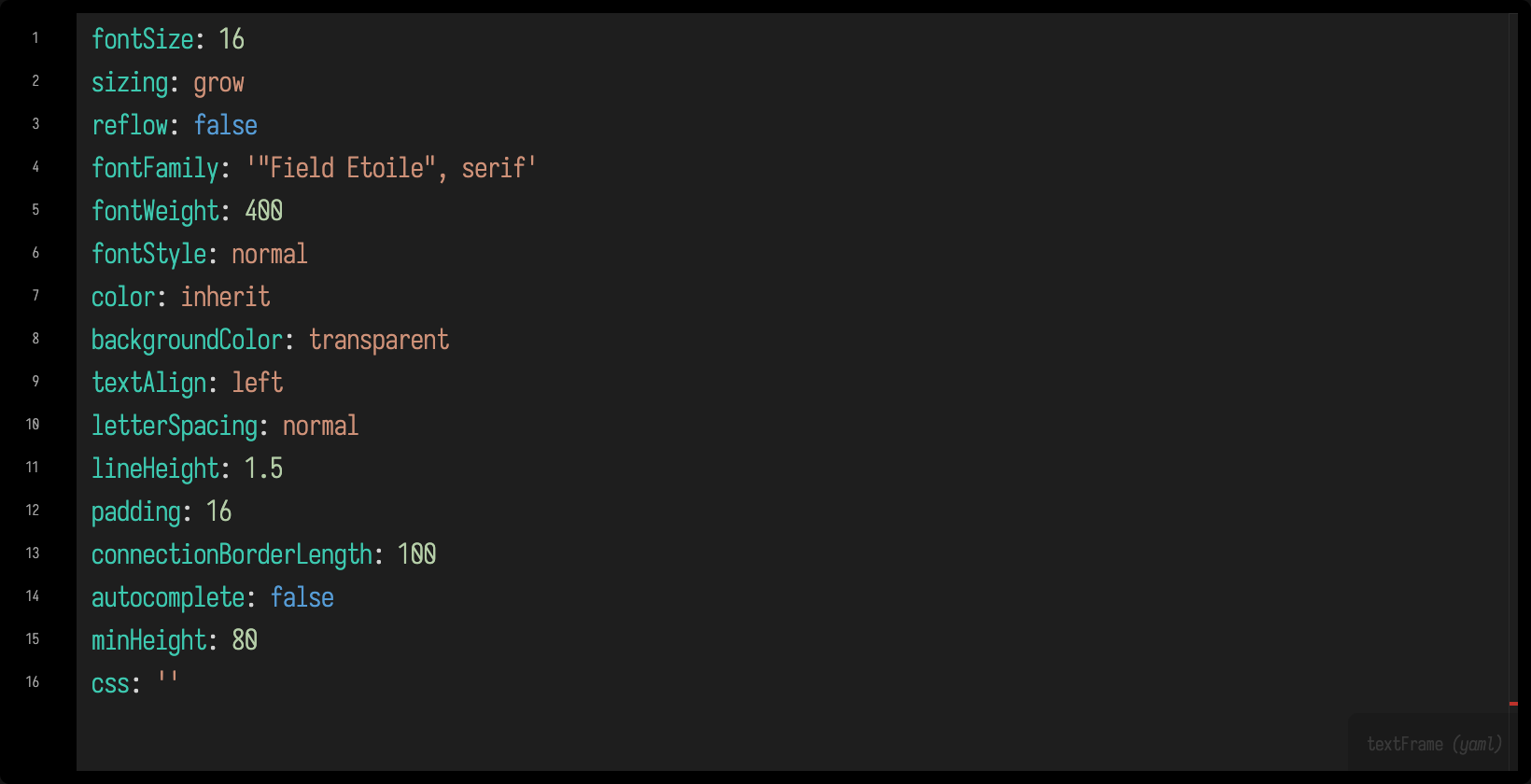
fontFamily: '"Field Etoile", serif'
fontSize: 11
fontWeight: 400
fontStyle: normal
color: inherit
backgroundColor: transparent
textAlign: left
letterSpacing: normal
lineHeight: 1.5
padding: 16
sizing: grow
minHeight: 80
reflow: true
connectionBorderLength: 100
autocomplete: false
color and backgroundColor take CSS colors; quote hex values such as "#b6e3c5" in YAML.
Use textAlign: center, fontStyle: italic, or letterSpacing: 0.02em to change the reading style.
A numeric letterSpacing means pixels. Invalid CSS values fall back to the defaults. These settings
apply to formatted text; the Markdown editor keeps Field's normal text color and its black background.
To style individual elements in this frame, add a css block under Open settings. This example
changes the main heading and adds a little space below it:
css: |
  h1 {
    color: #b6e3c5;
    font-size: 2em;
    letter-spacing: 0.02em;
    margin-bottom: 0.5em;
  }
The rules apply while reading and while editing formatted text on the canvas. Connected descendants
inherit them through the box graph. CSS specificity still applies; when it ties, the frame's own
rules win, followed by its nearest parents in connection order. The Markdown source keeps its
normal styling. Use ordinary selectors for elements such as h1, p,
blockquote, and code, with CSS for type, color, spacing, backgrounds, and borders. Imports,
external assets, and rules such as @media are ignored.
Use fontWeight: 300 for light text, sizing: fixed for clipping, or reflow: false to resize without
moving other frames. connectionBorderLength is the trace length on either side of an arrow attachment,
in screen pixels; the trace follows corners and sits 5px outside the selection border.
autocomplete: true enables prose suggestions through the configured AI4 text model. Accept a
suggestion with Tab and dismiss it with Esc; availability follows your AI4 configuration.
Notes on a passage
Select text in a frame, then ⌥-click and choose New note from selection. Field creates a child text frame below it. The note has a Source passage button: click it to frame the parent and highlight the passage. This works with a selection in the reader, in the visual editor, or in the inline Markdown editor.
The link follows the passage as you write before, within, or after it. Insertions just outside its ends stay outside the link. If you delete the passage completely, the note and graph connection stay in place and the button reads Passage lost.
Cut a selection that contains the whole passage and paste it elsewhere on the canvas to move the link with the text. This works in the visual and inline Markdown editors. Pasting into another frame in the same document moves the note's parent connection to that frame and keeps its other connections. Only the first paste of a cut moves the passage; copies and later pastes insert ordinary text.
Paste as transclusion
Copy a selection from a text frame, then press ⌘/⌃+⇧+V on macOS or ⌃+⇧+V elsewhere in the canvas visual or inline Markdown editor. The destination must be in the same document. Field inserts a live excerpt. Edit the source and the excerpt updates; click the excerpt to highlight its source. Ordinary paste still inserts a copy.
The Markdown stores a field://passage/ link to the passage ID. The excerpt is read-only,
including in the visual editor, but you can edit the text around it. Cutting and pasting the
source passage within the document moves that ID with it. If the source passage is deleted,
the excerpt shows Passage lost.
Find sources and backlinks
In Open Anything, search for the wording of a passage, either box's name, or a passage ID.
Use Source: results to jump from the referencing box to its source. Use Backlink:
results to jump to the linked note, transclusion, or Markdown box link. Prefix the search
with sources:, backlinks:, or links: to show just those results. Lost passages
remain searchable by their last saved excerpt.
Connected writing
Shift-select two boxes and press G to connect them. ⌥-click a frame and move down to choose New text frame below: a same-width child appears 32 world units below, with matching typography. Use the Hide / Reveal submenu to hide descendants or ancestors, optionally including this frame, or to reveal them again. This walks the whole branch, handles cycles, and preserves connections. Back or Esc returns one menu level. Reveal All Boxes in the palette is the recovery path if you hide everything. Hiding is session visibility; reopening the document or changing layers may reset it, and active layer filters still apply.
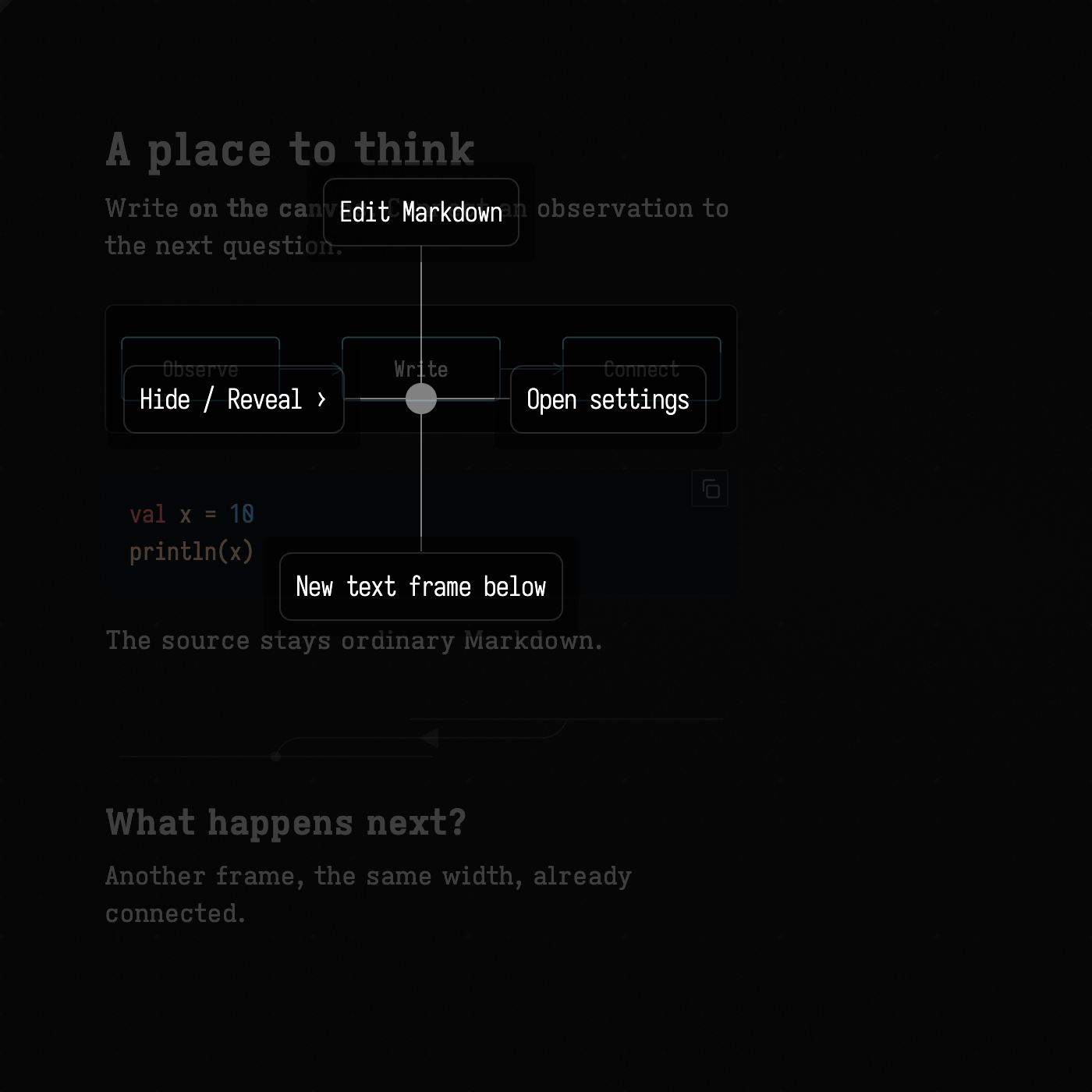
Boxes can install their own marking menus with callbacks and submenus.
Text as part of the document
The source lives in thisBox.contents; typography lives in thisBox.textFrame. Both are ordinary
synchronized box properties. Code in another box can read or set them like any other property. AI4 can read and
patch contents, and related-box content listings include it. Semantic workspace search indexes
saved text frames as Markdown, with their box names and headings. Literal workspace search sees the
saved document; for the latest unsaved state AI4 should read the live box property.
Updates from another person or an agent use Field's property synchronization. If an incoming change collides with your active draft, Field keeps the draft and offers Use incoming or Keep my version. This is whole-property conflict handling; simultaneous character-by-character merging is not provided.
Work with notes and passages in AI4
In a document's AI4 chat, ask for a Markdown note or for notes matching a phrase. AI4 can work with unsaved box text. It can also create a child note tied to an exact quote, return a stable clickable passage link, or insert a live transclusion into an existing frame. If a quote occurs more than once, give surrounding text or specify which occurrence to use.
FindTextNotesRequestfinds text-frame notes and thenotesproperty of ordinary boxes.CreateTextNoteRequestcreates a frame, with an optional parent and exact passage.GetBoxPropertyRequestreads the note;PatchBoxTextRequesteditscontentsfor a text frame ornotesfor box notes. Editing a note doesn't run it.TrackTextPassageRequestreturns a durable passage ID and link.TranscludeTextPassageRequestinserts a live reference from a quote or an existing passage ID.FindTextLinksRequestfinds sources and backlinks, including links to lost passages.
The results include clickable Field links so you can check what the agent found or wrote.