Interactive Guides
A guide is a box that walks someone through a document they have not seen before. You write it in the box, and the person following it gets notes, moving selections and callout lines over the live document itself. A guide can:
- show a note next to a box,
- move the editor to a property and line,
- branch through callbacks,
- render live values into Markdown templates,
- attach a discussion thread,
- draw callout lines to boxes or exact code lines.
A guide is a slideShow { ... } block. Each step("...") is one stage of the guide, and
markdownNote(...) in a step writes the note the reader sees.
A guide's notes and callout lines come and go with its steps. For marks that stay on the canvas,
such as a hand-drawn diagram beside the boxes it explains or arrows a box draws for itself, see
Drawing and Notation, the Excalidraw layer (alt/option-d) that is saved with
the document.
A three-step guide
This box is a whole guide: three steps, each with a note and a link to the next one. Run it and its first note opens beside the box.
:::static
val show = slideShow {
    step("Hello") {
        markdownNote(
            """
            ## A three-step tour
            This note belongs to the box on the left.
            Follow the link at the bottom to move on.

            [[next]]
            """
                .trimIndent(),
            animated = true,
        )
        selectBox(thisBox)
    }
    step("The code") {
        markdownNote(
            """
            ## Each step is a `step(...)`
            The editor now shows this box's code.

            [[back]] [[next]]
            """
                .trimIndent(),
        )
        selectBox(thisBox, property = "code", line = 3, highlight = 3)
    }
    step("Done") {
        markdownNote(
            """
            ## That is the whole tour
            [[home:Start again]] [[finish]]
            """
                .trimIndent(),
        )
    }
}

runBlocking { show.start() }
slideShow { ... } builds the guide and stores it on the box; nothing is shown until
show.start() opens the first step. animated = true types the first note in rather than showing
it all at once. selectBox(box) selects a box, and with property, line and highlight it also
opens the editor on that property, scrolls to a line and marks it. Use selectBoxByName("name")
for a box you do not have in a variable; it searches the whole document.
A tour of your own document
To guide someone through boxes you already have, add one more box for the guide and name the boxes it visits. Each step selects the box it talks about, so the editor follows the reader:
val show = slideShow {
    step("Data") {
        markdownNote("## `numbers` makes the data\n[[next]]")
        selectBoxByName("numbers")
    }
    step("The work") {
        markdownNote("## Line 3 squares each number\n[[back]] [[next]]")
        selectBoxByName("squares", line = 3, highlight = 3)
    }
    step("Done") {
        markdownNote("## Run `squares` to see the result\n[[home:Start again]] [[finish]]")
    }
}

runBlocking { show.start() }
Replace numbers and squares with the names of your own boxes. The note stays beside the guide
box; anchorNoteTo(box) in a step moves it beside the box being described instead. A name that
no box has is skipped without an error: the note still opens but the selection does not move, so
check the names if the editor stays put. The slideshow_guide starting point at
the end of this page is this tour with callout lines and a counter added.
Moving between steps
The reader moves through a guide with links in its notes. A [[...]] shortcut in a Markdown note
becomes one of them:
| shortcut | goes to | label |
|---|---|---|
[[next]], [[start]] |
the next step | Next →, Start → |
[[back]], [[previous]], [[prev]] |
the previous step | ← Back |
[[home]] |
the first step | Home |
[[stop]], [[finish]] |
closes the guide | Finish |
Give a link your own label after a colon: [[next:Onward →]], [[home:Start again]]. The
shortcuts are ordinary links to #slideshow:next, #slideshow:previous, #slideshow:home and
#slideshow:stop, so a note written in HTML with note(...) can use those directly, and
#slideshow:2 jumps to a step by number, counting from 0.
From code the same moves are show.next(), show.previous(), show.home(), show.stop() and
show.goToStep(n), all called from a coroutine. show.hasNext() and show.hasPrevious() say
whether there is anywhere to go. This guide opens on its second step, whose note uses each kind of
link, and marks line 11, the line that writes those links:
:::static
val show = slideShow {
    step("Start") {
        markdownNote("## Step one\n[[next]]")
    }
    step("Links") {
        markdownNote(
            """
            ## Moving between steps
            Step two of three. Each link below came from a `[[...]]` shortcut.

            [[back]] [[home:First step]] [[next:Onward →]] [[stop]]
            """
                .trimIndent(),
        )
        selectBox(thisBox, property = "code", line = 11, highlight = 11)
    }
    step("End") {
        markdownNote("## The last step\n[[back]] [[finish]]")
    }
}

runBlocking { show.goToStep(1) }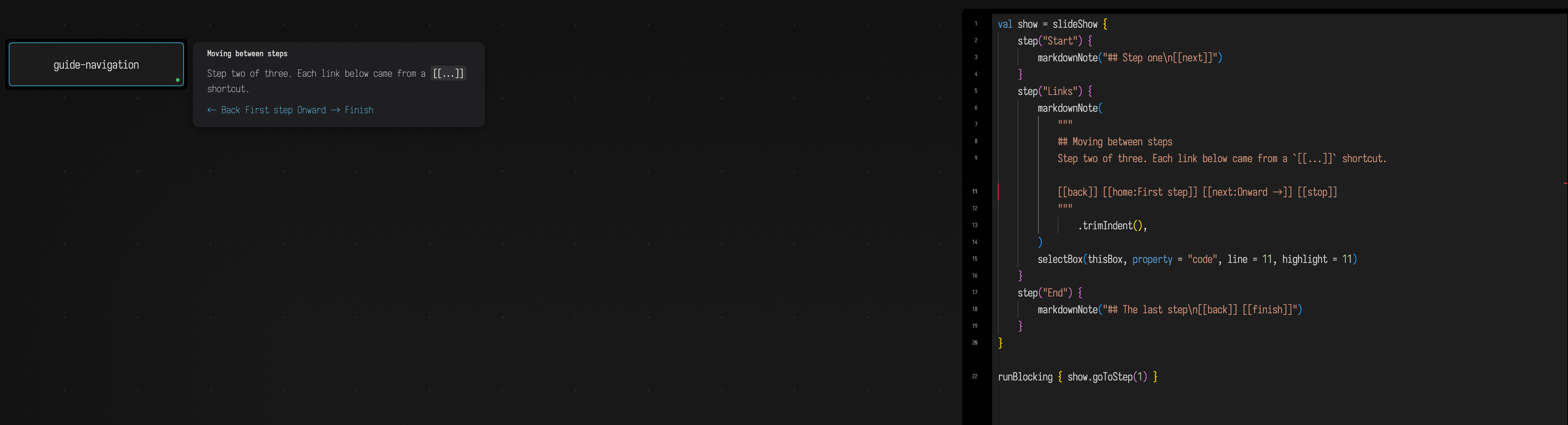
A document can hold several guides. The links in a note always drive the guide that opened it.
Doing something as a step opens or closes
onEnter { ... } runs each time the reader arrives at a step, before its note is shown, and
onExit { ... } runs as they leave it, including when the guide is stopped. Use them to launch the
box a step is about and stop it again, or to update a value the note shows. Both blocks may
suspend. The slideshow_guide starting point counts visits
to one of its steps this way, and shows the count in that step's note with a {{visits}}
template, described next.
Add callbacks and live template values
A note can offer choices and show values that change while the reader stays on the same step.
Use a #custom:name link with a linkCallback("name") { ... } handler for a choice, and
{{propertyName}} to put a live value in the note.
:::static
var clickCount = 3
var userChoice = "Balanced Mode"
val version = "1.0.0"

println("interactive guide ready")

val show = slideShow {
    step("Interactive Choices") {
        markdownNote(
            """
            ## Interactive Guides with Callbacks
            Version: **{{version}}**

            - [Increment](#custom:incrementCounter)
            - [Choose performance mode](#custom:choiceA)
            - [Choose quality mode](#custom:choiceB)

            Count: **{{clickCount}}**
            Choice: **{{userChoice}}**
            """
                .trimIndent(),
        )

        linkCallback("incrementCounter") {
            clickCount += 1
            here.properties["clickCount"] = clickCount
            show.goToStep(show.currentStepIndex)
        }

        linkCallback("choiceA") {
            userChoice = "Performance Mode"
            here.properties["userChoice"] = userChoice
            show.goToStep(show.currentStepIndex)
            notify("Selected: Performance Mode", "slideshow")
        }

        linkCallback("choiceB") {
            userChoice = "Quality Mode"
            here.properties["userChoice"] = userChoice
            show.goToStep(show.currentStepIndex)
            notify("Selected: Quality Mode", "slideshow")
        }

        selectBox(thisBox, property = "code")
    }
}

runBlocking {
    show.start()
}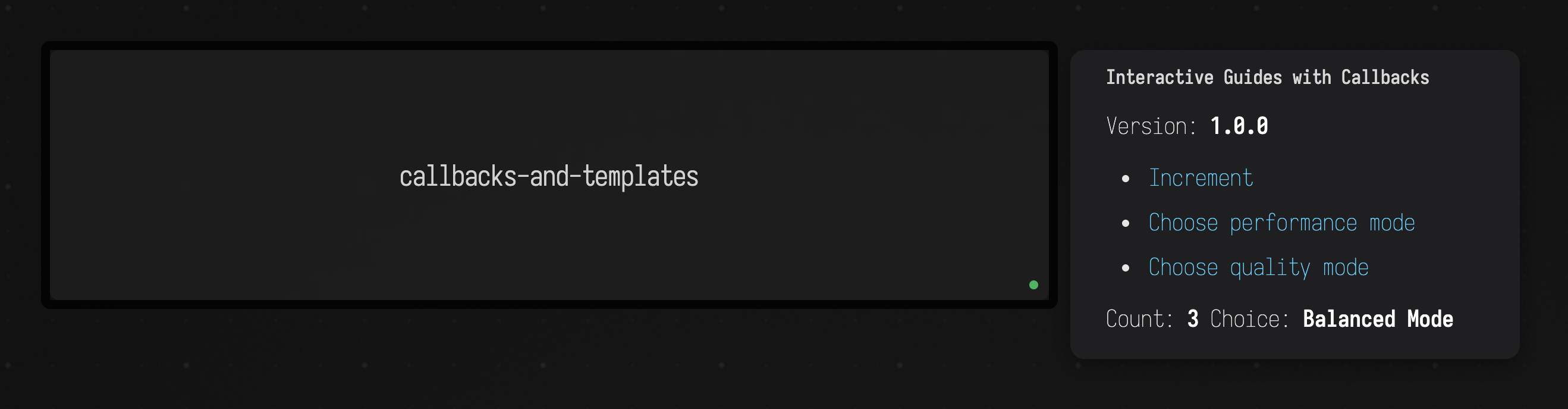
Run the state declarations (clickCount, userChoice and version) before building the show,
so its template callbacks can read those values.
A template value can come from this.properties[...], from a Kotlin variable the box has already run, or from the shared template helpers the slideshow runtime exposes.
When a callback changes state, call show.goToStep(show.currentStepIndex) to rerender the current step immediately. That updates {{clickCount}} and {{userChoice}} without leaving the slide.
A value that comes from a box property or a script variable is inserted as text: <, >, & and quotes are escaped, so a property holding <b>hi</b> shows those characters rather than bold text. Put markup in the note itself, not in the value.
Annotations and code callouts
Annotations let a note point at an exact target.
annotate(...)points from the note to a box.annotateToLine(...)points to an exact property and line inside the editor.
Add a callout wherever it will help the reader find what the note describes.
:::static
name = "guide-annotations"

val show = slideShow {
    step("Annotations") {
        markdownNote(
            """
            ## Annotation Lines
            Guides can point at whole boxes and exact code lines.

            - the green line targets the box,
            - the orange dashed line targets line 17 in this guide box.
            """
                .trimIndent(),
            animated = true,
        )

        selectBox(thisBox, property = "code", line = 17, highlight = 17)

        annotate(
            id = "target-box",
            targetBox = thisBox,
            color = "rgba(128, 255, 164, 0.8)",
            strokeWidth = 2.5,
        )

        annotateToLine(
            id = "target-line",
            targetBox = thisBox,
            property = "code",
            line = 17,
            color = "rgba(255, 180, 100, 0.8)",
            strokeWidth = 2.0,
            dashed = true,
        )
    }
}

runBlocking {
    show.start()
}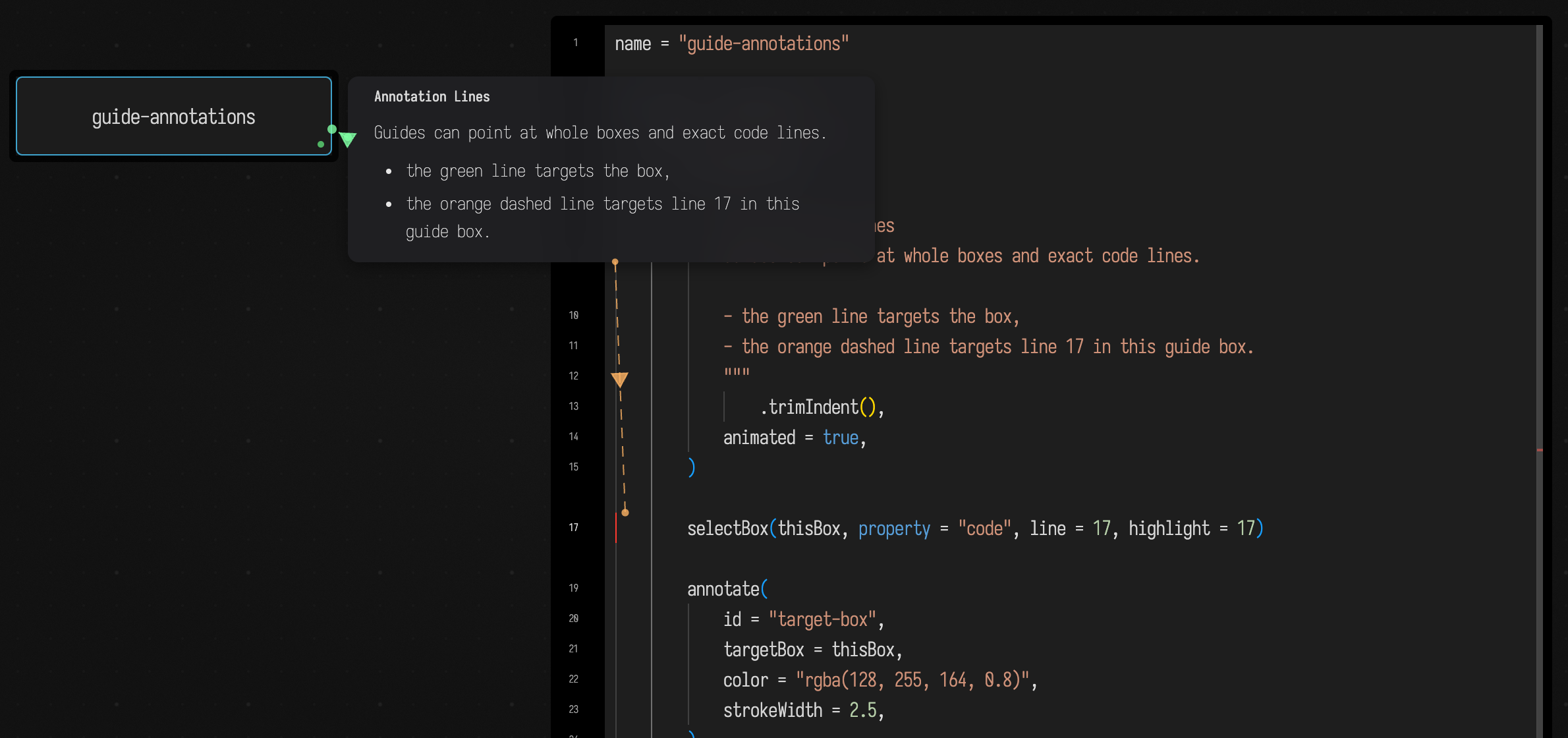
For line-level teaching, combine selectBox(...), line = ..., highlight = ..., and annotateToLine(...). The reader gets the note, the selected editor, the highlighted line, and the line drawn between them.
Per-slide chat
A step can carry its own discussion thread.
withChat()creates a thread for that slide.withChat(id = "shared-id")shares one thread across repeated guide instances.
:::static
println("slide chat ready")

val show = slideShow {
    slideshowId("docs-guide-chat")

    step("Slide discussion") {
        markdownNote(
            """
            ## Per-slide Chat
            Use `withChat()` when a slide should carry its own discussion.

            Use `withChat(id = "templateId")` when multiple template instances should share one thread.

            [[back]] [[next]]
            """
                .trimIndent(),
        )

        withChat(id = "templateId")
        selectBox(thisBox, property = "code")
    }
}

runBlocking {
    show.start()
}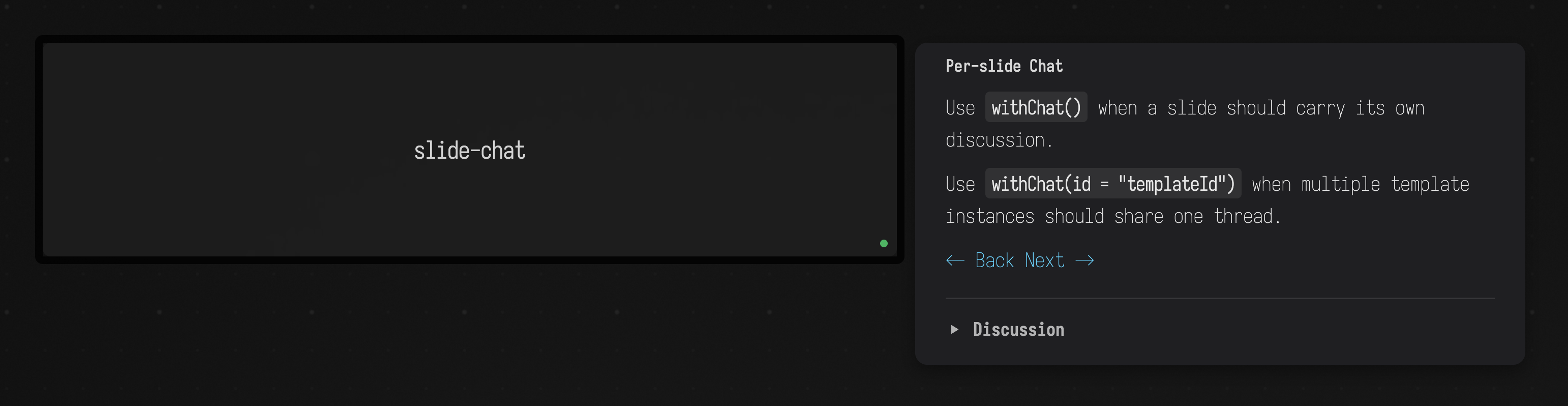
Use per-slide chat when comments should stay attached to a specific step instead of floating beside the whole guide.
The capture above shows the collapsed Discussion UI. The Python chat-service prototype has
been retired; withChat() and its UI remain available for a later redesign. Without a compatible
external backend, message loads and posts fail, while the rest of the slideshow still renders.
Setting up the chat server
Field no longer bundles a chat server. Its retained JVM proxy uses CHAT_SERVER_URL, defaulting
to http://localhost:5002, if a compatible service is provided separately. A browser identity can
still be selected with ?file=myguide&username=student1; the default is anonymous.
The retained bridge is described in
dev_docs/GUIDE_CHAT_QUICKSTART.md.
Notes outside a guide
The note overlay works without a guide too. showMarkdownNote(...) (or showNote(...) for HTML)
opens a note beside the box that calls it, with the same {{...}} templates, and hideNote()
closes it. In a step, anchorNoteTo(box) or markdownNote(..., anchorBox = box) places the note
beside a different box from the guide's own, and persistent = true gives the note a × button so
the reader can close it.
Growing a guide
Most guides are written in this order:
slideShow { ... }with one or morestep(...)blocks, and[[next]]links between them.markdownNote(...)in each step, saying what stage the reader is at.selectBox(...), so the reader is looking at what the note describes. Stop here and you have a working guide.linkCallback(...)and#custom:namelinks, when a step should branch or change state.{{templateValues}}, when a note should show the current guide state.onEnter { }andonExit { }, when a step should start or stop something.annotate(...)orannotateToLine(...), when a sentence is about one exact target.withChat(), when a step needs discussion.
Add the later features wherever the guide needs them.
A guide to open
The slideshow_guide starting point on the welcome screen
is a four-step guide over two small boxes. It uses selections, both kinds of callout line,
onEnter, templates and a callback. Open it, run tour, and follow the note:
For more examples, read
slideshow_example.kt:
simpleInteractiveExample()is the minimal callback-and-template example.exampleSlideShow()is a traditional guided tour that moves through multiple boxes.advancedSlideShowExample()addsannotate(...)andannotateToLine(...)so a note can point at a box or an exact code line.interactiveGuideExample()combines Markdown notes, callbacks, templates, choices, slideshow IDs, and both local and shared chat.
API summary
The calls you will use most often:
slideShow { ... }to define the guide, andshow.start()to open it.step("Title") { ... }to define each stage.markdownNote(...)ornote(...)to write the note.[[next]],[[back]],[[home]],[[finish]], or#slideshow:links, to move between steps.show.next(),show.previous(),show.goToStep(n),show.stop()to move from code.selectBox(box, property = "code", line = ..., highlight = ...)orselectBoxByName(...)to steer the editor.onEnter { }andonExit { }to act as a step opens and closes.linkCallback("name") { ... }for custom links such as#custom:name.annotate(...)andannotateToLine(...)for callout lines.withChat()orwithChat(id = "shared")for discussion threads.slideshowId("...")when the slideshow needs a stable identity across sessions.showMarkdownNote(...)andhideNote()for a note without a guide.