Code History
Code History shows what one line or selection of code said in earlier saves, in the editor, under the line itself. To take the whole document back to an earlier version, use document history instead.
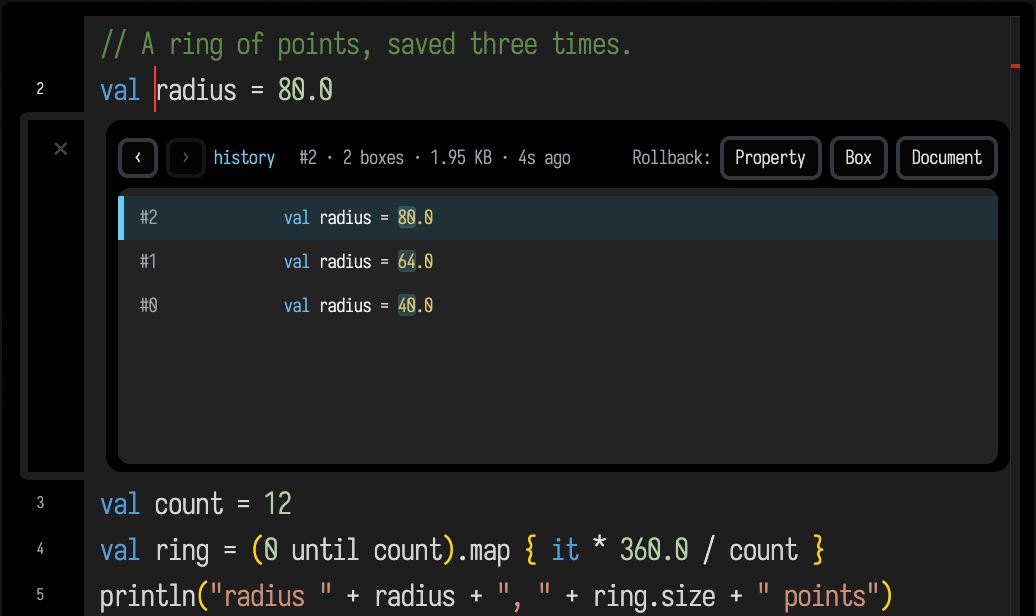
Above, Code History is open under the line that sets radius, listing the values that line had in earlier saves.
Open it
Select the box, put your cursor on a line of its code (or select a range), right-click, and choose Show Code History for Line / Selection from the editor context menu.
Code History opens as a small zone directly beneath your selection. Its shortcut is alt+shift+h.
What it shows
It follows the selected line or range back through the saved versions, even as lines above it are added or removed. It lists each version where the line changed, and the oldest value it had. Saves that left it alone are skipped.
Each row is one matching version, labelled the same way the history view
labels it (#12, #11, … and any name you gave it), with that version's value and the tokens that
changed highlighted, so the difference between two rows is legible without reading both in full.
The header shows the box count, size and age of the version you are on.
Step through the versions with the ‹ › arrows, or click a row; the editor lays that version over the current text as a read-only diff. When you find the state you want, the Rollback buttons put it back at the scope you choose:
- Property — restore just this property to the selected version
- Box — restore the whole box
- Document — a full document restore to that version
How it relates to the history panel
Code History and the document history panel read the same saved versions. They differ in how much of the document they work on:
- History panel — whole document, its own view, restore or cherry-pick whole boxes.
- Code History — one line or selection, inline in the editor, lift a single past value back.
Use Code History to follow a line while you edit, and the history panel to inspect or restore a larger part of the document.
Not the history() visualizer
The history() visualizer is a different tool: m.history(value) charts an expression's recent runtime values next to your code, and is covered on Visualizers & Controls.