Moving around the canvas
A Field document can grow well beyond the window. Pan and zoom to explore it, or split the canvas to keep headings and labels in view while the rest scrolls. You can also step between boxes with the keyboard, bring a selection into view, hide layers, and save views you want to return to. Let's start with moving around.
Panning and zooming
- Scroll with a mouse wheel or two fingers on a trackpad to pan the canvas. Over a box's output area the scroll goes to the output instead.
- Drag with the middle mouse button to pan.
- Hold
CtrlorCmdwhile scrolling, or pinch on a trackpad, to zoom about the pointer: the point under it stays put. The zoom runs from 10% to 400%. - Reset Canvas Zoom in the command palette returns to 100%, keeping the centre of the window where it is.
alt/option-H(Reset View in the command palette, and a button at the top of the bookmarks panel) also returns to 100%, and closes every output panel.
Over an output panel, the wheel scrolls the panel while it has room to scroll that way and pans the canvas once it does not; a pinch zooms the canvas unless the panel's content uses it.
Splitting the canvas
Like a spreadsheet's split, the canvas can be divided into panes that keep part of a document in view while you move around the rest: a row of headings along the top, a column of labels down the side, or both. Here the body of a sequencer-like document has been scrolled right and down. The bar headings moved sideways with it, the instrument labels moved up with it, and the corner stayed put:
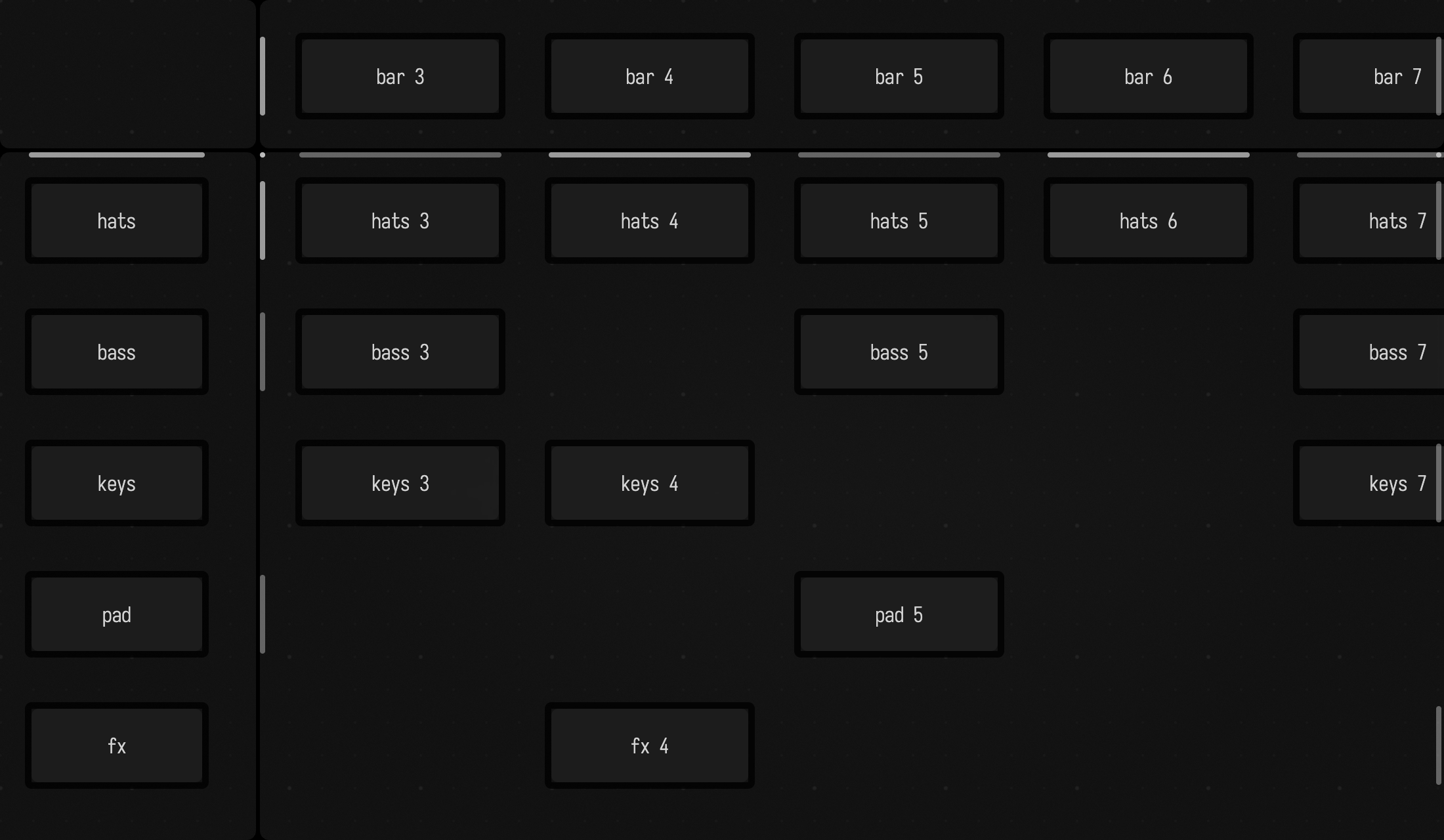
To split it:
- Drag the grip in the top-left corner of the canvas out to where you want the dividers, and let go. Let go near the top edge for a left and a right pane only, or near the left edge for a top and a bottom pane only.
- Or use Split Canvas Here, Split Canvas Columns Here or Split Canvas Rows Here in the command palette, which add a divider (or one of each) where the pointer was. Run them again on a split canvas for more panes: up to three across and three down. The palette's preview for each of them is a small picture of what the canvas will look like, with the new dividers in cyan.
Once you've split the canvas, try scrolling a pane. Panes in the same row move up and down together, and panes in the same column move side to side together. Zoom applies to every pane.
Each pane shows its own part of the document, on its side of the dividers: a box belongs to the pane that holds its top-left corner. Drag a box across a divider and it moves into the other pane, staying where you let go of it.
A pane in the middle of three shows the strip of the document between its two dividers. If you widen the pane past the end of that strip, the rest of it is plain grey, with no dots: there is nothing more of the document for that pane to show.
- Drag a divider to move it. The boxes beside it move with it.
- Drag a divider to the edge of the window, or double-click it, to remove it.
- Remove Canvas Split in the command palette removes them all. Every box stays where it is.
Connections cross the dividers and follow their boxes as the panes scroll. Here keys 4 is
selected, showing connections to its instrument label, bar heading, mix and two neighbouring
pattern boxes. Watch the lines follow their endpoints as the body scrolls:
The drawing layer (alt/option-D) works in every pane: its toolbar is in the bottom-right pane, and the
tool you pick there follows the pointer into the others.
The split is saved with the document. A bookmark saved while the canvas is split restores the split and where each pane was scrolled to.
Unlinking a pane
Unlink Pane, Unlink Pane Horizontally and Unlink Pane Vertically in the command palette let the pane under the pointer scroll on its own, in both directions or just one, instead of with its row or column: a corner of notes that stays where you left it, say, or a column of labels you scroll through separately. The stretches of divider between an unlinked pane and the panes it no longer moves with turn dashed. Relink Pane puts it back in step with its row and column.
Here the instrument labels are unlinked vertically from the palette (its preview shows the divider beside them turning dashed), so the body scrolls down without them, and then they scroll on their own. Relink Pane brings them back into line with the body:
What box code sees
A box reads what the canvas shows from two properties. Both are in world units, the units a box's
frame is in, so they do not change with zoom. viewport is the main (bottom-right) pane, as the
rect (-x, -y, w, h): its first two numbers are the negated world position of the pane's top-left
corner. onViewportChange callbacks fire when it moves. Note the different sign from
viewports, which lists every pane's visible world rect as (x, y, w, h), main pane last.
viewports.forEach { println("${it.x}, ${it.y}: ${it.w} × ${it.h}") }Stepping between boxes
With a box selected, tap Cmd twice and hold it down on the second tap: Field outlines the box you
are on and every box an arrow key can reach from it. That moves the selection around a document
without touching the mouse, and leaves you with a box selected and its code in the editor.
Cmd Cmd and hold
- Select a box.
- Tap
Cmdtwice quickly, holding it down on the second tap. - Press an arrow key to move to the box in that direction.
- Release
Cmd.
The two taps have to land within about a third of a second, with no other key pressed in between and
no other modifier held. Ctrl Ctrl does the same thing, and whichever key you started with is the one
you have to keep holding. Nothing happens if no box is selected, since the overlay has to draw itself
around something.
Each arrow selects the box in that direction, scrolls it into view, and redraws the overlay around
its new position, so you can keep arrowing without letting go. Escape leaves the mode early, and so
does clicking away from the window.
Letting go of the trigger key puts the focus in the editor of whichever box you landed on, ready to type.
What the overlay draws
While the mode is up, Field draws over the canvas:
- a solid outline around the box you are on
- a dashed outline around each box you can reach, up to four, one per direction
- a line from your box to each of those, and an arrow badge on the far side of each one
- an
Fchip on any box that a bookmark slot points at
A direction with no box in it is absent from the overlay, and pressing that arrow does nothing.
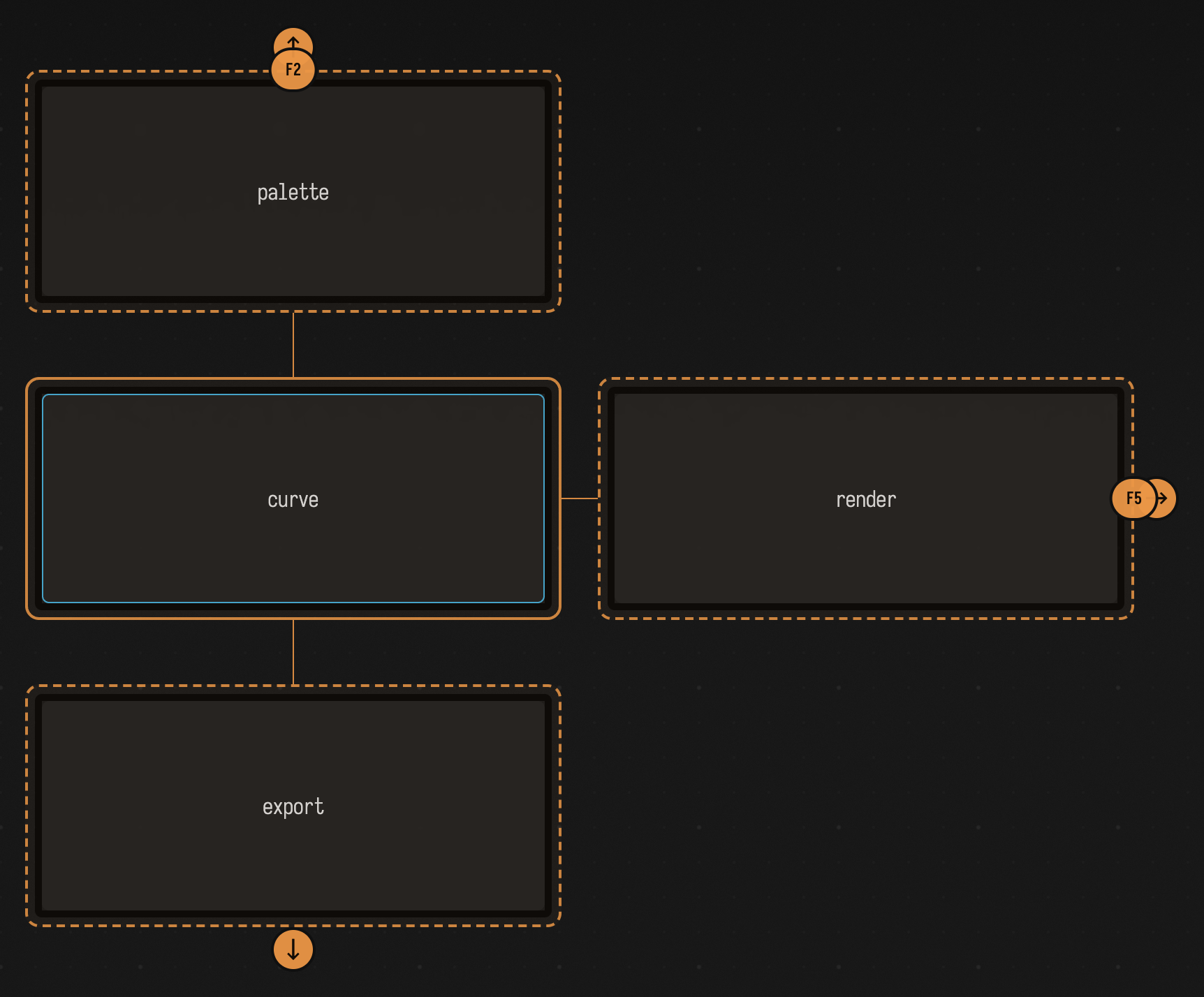
How the neighbours are chosen
Field sorts the visible boxes by the dominant axis of their offset from the current one. A box further to the left than it is above counts as west, and so on. Within each direction it takes the nearest, counting sideways distance as a fifth of distance along the direction of travel, so a box that is slightly off-axis does not beat one that is directly ahead.
Only one box per direction is offered, so a dense column collapses to its nearest member. Boxes that are hidden, deleted, or drawn at zero size are not candidates.
Framing the selection
alt/option-F (Frame Selected in the command palette, rebindable as frame-selected) brings the
selected boxes, and their open output panels, into view. It puts them in the largest part of the
window that the editor, the docs panel and Field's own panels leave uncovered. If they do not fit
there it zooms out until they do. If the canvas was zoomed further out than it needs to be, it
zooms back in, but not past 100%; a canvas already zoomed in past 100% keeps its zoom when the
selection fits.
If none of the uncovered space could show the selection at even half the size the whole window could, it uses the whole window instead and lets the editor cover part of it. A narrow strip beside a wide editor is not worth squinting at.
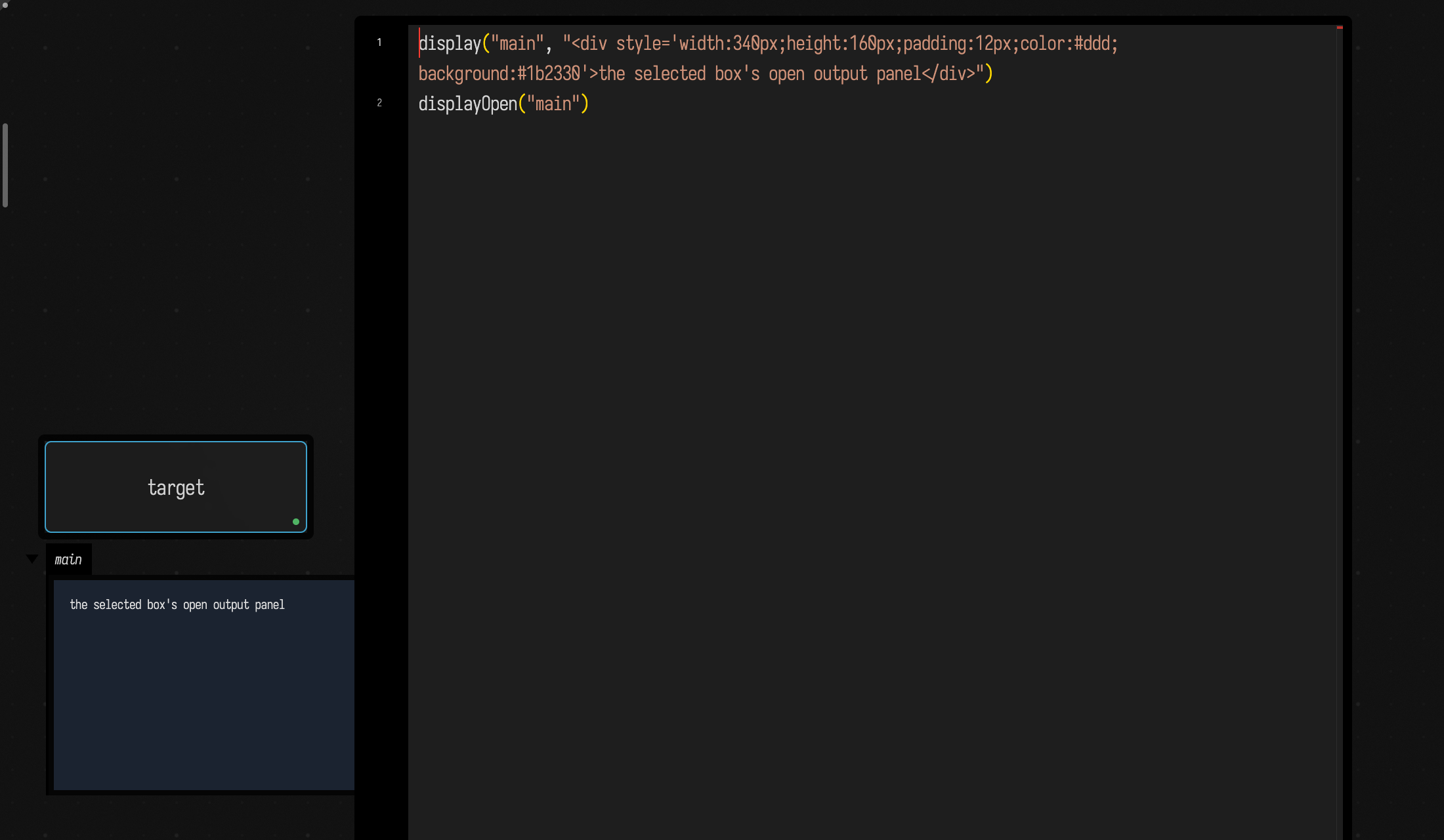
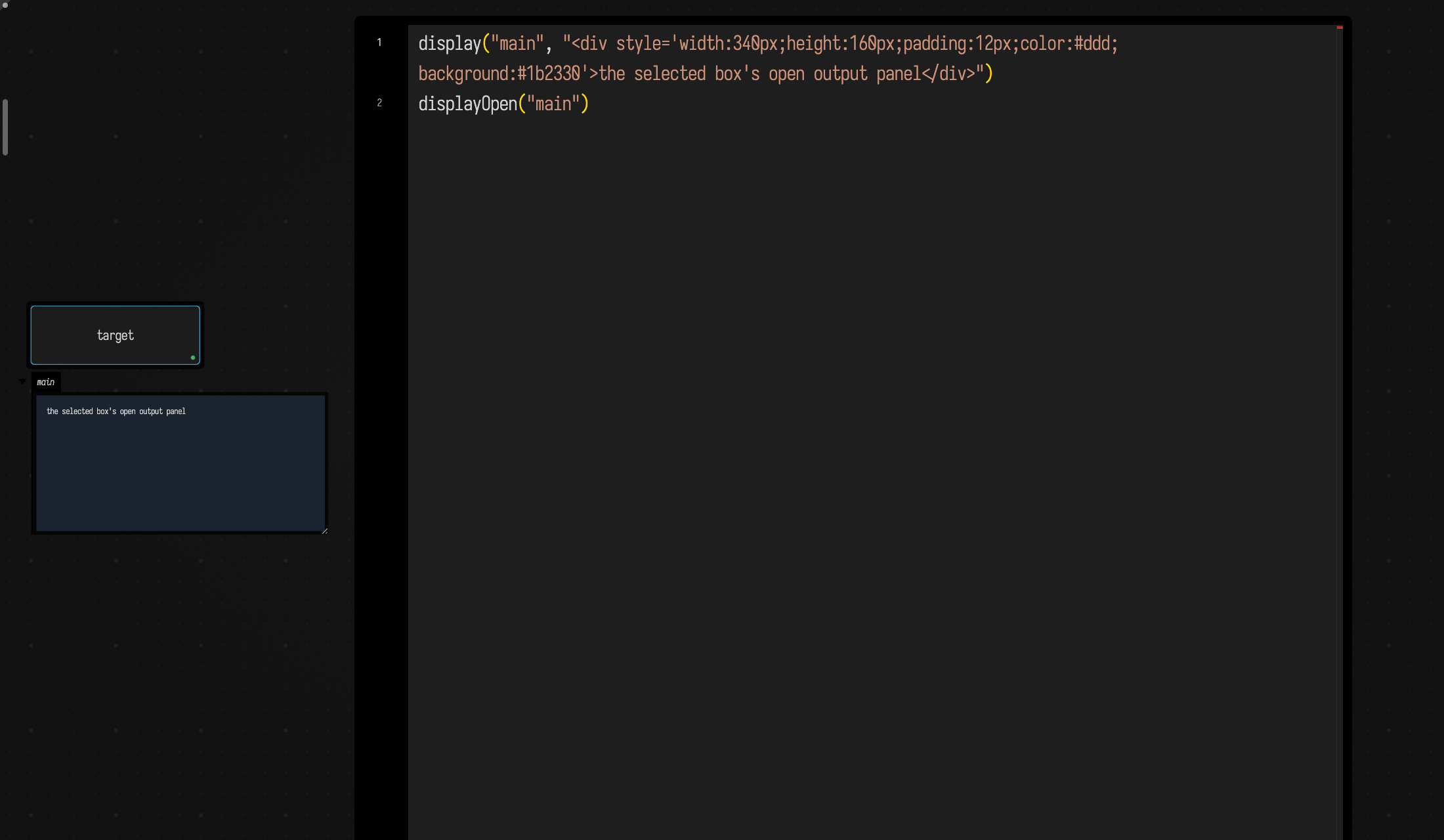
Below, target is selected with its editor open. Opening the editor brought the box into view,
but its open output panel runs under the editor. After alt-F the canvas zooms out until the box
and its panel both fit in the strip the editor leaves:
Bookmarks
To return to a part of the document you visit often, save its view in one of nine numbered slots.
- Save the current view:
ctrl/command-shift-F1throughctrl/command-shift-F9 - Restore a saved view:
shift-F1throughshift-F9
Cmd is Command on macOS and Control everywhere else. Both sets are rebindable as
save-bookmark-N and restore-bookmark-N, and both appear in the command palette as
Save Bookmark N and Restore Bookmark N. See Keyboard Shortcuts.
A slot stores a view rather than a box reference. Restoring one reapplies, in this order:
- the canvas pan position and zoom, and the split with each pane's position if the canvas was split
- the open or closed state of the nested disclosures, before anything is selected
- the size of each output panel that was open, and the open or closed state of every output panel. A panel that did not exist when the slot was saved, or no longer exists, is left as it is
- the selected box, when exactly one box was selected at save time
- the property that was open in the editor
- the editor cursor line and column
The bookmarks panel
alt/option-B (Show Bookmarks in the command palette, rebindable as show-bookmarks) opens a panel
with a row for each of the nine slots, so you can see what a slot holds before you jump to it:
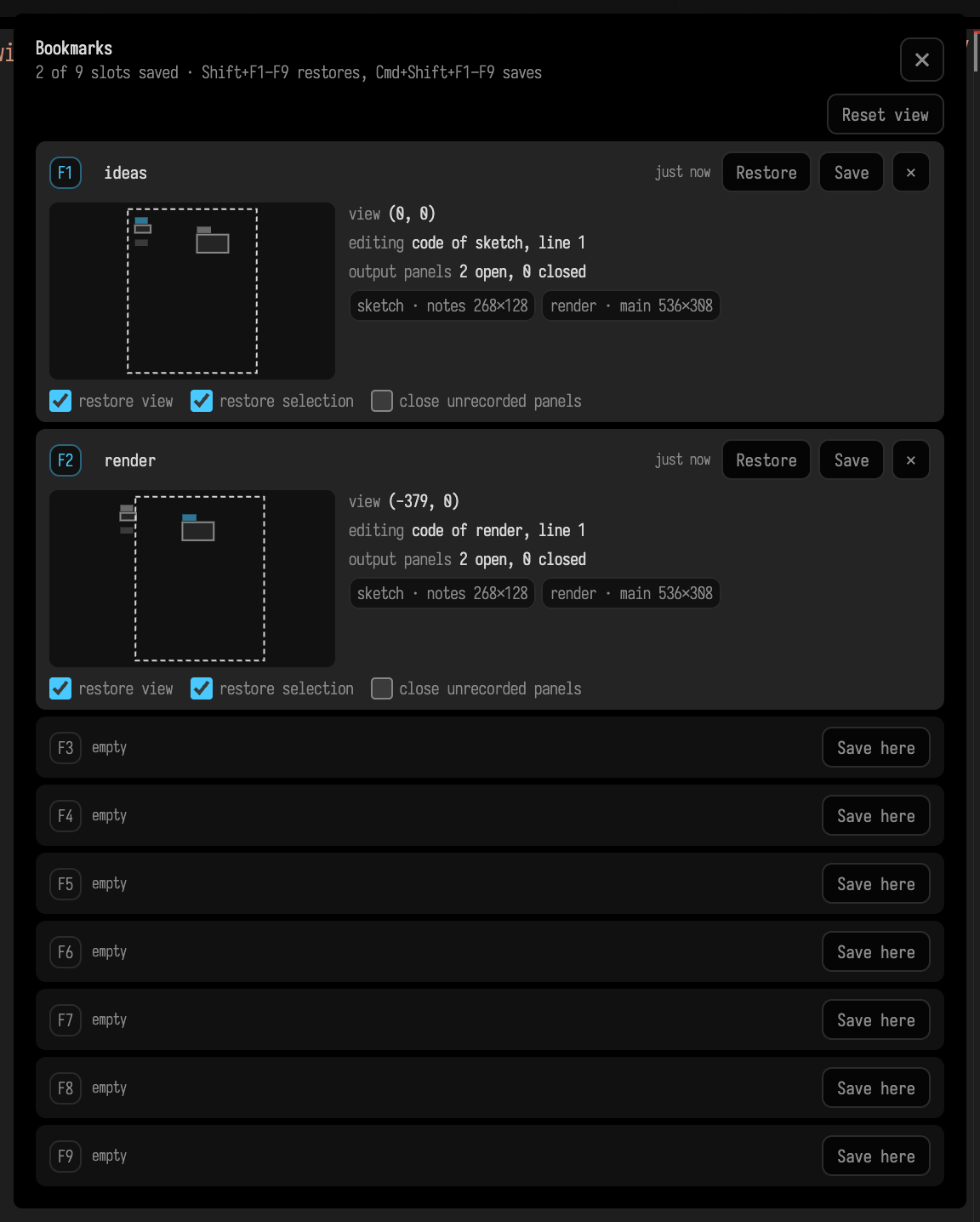
Each saved slot shows:
- a small map of the document, with the saved view as a dashed rectangle (one for each pane of a split canvas) and the selected box in the accent colour. The boxes are drawn where they are now, not where they were when the slot was saved
- the view position (and the zoom, when it is not 100%), and the box that was selected or being edited, with the cursor line
- how many output panels were open and closed, and a pill for each open one with its size
Click the name to rename a slot. Restore and Save do what Shift+Fn and
ctrl/command-shift-Fn do, and × empties the slot. The three checkboxes are saved with the slot:
- restore view: pan and zoom back to the saved view. Turn it off for a slot that should rearrange output panels without moving the canvas.
- restore selection: reselect the box and reopen its editor and cursor. With restore view off, the box is also brought into view.
- close unrecorded panels: also close every output panel the slot has no record of, instead of leaving it as it is. Use it for a slot that should leave the canvas tidy.
Saving over a slot keeps its name and its options.
While the navigation overlay is up, every box on screen that a slot points at wears an F chip
with that slot's number: F3 is the view saved in slot 3, reached with shift-F3. A box wears
more than one chip if several slots were saved on it.
Fly Through Bookmarks in the command palette flies the canvas smoothly through the saved slots in order, and box code can film the same flight to an MP4. See Filming the canvas.
Bookmarks live on the root box as the bookmarks property and are saved with the rest of the
document state. They survive a reload, and they travel with the document rather than with your
browser session.
Showing and hiding layers
A box can be on one or more layers, and hiding a layer takes its boxes off the canvas, which is the
quickest way to clear a crowded document down to the part you are working on. alt/option-L
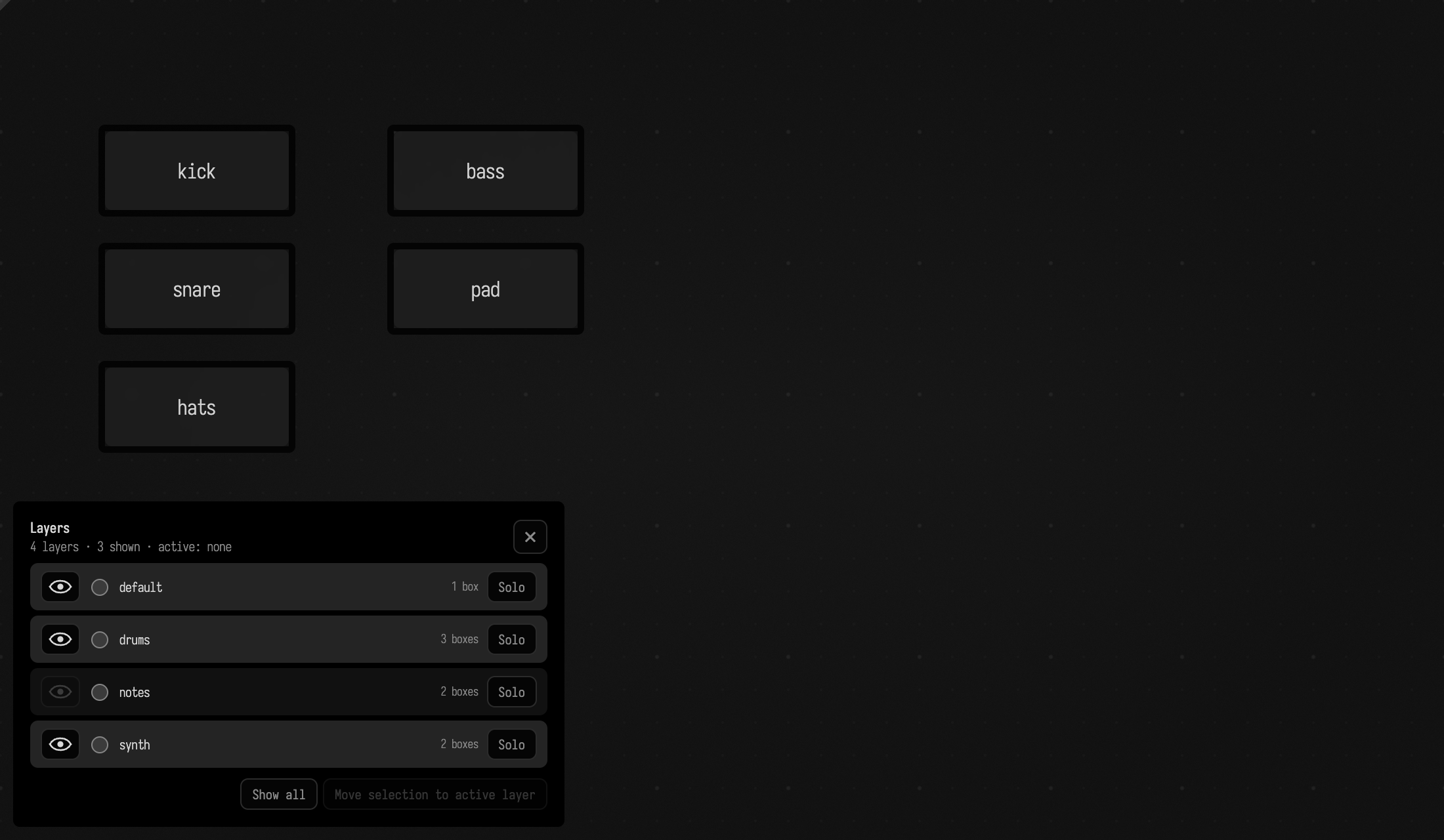
(Show Layers Panel in the command palette) opens a panel listing every layer with its box
count. Click a layer's eye to show or hide it (shift-click to show only that one), and pick the
active layer with its radio button. Solo shows only that layer and makes it active, Show all
brings every layer back, and Move selection to active layer puts the selected boxes on the
active layer. The last visible layer cannot be hidden. If the document has a drawing, it has a
drawing row of its own, whose eye shows or hides it. Layers covers how a box names
its layers, and how each layer keeps its own layout.
Here the notes layer is hidden, so its two boxes are off the canvas and only the drums and synth
boxes remain beside the panel:
Snapping
Boxes can snap to each other while you drag or resize them. Snapping is on while Caps Lock is on, or after Toggle Box Snapping in the command palette, which stays on until you run it again. With neither, dragging and resizing are freeform, which is what you want while sketching.
A dragged box snaps to the edges and centres of nearby boxes, each axis on its own, and cyan guides show what it has snapped to. Dragged between two boxes it snaps to even spacing, with ticks marking the equal gaps (gaps under 5 px don't count). A resized edge snaps to nearby box edges, so neighbours can share a boundary.
A guide appears before the box jumps:
| Snap | guide is drawn within | box jumps within |
|---|---|---|
| edge and centre alignment | 20 px | 10 px |
| even spacing | 30 px | 30 px |
A resized edge jumps within 10 px.
Related features
- Keyboard Shortcuts covers rebinding, and lists both commands for all nine slots.
- Filming the canvas flies through the bookmarks, and films the flight.
- Layers decides which boxes are on the canvas, and where, per layer.
- Document History saves the document's content rather than your view of it.