Document History
Every time Field saves a document whose contents changed, it keeps the previous save. The history view shows those saves as a timeline, lets you compare any of them with what you have now, and puts back an earlier one — the whole document, or just the boxes you pick.
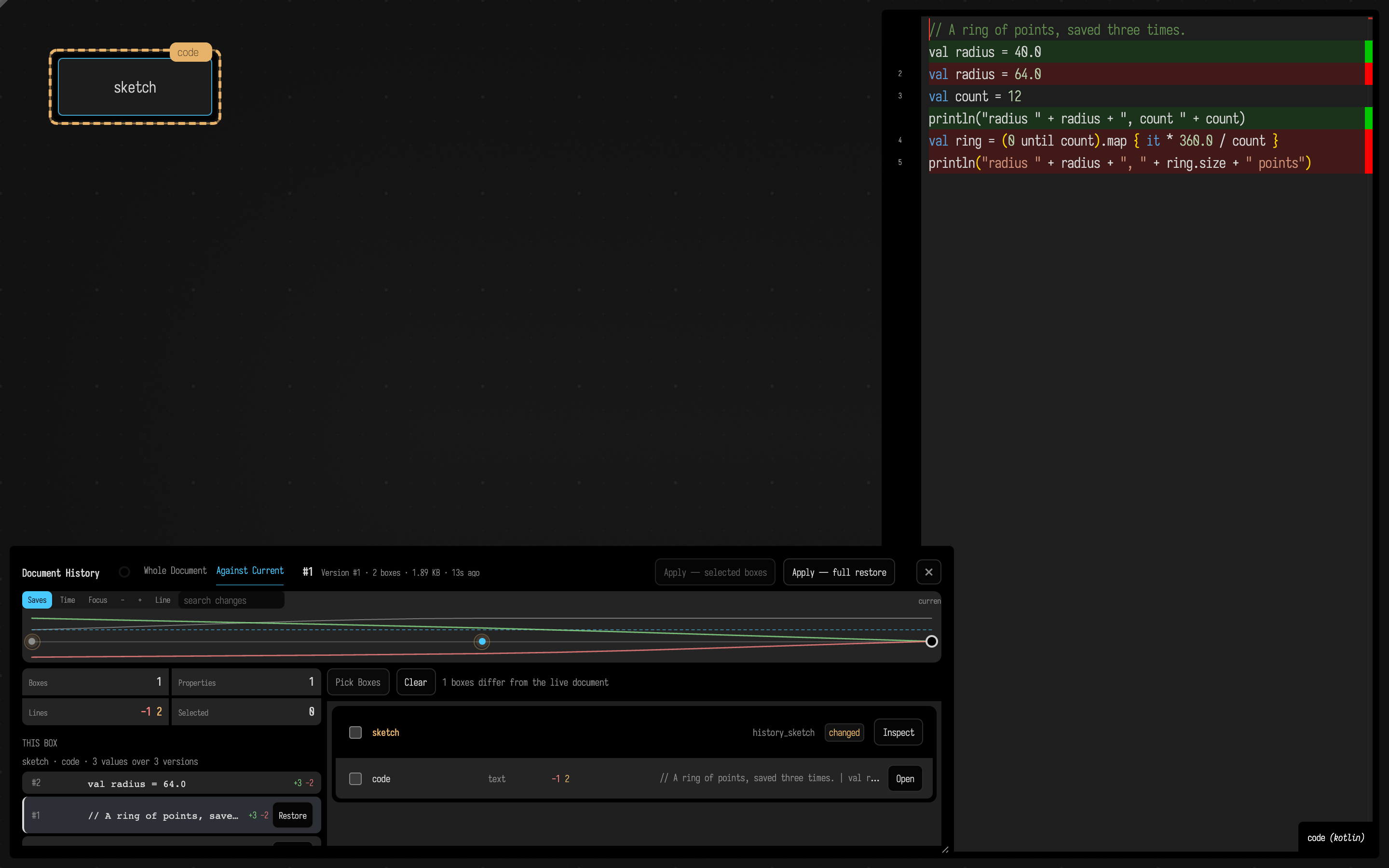
Above, an earlier save of the box sketch is selected in the timeline, and the editor shows how it
differs from the current code; the sidebar's This Box list, described below, shows
the same box's values version by version. To scrub one line back through its versions without leaving the
editor, use Code History.
Get back an earlier version
- Run Show Document History from the command palette. (There is no keyboard shortcut; you
can also open
/history?file=<document-name>on the Field server.) The history view opens over the document. - Click a version in the timeline. With a box selected, the editor lays that version's text over the current text as a read-only inline diff, so you can read the change before you commit to it.
- Choose Apply — full restore and confirm ("Restore the whole document to version #N?").
Field saves the restore as a new change and keeps the state you restored from in the timeline, so you can return to it. Edits made since the last autosave (5 s) are not in a backup yet; let the document save before restoring over work you care about. Every edit that changes what is saved counts: a new box, a move, a rename, a deletion or a connection as well as code. Closing the document and stopping Field both save what the autosave has not reached yet.
Restore just a few boxes
When one box has drifted and the rest of your work is good, take only that box. With a version selected, the change list on the right shows the boxes and properties that differ from the current document. Click the boxes (or single properties) you want — Pick Boxes picks all of them — and choose Apply — selected boxes. Everything you did not pick is left as it is now.
One box, edit by edit
With a box selected on the canvas, the sidebar's This Box list shows the selected property
(usually code) of that box across every version, newest first. Saves that left the box alone are
folded together, so a range like #1–2 is one value the box kept for two saves, and a box that did
not exist yet reads not in these versions. Each row shows the first line that value added and how
many lines it added and removed. Click a row to select that version in the timeline.
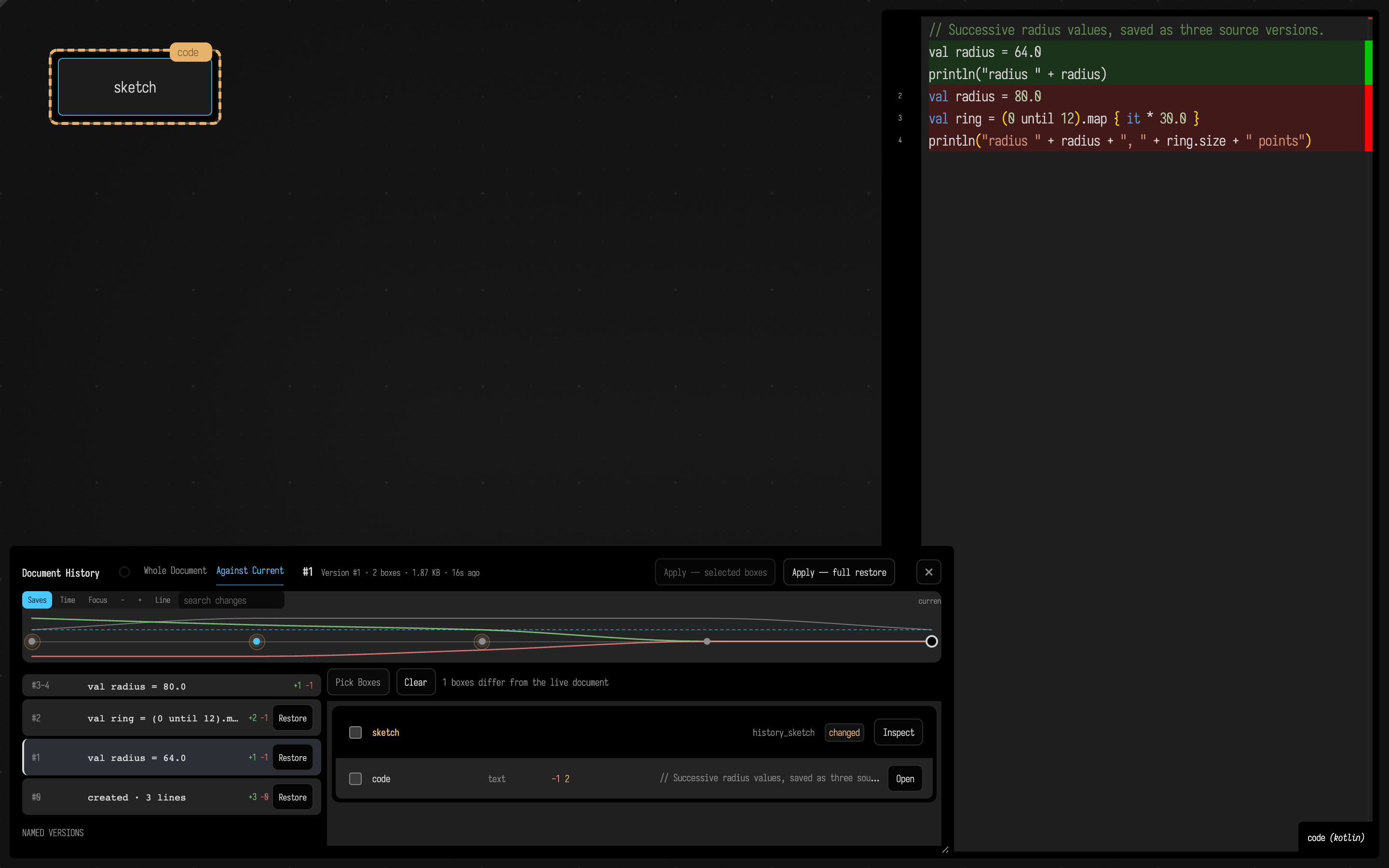
Choose Restore on a row to put that value back into this one property of this box; the rest of the document is left as it is now. The restore is saved as a new version, so it appears at the top of the list and the value it replaced stays below it.
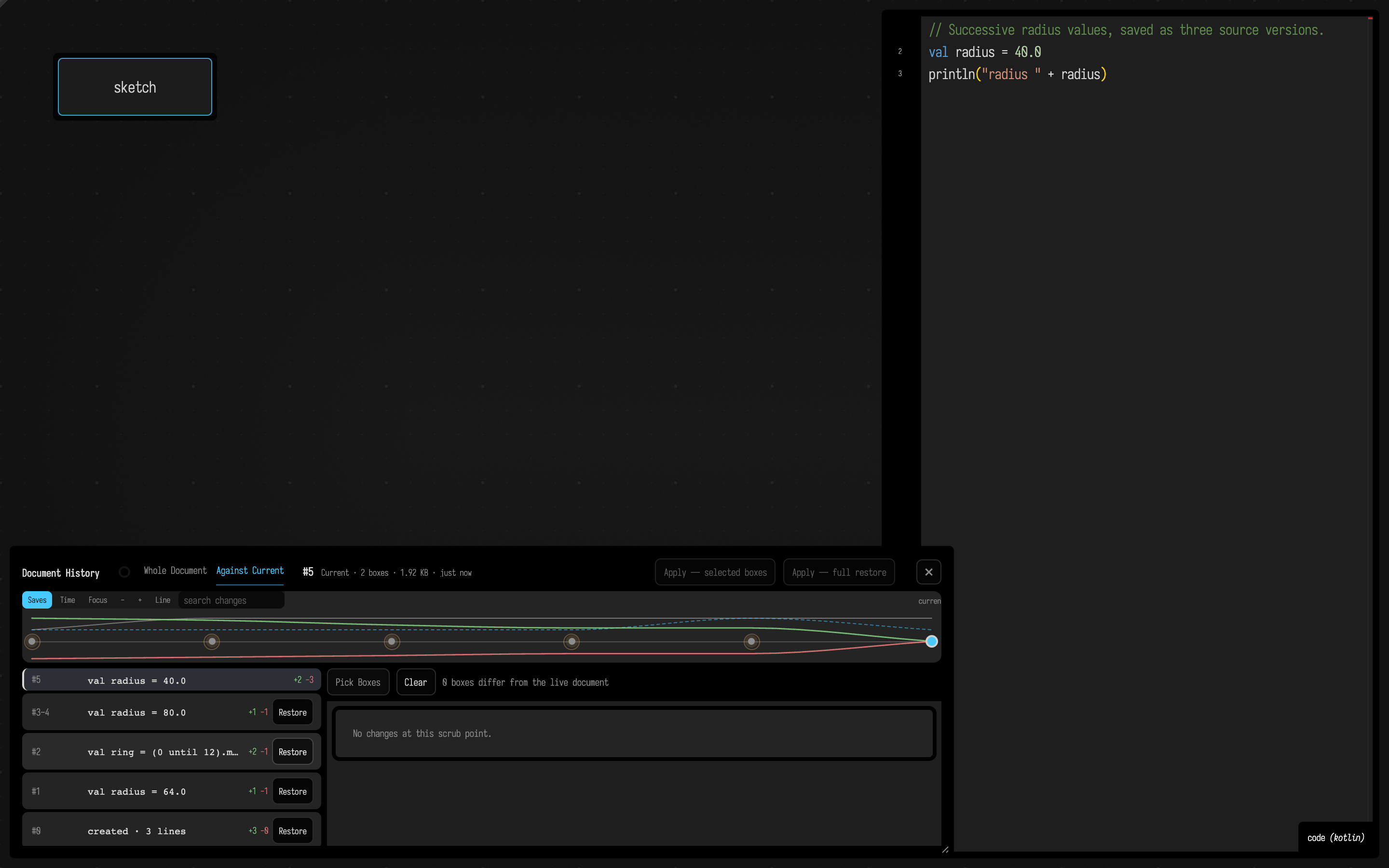
What a full restore changes
- Boxes in the chosen version get back the properties they had then.
- Boxes the chosen version did not have are not deleted: they are stopped and marked as removed, and they come back if you restore a version that had them.
- The jump is recorded in the sidebar's Version Jumps list. Picking boxes is not recorded there; it is an ordinary edit, and the next save backs up the state before it.
Reading the timeline
The newest entry, marked Current, is the document as it is now; the others are earlier saves,
numbered #0 (oldest), #1, … Each shows its box count, the size of the saved file and how long
ago it was saved. Counts and diffs for older versions arrive a moment after the list, so an entry
can briefly read 0 boxes.
- Saves / Time spaces the timeline one slot per save, or by when each save happened; Focus, − and + zoom it.
- Whole Document / Selected Boxes narrows the page to the box selected on the canvas.
- Against Current compares each version with the current document; toggled to Since Previous, it compares each version with the save before it.
- The sidebar shows the selected version's boxes, properties and lines.
Find the version you want
- search changes keeps only the versions whose changes contain the text you type.
- Line keeps only the versions that changed the line your editor cursor is on — a per-line blame.
- name this version labels the selected version (
#12 before the refactor); named versions are listed in the sidebar, and Code History shows the same labels.
Where versions come from
History is read from files in the document's folder:
metadata.ednis the current version.backups/metadata_backup_00000.edn,…00001.edn, … are the earlier ones. A save writes one only when the document's contents changed, so the timeline holds real saved states, not every keystroke. Document backups are never pruned; the history goes back to the document's first save. (Sidecar files such as a box's.ktkeep their own last ten backups in the same folder; history does not need them, since each document backup holds the box text too.)backups/<sidecar>.external-<time>files are disk edits Field overrode. When a sidecar is edited outside Field while the same box has an unsaved edit in Field, Field's edit wins and the disk text is kept here, with a notice naming the file. They are not versions and do not appear in the timeline; the newest ten per sidecar are kept.versions.ednholds version names and the list of full-restore jumps, for example{"transitions" [{"fromIndex" 4 "toIndex" 0 "timestamp" …}] "names" {1 "radius sixty-four"}}.history_metrics.ednrecords what happened between saves (how many boxes were edited, moved or run) for the timeline's per-version statistics. Losing it loses those statistics, not any version.
A document that has been saved only once has nothing earlier to show. Deleting backup files
renumbers every later version, and version names follow the numbers, so leave backups/ alone if
you have named versions.
Related features
- Use Code History to scrub a single line through its versions without leaving the editor.
- Use a bookmark to return to a saved working view without changing content.
- Use Interactive Guides when you want to explain a document state instead of restoring one.