Browsing code from the completion panel
Press ctrl-space for autocomplete and, next to the list of suggestions, a panel shows a card
for the highlighted one: its signature, its documentation comment (the /** … */ written above
the declaration), and a source …:line link at the bottom. You can explore the documentation
from that card without leaving the editor. Click a [Symbol] reference in the documentation, or
the source …:line link, and the panel opens that symbol's own card; back, forward and a
breadcrumb trail help you find your way back.
A [Symbol] becomes a link only when Field can find the declaration it names. One it can't
find stays plain, bracketed text.
The order of the candidates in the popup is covered in How completions are ranked, including how a class of your own can promote its members.
A worked example
Start typing a value and ask for completions. Here we type val axis = vec and
press ctrl-space. The best match is vec, the function that builds a 2D
vector, and its documentation reads "Creates a mutable 2D Vec2 from numeric
coordinates." Because Field can find Vec2 — it is a real type alias in Field's
standard library — the [Vec2] token in that sentence is rendered as a link:
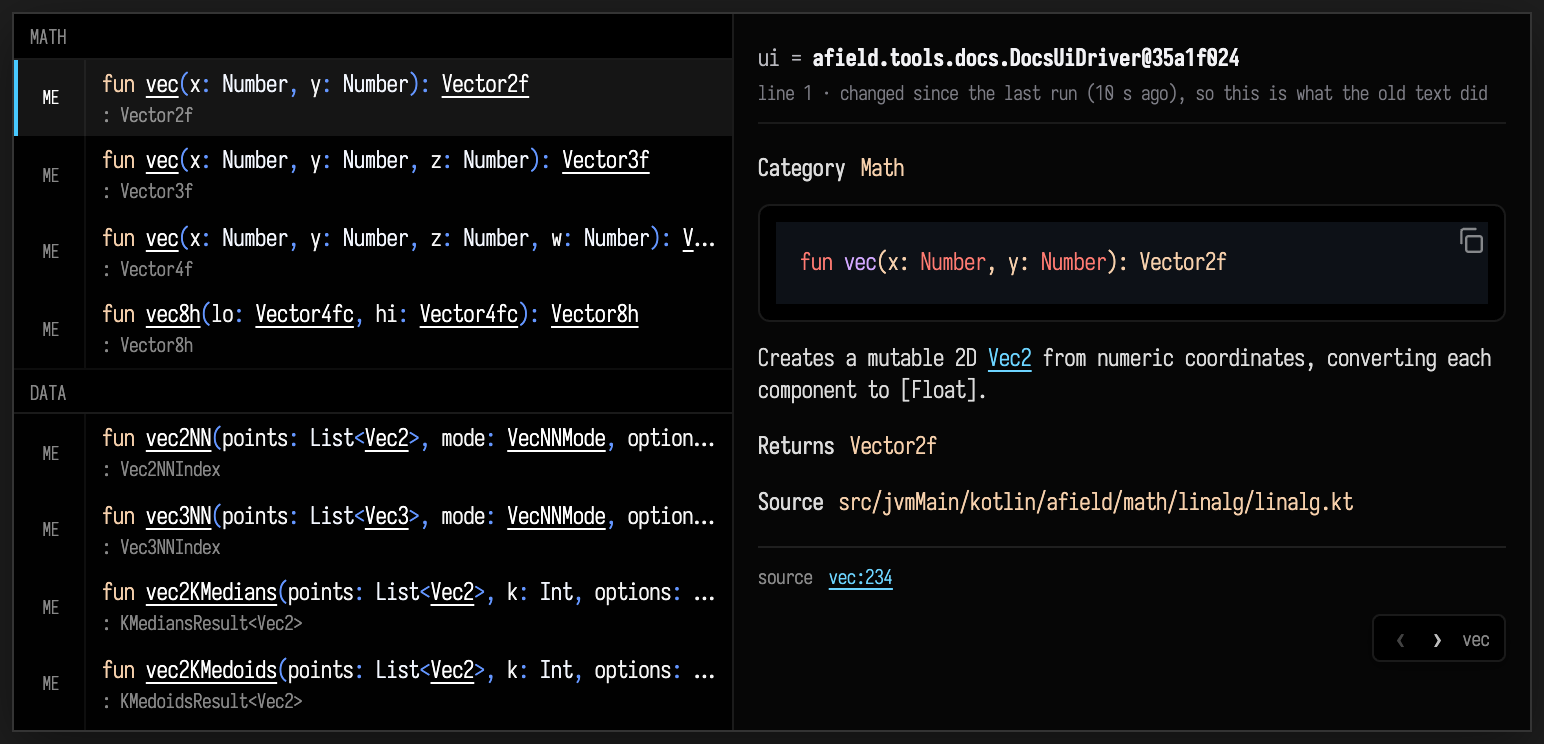
The Vec2 in the documentation is underlined: that is the link. The same
sentence ends "…converting each component to [Float].", and there [Float]
stays literal: Float comes from the Kotlin standard library, whose source
Field does not index, so there is nothing to link to. The source …:line footer
at the bottom of the card is a link too, to the line where vec is defined.
Following a link
Click [Vec2] to open its card, with the type alias and its documentation. Your code stays
where it is. A back/forward control and breadcrumb trail appear in the corner:
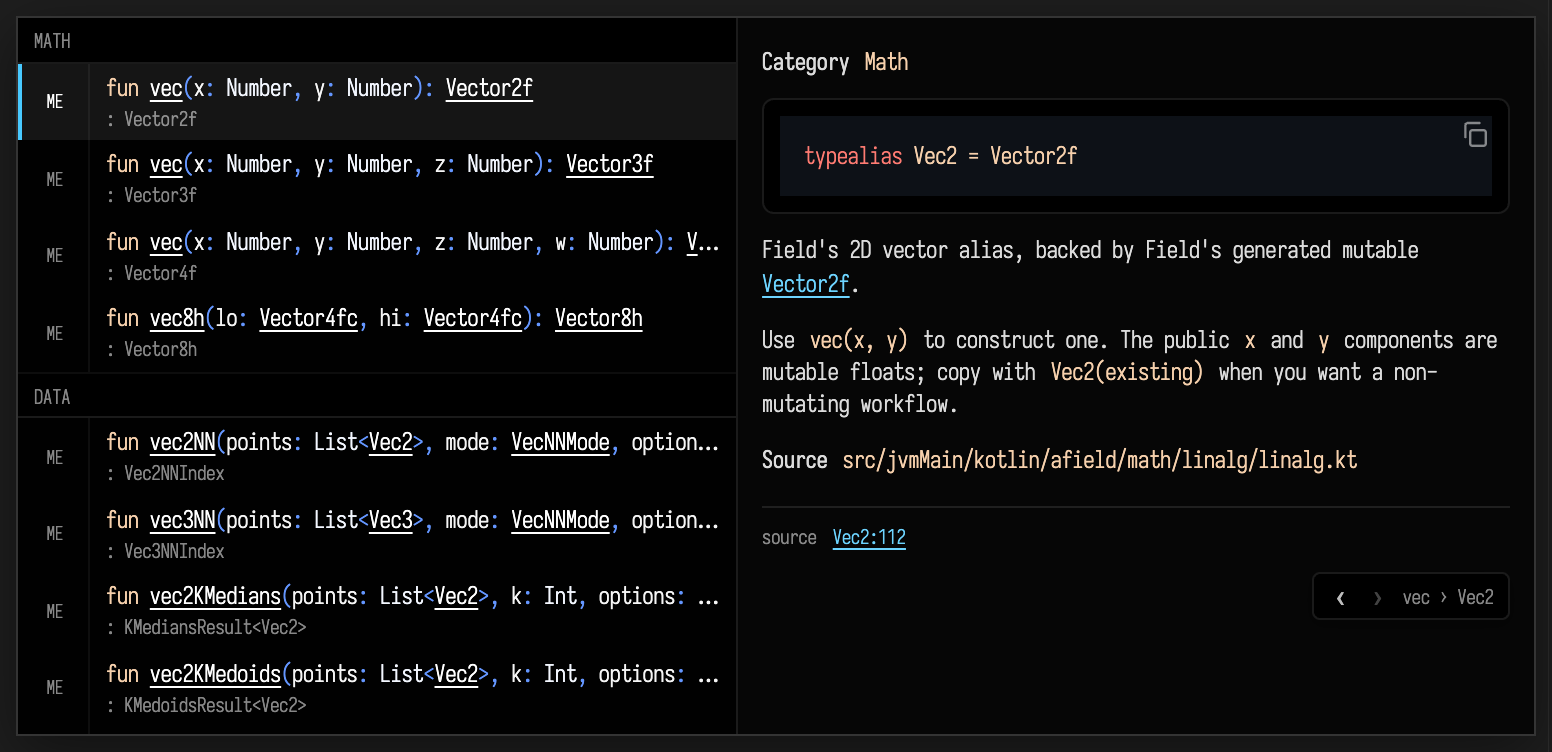
From here the browsing is recursive. Vec2's card is itself linkified, so any
[Symbol] it mentions is another hop deeper. The ‹ back button (or the
breadcrumb) returns you to the vec card you came from; › goes forward again.
Closing the completion popup resets the trail.
The autocomplete underneath all this is covered in the Survival Guide. Conversational code search is a separate UI and retrieval path; see Semantic retrieval.
Local completion history
Field keeps a local log of how you use autocomplete: what was suggested, what you picked, and the full source of the box you were editing at the time.
The files live under ~/.afield/logs/completion_interactions/, one JSONL file per UTC day. They are not
uploaded anywhere. Because they contain full source, treat them with the same privacy and backup
care as the Field documents themselves. AFIELD_COMPLETION_INTERACTION_LOG_PATH can redirect the log
directory.
Browsing the full index
To browse declarations when you don't yet know a name, open What's already in the box. It lists the same declarations and links to their documentation.
Next on the Tour, Connecting Boxes puts one box beneath another so the child can read what its parent publishes.