AI features
Ask a question about the box you're working in, ask for an edit at the cursor, or let AI suggest what to write next. Field includes the selected box and cursor position with your request, so the conversation starts where your work already is.
Start a conversation with ctrl/command-4, ask for an edit with ctrl/command-3, or press
ctrl-space to mix AI suggestions into ordinary completion. You can also use ai("...") to fill
in a function body from its signature. First, configure OpenAI, OpenRouter, Anthropic or a
local model server from /welcome or from the environment.
Chat about one box
Select one box and press ctrl/command-4, or run AI Chat (panel) from the
command palette. Field opens the ai-chat output area for that box. The chat
receives the box's current code and can use the Field tools made available by
the server to inspect or propose edits to box properties and related source.
To speak a prompt instead of typing it, hold Right Option (Right Ctrl on Windows and Linux): see Talking to AI4.
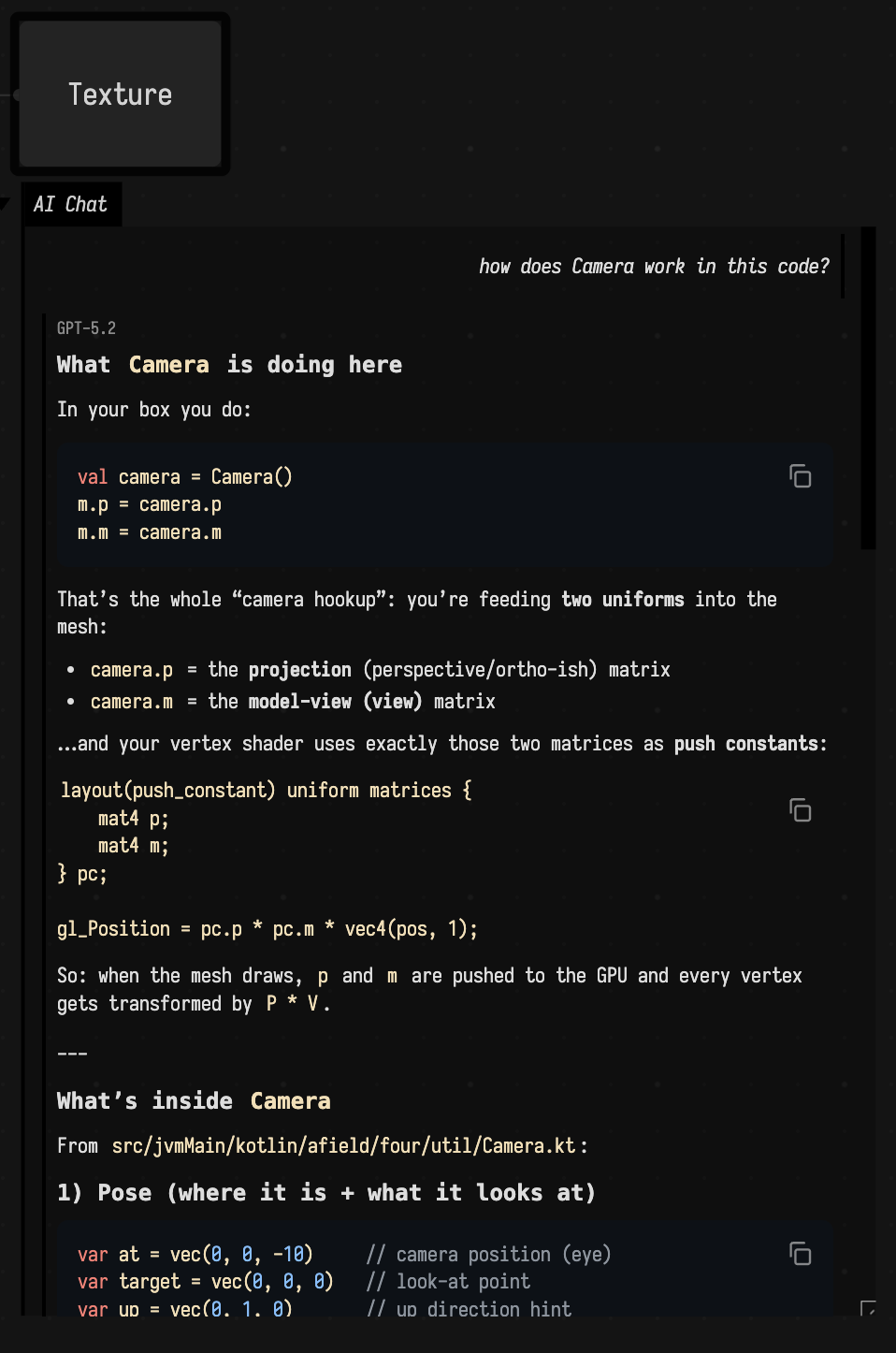
The conversation belongs to the box. Field saves it with the document, including model
labels, tool results and images. Reopen AI Chat (panel) after a reload or restart to
read it and continue. Different property editors of the same box share that conversation.
/clear deletes the box's saved conversation and starts a new one. Finish the current
AI turn before clearing. Ordinary document autosave also checkpoints running replies.
After a restart or provider change, AI4 uses the recent saved text as context. The full
transcript stays in the document's <box-id>_ai4_chat_history_.md sidecar. To keep resumed
requests bounded, model context uses at most the most recent 64,000 characters (preferring
whole turns); saved images remain visible but must be attached again for fresh image analysis.
Writing while it works
You can send a correction or a new instruction while AI4 is working. Your message appears at the end of the conversation marked queued. The model reads it between tool calls, and the message moves to the point in the reply where it was read. If the reply finishes first, Field sends the queued message as your next message; several queued messages go together.
Waiting for long builds
An agent that starts a long derived build can end its turn and leave the waiting to Field, which resumes the conversation with the build's outcome when it finishes. No model request is made while it waits. See Let AI4 Wait for Long Builds.
Browsing saved states
When a document registers a stateTree provider or an extension uses branchState,
States appears at the top of AI4 chat to browse its histories and saved conversation
branches. Saved extension snapshots also keep the browser available after reopening.
Ordinary chat history alone does not show this control. Select a node to inspect it.
The current position has a cyan circle and a current label; selecting another node only browses it.
Choose Reference in chat to add the selected state to your draft. AI4 can then retrieve its contents when needed. To compare two states, choose Keep for comparison, select the second, and choose Discuss differences. Field keeps your draft and waits for you to send it.
The tree updates as states are saved, keeping your selection and draft. You can also refresh it or use Older/Newer to page through a long history; edges whose parents are outside the current page are labelled.
Conversation nodes show their recorded extension snapshot identities. They do not claim to be complete document backups. Providers explain their own coverage, such as a retained undo chain or checked source revisions. This browser does not restore states or merge them.
AI4 and external agents share four tools:
| Tool | Behaviour |
|---|---|
StateListRequest |
List histories, search names/IDs, page through node metadata, and discover canFork. No state bodies are included. |
StateReadRequest |
Read by exact ID or unique exact name within a history. Large states have bounded character pages; pass the returned revision on subsequent pages. |
StateShowRequest |
Reveal the history and selected state in the human browser. Success requires frontend acknowledgement. This shows ancestry and saved text, not reconstructed geometry. |
StateForkRequest |
Create a named saved child within this document, leaving the active state unchanged. Only available for providers reporting canFork. |
For example, ask AI4 to “list saved states”, “read Courtyard alternative”, or “show that state in the browser”. History labels and state names must be unique; ambiguous names require the exact IDs returned by the list tool. References from the browser already carry those IDs. No operation silently chooses among duplicates.
Conversation forks are saved empty children that inherit the transcript, memory
and registered snapshots. Continue one through the existing /branches and
/branch <number> commands, which retain the existing restoration/conflict rules.
A SourceStudy fork copies the saved source into a named child revision without
compilation or changes to live source or HEAD. Creating a branch does not activate
it. These are provider-specific histories, not complete document forks.
A document can expose an existing history without adopting a new persistence format:
import afield.ai.completion.*
import afield.ai.diagnostics.*
import afield.ai.models.*

// Connect these callbacks to your existing saved-state store.
stateTree(
    "design",
    "Design",
    read = {
        StateTreeSnapshot(
            nodes = [StateTreeNode("saved-1", title = "Initial design")],
            current = "saved-1",
            note = "Saved authored states",
        )
    },
    inspect = { id ->
        require(id == "saved-1")
        "Width: 6000 mm"
    },
)
The callbacks must only read saved data: no compilation, restoration or builds.
Node IDs must remain stable and unique; parents contains explicit ancestry.
For an existing SourceStudy, use stateTree("recipe", "Recipe", myStudy).
This reads saved revision metadata and verifies source hashes without re-running
admission. It also supports named saved forks. A custom provider remains read-only
unless it supplies a fork = { parentId, name -> ... } callback that returns a new
saved child ID without activation or restoration. Histories that prune old states
must establish durable branch storage before offering that callback. Registration
belongs to the box's run and is replaced when re-run.
Going back
Hover over one of your messages and two buttons appear. rewind takes the
conversation back to just before that message; edit does the same and puts
the message back in the input, so you can change it and send it again. Nothing
is thrown away: the turns after that point stay as a branch. /branches lists
the branches and /branch 1 switches to one.
If the turns you rewound changed the document, Field asks whether to undo those
changes too. It undoes the box edits those turns made, and only those, and
deletes the boxes they created. An edit someone has changed since is left alone,
and so is a created box someone has since edited, moved or connected to another;
the reply names the boxes it kept and why.
The shape of the conversation is kept in <box-id>_ai4_session_.jsonl beside the
transcript, with its images in the document's ai4_blobs folder.
/context shows what the last turn sent besides the conversation itself: each
part of the instructions, its size, and what the provider keeps of it. That
differs by provider. OpenAI keeps the conversation on its side, so the stable
instructions go into it once and the context that changes between turns is added
with every turn. A long conversation grows that way, but it stays cacheable, which
costs less than sending the changing context separately.
Anthropic gets the stable instructions with every request and the changing context
with the newest request only.
You can paste images into the chat input. Field sends those attachments with the next message, which is useful when the desired change is easier to point at than describe.
A chat is saved with its box, rewound turns included. Reading saved AI4 chats shows how to read one back as a tree and have AI4 write a shorter version of it beside the original.
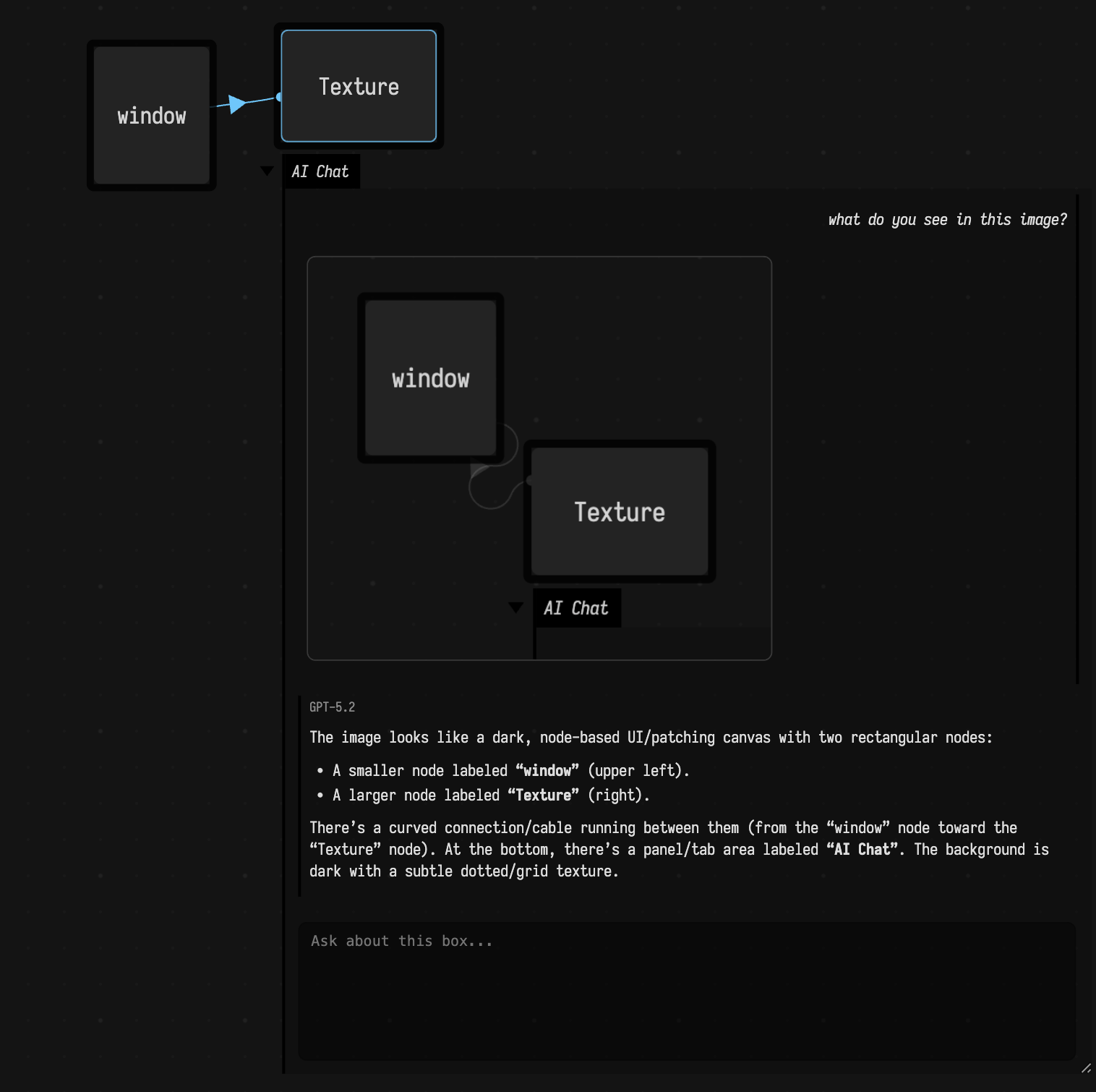
For a complete conversation that changes code and inspects its result, try
Talking a function into existence. It provides a
blank three-channel signal document, a developed example with saved conversations,
and editable tools for plotting, checking and exporting the function.
Talking a shader into existence does the same for a
StackSL program drawn live in a window, with three recorded sessions, and
Talking to the StackSL in your shader for the
stack.auto slots inside your own vertex and fragment shaders.
Chat at an editor location
Press ctrl/command-3, or run AI Chat in editor. With a selection, Field
marks that range as the requested rewrite; without a selection, it marks the
cursor position. The request also identifies the current box property and line.

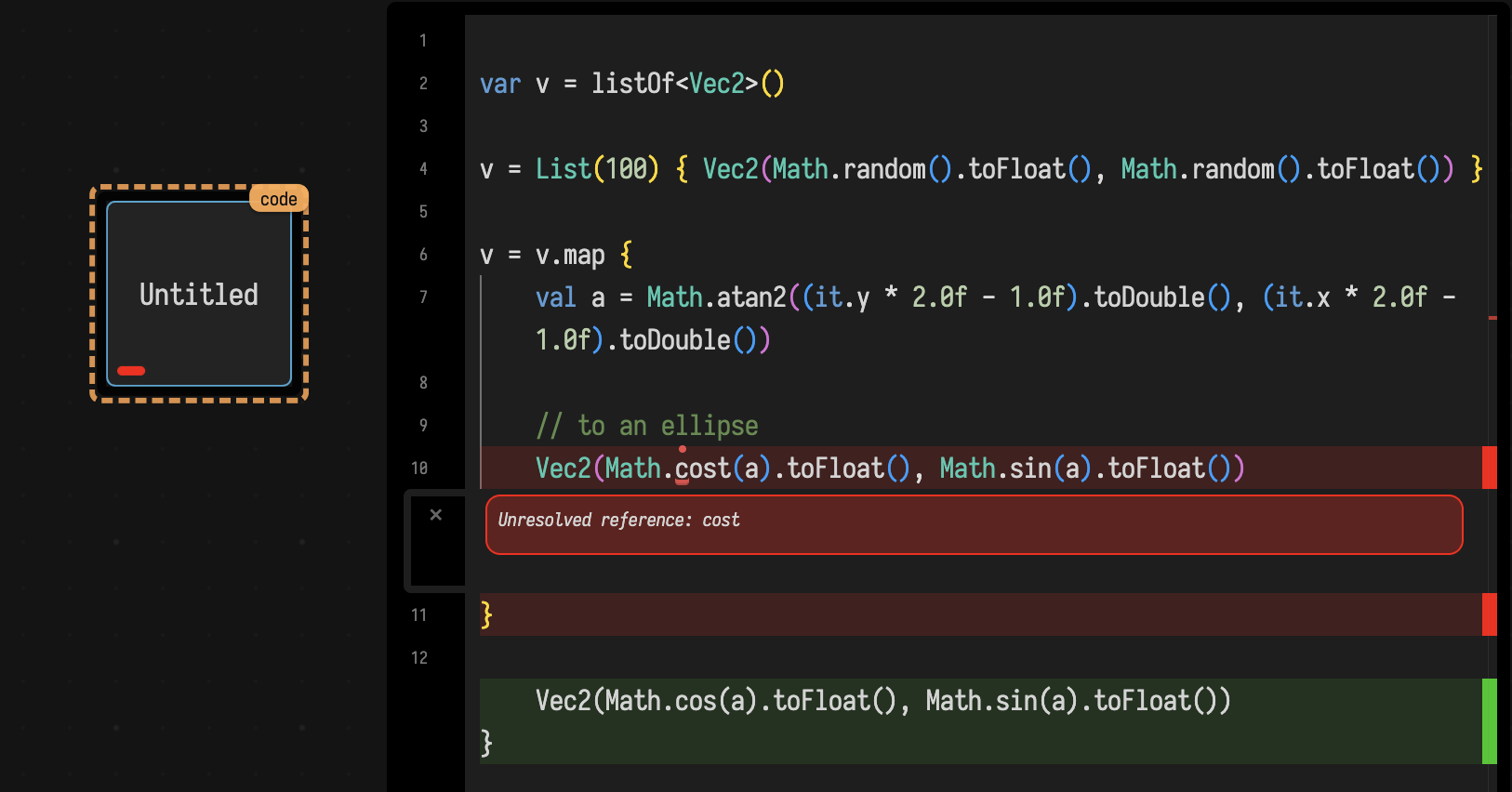
An edit can arrive as a provisional value rather than immediately replacing the saved property:
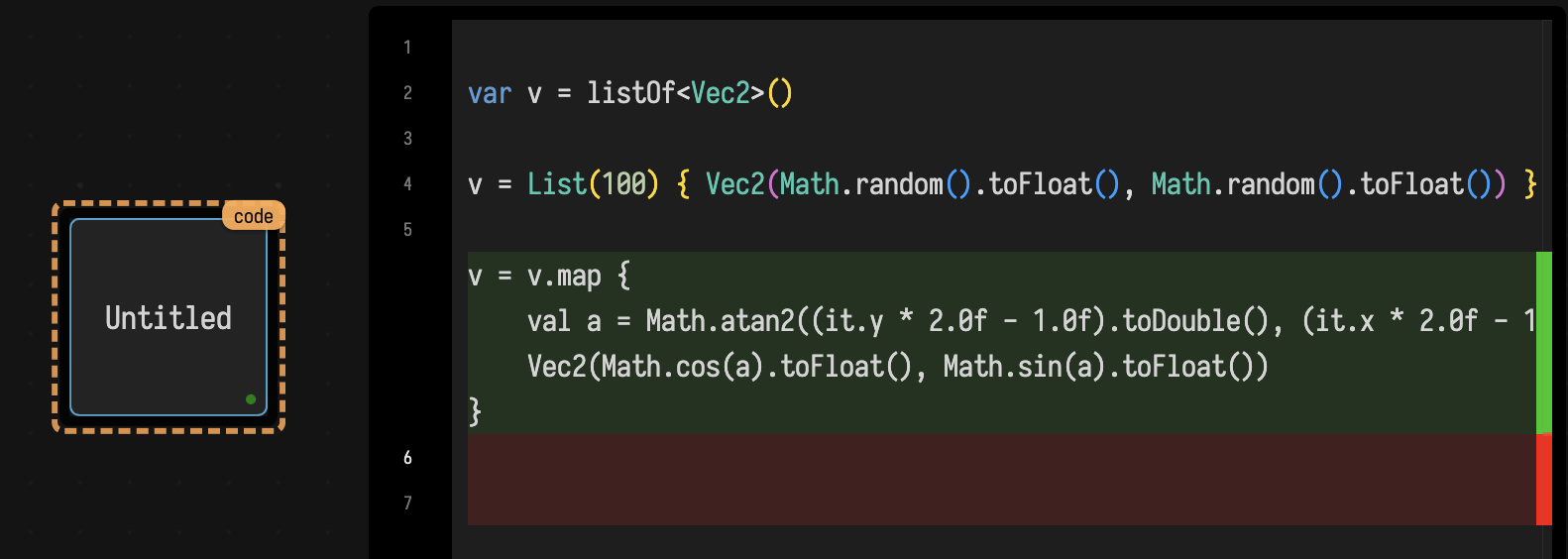
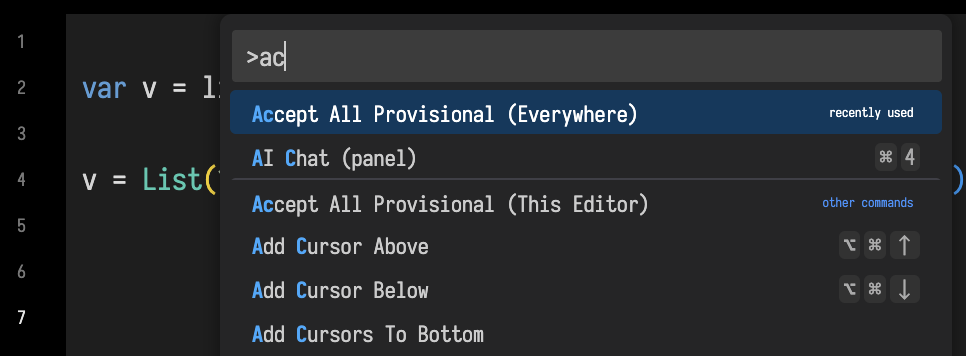
Monaco shows additions and deletions. Use the editor controls or the command palette actions Accept All Provisional / Reject All Provisional, either for the current editor or everywhere, to resolve them.
Ask AI about a displayed error
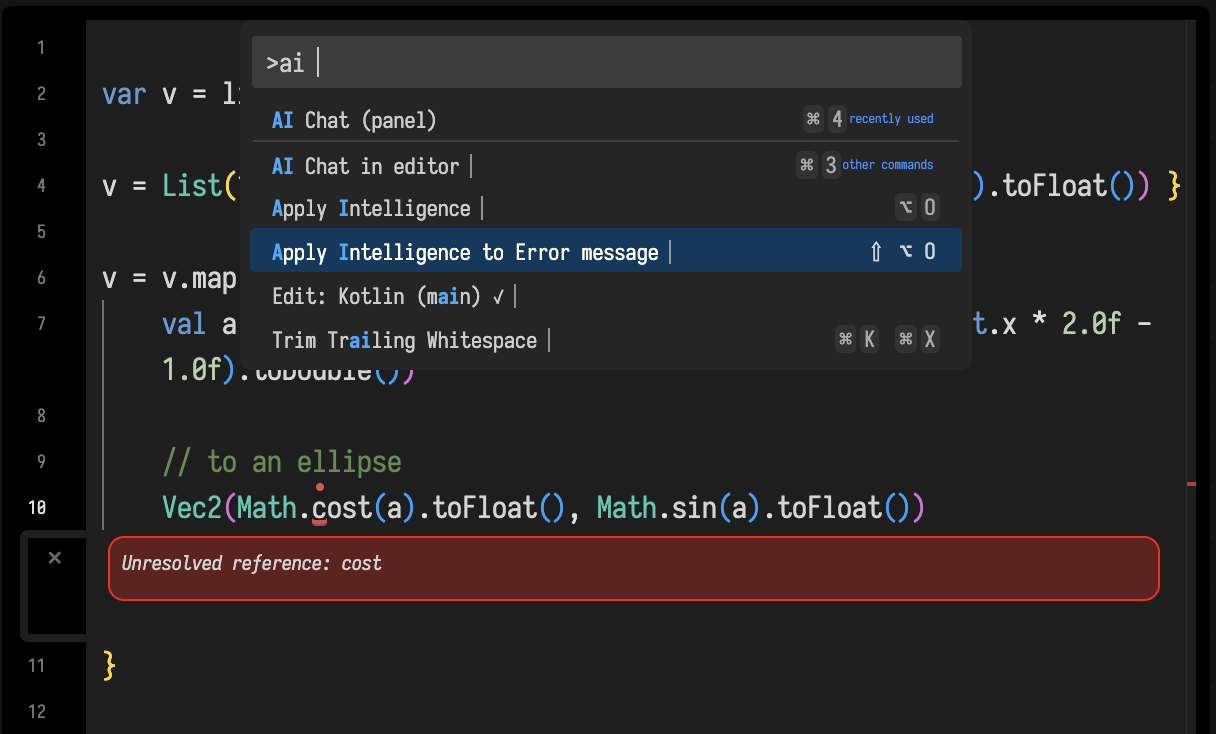
Apply Intelligence to Error message sends the current editor context plus Field's last displayed error. Any resulting code change follows the same provisional-edit path, so it remains reviewable before acceptance.
AI-assisted completion
ctrl-space opens Field's completion panel. Kotlin completions come from
Field's compiler-backed completion path; Python completion uses Jedi. Field can
also request AI candidates in the background and add at most three of them to
the same list when they arrive.
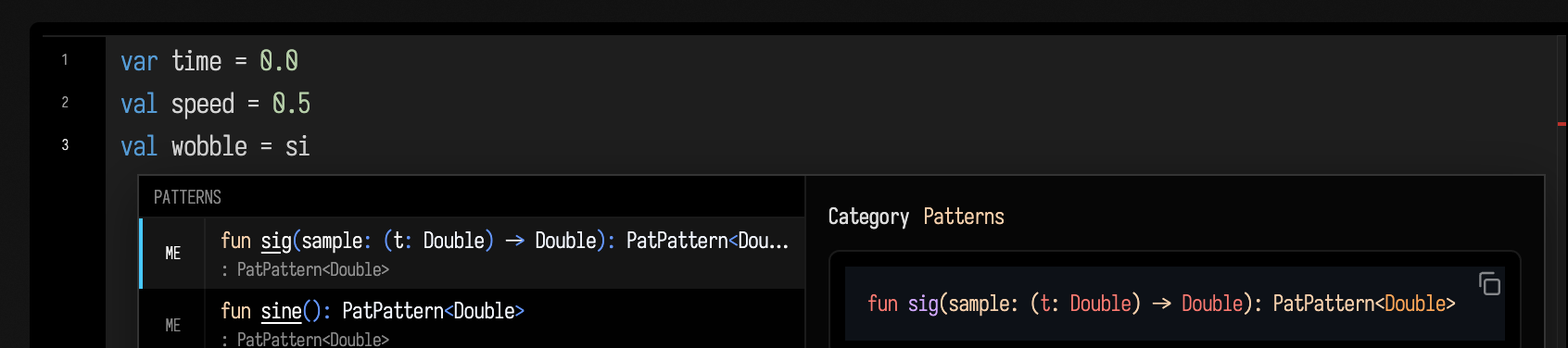
AI completion is asynchronous. The ordinary completion list can be used before the AI request finishes, and a missing key or remote failure should not prevent compiler-backed candidates from appearing.
The ai() function macro
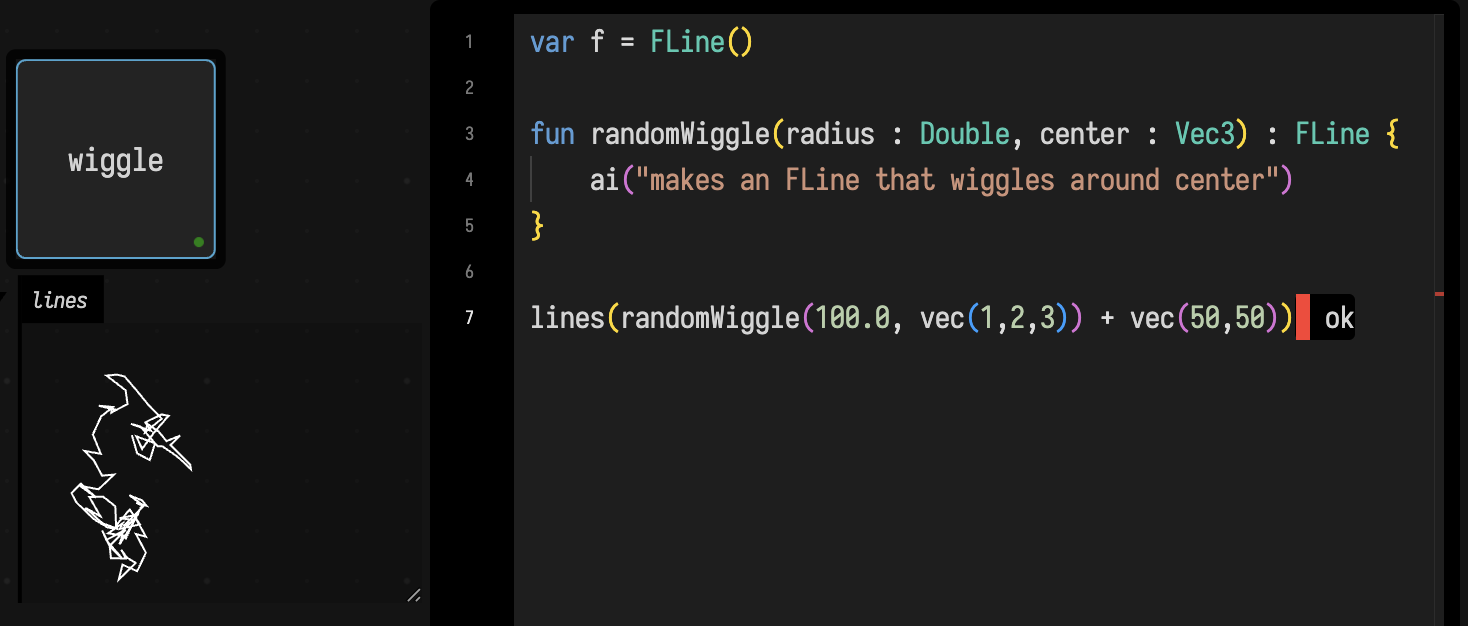
Inside a named Kotlin function with explicit parameter and return types,
ai("description") asks Field to generate the implementation of a private
forwarded function:
fun randomWiggle(radius: Double, center: Vec3): FLine {
    ai("makes an FLine that wiggles around center")
}
On the first expansion, Field asks the configured model for a function with the
derived name and exact signature, then compile-checks the answer. It makes three
attempts, handing the compiler's errors back to the model between them; if the
third still does not compile, Field keeps that code and says so in a
notification rather than failing the expansion. The generated block is stored in
the box's attic property. Later expansions reuse it only while the function
signature and prompt still match; changing either causes Field to generate a
replacement.
Give the AI a tool of your own
The tools a chat already has, with a worked call for the common ones, are listed on AI4's built-in tools.
You can give AI4 tools for your own work. Write a Kotlin class and a lambda, register them together, and on the next turn the model can call your tool by name and read what it returns.
The API is afield.ai.tools.AgentToolExtensions; you can register a tool directly
from a box.
The smallest version
Paste this into a box and run it. It needs no API key: the last three lines call the tool the same way a model's tool call does, so you can see the whole loop before involving a model at all.
:::static
import com.fasterxml.jackson.annotation.JsonClassDescription
import com.fasterxml.jackson.annotation.JsonPropertyDescription

/*
The request class IS the schema. Its name is the tool's name, and these two
annotations are the only prompt this tool gets — write them for a reader who
cannot see the code.
*/
@JsonClassDescription("Measure a rectangular room and say whether it meets a minimum floor area.")
data class MeasureRoom(
    @JsonPropertyDescription("The room's width in metres.") val width: Double,
    @JsonPropertyDescription("The room's depth in metres.") val depth: Double,
    @JsonPropertyDescription("The smallest floor area, in square metres, that counts as acceptable.")
    val minimumArea: Double = 11.0,
)

// Implementing SummarisesForToolLog is what puts something readable in Field's
// tool I/O log; without it the log records only this class's name.
data class MeasureRoomResult(val area: Double, val acceptable: Boolean) : SummarisesForToolLog {
    override fun toolLogSummary() = "area=%.2f acceptable=%s".format(area, acceptable)
}

AgentToolExtensions.register(MeasureRoom::class.java) { _, request ->
    val area = request.width * request.depth
    MeasureRoomResult(area, area >= request.minimumArea)
}

// Now look at it the way the model will, with no model involved.
val ctx = ToolExecutionContext()
println(AgentToolExtensions.describe(ctx).single { "MeasureRoom" in it })

val answer =
    AgentToolExtensions.execute(
        ctx,
        "MeasureRoom",
        """{"width": 4.2, "depth": 3.1}""",
    ) as MeasureRoomResult
println(answer.toolLogSummary())
The first println is the schema, and it is worth reading: width and depth
are required because they have no default, minimumArea is not because it has
one, and every @JsonPropertyDescription is there. Enums become a string with an
enumerated list. That is the whole schema language.
The second is 13.02, and it arrived by way of a JSON string, through the same
Jackson call the bridge makes, so a request class whose defaults or enums do not
survive the trip fails here rather than in the middle of a conversation.
Now select any box, press ctrl/command-4, and ask "is a 4.2 by 3.1 metre room
big enough?"
Live coding
Registration is keyed on the tool's name, so re-running the box replaces the tool rather than adding a second copy of it, and there is no order you have to follow: register before you open the chat or after, and a conversation that is already running picks the change up on its next turn. Editing the handler and re-running is the intended way to work.
AgentToolExtensions.unregister("MeasureRoom") takes it away again.
One rule: the class's simple name has to be unique across the whole
conversation, which includes Field's own built-in tools. Naming your request
class Commentary or EditFileRequest is rejected with an error saying so,
rather than shadowing a tool the model has been told it can rely on.
Deciding when a tool is offered
Every registered tool costs its schema on every request, in every conversation, whether or not the subject ever comes up. The second argument is a gate, asked each turn:
AgentToolExtensions.register(
    MeasureRoom::class.java,
    available = { thereIsAPlanOpen() },
) { _, request ->
    /* … */
}
A closed gate removes the tool from the list the model is shown, rather than leaving it visible and failing when called.
A tool most conversations never need can be listed by name only. Its schema is sent the first time the model asks for it, and stays for the rest of that conversation:
aiTool("survey.export") {
    describe("Write the survey as CSV.")
    exposure(ToolExposure.DEFERRED)
    effects(ToolEffect.FILESYSTEM_WRITE)
    action { /* … */ }
}
effects(...) says what a call does. A tool that declares
ToolEffect.MUTATE_DOCUMENT is refused on a read-only document before its action
runs, and MCP clients see the declaration as readOnlyHint and destructiveHint.
For AgentToolExtensions.register the same two settings are
meta = ToolMeta(namespace, exposure, effects).
Many calls at once
The chat has a tool for writing small programs over its other tools. When a
request means a dozen similar calls (run every box, try eight values, tag every
note that has a TODO), the model can send one short JavaScript program instead,
and only what the program returns comes back into the conversation. Your tools
are callable from those programs like the built-in ones: tools.MeasureRoom({...}),
and a box-authored tool by its own name or the name the model sees,
tools["echo.box"]({...}) or tools.echo_box({...}). The model sees a box tool's
name with every character other than letters, digits, _ and - turned into _,
because the model providers accept no others, so two tools whose names would meet
that way (house.check and house_check) cannot both be registered. In the panel,
a program's line opens to show each call it made and how long it took.
A call that fails stops the program. If a tool could not run, or its result says
success: false or error: true, the call throws a ToolFailure whose result is
what the tool returned, so the steps after a failed check do not run unless the
program catches it. tools.MeasureRoom.raw({...}) returns the result without
throwing, for a program that looks at failures on purpose. A tool that ran and
reports a verdict, such as qualified: false or a list of holds, has not failed;
check(r.qualified, "the openings are not qualified") is how a program stops on it.
progress("Checking 12 window placements") shows a line in the panel while the
program runs; text(...) lines come back to the model when it ends. A program has
60 seconds unless it asks for more, at most 300, and is never retried. A tool call
it makes that waits (timeoutSeconds, waitSeconds) waits no longer than the
program has left, so a long job should be started and its handle returned, not
waited for inside the program. A result too large to keep in the conversation is
stored whole, and the call's record names it (evidence: "ai4ev:…") for
ReadToolEvidenceRequest to read back.
Programs run in a sandbox that reaches the tools and nothing else: no files, network, timers or Java. Edits a program makes are applied as it goes, exactly as the same calls made one at a time would be, so a program that stops halfway leaves its earlier edits in place, undoable like any other.
More than a tool: agentExtension
A box can give the agent more than tools. Inside agentExtension { } it can add
context the agent reads at the start of every turn, look at each tool call before
it runs and refuse it, look at the result afterwards, and add chat commands:
agentExtension("studio") {
    context("tempo") { "The piece is at 96 bpm; keep edits in time." }
    beforeTool({ it == "DeleteBoxRequest" }) { refuse("Ask before deleting boxes in this document.") }
    afterTool { call, result -> if (!result.ok) println("${call.name} failed: ${result.summary}") }
    command("tempo", "show the tempo") { "**96 bpm**" }
}
An extension follows the same rules as aiTool: re-running the box replaces the
whole extension, a run that no longer declares a part removes it, and deleting the
box removes all of it. It applies to conversations about its own document. Each
hook has a quarter of a second; one that throws or takes longer is skipped and
reported in the log, so a broken hook cannot stop the agent. A beforeTool marked
mandatory = true is a guard instead: if it throws or does not answer within its
timeoutMs, the call is refused rather than run. Keep the checks that must hold
(a design revision, a qualification) in the tool that does the work as well, where
no extension can be missing. Context arrives marked
as coming from the document rather than as instructions, at most 4,000 characters a
part. /help lists the commands extensions add. AI4 paints
is a whole studio built this way, and Experimenting with AI4
adds a tool to it in the middle of a conversation.
Some state belongs to the conversation rather than to the document: a canvas the
agent paints on, a simulation it is steering. branchState hands that state to the
chat, which keeps a copy with every turn:
agentExtension("studio") {
    branchState(
        "canvas",
        save = { file -> canvas.saveState(file.path) },
        restore = { file -> canvas = file?.let { PaintCanvas.load(it.path) } ?: PaintCanvas() },
    )
}
Field calls save before and after every chat turn in the document and keeps
each copy once, by content, in the document's ai4_blobs/state folder. Rewinding
the chat to a request calls restore with the state from just before that request.
Switching to another branch with /branch restores the state at the end of that
branch. restore gets null when the conversation has no copy, for example a
conversation that began before the extension existed.
Before restoring, Field saves the state as it is and compares it with the state the
conversation last left. If something else changed it in the meantime, a person
dragging or a tool run from outside the chat, the state is left as it is and the
chat says so. onConflict = BranchConflict.RESTORE restores anyway, for state that
belongs to the conversation alone; the replaced state stays saved either way.
resumeOnOpen = true restores the state where the document's latest conversation
left it when the document opens. Leave it off for state the document saves itself.
Returning something the model can read — and see
Two optional interfaces let the tool report what it did and return images:
SummarisesForToolLog: one line for Field's tool I/O log. Without it the log records only your result's class name, so you cannot tell a turn where the model got what it needed from one where it got an error and gave up.CarriesToolImages: pictures. Both agent loops send them as real images: OpenAI and OpenRouter as a message following the tool output, Anthropic as image blocks inside the tool result itself. This is how a tool lets a model look at what it just did. A tool called over the MCP bridge returns them too, as MCP image content beside the JSON result (up to eight per call).
data class RoomReport(
    val area: Double,
    val acceptable: Boolean,
    override val toolImages: List<ToolImage>,
) : SummarisesForToolLog, CarriesToolImages {
    override fun toolLogSummary() = "area=%.2f acceptable=%s".format(area, acceptable)
}
toolImages is annotated @get:JsonIgnore on the interface, so override it as
shown rather than declaring your own image field. A tool result is serialised to
JSON and sent to the model as the function output, and a base64 PNG inside that
JSON is spent as text tokens: the model cannot see an image encoded in a string.
A worked example you can run
afield.graphics.render.GeometryAgentTools is a real, public tool set built exactly
this way, over the loaders in Geometry from disk. Point
it at a directory and the model can find out what geometry you have and look at
any of it:
import java.io.File

GeometryAgentTools.addSearchRoot(File(System.getProperty("user.home"), "scans"))
GeometryAgentTools.register()
Two tools appear. This is the schema the model is shown for the second one,
verbatim from AgentToolExtensions.describe(...):
{
  "name": "InspectGeometryFile",
  "description": "Load one 3D geometry file and report its measurements — vertex and triangle counts, bounding-box extent, surface area, watertightness — and, unless render is false, return a rendered image of it to look at. Paths come from ListGeometryFiles.",
  "inputSchema": {
    "type": "object",
    "properties": {
      "path": {"type": "string", "description": "The file to inspect: a path from ListGeometryFiles, or an absolute path inside a search root."},
      "render": {"type": "boolean", "description": "Return a rendered image of the mesh. True by default; set false when only the numbers are wanted."},
      "yawDegrees": {"type": "number", "description": "Camera orbit around the vertical axis in degrees. Ask again with a different value to see another side."},
      "pitchDegrees": {"type": "number", "description": "Camera height above the horizon in degrees. Positive looks down on the object."},
      "wireframe": {"type": "boolean", "description": "Draw the triangle edges over the shading. Useful for judging mesh density; illegible above about 50,000 triangles."}
    },
    "required": ["path"]
  }
}
Called on the glTF sample that ships with Field, it answers with 77429 vertices, 108936 triangles, an extent of 0.073 × 0.029 × 0.074 metres, and this picture:
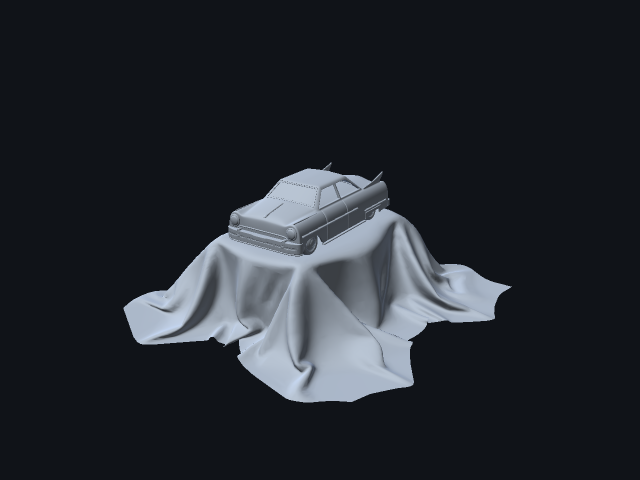
The full session (both descriptors, both calls, both results) is in
session.md;
it needs no API key and no model.
If you have no scans handy, this makes some and runs both tools over them, including putting the picture the model would receive into the box's output:
:::static
import java.io.File

val root = File(System.getProperty("java.io.tmpdir"), "field-ai-tool-docs").also { it.mkdirs() }
if (!File(root, "knot.obj").isFile) torusMesh().saveObj(File(root, "knot.obj"))

GeometryAgentTools.clearSearchRoots()
GeometryAgentTools.addSearchRoot(root)
GeometryAgentTools.register()

val ctx = ToolExecutionContext()
println(AgentToolExtensions.availableToolNames(ctx))

val report =
    AgentToolExtensions.execute(
        ctx,
        "InspectGeometryFile",
        """{"path": "knot.obj", "yawDegrees": 34.0}""",
    ) as InspectGeometryFileResult

println((report as SummarisesForToolLog).toolLogSummary())

/*
The picture is NOT in the JSON the model reads — see the note above. It comes
back on the CarriesToolImages channel, which is what the bridge turns into a
real image message. Here it is in the box output instead:
*/
val image = (report as CarriesToolImages).toolImages.single()
display("<img src='" + image.dataUrl + "' style='width:100%'/>")
execute takes a name and a JSON string, which is exactly the shape a model's
tool call arrives in, so this runs the real tool path with the model left out.
Both examples are side by side in the ai_tool_demo starting point.
If your tool takes a path, or anything else from the outside
A tool argument is a value a language model chose. For most tools that is
unremarkable, but a tool that reads a file, runs a command or calls a network
service needs a boundary of its own, and needs it in the handler rather than in
the prompt. GeometryAgentTools will only read inside directories you added as
search roots: it canonicalises the requested path and then walks up the parent
chain, which refuses a .. that escapes, a symlink that points out, and a
sibling directory whose name merely starts with a root's name.
Agents: how the chat and MCP bridges use a registration
How the two bridges (the chat and MCP) use your registration is described in
dev_docs/ai/AGENT_TOOL_EXTENSIONS.md.
A tool set that edits something which draws — a program, a scene, numbers in a
property — does not have to be written from scratch. Studies shows a
box handing one of its own properties to registerStudyTools, which gives the
chat ten tools for inspecting, editing, comparing and trying variants of it, each
answering with pictures.
Provider and key settings
The simplest setup is the AI settings card on /welcome, where you can select
OpenAI, OpenRouter or Anthropic (Claude), save the corresponding key, and
optionally override model names. Anthropic is the one that takes no key: it
authenticates from an ant auth login profile, minting a short-lived bearer
token per request. Provider changes take effect on the next AI request.
Provider threads are reset when settings change. Box conversations remain saved; the next turn
uses the saved conversation as context with the newly selected provider.
Model overrides are stored separately for each provider and can be cleared by
saving an empty model field. Saved keys live under ~/.afield/; they are not
stored in a document.
For environment-based setup, Field reads:
OPENAI_PLATFORM_KEYorOPENAI_API_KEYfor OpenAIOPENROUTER_API_KEYfor OpenRouterANTHROPIC_API_KEYfor Anthropic, orANTHROPIC_AUTH_TOKENfor a bearer token you already hold; either is used ahead of theantprofileAFIELD_AI_PROVIDER, one ofopenai,openrouteroranthropic, to choose between them
Environment variables take precedence over saved provider and credential
files. AFIELD_AI_BASE_URL overrides the base URL for OpenAI and OpenRouter;
Anthropic's own is ANTHROPIC_BASE_URL.
Some AI features maintain conversation state with the configured provider. The documentation/code search path indexes selected Kotlin source roots and GLSL include libraries locally. Automatic startup indexing never uploads source to OpenAI, OpenRouter, or Anthropic; the model receives only the excerpts selected for the current request. The explicitly invoked filestore maintenance CLI is a separate OpenAI-specific tool and may upload the files it is given. See Semantic retrieval for Field's separate local indexes.
Source edits, captures and launch receipts
AI4 can inspect the live, saved and last executed revisions of a box property, then
patch it against the revision it just read. A conflicting edit is refused instead
of overwriting newer work. DocumentSourceReadRequest and DocumentSourcePatchRequest
are shared with external agents through Field's MCP bridge.
DocumentBoxNavigateRequest selects a box, centers the canvas and opens the requested
property. DocumentSourceExportRequest writes a new graph snapshot and selected guides,
with source hashes and warnings about omitted runtime state. Export does not launch code;
review external assets, root preambles and dependencies before publishing a starting point.
Reloading a shader and grabbing the native window work the same way whether you ask in chat or from an external tool. External captures arrive as images. A failed shader reload may leave the last good picture visible, so its diagnostics remain separate from the screenshot.
When AI4 launches a Kotlin box, it gets back a receipt naming the source that completed setup. A box showing its running stripe may still be compiling, and a box whose setup succeeded may still stop animating later, so the receipt is what says setup finished. A Kotlin macro whose later steps depend on a launch stops when setup fails, and keeps the changes made so far so you can inspect them; undoing them is up to you.
Macros in other languages wait (up to ten seconds) for each engine's execution verdict, so their
receipts report completion too, and a failed execution is an error.
The external backdoor's awaited run, launch and continue commands get a receipt
from every engine, not only Kotlin. A box that printed an error comes back failed even
when its engine reported success.
See Flow grain and motion for an editable graphics example with resets, parameters, motion correspondence and a repeatable profiling scenario.