The keyframe editor: drawing a value over time
keyframes(...) puts a curve editor in a box's output: a graph of one value against time that you draw with the mouse. The box asks the curve for its value at any moment, and gets back what you drew. Use it for anything you would rather shape by hand than type: a brightness that swells and fades, the gain of an envelope, how fast a camera moves, a parameter over the course of a performance.
Each editor holds one number over time. A box can have as many as it likes, one per parameter.
Looking for the Keyframer?
The curve editor shapes one value over time. The Keyframer captures a whole set of a box's values and blends between snapshots.
A curve that drives something
Here a curve drives a meter. keyframes(name = "brightness", ...) shows the editor, seeded with four keys the first time it appears. The loop reads the time off the clock, wraps it every four seconds, moves the editor's playhead there with setTime, and sends the curve's value to the meter:
:::static
val brightness = keyframes(name = "brightness", defaults = [vec(0.0, 0.1), vec(1.0, 0.9), vec(2.5, 0.4), vec(4.0, 0.1)])

lateinit var level: MeterHandle
controlGroup("level") { level = meter("brightness") }
displayOpen("level")

val start = System.nanoTime()
loop {
    val t = ((System.nanoTime() - start) / 1e9) % 4.0
    brightness.setTime(t)
    level.set(brightness.evaluateValueAt(t))
}
defaults are (time, value) pairs, and they are only a starting point: once you edit the curve, your edits are what the box reads, and they are saved with the document. Rerunning the box keeps them, and so does closing Field. To start over from the defaults, give the editor a new name.
Time is whatever unit your loop counts in; the editor labels it in seconds. Values are not limited to 0 to 1: drag a key above or below and the graph makes room.
Editing the curve
Double-click empty graph to add a key. Drag a key to move it in time and value at once. Right-click a key for its menu: its exact time and value, its type, copy and paste, lock and delete. Double-click a key to type its value. A bezier key has handles that bend the curve on either side, and ctrl/command-Z undoes any of it:
| To | Do |
|---|---|
| add a key | double-click empty graph, or right-click it for the curve's menu |
| move keys | drag a key; every selected key moves with it |
| select | click a key; shift-click to select a range; drag across empty graph to select every key in that time band |
| select a box of keys | alt/option-drag across empty graph |
| select a moment in every linked lane | ctrl/command-drag across empty graph; then drag, nudge or delete them together |
| type a key's time or value | double-click the key, or right-click it; Enter applies |
| change a key's type, lock or delete it | right-click the key; with several selected, the menu acts on all of them |
| delete keys | Delete or Backspace removes the selection |
| nudge keys | the arrow keys move the selection a tenth of a grid step; Shift-arrow a whole step |
| undo, redo | ctrl/command-Z, shift-ctrl/command-Z (ctrl-Y also redoes elsewhere) |
| copy, cut, paste, duplicate | ctrl/command-C, ctrl/command-X, ctrl/command-V, ctrl/command-D; select all with ctrl/command-A |
| bend a bezier key | drag one of its handles |
| move without snapping | hold Alt while dragging |
| pan | scroll, or drag with the right or middle button on empty graph |
| zoom time | Ctrl-scroll or pinch |
| zoom time and value | Ctrl-Shift-scroll |
| show every key | Frame curve, in either menu |
| thin out or smooth a dense curve | Simplify and Smooth, in the curve's menu; see below |
Copied keys paste into any editor on the page, so you can copy a gesture from one curve to another. They keep their spacing, and land at the playhead when it is in view, or where the pointer last was. Undo goes back to the keys the box last gave the editor.
Here is the menu for a key, open over the curve. With several keys selected it acts on all of them, and a right-click on empty graph gives the curve's own menu instead: add a key there, paste, select all, simplify and smooth, undo and redo.
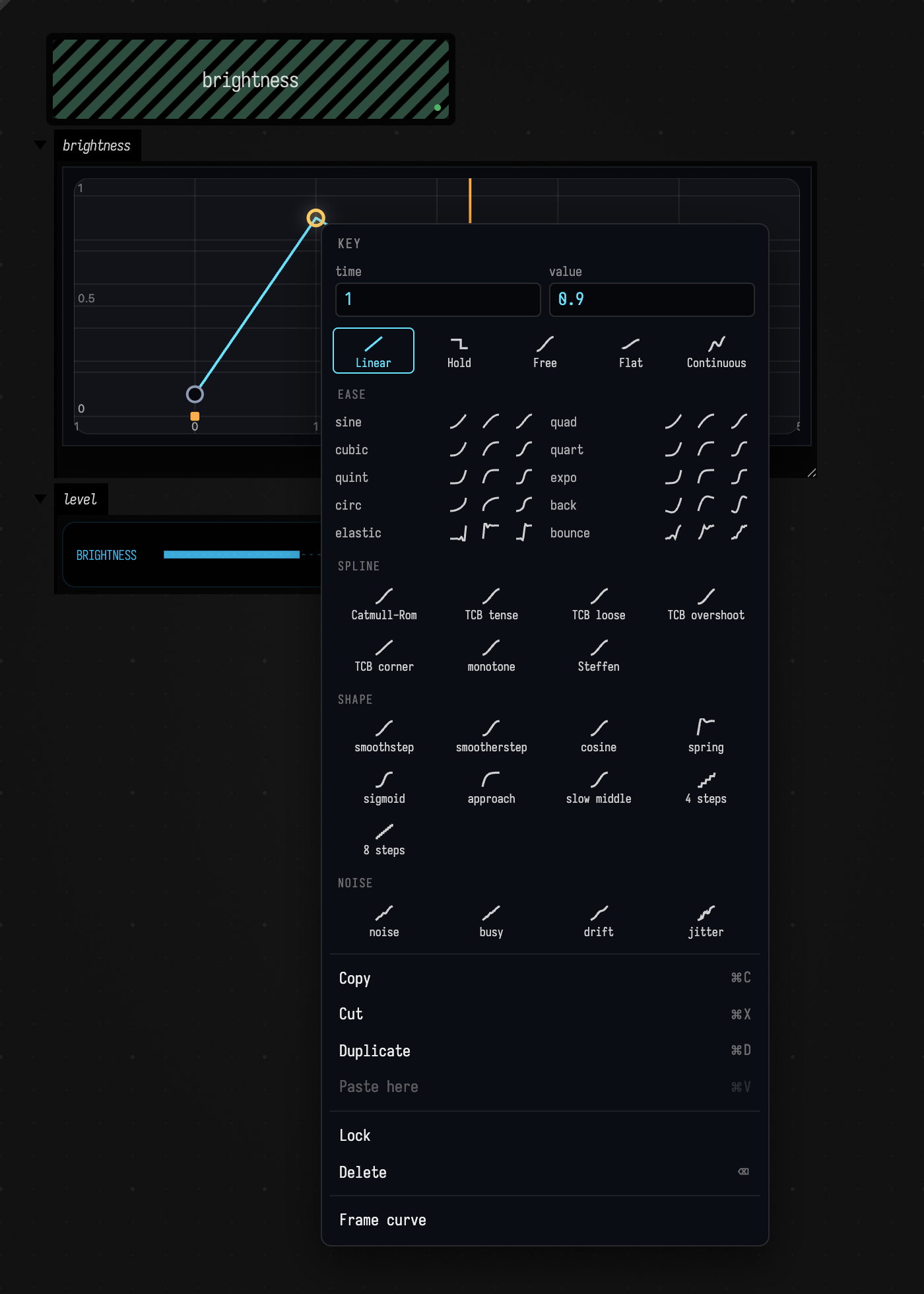
A dragged key snaps to the grid, to the playhead, halfway between its neighbours, and to the values of the other keys; a dashed yellow line shows what it caught on. A locked key cannot be dragged. The small orange square on the time axis marks time zero.
Simplifying and smoothing a take
A curve baked from a recording, such as a take from a gesture pad or numbers logged from a sensor, can have a key for every frame: too many to edit by hand, and every tremor of the hand is in them. Right-click empty graph, and the curve's menu has two sliders for this:
- Simplify removes every key it can while the curve stays close to where it was. Drag right to allow it to move further; the readout counts the keys left. The keys that stay become continuous beziers, with handles along the curve's slope, so a few keys still make the same smooth shape.
- Smooth averages each key's value with its neighbours' across a stretch of time, given in the readout, so jitter goes and the shape stays. The first and last keys don't move, and no key moves in time.
The curve changes as you drag, and letting go keeps it. Everything you do with the sliders while the menu is open is one undo step. Smoothing first, then simplifying, gives the fewest keys: there is less jitter for the simplified curve to follow. With three or more keys selected, both sliders work on the selection only, and the keys either side of it stay where they are. A key's own menu has them too, when it is one of a selection. Locked keys and hold keys are always kept as they are.
Here is a four-second curve with a key every 60th of a second, standing in for a take:
// Four seconds of a wobbling hand, a key every 60th of a second.
val rnd = java.util.Random(4)
val take = keyframes(
    name = "take",
    keys =
        (0..240).map { i ->
            val t = i / 60.0
            Keyframe(t, 0.5 + 0.35 * sin(t * 2.1) + 0.1 * sin(t * 7) + 0.04 * (rnd.nextDouble() - 0.5), "linear")
        },
)

val start = System.nanoTime()
loop {
    take.setTime(((System.nanoTime() - start) / 1e9) % 4.0)
}
Smoothed, then simplified, from the curve's menu:
From code, simplify(tolerance) and smooth(width) do the same to the whole curve. tolerance is how far the curve may move, in its own units, and width is the stretch of time each key is averaged over, the standard deviation of a Gaussian:
take.smooth(0.05) // over about a twentieth of a second
take.simplify(0.01) // within 0.01 of the smoothed curve, everywhere
A take from a gesture pad bakes into two lanes whose keys share their times. The Simplify slider thins them together: moved in one lane, it also simplifies every lane in the same group that has keys at the same times, and they keep the same key times, since a time stays if any of them needs it. The readout then counts the lanes, as in 241 → 17 keys, 2 lanes. From code, KeyframeEvaluator.simplifyTogether(listOf(sx, sy), 0.01) does the same.
Key types
A key's type shapes the segment that leaves it, up to the next key:
| Type | The segment after it |
|---|---|
linear |
a straight line to the next key |
hold |
stays at this key's value, then jumps |
bezierFlat |
eases out flat: a smooth start with no overshoot |
bezierContinuous |
a smooth curve whose two handles stay in line, so the curve has no corner at the key |
bezierFree |
a smooth curve with the two handles independent, for a deliberate corner |
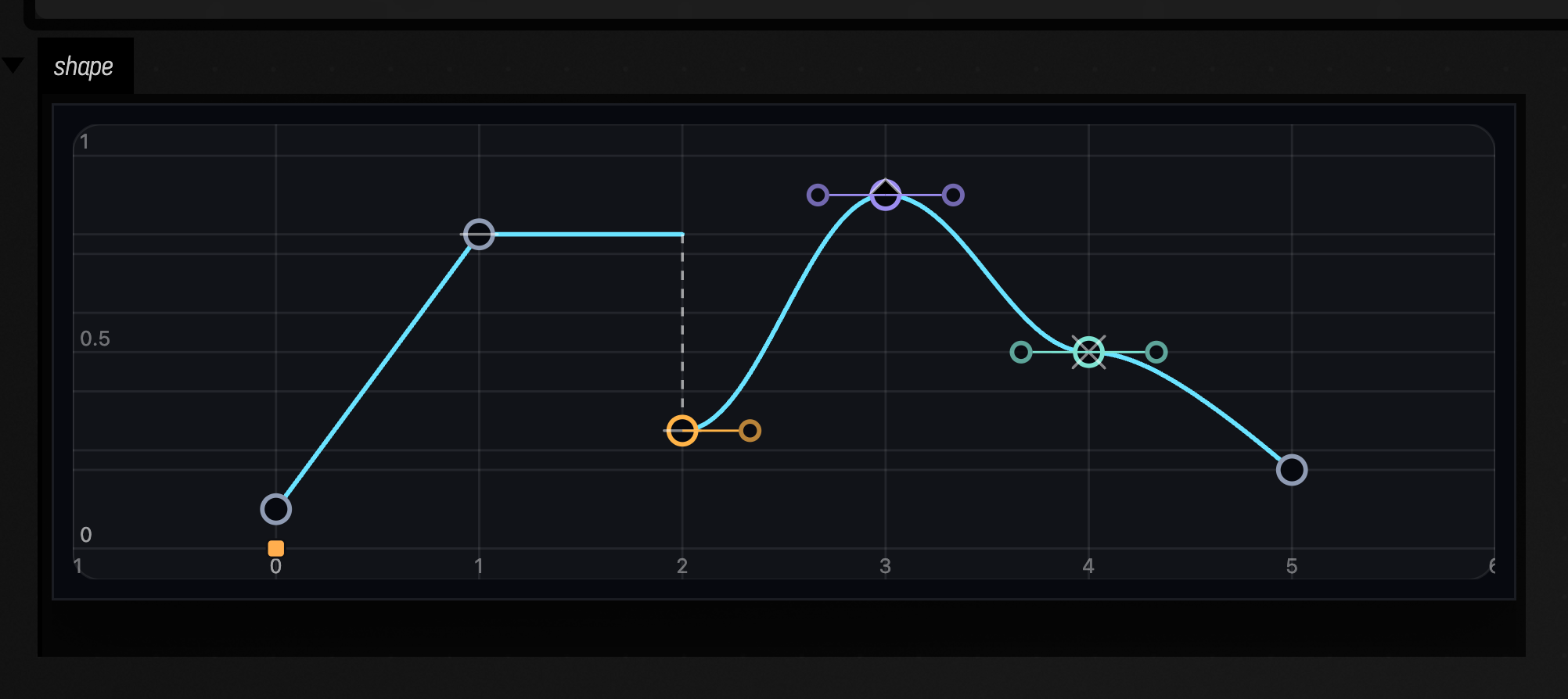
To start a curve with keys of particular types, pass keys instead of defaults; to add types of your own, see below. This curve has one of each:
:::static
val shape = keyframes(
    name = "shape",
    keys = [
        Keyframe(0.0, 0.1, "linear"),
        Keyframe(1.0, 0.8, "hold"),
        Keyframe(2.0, 0.3, "bezierFlat"),
        Keyframe(3.0, 0.9, "bezierContinuous"),
        Keyframe(4.0, 0.5, "bezierFree"),
        Keyframe(5.0, 0.2, "linear"),
    ],
)
A bezier key given without handles gets the handles the editor would give it, worked out from its neighbours.
The library
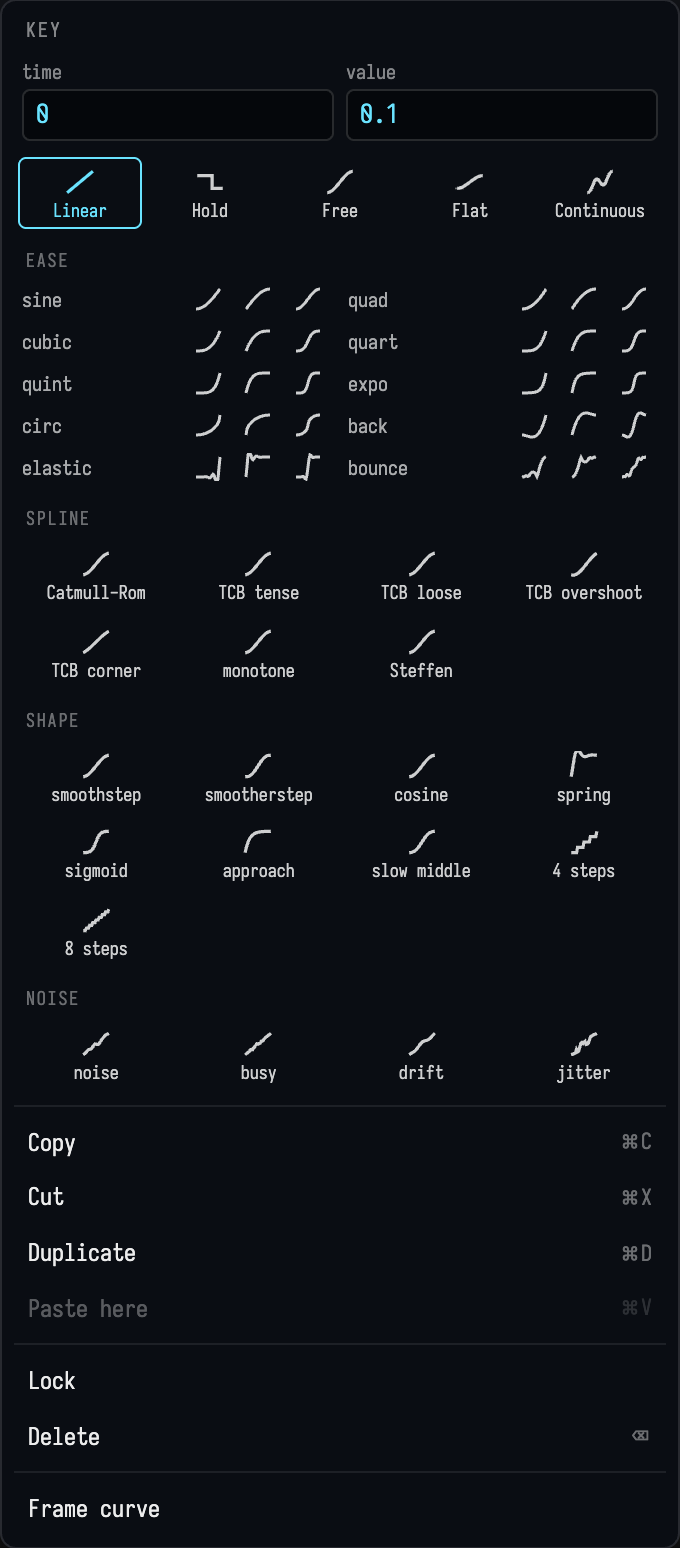
Beyond those five, every editor has fifty more types, grouped in the key menu:
- Ease: the standard easing family, each as in, out and in-out: sine, quad, cubic, quart, quint, expo, circ, back (a small overshoot), elastic and bounce.
- Spline: curves that look past the segment to the keys either side. Catmull-Rom passes smoothly through every key; the four TCB (Kochanek–Bartels) variants change its tension, bias and continuity, for a tighter curve, a looser one, one that overshoots, or one with a corner at the key. Monotone (Fritsch–Carlson) and Steffen never overshoot: between two keys the curve stays between their values, which is what you want for anything that must not run past its target.
- Shape: smoothstep, smootherstep, cosine, sigmoid, approach (fast, then easing in), slow middle, a damped spring that settles on the next key, and 4 or 8 steps.
- Noise: gradient noise around the straight line between the keys, pinned to both of them: noise, busy (several octaves), drift (slow), and jitter (a new value sixteen times a segment). The noise is the same every time for the same keys.
The key menu lists them all:
Your own key types
interpolant("name") { ... } defines a key type of your own: a segment shape written in Kotlin, as the value the curve should have at each point of the segment. Inside the braces u runs from 0 to 1 across the segment, t is the time itself, v0 and v1 are the values of the keys either side, and lerp(f) is "this far from v0 to v1", so lerp(u) is a straight line. before and after are the keys beyond the segment's two, when there are any, for a shape that needs to know where the curve came from and where it is going, as the splines do. The new types appear in the key menu, after the five built in. This box defines three: an overshoot, a wobble that dies away into the next key, and deterministic chaos, which shows that a type can be any Kotlin at all, loops and variables included:
interpolant("overshoot") { lerp(1 + 2.7 * (u - 1).pow(3) + 1.7 * (u - 1).pow(2)) }
interpolant("wobble") { lerp(u) + 0.08 * sin(u * 6 * PI) * (1 - u) }
// Deterministic chaos: the logistic map, seeded by where we are, and pinned to both keys.
interpolant("chaos") {
    var x = 0.1 + 0.8 * u
    repeat(30) { x = 3.97 * x * (1 - x) }
    lerp(u) + 0.25 * sin(PI * u) * (x - 0.5)
}

val custom = keyframes(
    name = "custom",
    keys = [
        Keyframe(0.0, 0.1, "overshoot"),
        Keyframe(1.5, 0.8, "wobble"),
        Keyframe(3.0, 0.3, "chaos"),
        Keyframe(4.5, 0.6, "linear"),
    ],
)
Drag a key and the shapes either side of it follow, worked out in Kotlin as you move:
A key type is saved with the box, as its source, so a curve keeps its shape even before the box defines its types again, or after the definition has been deleted. Define a type again to change it; every segment that uses it follows.
Reading the curve
evaluateValueAt(t) is the value at time t, and the one call most boxes need. Before the first key it is the first key's value, and after the last key it is the last key's value, so a curve holds still outside the range you drew. To loop it, wrap the time, as the first example does with % 4.0. The rest of the evaluator describes the curve:
brightness.evaluateValueAt(1.5) // the value at time 1.5
brightness.evaluateDerivativeAt(1.5) // how fast it is changing there, per unit of time (exact)
brightness.getTimeRange() // (first key time, last key time)
brightness.getKeyframes() // the keys: time, value, type, handles
brightness.setTime(1.5) // where the editor draws its playhead
getTimeRange() is how a loop wraps a curve whose length you change in the editor: val (t0, t1) = brightness.getTimeRange(), then use t0 + (t % (t1 - t0)).
Changing the curve from code
A box can edit the keys too. Each of these changes the curve the way an edit in the editor would: the editor shows the new keys and they are saved with the box. This one adds a key and then halves every value:
brightness.add(5.0, 0.8, "bezierFlat")
brightness.edit { replaceAll { it.copy(value = it.value * 0.5) } }
setKeys(listOf(...)) replaces them all; remove(key), removeAt(index) and clear() take them away; simplify(tolerance) and smooth(width) tidy a take. Changes from code do not call onChange, which is for edits made in the editor.
Reacting to edits, and overlays
An overlay is a second, non-editable curve drawn on the graph for reference. onChange runs each time you finish an edit, with the new keys; if it returns a function of time, that function becomes the overlay. Here the overlay is a smoothed version of whatever you draw, worked out with fromKeyframeEditor and gaussianSmooth from Functions:
:::static
val wobble = keyframes(
    name = "wobble",
    defaults = [
        vec(0.0, 0.2),
        vec(0.5, 0.9),
        vec(1.0, 0.1),
        vec(1.5, 0.8),
        vec(2.0, 0.3),
    ],
)

val smooth = { keys: List<Keyframe> -> with(Functions) { gaussianSmooth(fromKeyframeEditor(keys), sigma = 0.15) } }
wobble.setOverlay(smooth(wobble.getKeyframes()))
wobble.onChange = smooth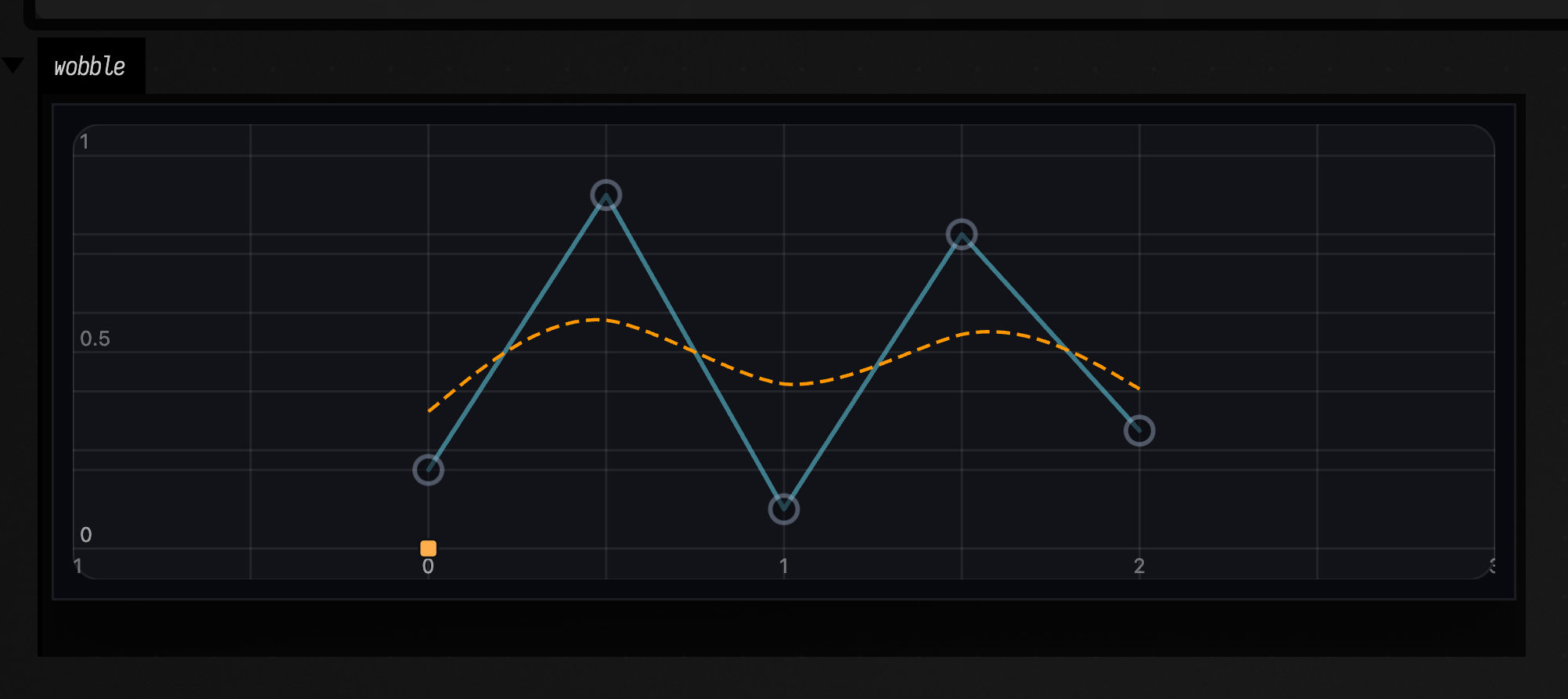
setOverlay also takes a list of points, a colour, a stroke width and a dash pattern; give overlays different ids to show several at once, and remove them with clearOverlay(id) or clearAllOverlays(). While an overlay is showing, the editable curve is drawn dimmed so you can tell them apart.
Several curves at once
Each editor is one value, so a movement in two dimensions is two editors. Here x and y curves move the handle of an XY pad:
val x = keyframes(name = "x", defaults = [vec(0.0, -0.6), vec(1.0, 0.6), vec(2.0, 0.3), vec(3.0, -0.6)])
val y = keyframes(name = "y", defaults = [vec(0.0, -0.4), vec(1.5, 0.7), vec(3.0, -0.4)])

lateinit var spot: ControlValueHandle<Vector2f>
controlGroup("spot") { spot = vec2Control("spot") {} }
displayOpen("spot")

val start = System.nanoTime()
loop {
    val t = ((System.nanoTime() - start) / 1e9) % 3.0
    x.setTime(t)
    y.setTime(t)
    spot.set(Vector2f(x.evaluateValueAt(t).toFloat(), y.evaluateValueAt(t).toFloat()))
}
The editors in one box share a time axis, like the lanes of a dope sheet. Pan or zoom time in one and the others follow, the pointer's time is marked in all of them, and Frame curve frames every lane's keys together. Each keeps its own value axis.
To work on a moment across all of them, hold Cmd (Ctrl elsewhere) and sweep a band: it selects the keys in that stretch of time in every lane. Drag one of them and the selected keys in the other lanes move by the same time, keeping their values; the arrow keys and Delete act on every lane's selection too. A click on another key, or Escape, goes back to working in one lane:
Each editor shows in its own output panel, named after it. To keep separate sets in one box, give each set a channel: keyframes("motion", "x") and keyframes("motion", "y") show as motion/x and motion/y, and share a time axis with each other but not with the box's other editors.
From a performed gesture
A gesture pad records a movement as you perform it; the editor is where you shape one by hand. bakeGesture turns a take into a pair of lanes you can edit, and setTake sends edited lanes back to the pad:
lateinit var pad: GestureHandle
controlGroup("gesture") { pad = gesture("take") {} } // shift-drag on the pad to record

val (x, y) = bakeGesture(pad, tolerance = 0.02) // the take, as editable x and y lanes
println(pad.fit(x, y)) // GestureFit(keys=28 of 240 samples, max=0.0185, ...)

pad.setTake(x, y) // later: the edited lanes, replayed through the pad
A recorded take has hundreds of samples, far too many keys to edit. bakeGesture keeps only the samples it needs so that neither lane is ever more than tolerance (in pad units) from what you performed, at any moment. The keys are linear, and both lanes have keys at the same times, so ctrl/command-dragging across a moment selects it in both. The lanes run from 0 to the end of the take, so they loop as the take did. Baking replaces whatever keys the lanes held. The lanes are x and y unless you name them with xName and yName, and channel groups them as it does for keyframes(...).
For a two-second figure eight drawn by hand, 240 samples:
| tolerance | keys | largest difference | mean difference |
|---|---|---|---|
| 0.005 | 77 | 0.0050 | 0.0017 |
| 0.01 | 35 | 0.0096 | 0.0031 |
| 0.02 | 28 | 0.0185 | 0.0049 |
| 0.05 | 16 | 0.0338 | 0.0162 |
| 0.1 | 14 | 0.0980 | 0.0251 |
setTake(x, y) samples the two curves 60 times a second (samplesPerSecond changes it), always including every key's time, and that becomes the pad's take: the trail redraws and the take is saved with the box, as if you had recorded it. Bezier keys come back as a smooth run of short lines, within a fraction of a thousandth of the curve. toKeyframes(tolerance) gives the two lists of keys without touching any editor, and samples gives the take itself, in the form gesture(initialTake = ...) accepts.
A shaky take
The tolerance keeps what you performed, tremor and all. The same figure eight drawn by a shakier hand bakes to 146 keys of its 240 samples, most of them following the shake. To keep the movement and lose the tremor, smooth the take before you bake it: bake every sample, smooth both lanes, send them back to the pad, and bake again. The second bake needs 29 keys, and both lanes still have their keys at the same times.
fun smoothTake() {
    val (sx, sy) = bakeGesture(pad, tolerance = 0.0, channel = "lanes") // every sample, as keys
    sx.smooth(0.04) // over 40 ms
    sy.smooth(0.04)
    pad.setTake(sx, sy) // the smoothed take, on the pad
    bakeGesture(pad, tolerance = 0.02, channel = "lanes") // and back, as a few keys
}

controlGroup("gesture") {
    pad = gesture("take", initialTake = eight) { p = it }
    button("smooth take") { if (it) smoothTake() }
}
Here it is in the box from the gesture_to_keyframes starting point, given a shakier take, with the lanes above the pad. Pressing smooth take thins out both lanes and redraws the pad's trail without the shake:
Start from a working document
Open keyframe_editor from Starting points on the welcome screen, or open it here. It has four boxes from this page:
brightness: the curve and meter (launch it to play);shape: the five key types;smoothed: the curve with a smoothed overlay that follows your edits;custom types: an overshoot, a wobble and some chaos written withinterpolant(...).
Its entry in Agent transcripts lists what each box does.
See also
- Values over time: interpolants & keyframes: easing a value to a target from code, rather than drawing it.
- Visualizers & Controls: sliders, multisliders and the gesture recorder, for values you set or perform rather than draw.
- Keyframes: capturing, persisting and replaying live state: snapshots of a box's whole state.
- Drawing and Notation: to draw the change in one gesture rather than place keys, draw a line or a hairpin inside a frame on the canvas, and the box reads it back as a value at each moment with
notation.space(...).vertical(t), as the crescendo there does.