Automating Field
You can record a sequence of actions in Field and play it back: make a box, write some code, connect it to another box, then run the lot again in a new document. A recording is a macro, and you can edit it as well as replay it.
Macros are written in a small YAML language called OperationTranscript. Each action is an operation, so you and your agents can read, write and share the same recordings. Scripts and agents can also use the command-line backdoor to build documents, run code, inspect output and errors, and take screenshots.
The backdoor can do anything Field's editor can do. Who is allowed to connect to it is covered in What Field Exposes, and What Stops It.
Operations as data
A transcript is a list of operations. Each one names a verb and the box it acts on. Here is a whole small document that creates a box, gives it code, runs it, and saves the result as a reopenable document:
operations:
  - create:
      box: greeter
      name: Greeter
      frame: { x: 40.0, y: 40.0, w: 320.0, h: 170.0 }
      properties:
        code: |
          println("hello from a transcript")
  - launch:
      box: greeter
      property: code
  - await:
      wait: pending
  - save:
      path: MyWorkspace/greeter
The verbs you will use most:
| Verb | What it does |
|---|---|
create, edit, move |
make a box, change its properties, move it |
connect |
wire a parent box to a child |
execute |
run code once |
launch, stop |
start and stop a running job |
await |
wait for everything to settle |
save |
write a document you can open again later |
Without inline code, launch and execute run the code the box has when the macro runs, so a macro keeps working
after you edit its boxes.
You can open a transcript, see what it does, change a name or value, and run your version. Or record a sequence as you work and replay it elsewhere. The Agent transcript gallery has documents built from a blank canvas this way; you can open them, run them and make them your own.
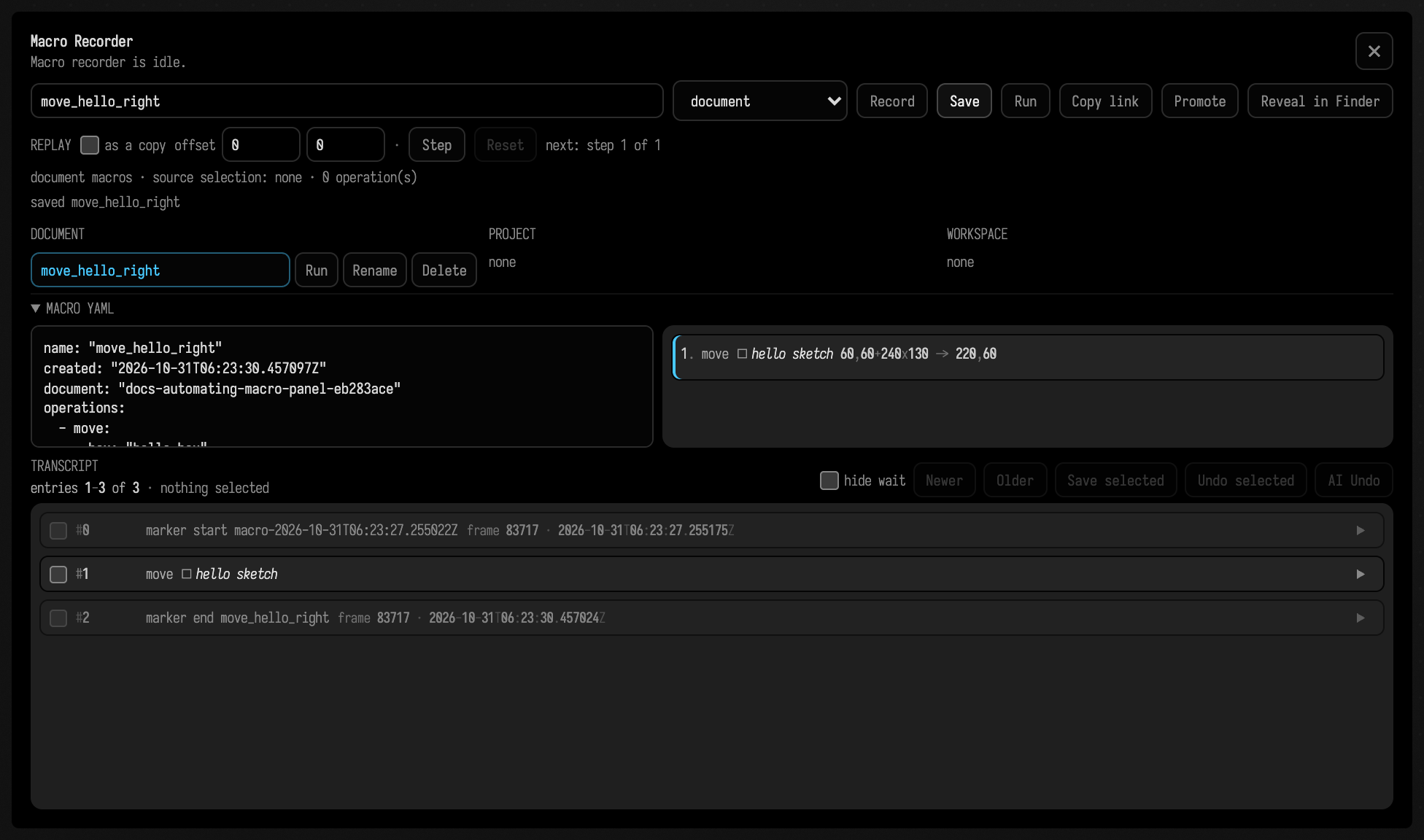
The Macro Recorder panel (in the command palette) is where that recording happens. Name
the macro, press Record, and work as normal: making a box, typing its code, dragging it,
connecting it to another with g, deleting one, running one. Press Save and what you did
is saved as a named macro at document, project or workspace scope, written as the same
operations you would write by hand: a new box is one create with its name, frame and code,
not a stream of keystrokes.
Saved macros are listed by scope, each with its own Run, Rename and Delete (a
deleted macro is kept in the scope's .deleted folder). Click a macro's name to open its YAML
beside a readable list of its steps; edit the YAML there and Save to keep your version.
Promote copies a macro to a wider scope.
In a read-only document, existing macros remain readable and runnable, but saving, renaming or deleting the macros saved in that document is refused. You can still save a macro to project or workspace scope, outside the document.
Replaying a recording in a fresh document rebuilds the same document. To use a recording as a stamp instead, tick as a copy: the boxes it creates get new identities, so every run makes another set, shifted by the offset you give. Step replays one operation at a time and marks where you are in the list, which is the easiest way to see what a macro does before you trust it with a document.
Driving Field from a script or agent
The backdoor (tools/field_backdoor.py in the Field repository) attaches to a running
Field — or starts one — and applies transcripts, then hands back a machine-readable
result. Save the transcript above as greeter.yaml in the root of the Field repository, and
run this there:
uv run --project . --group backdoor python tools/field_backdoor.py --json --scratch \
  --command 'macro write greeter --file greeter.yaml' \
  --command 'macro run greeter'
uv run runs the backdoor in the Python environment the repository declares
(uv installs it on first use). --scratch works in a new, throwaway
document rather than one of yours. macro write stores the file as a macro named greeter, and
macro run plays it.
The result reports how many operations applied and whether any failed. Its output list contains
what each box printed, tagged by box and line, along with compile errors and exceptions. If a box
is missing or has no code, the failure names it.
The backdoor also captures pictures of a single box, the editor, the whole window, or the native Field 4 graphics window. It can also record short videos of a box, the editor or the window, but not of the graphics window.
What a Capture Can and Cannot Show lists what a capture cannot see, and the reply fields that tell you when you have hit one of those limits.
Where to go next
- Where to Go Next completes the Tour with a map of the rest of the documentation.
- Building the Docs & Running the Tests covers the backdoor as a test harness and how the docs build uses it.
- For the complete reference — every operation, the observable results, and worked examples on the canvas and in Field 4 Vulkan graphics — see the operation transcript reference and the backdoor reference in the Field repository. The agent transcript gallery has a worked entry for every transcript Field ships.
When Field opens a workspace it writes an AGENTS.md file there if none exists. Coding agents
read that file automatically; it tells an agent working in the folder how documents are stored
and points it at transcripts and the backdoor.