Spreadsheets
Put a spreadsheet in a box and you can type into it, write formulas and keep it alongside your code. Formulas are Kotlin, so cells can hold vectors, quantities with units and drawings as well as numbers and text. A formula can also read values from other boxes. Field saves the sheet with its box.
A sheet in a box
sheet { ... } shows a sheet in the box's spreadsheet output and fills it the first time it
runs. Inside the braces, this["A1"] = ... sets a cell, and formula("C2", "...") sets a
formula (the leading = is optional). Here is a small bill: prices, quantities, a line total
per row and a sum.
sheet(height = 280) {
    rows = 6
    cols = 4
    this["A1"] = "Item"
    this["B1"] = "Price"
    this["C1"] = "Qty"
    this["D1"] = "Total"
    this["A2"] = "paper"
    this["B2"] = 4.5
    this["C2"] = 3
    this["A3"] = "ink"
    this["B3"] = 12
    this["C3"] = 2
    this["A4"] = "pens"
    this["B4"] = 1.25
    this["C4"] = 10
    formula("D2", "B2 * C2")
    formula("D3", "B3 * C3")
    formula("D4", "B4 * C4")
    this["A5"] = "Total"
    formula("D5", "sum(D2:D4)")
}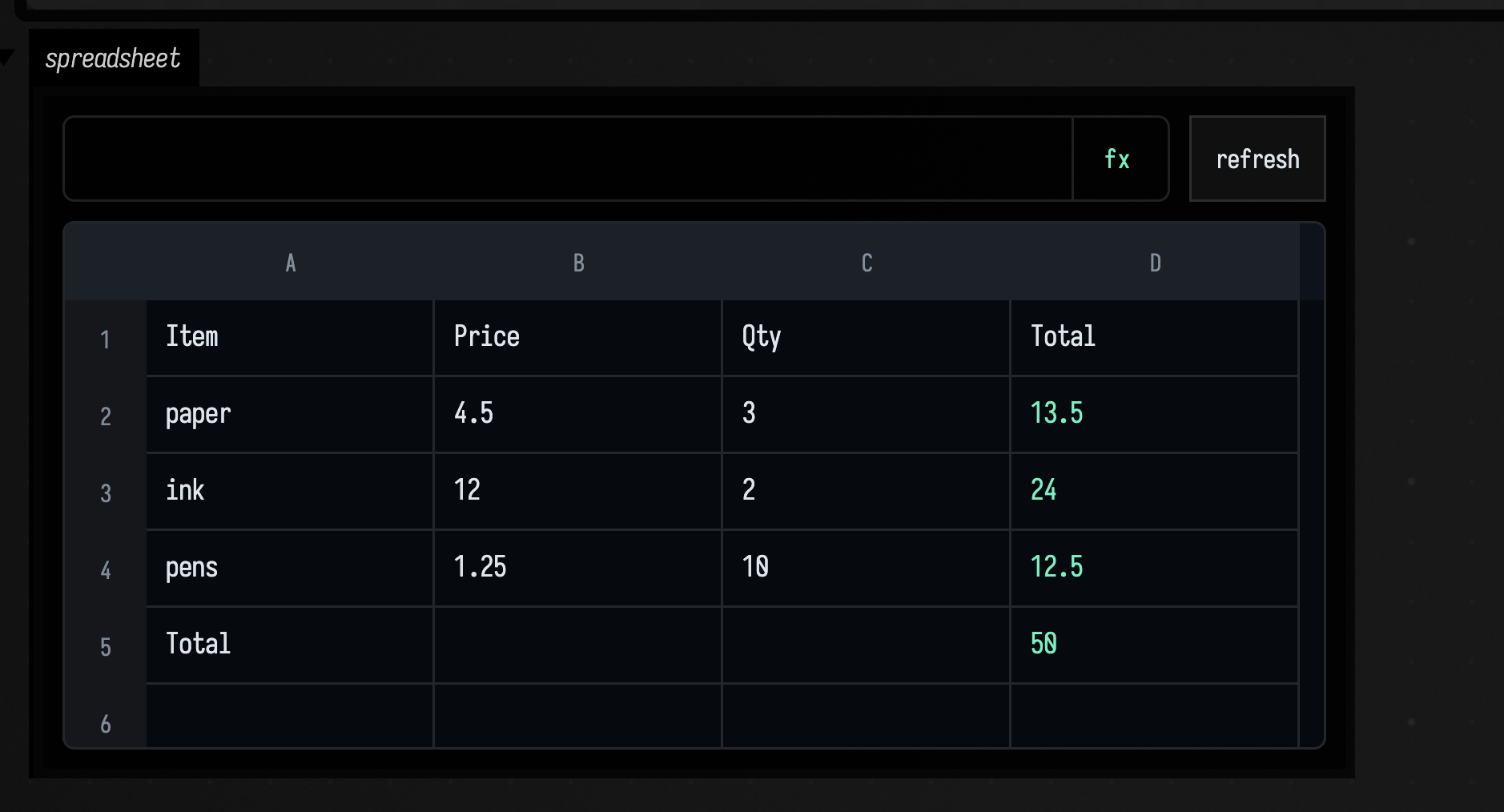
Run it and edit the sheet: click a cell, or move with the arrow keys and Tab, and type. Enter or F2 edits the cell's input in the bar above the grid; Escape leaves it. Change a price and the totals follow.
The braces only fill an empty sheet. Once the sheet exists, what you type into it is what the box
keeps, and running the box again does not overwrite it. To replace cells from code, use
editSheet { ... }, which takes the same this["A1"] = ... and formula(...) lines and applies
them to the sheet as it stands; clear("B3") and clearAll() empty cells.
Formulas are Kotlin
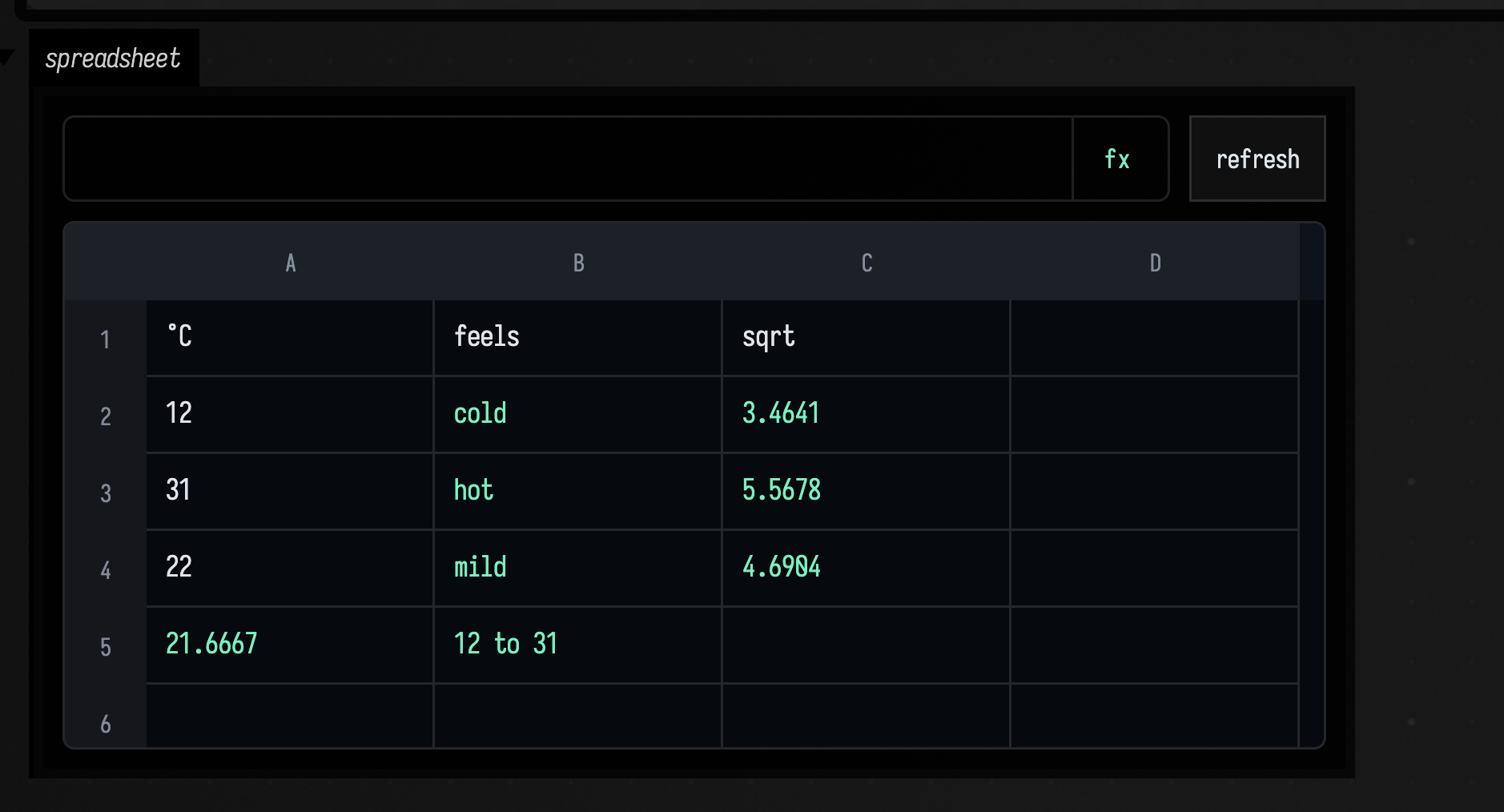
A formula is a Kotlin expression. A1 stands for the value in A1, A1:B3 for the values in a
range, and $A$1 pins a reference when the formula is copied. Ranges go to sum, product,
avg (also mean), min, max and count; each takes any number of cells, ranges and numbers,
as in max(A1, A2) or sum(A1:A3, C1). The usual kotlin.math functions take cells directly:
sqrt(A1), abs, round, floor, ceil, exp, ln, log10, sin, cos, tan,
atan2(A1, A2) and pow(A1, 2). Everything else Kotlin has is there too: if, when, string
templates, PI.
sheet(height = 280) {
    rows = 6
    cols = 4
    this["A1"] = "°C"
    this["B1"] = "feels"
    this["C1"] = "sqrt"
    this["A2"] = 12
    this["A3"] = 31
    this["A4"] = 22
    for (row in 2..4) {
        formula("B$row", "when { A$row > 28 -> \"hot\"; A$row < 15 -> \"cold\"; else -> \"mild\" }")
        formula("C$row", "sqrt(A$row)")
    }
    formula("A5", "avg(A2:A4)")
    formula("B5", "\"\${min(A2:A4).toInt()} to \${max(A2:A4).toInt()}\"")
}
An empty cell counts as 0 in arithmetic. A range skips empty cells, so avg(A1:A10) averages
only the cells that hold something. A number typed into a cell is a number; anything else that
does not start with = is text.
Values that carry units, vectors and drawings
Values keep their types in the sheet. Use | m to attach a unit; arithmetic on quantities works
out the units of the result. vec(1.0, 2.0) makes a vector: arithmetic with a number applies to
each component, and .x, .y, .z and .w read individual components. An FLine is a drawing:
adding a vector moves it, multiplying scales it, .x and .y give the corner of its bounds, and
.width and .height their size. Where a single number is needed, a vector stands for its
length and a line for its diagonal.
sheet(height = 440) {
    rows = 3
    cols = 3
    columnWidth("A", 220)
    columnWidth("B", 220)
    rowHeight(2, 125)
    rowHeight(3, 180)
    formula("A1", "3 | m")
    formula("B1", "A1 * 2")
    formula("C1", "A1 / (2 | s)")
    formula("A2", "vec(1.0, 2.0)")
    formula("B2", "A2 * 3")
    formula("C2", "abs(A2)")
    formula("A3", "FLine().moveTo(0.0, 0.0).lineTo(30.0, 40.0)")
    formula("B3", "A3 + vec(10.0, 10.0)")
    formula("C3", "B3.width")
}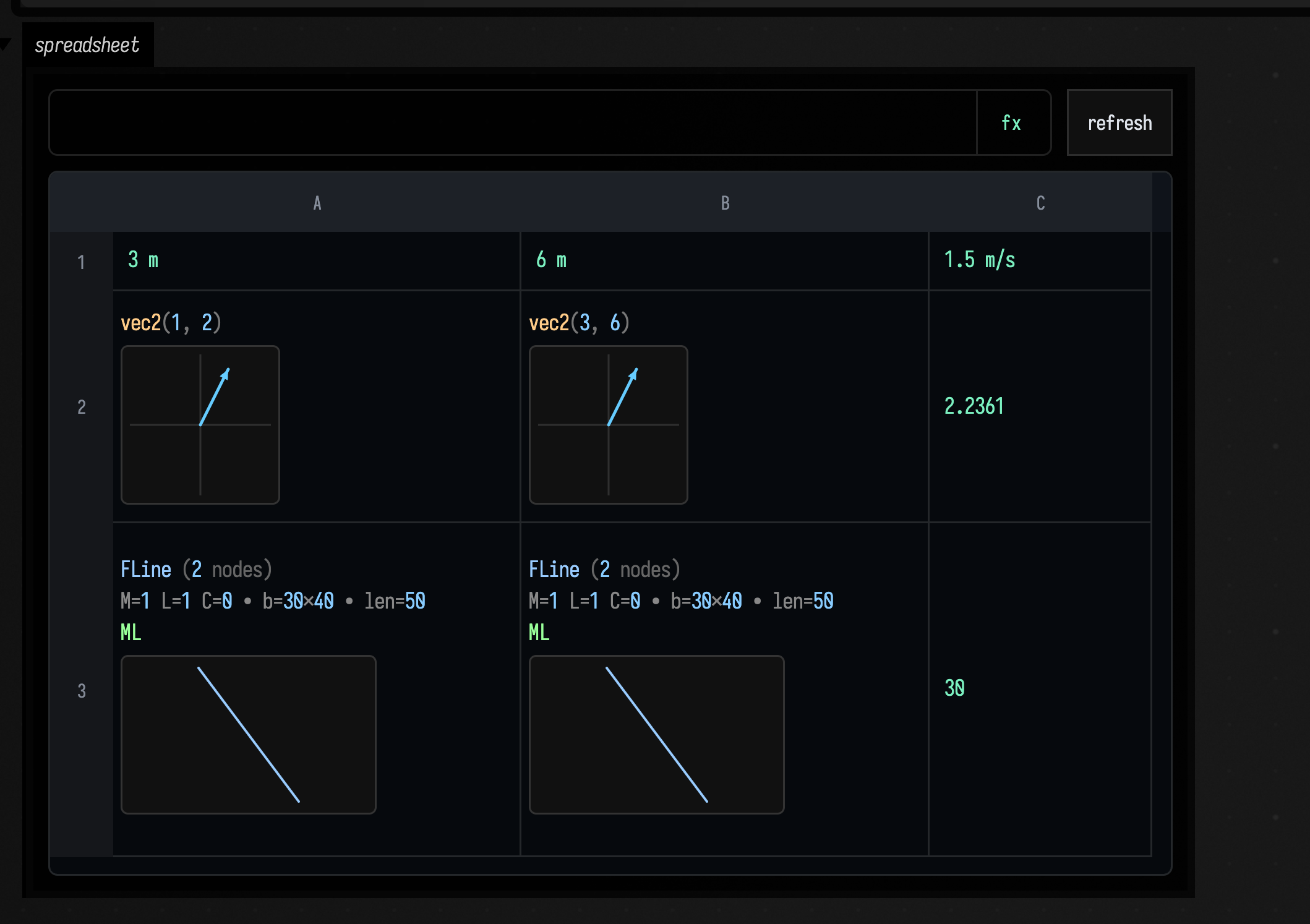
A formula's result can be anything Kotlin can make. Numbers, units and short strings show as text; a vector, a list or a line shows the way Field shows that value elsewhere, here as a small drawing.
Reading other boxes
self["name"] reads a variable or property of the box that holds the sheet, and
box("name")["x"] reads one from another box, found by its name. The sheet remembers which
values its formulas read, and while it is open it checks them once a frame: when one changes, the
sheet recomputes and shows the new values on the next frame. Here the box's own rate feeds the
sheet.
val rate = 1.08

sheet(height = 250) {
    rows = 5
    cols = 2
    this["A1"] = "rate"
    formula("B1", "self[\"rate\"]")
    this["A2"] = 100
    this["A3"] = 250
    this["A4"] = 40
    formula("B2", "A2 * \$B\$1")
    formula("B3", "A3 * \$B\$1")
    formula("B4", "A4 * \$B\$1")
}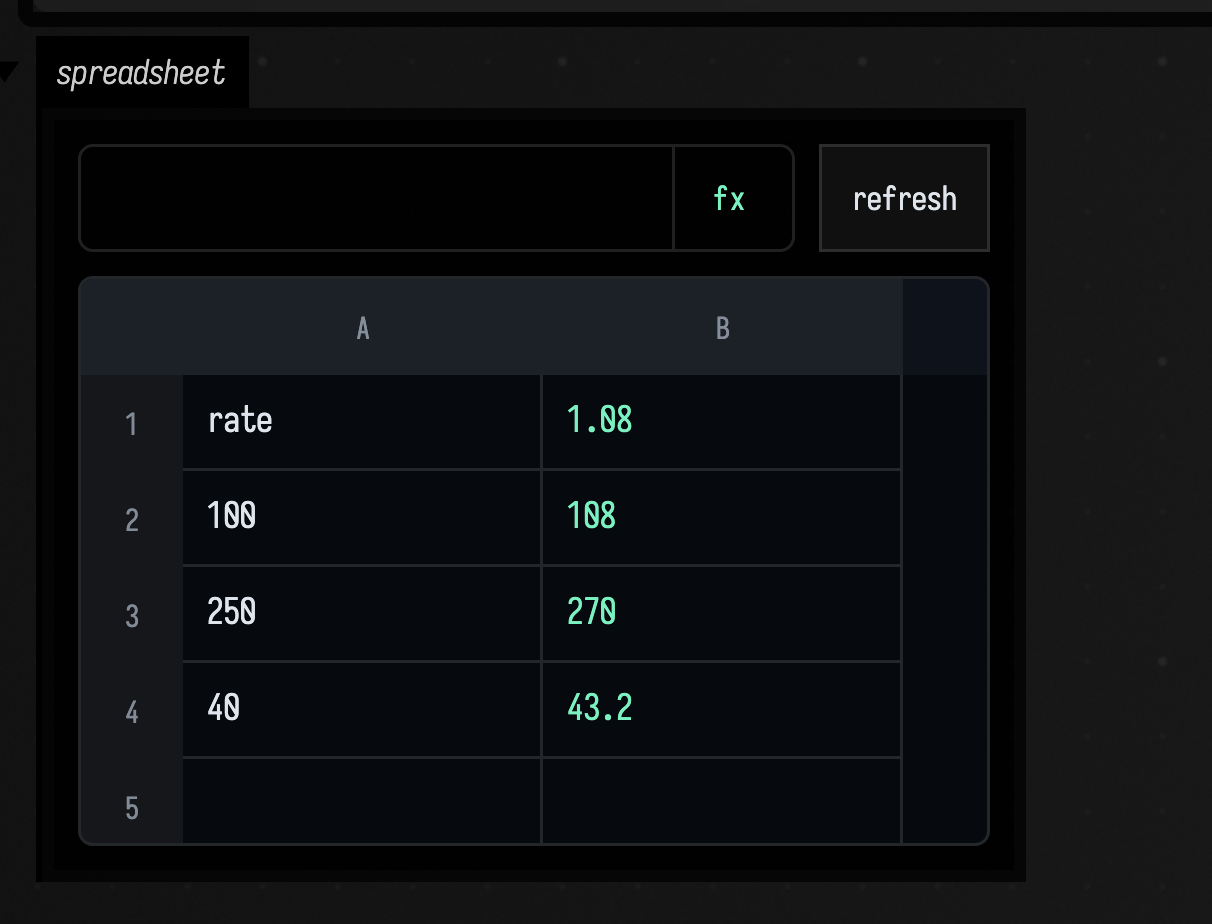
Change rate to 1.2 and run the box again: the sheet keeps its cells, and column B follows.
The same happens when another box's variable changes, whether you ran it or code changed it.
self.prop("name") and box("name").prop("x") read only the box property, and .variable(...)
only the variable; box("name").keys() lists what a box has.
Reading the sheet from code
The box that holds a sheet can read its values. sheetCell("D5") is the cell's value, with the
same .d (as a Double), .v2, .v3, .x and friends that formulas use; sheetCellValue("D5")
is the plain Kotlin value. sheetSnapshot() gives every cell at once, each with its ref,
input, the display text and an errorDetail when it failed.
sheet(height = 220) {
    rows = 4
    cols = 2
    this["A1"] = 3
    this["A2"] = 4
    this["A3"] = 5
    formula("B1", "sum(A1:A3)")
}

val total = sheetCell("B1").d
val refs = sheetSnapshot().cells.map { it.ref }
markdown("B1 is ${total.toInt()}, and the sheet has ${refs.size} cells: ${refs.joinToString()}")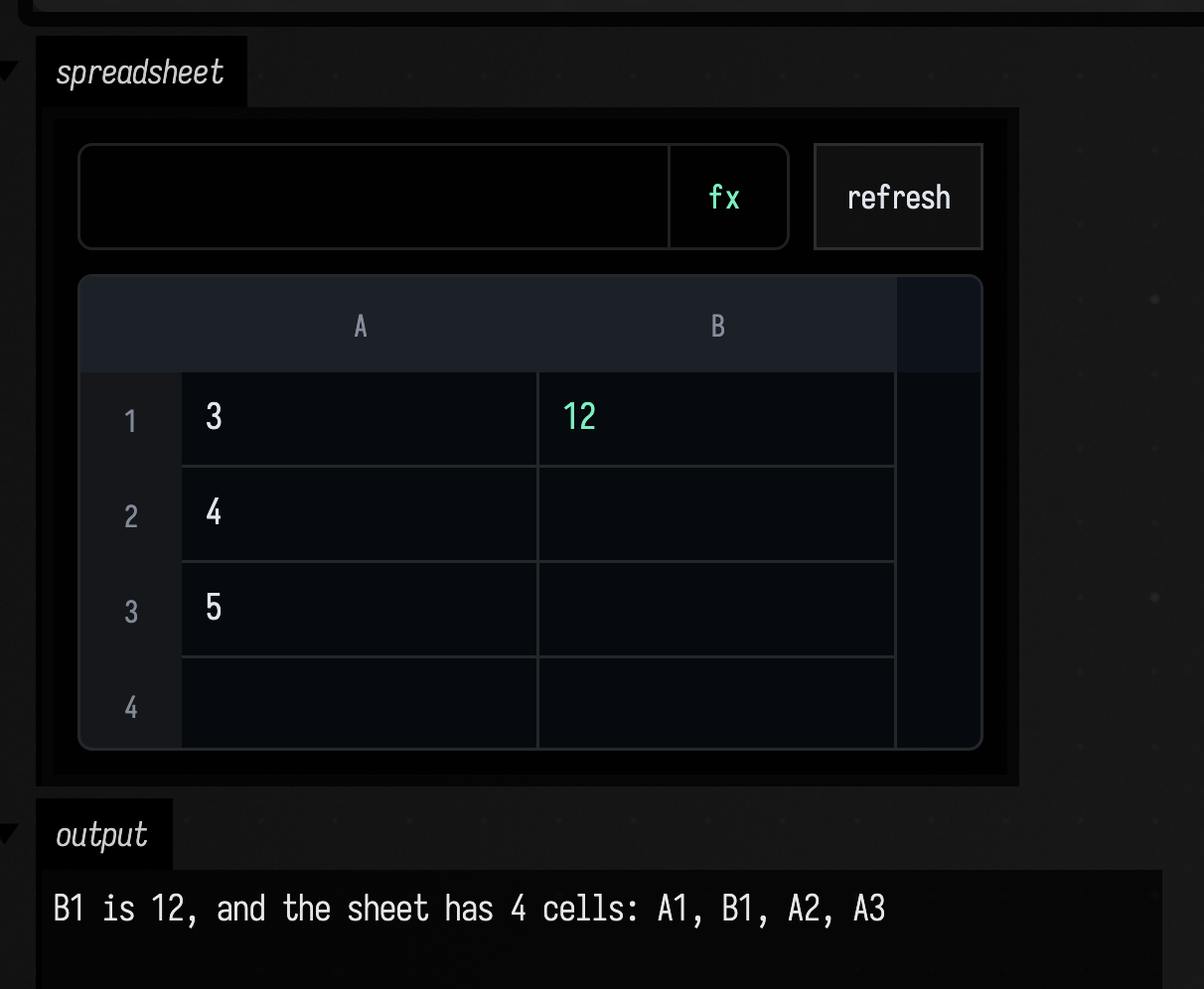
Errors
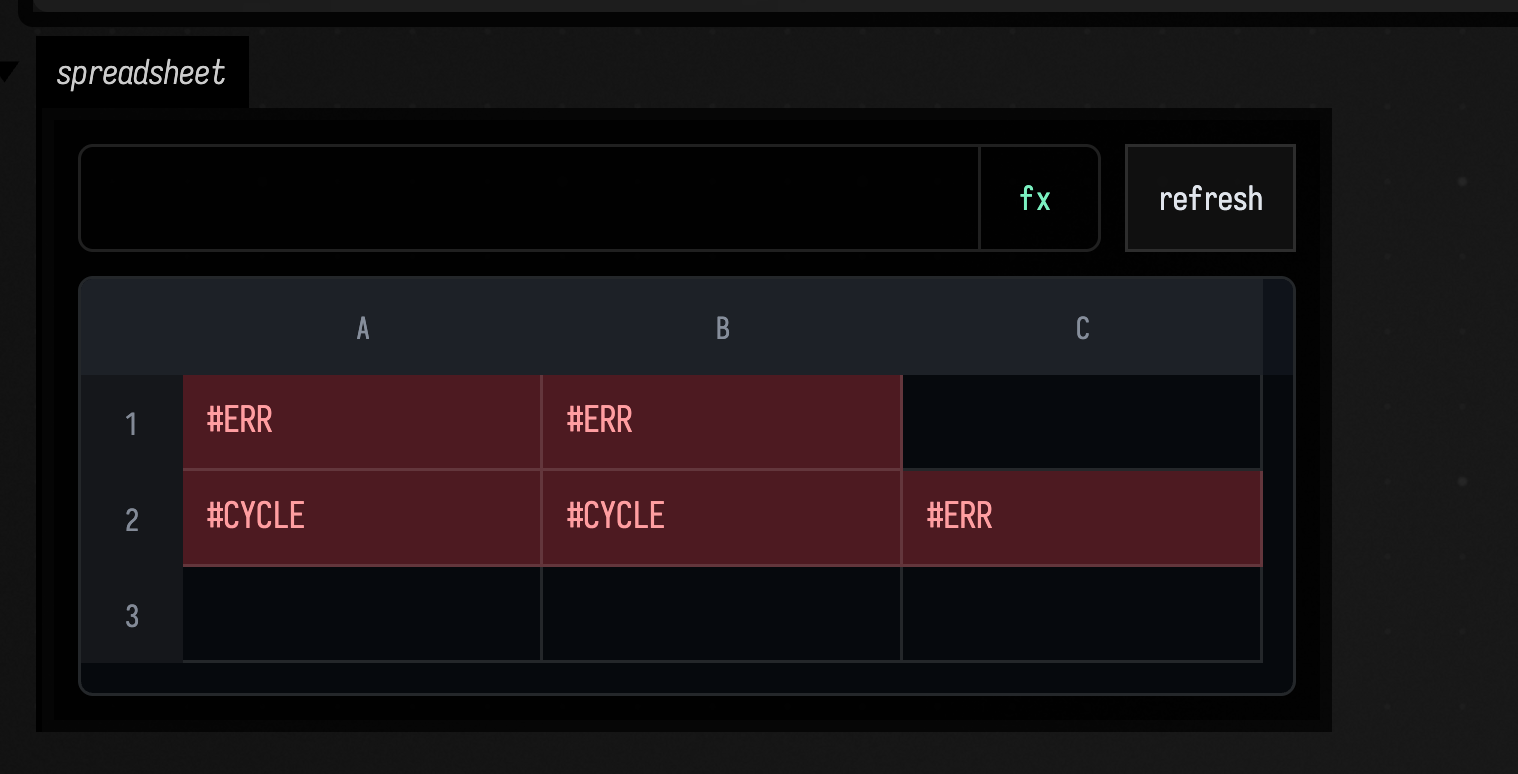
A formula that fails shows #ERR; hover the cell, or select it, to read why. A formula that
reads a failed cell fails too, so a mistake shows everywhere it reaches rather than as a quiet
wrong number. Cells that refer to each other in a loop all show #CYCLE.
sheet(height = 200) {
    rows = 3
    cols = 3
    formula("A1", "sqrtt(2.0)")
    formula("B1", "A1 + 1")
    formula("A2", "B2 + 1")
    formula("B2", "A2 + 1")
    formula("C2", "A2 * 2")
}
Solving for cells
A sheet can also run backwards. Write =free(4) in a cell and it becomes a variable: a number, 4
for now, that the sheet is allowed to change. Formulas over it work as usual. A cell that says
=B3 eq 40 is an assertion, and the sheet changes its variables until every assertion holds,
using the Ceres solver. le and ge assert at most and at least.
The rectangle below starts at 4 by 5 and is asked for an area of 40 and a width of at most 6:
sheet(height = 330) {
    rows = 6
    cols = 2
    columnWidth("A", 140)
    this["A1"] = "width"
    formula("B1", "free(4)")
    this["A2"] = "height"
    formula("B2", "free(5)")
    this["A3"] = "area"
    formula("B3", "B1 * B2")
    this["A4"] = "perimeter"
    formula("B4", "2 * (B1 + B2)")
    this["A5"] = "area is 40"
    formula("B5", "B3 eq 40")
    this["A6"] = "no wider than 6"
    formula("B6", "B1 le 6")
}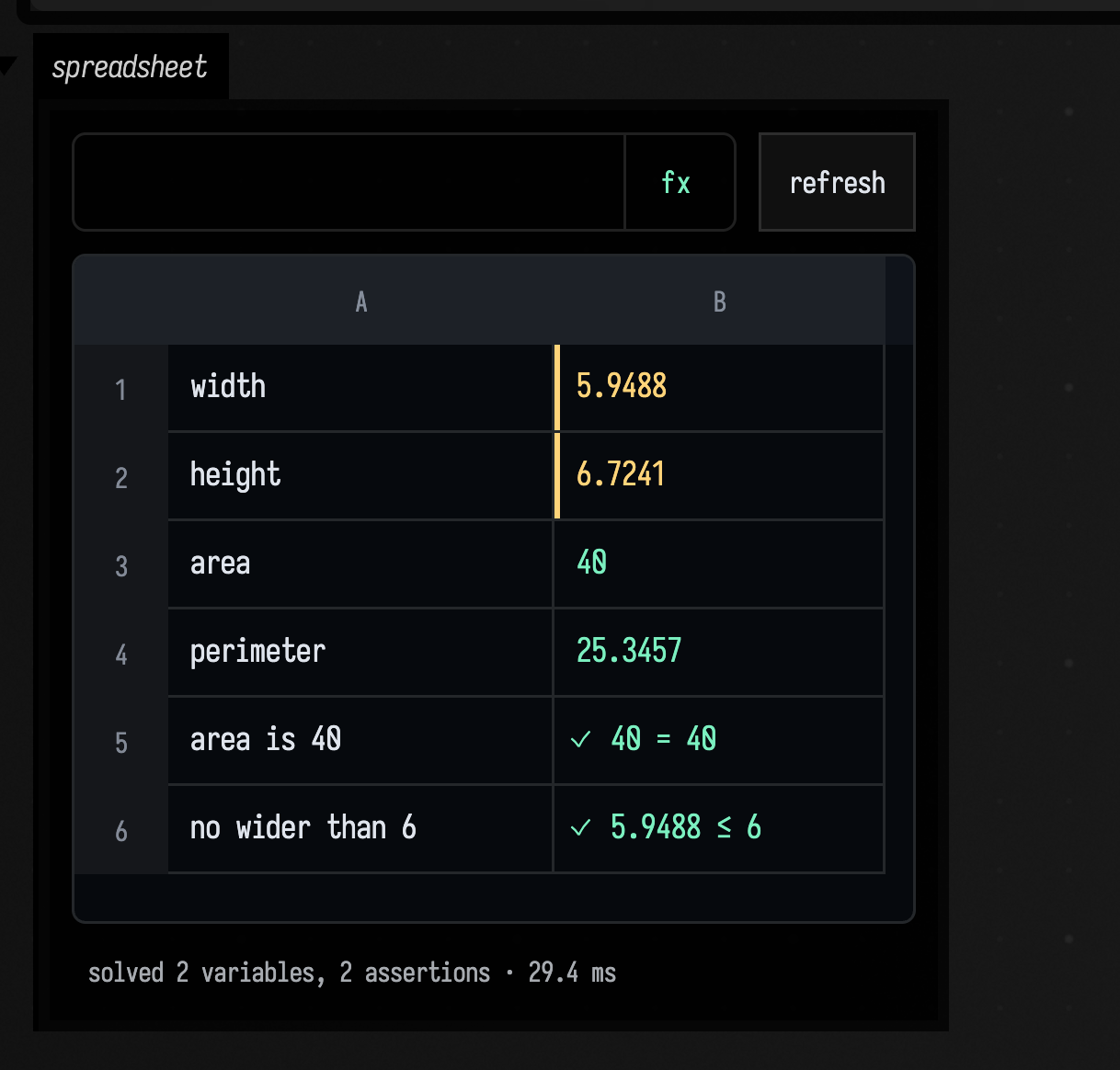
There are many rectangles of area 40, and the sheet picks the one closest to where it started:
every variable prefers its previous value, so both sides grow a little rather than one growing a
lot. After the solve the numbers inside free(...) are the new values, and the next solve starts
from them.
Typing into a variable cell edits it. Type 8 over the width and the cell stays a variable,
=free(8); the sheet keeps your 8 and moves the others to fit. When an assertion cannot hold with
your number, your number gives way: here the width stops at 6 and the height becomes 6.6667. Any
variable can be edited this way, so in a sheet where =B2 eq B1 * 9.0 / 5.0 + 32.0 relates a
Celsius cell B1 and a Fahrenheit cell B2, typing into either one moves the other. Both are
variables, and one assertion ties them together:
sheet(height = 260) {
    rows = 4
    cols = 2
    columnWidth("A", 140)
    this["A1"] = "Celsius"
    formula("B1", "free(100)")
    this["A2"] = "Fahrenheit"
    formula("B2", "free(212)")
    this["A3"] = "Kelvin"
    formula("B3", "B1 + 273.15")
    this["A4"] = "F from C"
    formula("B4", "B2 eq B1 * 9.0 / 5.0 + 32.0")
}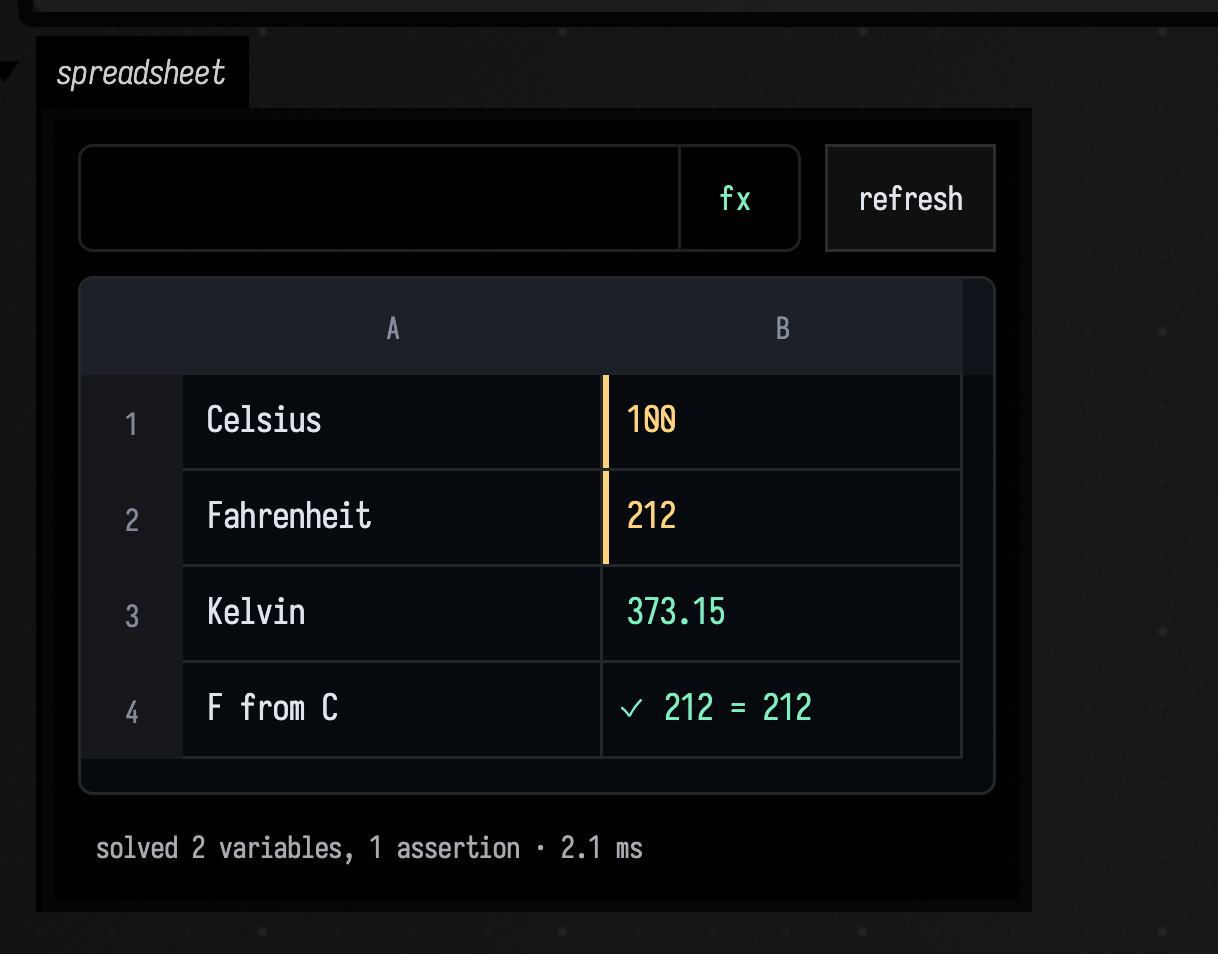
Below, 37 is typed into Celsius and Fahrenheit becomes 98.6; 50 is typed into Fahrenheit and Celsius becomes 10; then 0 is typed into Celsius and Fahrenheit becomes 32:
What the solver can follow: + - * /, sum, sqrt, abs, exp, ln, sin, cos, tan,
pow and atan2, through as many formula cells as you like. free(...) has to be the whole
formula of its cell. A number on the left of an assertion works too: =0 le B2.
An assertion that cannot be met shows a cross and how far off it is. Here three amounts must add up to 100, but each is also asked to be at least 40:
sheet(height = 390) {
    rows = 7
    cols = 2
    columnWidth("A", 140)
    this["A1"] = "rent"
    formula("B1", "free(50)")
    this["A2"] = "food"
    formula("B2", "free(30)")
    this["A3"] = "fun"
    formula("B3", "free(20)")
    this["A4"] = "total is 100"
    formula("B4", "sum(B1:B3) eq 100")
    this["A5"] = "rent at least 40"
    formula("B5", "B1 ge 40")
    this["A6"] = "food at least 40"
    formula("B6", "B2 ge 40")
    this["A7"] = "fun at least 40"
    formula("B7", "B3 ge 40")
}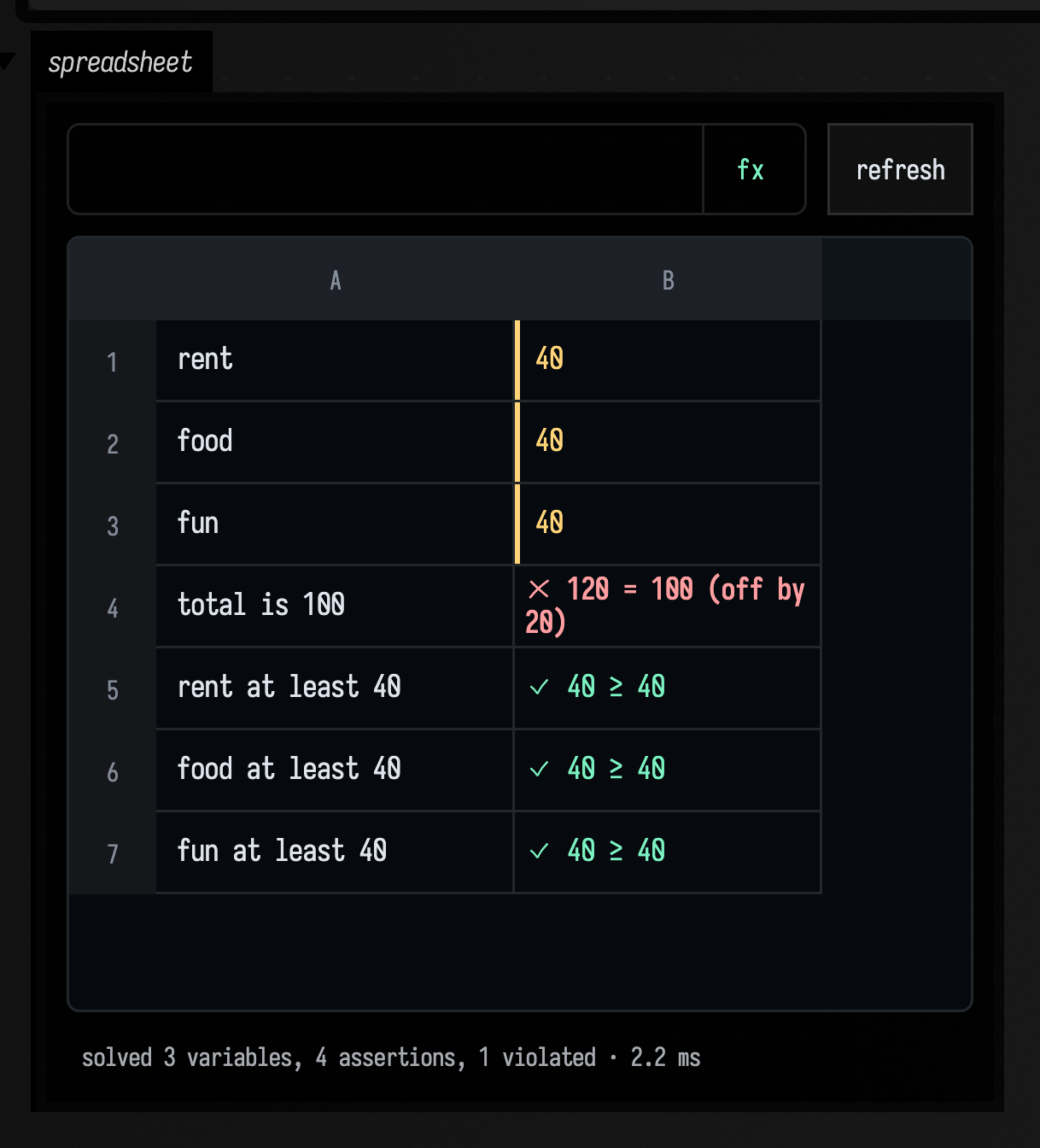
The sheet still shows its best compromise, so you can see which assertion to loosen. An
assertion that only limits one variable by a number, like B1 ge 40, is held exactly, so here the
total is the one that gives. Code that reads a variable cell with sheetCell("B1") or sheetCellValue("B1") gets its number.
Editing the sheet
| Key | What it does |
|---|---|
| arrows, Tab | move between cells; Shift with an arrow extends the selection |
| typing, Enter, F2 | edit the cell |
| Escape | stop editing, clear the selection |
| Delete, Backspace | empty the selected cells |
| Cmd/Ctrl+D | fill the top cell of the selection down through it |
| Cmd/Ctrl+R | fill the left cell of the selection across it |
| Cmd/Ctrl+C, X, V | copy, cut and paste; a pasted formula's references move with it, so =A1 * 10 copied from B1 to B2 becomes =A2 * 10; one copied cell pasted over a selection fills it |
| Cmd/Ctrl+Space | complete cell references, functions and box names while editing a formula |
While you edit a formula, clicking another cell inserts its reference, and the cells and boxes the formula reads are highlighted. Drag a column or row edge to resize it.
Sheets as values
A sheet is stored as a SpreadsheetStoredState, which sheetState { ... } builds with the same
lines as sheet { ... }; columnWidth("A", 200) and rowHeight(1, 40) set sizes. The sheet's output is as wide as its columns, up to 960 pixels, and as tall as height =; width = sets it. sheet(property =
"budget") { ... } keeps a second sheet in the same box under another property, and every function
here takes the same property =. setSpreadsheetState(state) replaces a sheet outright, and
getSpreadsheetState() reads its cells' inputs without evaluating them. The full list is in the
reference for spreadsheet.kt.