Layers
Every box is on one or more layers. Layers decide two things: which boxes are on the canvas right now, and, for the active layer, where each box sits. Use them to keep sketches and scratch boxes out of the way of a finished piece, or to lay the same boxes out twice, once for writing them and once for performing with them.
Putting a box on a layer
A box's layers are its layers property, a comma-separated list of names. Set it from inside the
box:
layers = "draft,final"A box that names no layer is on default. A box is on the canvas when any one of its layers is
showing, so this box shows whenever draft or final does. Layer names need no declaring: a layer
exists as soon as some box names it.
The layers panel
alt/option-L (Show Layers Panel in the command palette) opens the layers panel. It lists every
layer some box is on, with the number of boxes on each. Here three boxes are on both draft and final,
one is on sketch, and the rest name no layer and so are on default. Every
layer is showing, and draft is active:
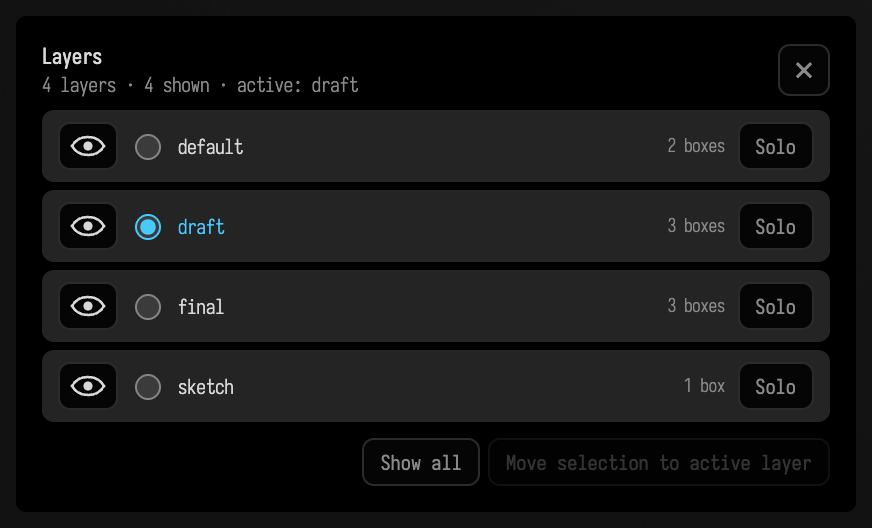
Each row has:
- an eye, which shows or hides the layer's boxes. Shift-click it to show that layer alone. You cannot hide the last layer that is showing.
- a radio button that makes the layer active (below). Making a layer active also shows it.
- the number of boxes on the layer.
- Solo, which shows only this layer and makes it active.
Under the rows, Show all shows every layer, and Move selection to active layer puts the
selected boxes on the active layer, and only on it: their layers becomes that one name.
The panel floats over the canvas, so hiding a layer never hides the panel. showLayers() in a box
puts the same controls in that box's output area instead.
From the keyboard, alt-] solos the next layer in alphabetical order and alt-[ the previous one;
in the command palette, Solo Next Layer and Solo Previous Layer name the layer they will go
to. Show All Layers in the palette shows every layer and opens the panel. With a layer active
and boxes selected, the palette also offers Move N boxes to active layer, which does the same as
the panel's button.
A different layout on each layer
The active layer has its own set of box positions. When you make another layer active, Field remembers where every box on the old layer is, then moves each box on the new layer to where it was the last time that layer was active. So a box on two layers can sit in one place on one and somewhere else on the other.
Below, draft is active and the three drum boxes, kick, snare and hats, are dragged into a row. Then final is made
active and they are dragged into a diagonal. After that, choosing draft and final in turn in
the panel moves them between the two layouts. notes and mix are on neither layer, so they stay
put:
A layer's first activation leaves boxes where they are; it starts remembering from then on. The
positions are saved in each box's layerFrames property, a map from layer name to frame, and are
written to the document with everything else, so the two layouts are still there next time you open
it.
Leaving every layer inactive
No layer is active when a document opens. Positions are only remembered while a layer is active, and only for boxes on it. Hiding the active layer with its eye leaves no layer active, and the boxes stay where they were last, not where they started.
What layers do not change
- Running code. Hiding a layer hides its boxes and their output panels; it does not stop them running. A hidden box that is drawing or playing sound carries on.
- What is showing is per window. Which layers are showing and which is active belong to the
window you are working in, not to the document. They are not saved: a reopened document shows
defaultwith no layer active. A box's ownlayersandlayerFramesare saved. - Bookmarks (Moving Around the Canvas) record the view, the selection and open panels, not which layers are showing. Restoring a bookmark leaves the layers as they are.
- New boxes are on
default, whichever layer is active. Use Move selection to active layer to put them on it.
See also Moving Around the Canvas for panning, zooming, bookmarks and split panes.