Your History with Field
Want to get back to an earlier version of a document, or see what a line of code looked like before you changed it? Field keeps saved versions on disk, and lets you browse them without leaving the editor. A running box can also keep a short in-memory history of the values it produces.
There are other ways back into your work, too. AI4, Field's built-in AI assistant, records its tool calls, which Field can use to suggest improvements for future work. The semantic index helps you find indexed workspace code by describing what it does. Each of these tools keeps its own record:
- Document history — every earlier save of a document as a timeline; put back the whole document or just the boxes you pick, and compare any save with now.
- Inline history: Code History — scrub a single line or selection back through its versions without leaving the editor.
- AI tool-use history — the per-send tool calls recorded by AI4, and a loop that reads those logs back to propose improvements.
- AI documentation polish — the cache of AI-generated documentation and the cycle that folds it back into real source comments.
- The semantic index — a searchable, meaning-aware index of the indexed workspace code corpus.
The /welcome dashboard
The AI-facing history tools are launched and monitored from the welcome page, Field's landing page. The server opens https://localhost:<port>/welcome on startup, and in the desktop app it is the first tab (the + button opens a fresh one).
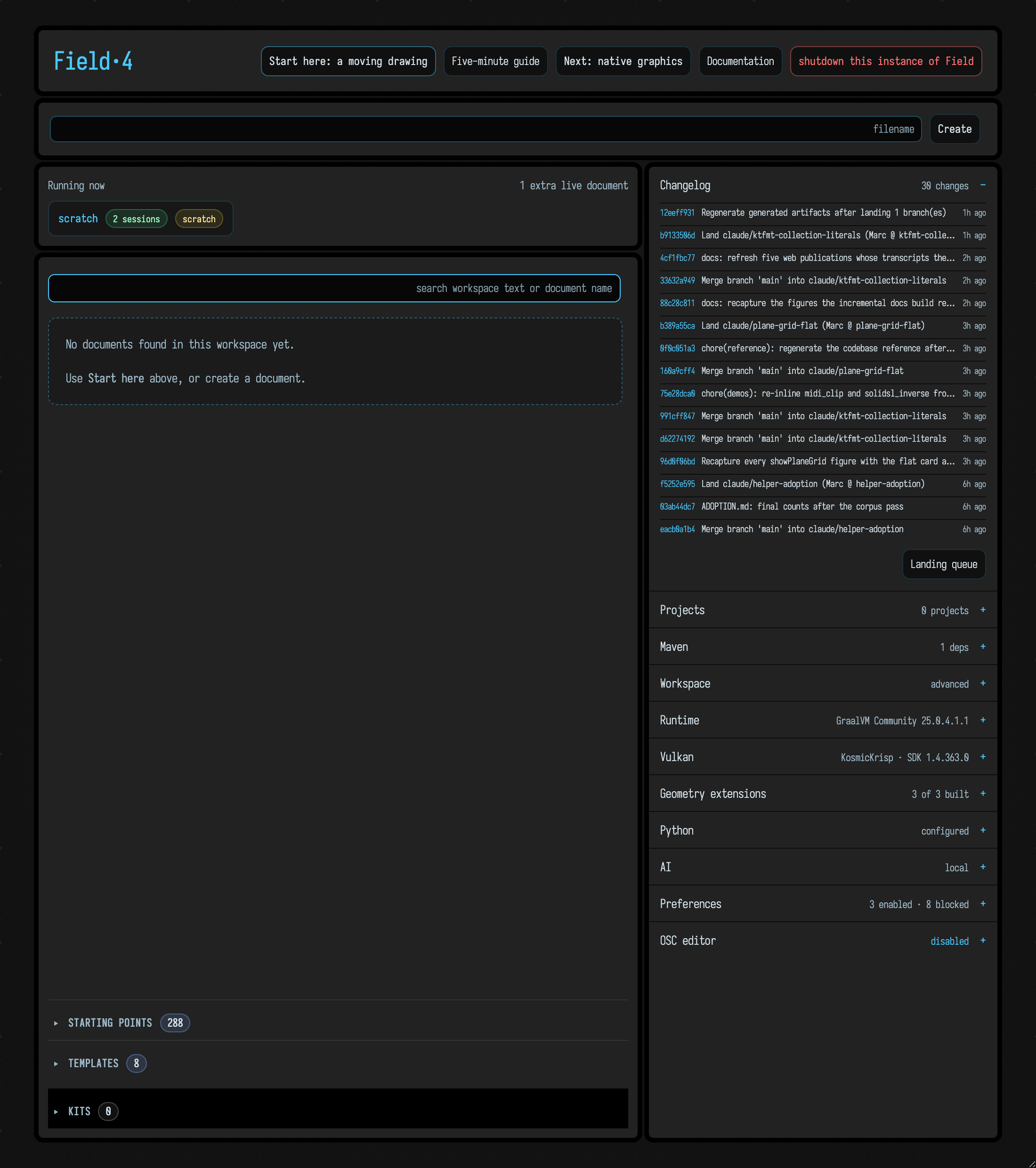
You can also reach it at any time from the hero buttons of a running instance, or by navigating straight to /welcome.
The left of the page is about documents: a search box, the workspace list, and currently running documents. The search box matches document names and text, and, when the semantic index is turned on, code that matches what you describe.
The right of the page is a stack of collapsible panels. AI is the one that runs the background tasks:
- KDoc drafts — counts completion's drafted KDoc and opens the docs pass that polishes it into source.
- Documentation notes — counts the notes left on these pages that are open,
asking you a question, or filed as handoffs. Revision pass opens
/docs-pass.html, where agents work through that queue in a worktree of their own. - Agent tool use — reviews the tool-use logs and proposes improvements.
- Code-use telemetry — opens the
/code-usebrowser (a related record of how code has been run). - Semantic search — configures and rebuilds the semantic index.
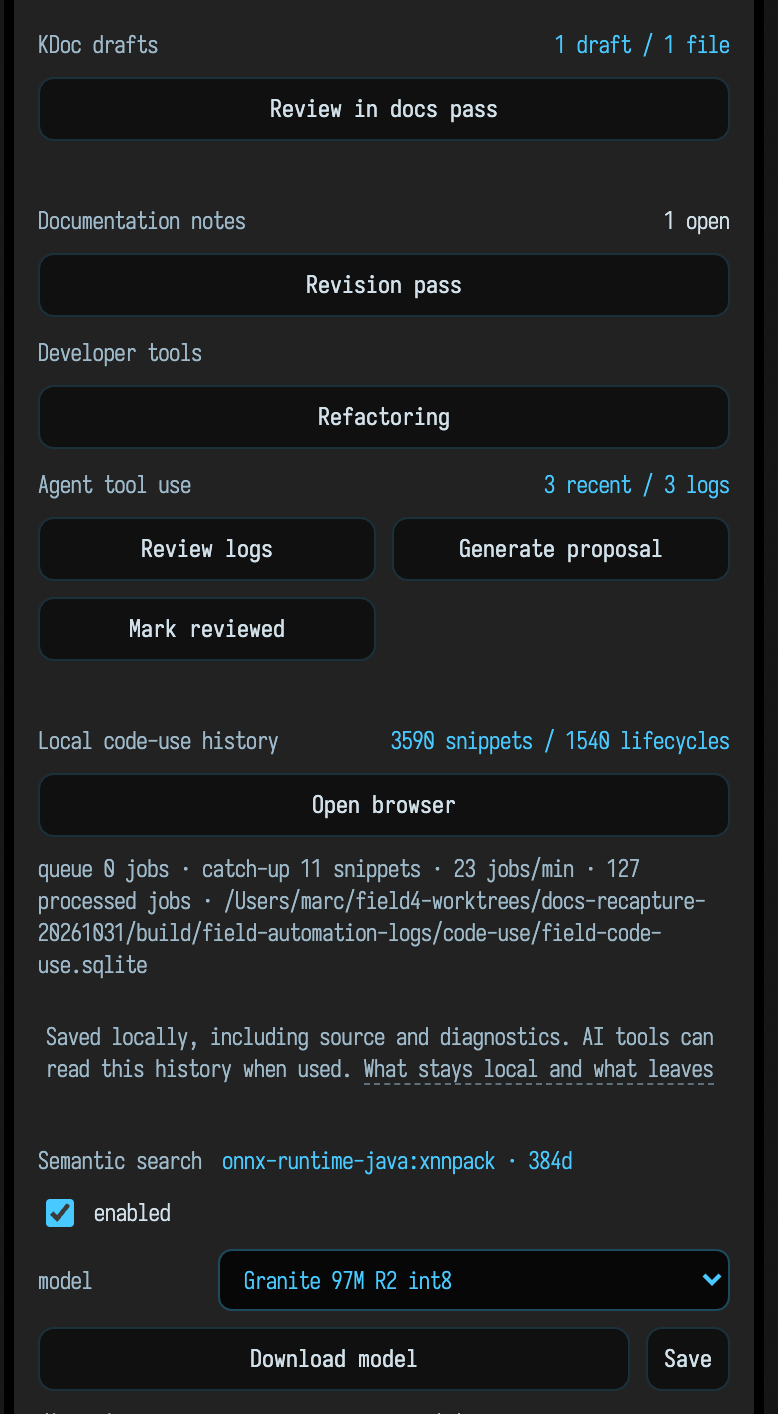
Each task card has a status line that updates by itself when a task finishes a run, writes a report or rebuilds the index.
A task's run button starts the work and opens its inspection page in a new tab. The pages linked above describe each one.
Picking a tool
| I want to… | Use |
|---|---|
| Roll a document back to an earlier save | Document history |
| See how one line changed across versions, without leaving the editor | Code History |
| Watch a running value change over time | the inline history() visualizer — see Visualizers & Controls |
| Understand what the agents are doing and make them do it better | AI tool-use history |
| Turn scattered AI-written docs into real source comments | AI documentation polish |
| Find indexed workspace code by describing it | The semantic index |