Survival Guide
Field·4 is a place for writing, running, debugging, understanding code — quickly. It's also a place for experimentation, making mistakes, getting frustrated, and delighting in discovery. This guide should help you get to the point where you have some muscle memory.
If you haven't run anything yet, start with Your First Five Minutes: it gives you a drawing to change and brings you back here with a box you've already launched.
The cheat-sheet can be accessed by pressing the '?' key. Every shortcut on it is yours to change, and the card shows whatever you have bound rather than these defaults — Keyboard Shortcuts has the complete list. Right now it looks like this:
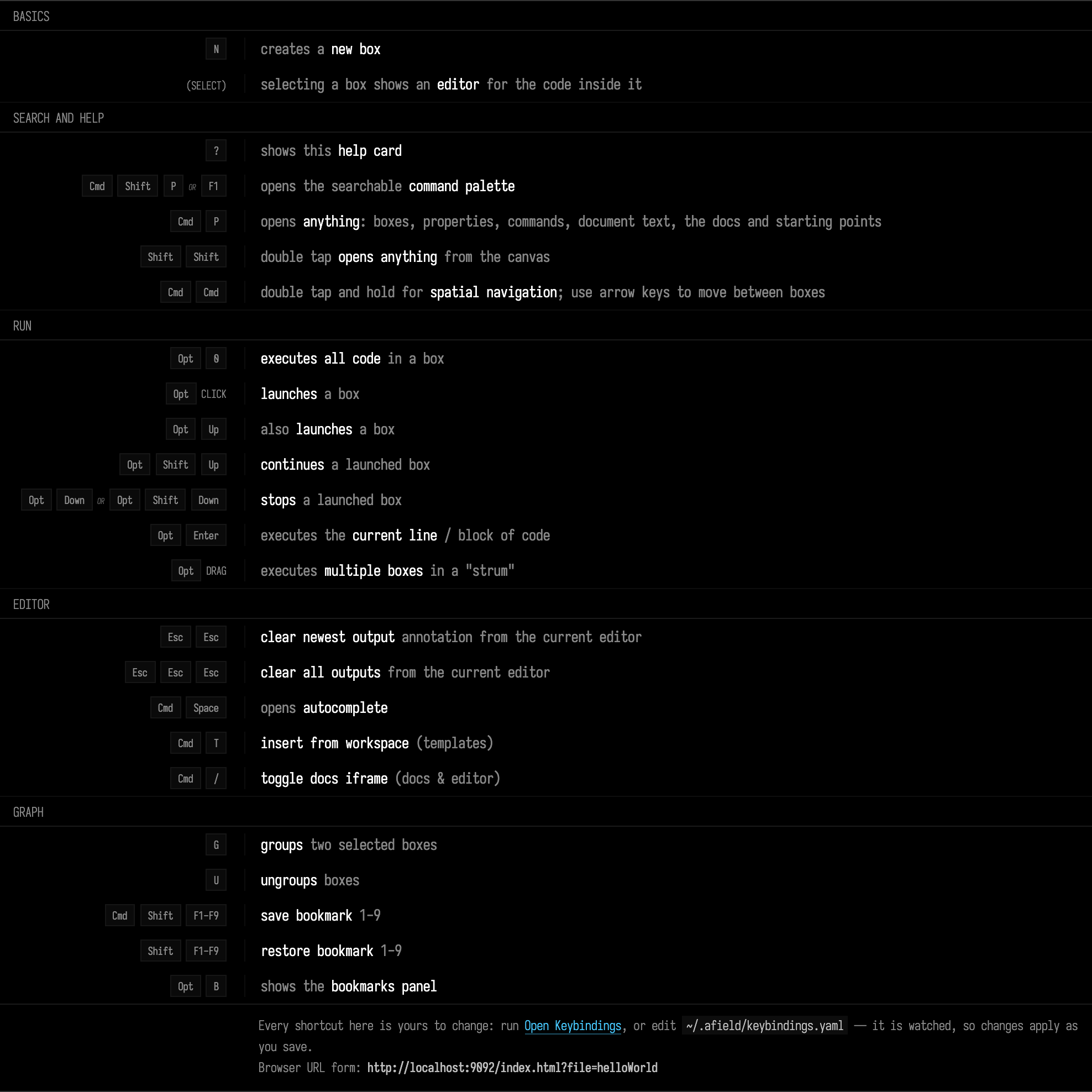
The card holds the keys you need first; the full list has every command and its default shortcut.
Using these keyboard shortcuts, you should be able to write and execute some code in Field:
Press f1 in the editor to search Field's commands, including the other ways to run code.
A box is one of the rectangles on the canvas, the area behind the editor; it holds the code you type into the editor. Field distinguishes between running code (a line or two, or the whole box) and launching it. Run code executes once and finishes. Launched code can keep going: a loop { } in a launched box runs again on every frame of Field's animation loop, which is why the frame count at the end of the video keeps climbing until you stop the box (alt-down).
Running code in a box is what happens behind that distinction: what Field does to your text before the compiler sees it, how a child box sees its parent's values, and where a launched box hands over to the animation loop. You do not need it to start writing boxes.
Saving and Loading
Field saves your document about every 5 seconds whenever something has changed.
Reloading the page reconnects you to Field but does not restart it: whatever you launched is still running.
To restart Field, press ctrl-c in the terminal you launched it from and start it again, or choose quit on the welcome page.
To change what document you are looking at, go back to the welcome tab — the + at the end of the tab strip opens one if you've closed it.
Documents are created on demand in your current workspace. Field reopens the workspace you used last.
The command palette
For anything advanced pressing f1 reveals a searchable command palette. This works both inside the editor and outside the editor — although you'll get a different set of commands in different situations. All kinds of things hide there — changing editor tabs, applying AI to code and error messages. Here it is opened from inside the editor:
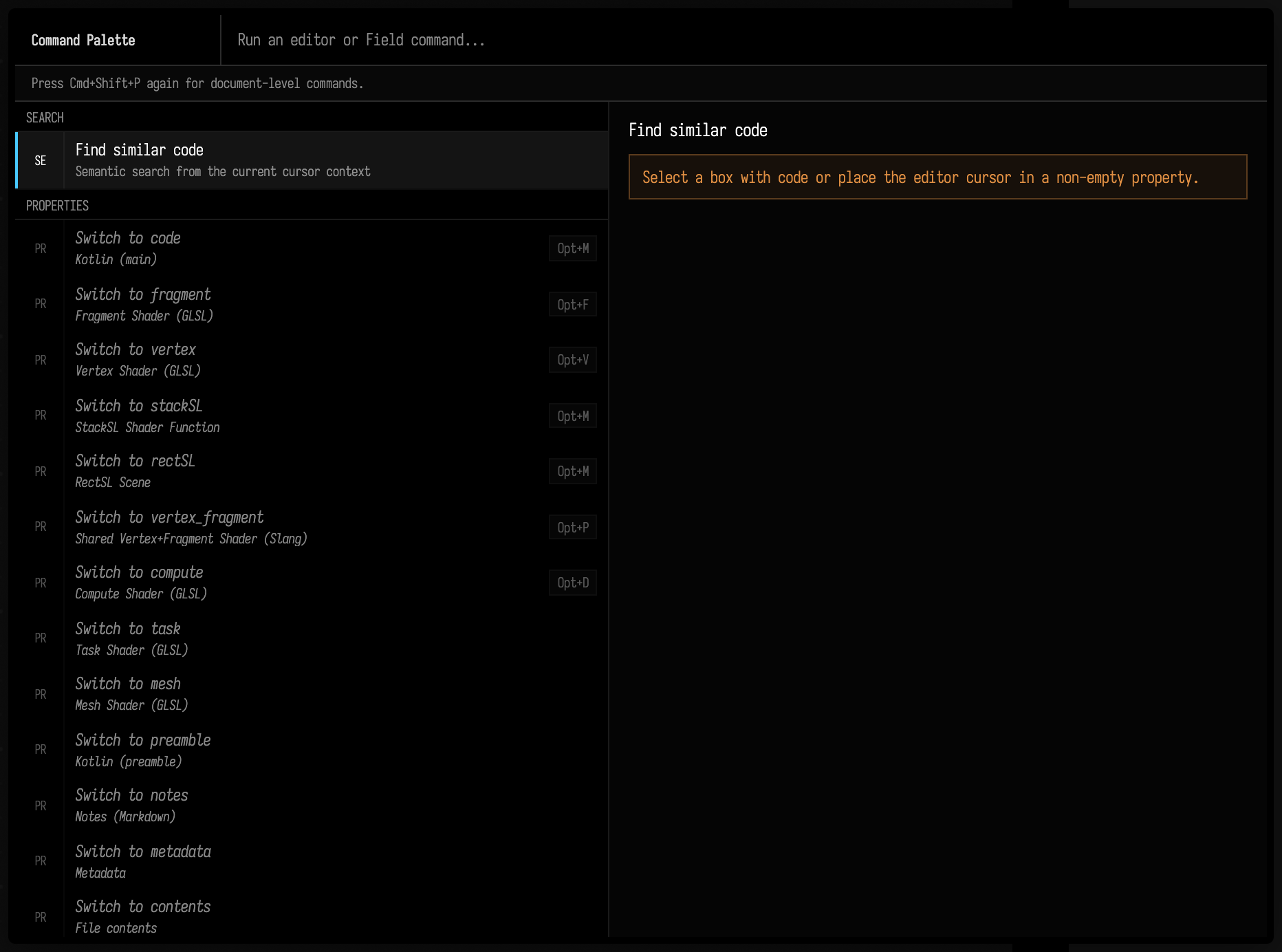
Opened from the canvas instead, the palette offers commands that act on boxes. Two of them keep boxes for reuse: Save selection as template stores the selected boxes as a template, a named copy you can add to any document, and Insert template (cmd+t) adds one; see Templates.
For its main code-writing experience Field·4 wraps the Monaco text editor — just like everyone else is doing these days — so there's a pretty rich set of ways of interacting with code built-in. But there are some advanced features to discover — inline printing, AI-chat (if you have an OpenAI Platform Key), number increment and decrement shortcuts, configurable code blocks.
Autocomplete
One of the most useful keyboard shortcuts of all is autocomplete — ctrl-space. Use it to provide ideas about what you might type, and documentation about those things:
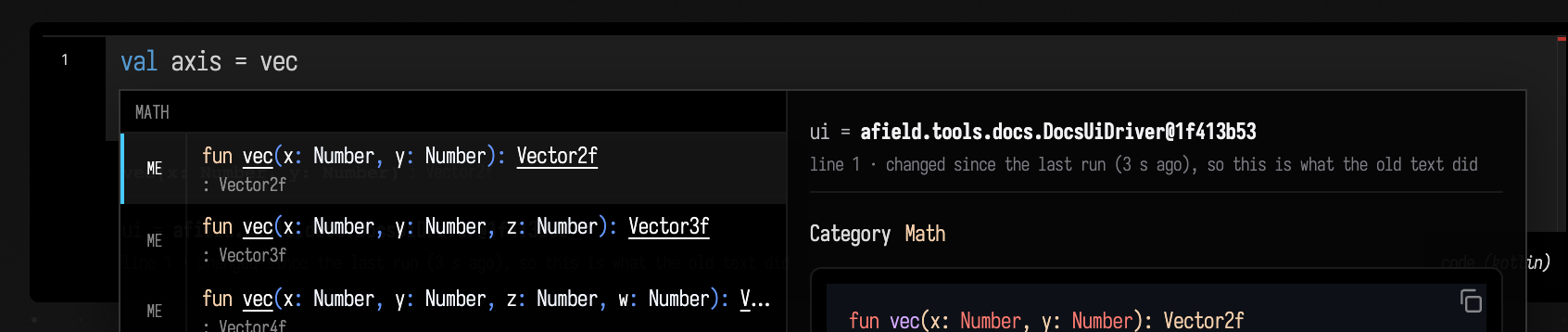
Once you have turned on Field's AI features, this will include up to 3 AI-generated suggestions of what you might type next. These are more likely to be incorrect (in the sense that type-based completions are generally very, very good); but also more likely to be ambitious and lengthy. Our GLSL completions are, in particular, often exactly what you want.
Autocomplete answers "what can I write here". For the other question — what could I do here? — see what's already in the box, a browsable index of every public declaration in Field's standard library, generated from the same source and the same KDoc the completion panel reads.
Next
Take a Tour; if you're new to Kotlin, read the Kotlin guide; learn what happens when you run code in a box; understand the AI features.