Field from your phone
Open Field's /controllers page in a phone browser and the phone becomes a remote for a running Field document, laid out for a small screen rather than squeezing the canvas onto it.
From the phone you can adjust a box's live controls and read its outputs. You can chat with AI4, Field's built-in AI assistant, about a box. You can pick a box and edit its code in the same code editor Field uses on the desktop.
This page needs nothing on the phone but a browser. A phone that already runs an OSC control surface (OSC is a network protocol for sending control messages; TouchOSC is one such app) can instead talk to a box directly: see OSC and TUIO.
The phone follows Field's current box selection, and a selection made on the phone becomes the document's. The page has six tabs, described in the table below. One of them, Select, sets the selection; the other five (Pad, Group, Outputs, Chat and Edit) act on whatever box it currently is.
Open it on your phone
Start Field and open the document you want to control. Field listens only on the local machine by default; to connect over a LAN, configure access as described in Field's server surface. From a device that can reach the Field machine, open:
https://FIELD-HOST:9092/controllers?file=YOUR-DOCUMENTReplace FIELD-HOST with the machine's LAN name or address and YOUR-DOCUMENT with the document name. A bare /controllers can follow the active Field document, but an explicit ?file= is more predictable when several documents are open.
Do not expose this to the public internet
This page can run boxes, stop them, edit code, and ask AI4 to use tools. Use it on a trusted local network or through a private, authenticated tunnel. Do not expose Field's port directly to the public internet. On first use, mobile Safari may also ask you to accept Field's development HTTPS certificate.
The six tabs
| Tab | What it controls |
|---|---|
| Pad | A large touch surface, sending Y, X or XY in absolute, delta or both modes, with shortcuts for save, restore, lock, unlock, launch, and stop. |
| Group | Phone-sized sliders, toggles, text inputs, vector pads, color controls, multisliders, matrices, range sliders and menus published by the selected box's controlGroup(...), with their playheads. |
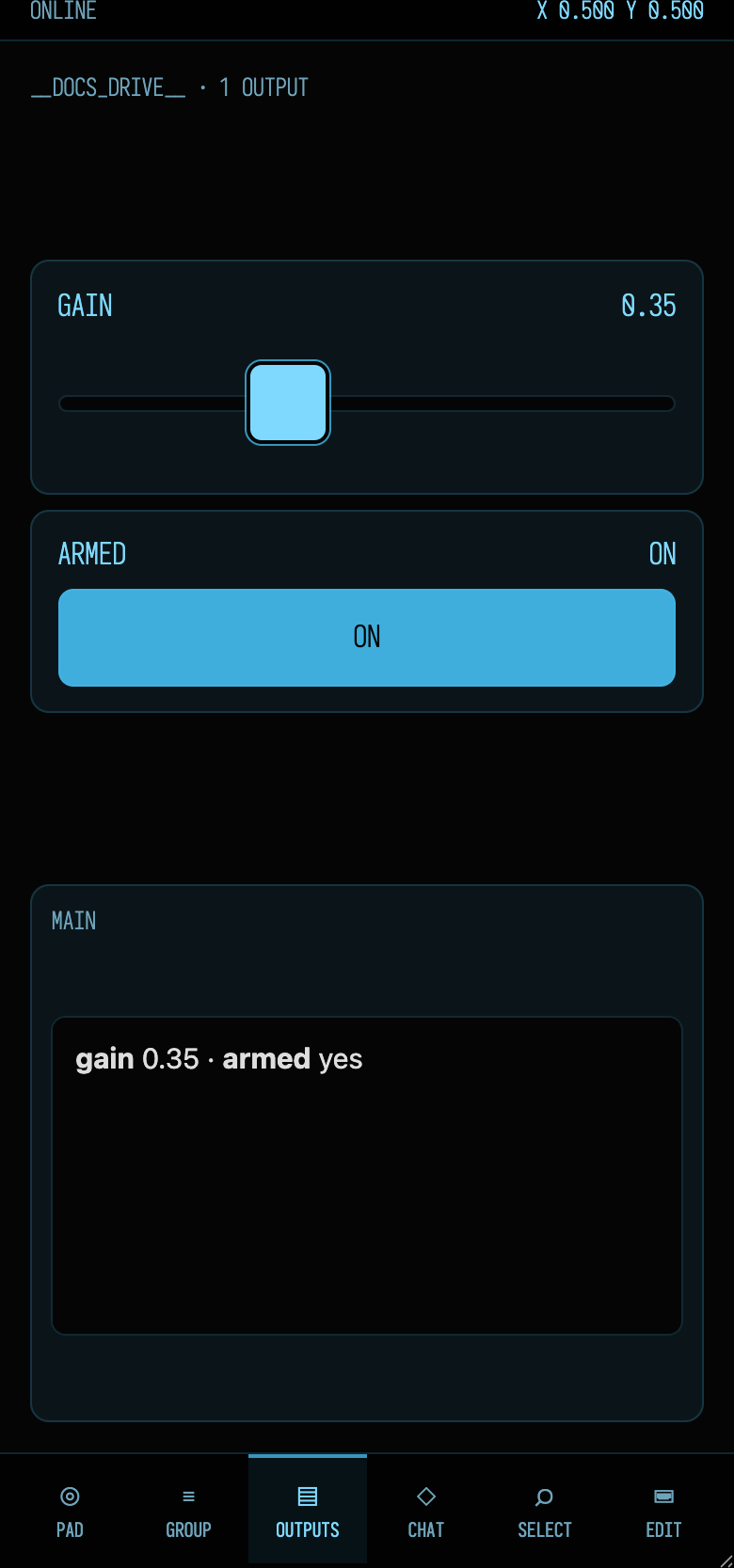
| Outputs | The selected box's output areas, reformatted into a narrow scrolling column. Native controls remain interactive. |
| Chat | The real AI4 conversation for the selected box and property, including attachments, code, and expandable tool-use summaries. File edits are called out by filename. |
| Select | Field's Open Anything panel (the cmd+p search over everything in a document), adapted for touch. Search boxes, properties, commands, and document text. Choosing a result updates every other phone tab. |
| Edit | A full embedded Monaco editor on the box and property chosen in Select. The same editor instance moves between Select and Edit, preserving its model and undo history. |
Below are Pad, Group and Outputs at iPhone size, showing a box that publishes a small controlGroup(...) and one output channel. Chat and Select have their own sections further down.
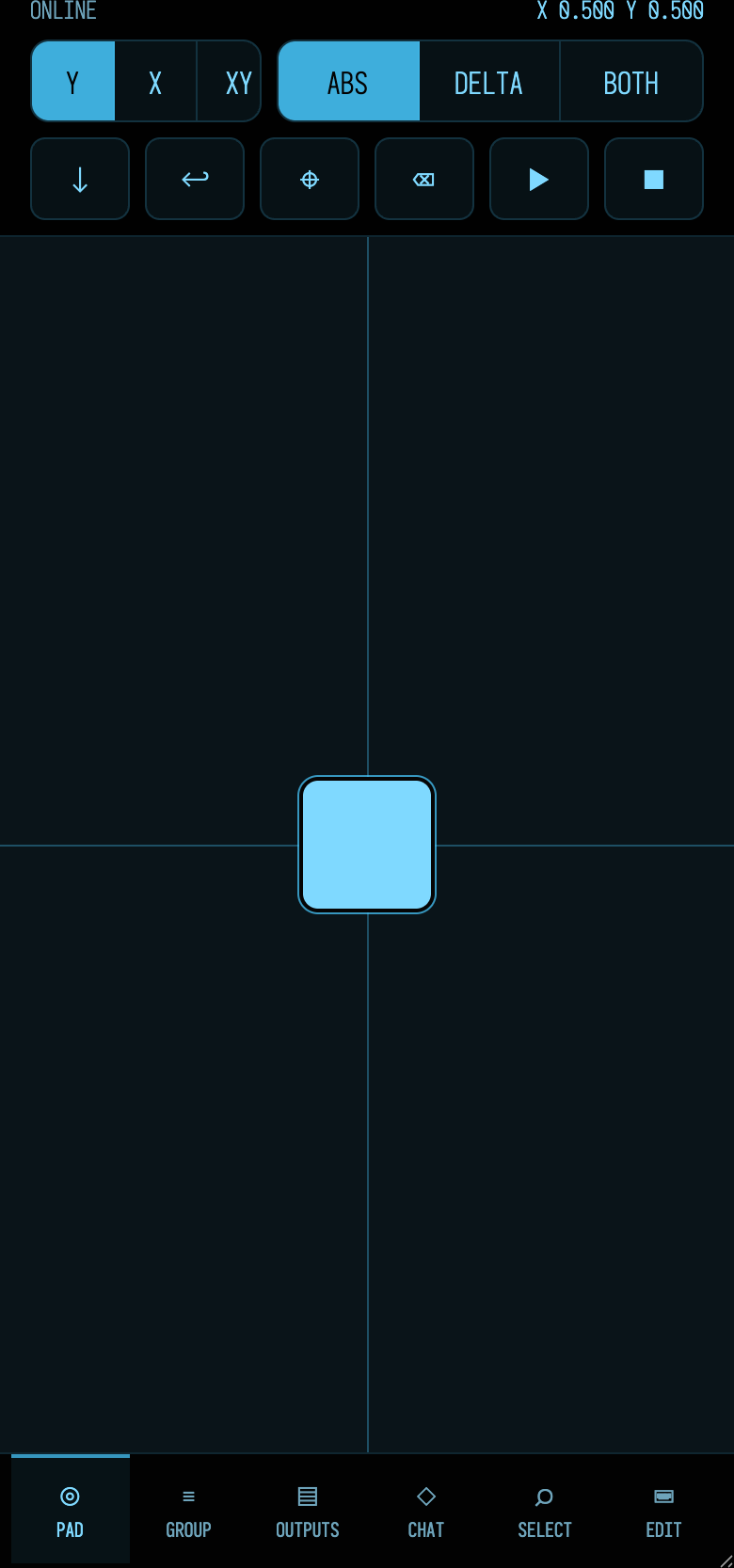
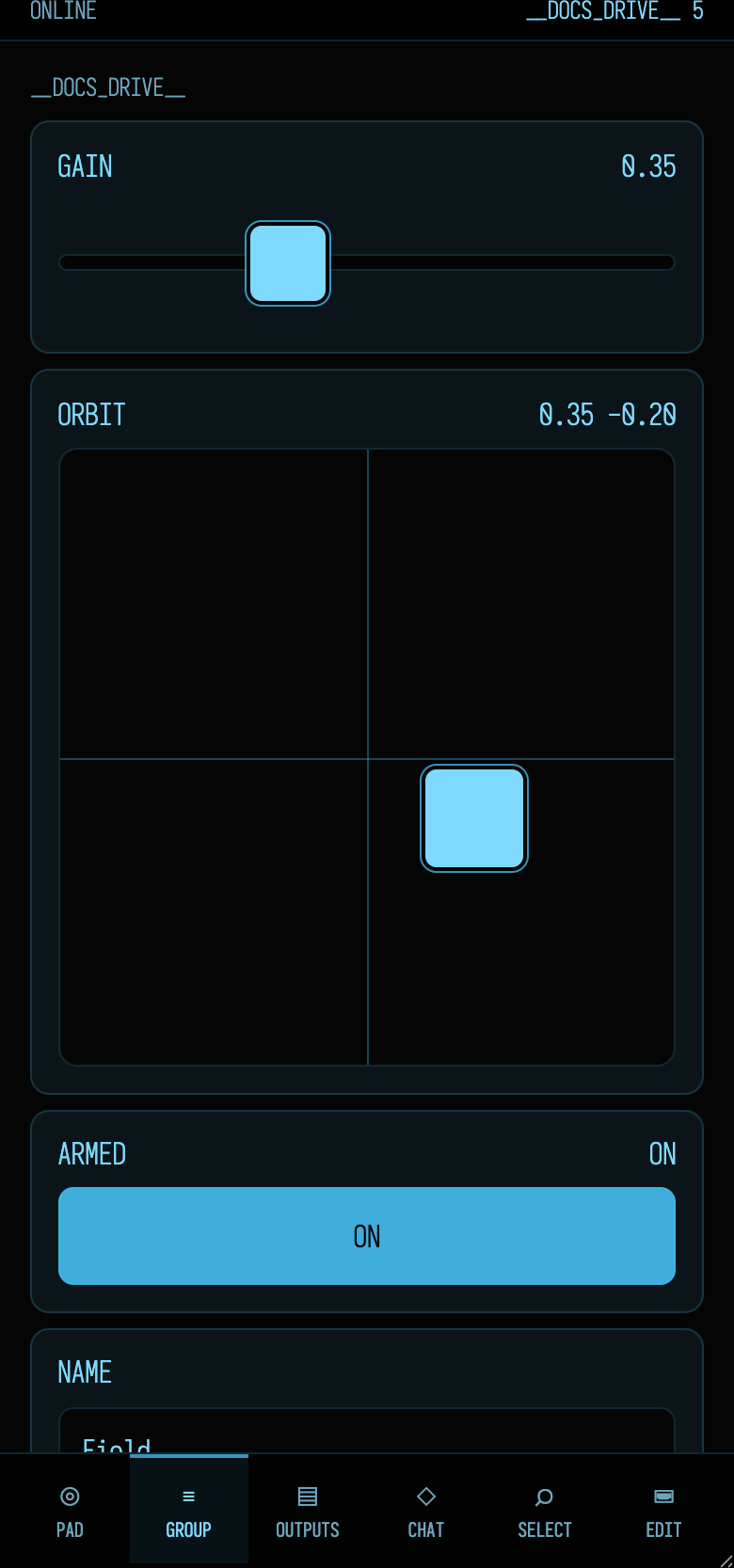
The Group tab also carries multisliders, matrices, range sliders and menus, with their playheads.
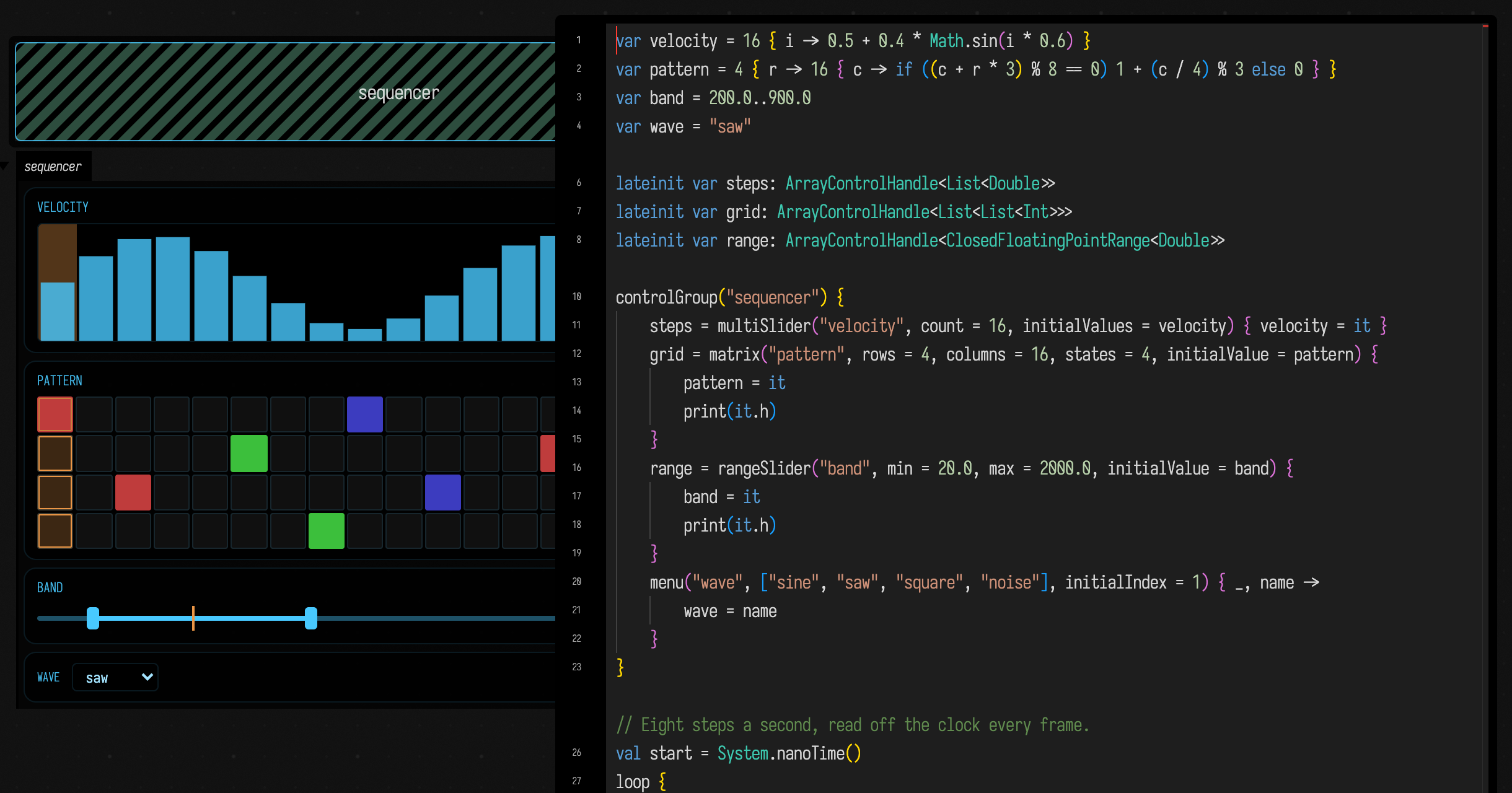
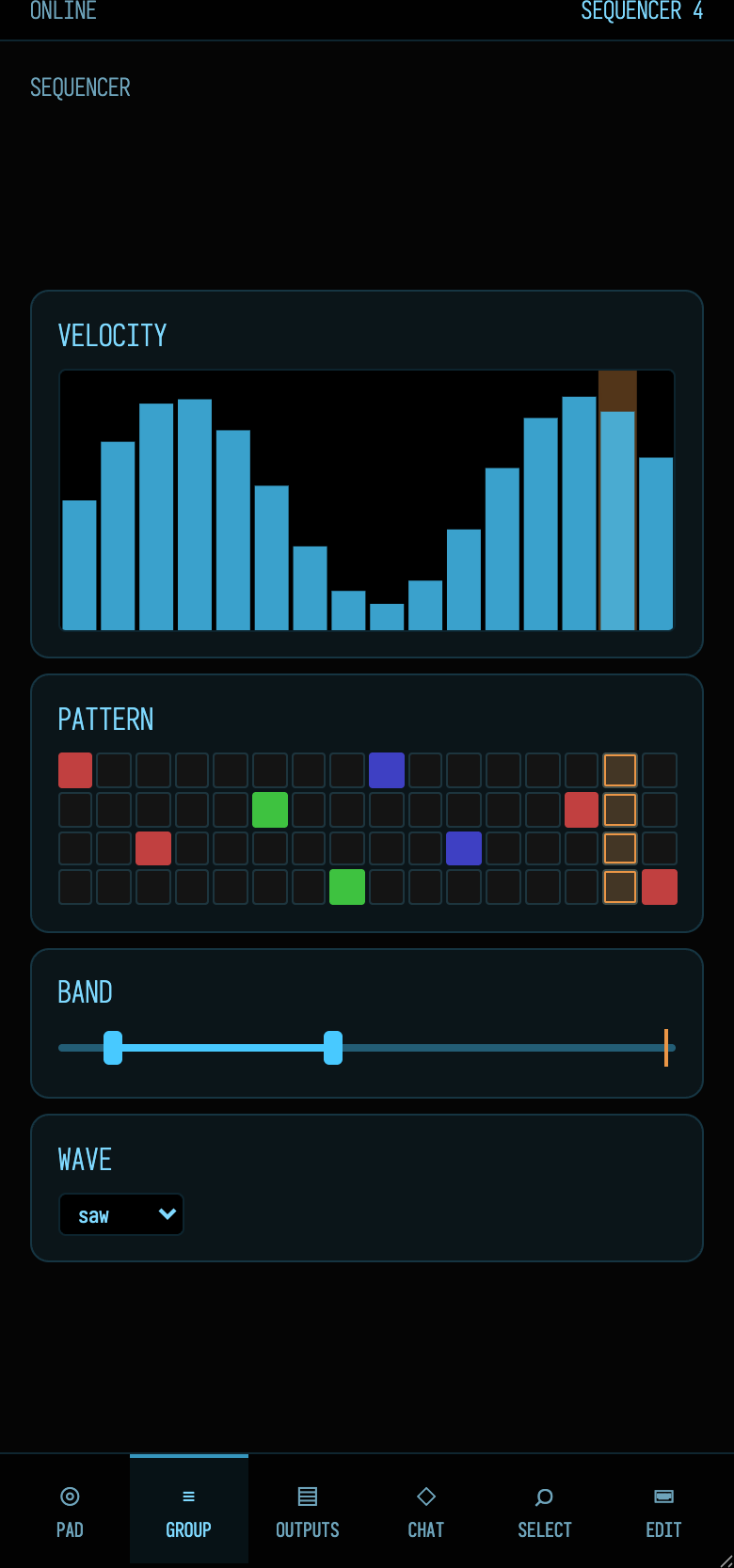
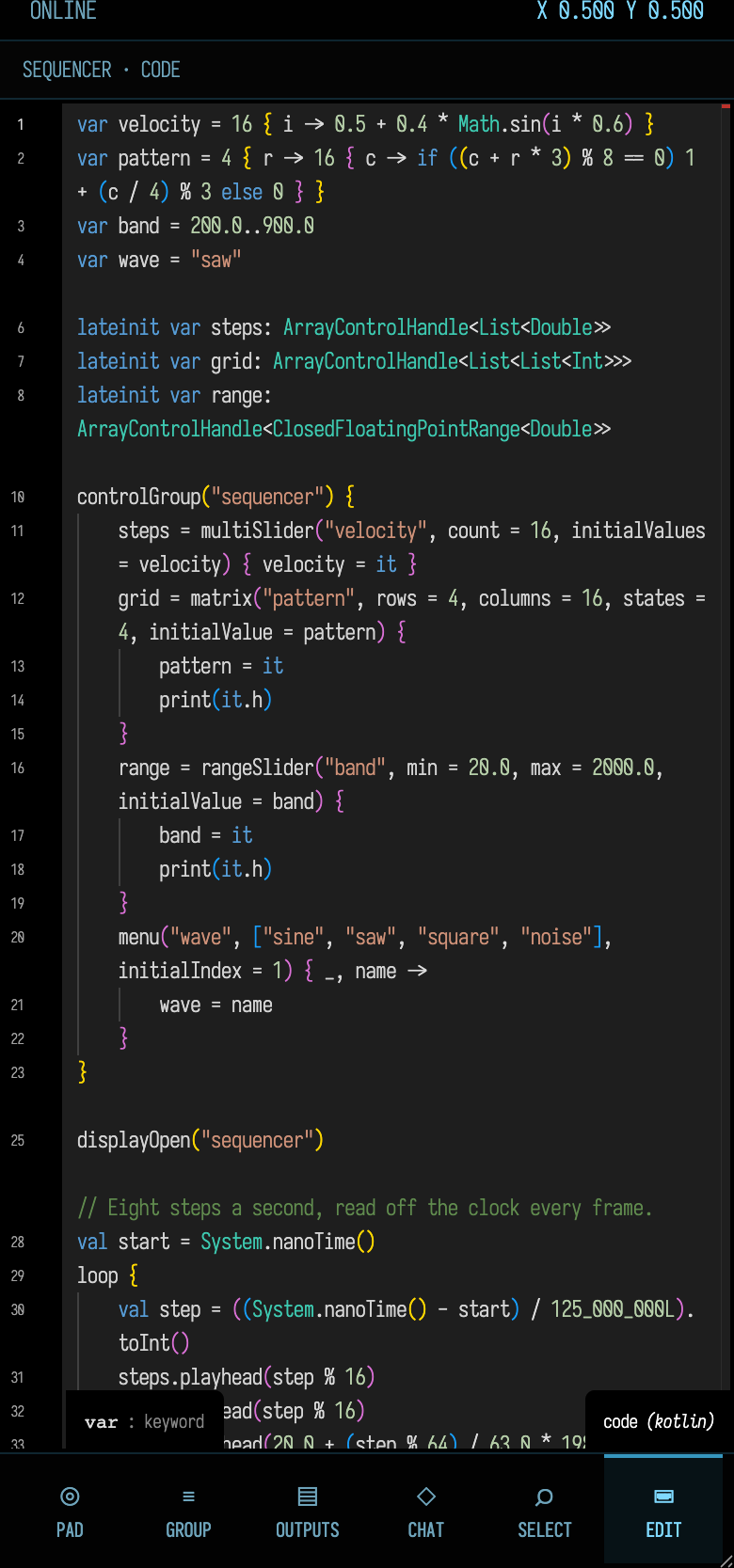
Here is a small step sequencer, first in the desktop app beside its code, then on the phone. Watch the orange playhead step across the velocity bars and the pattern grid, and along the band slider. In the code, each control call returns a handle, kept in a lateinit var so the loop below can reach it. The loop's three playhead(...) calls are what move the playheads; the rest declares the controls.
The Edit tab, open on the sequencer's code:
The Pad scrubs a number in your code
The Pad does not send values to a box. It edits code: dragging rewrites the number under the editor's cursor in the box's source with the pad's value and, after a short pause, runs the box again. Put the cursor on a constant, either in the desktop editor or in the phone's Edit tab, then drag.
- Value. In absolute mode the number becomes the finger's position, from 0 at the bottom (or left) edge to 1 at the top (or right). In delta mode the drag's movement is added to it. Both does each in turn.
- XY. With the XY axis, a cursor on either number of a pair such as
Vector2f(0.2f, 0.7f)sets both numbers at once. - Save and Restore remember the number under the cursor and put it back. Lock (⌖) pins the pad to that number, so it keeps scrubbing it after the cursor moves on; Unlock releases it.
- Launch and Stop launch and stop the box being edited.
Link straight to a tab
The page reads its settings from the address, so a Home Screen bookmark can open exactly the surface you want:
| Parameter | Values | Default |
|---|---|---|
file (or document) |
The document's name | The active document |
page |
pad, controls (Group), outputs, chat, select, editor (Edit) |
pad |
axis |
y, x, xy |
y |
send |
absolute, delta, both |
absolute |
debounceMs |
How long the Pad waits after the last change before running the box, 0 to 5000 | 200 |
maxExecutionMs |
During a continuous drag, the longest the Pad waits before running the box anyway, 0 to 60000 (0 waits for the drag to pause) | 750 |
For example, /controllers?file=YOUR-DOCUMENT&page=controls opens on the Group tab.
Chat without the desktop
The Chat tab is the same AI4 system used in a box output area. It knows the selected box, its current property, and the document around it. Press Send or use the return key to submit. While AI4 works, tool activity appears as compact expandable cards; proposed file edits remain open and put the target filename in the card heading.
The input stays pinned above the tab bar. When the iPhone keyboard appears, the conversation becomes the flexible part of the layout: the input, Send button, and navigation remain reachable.
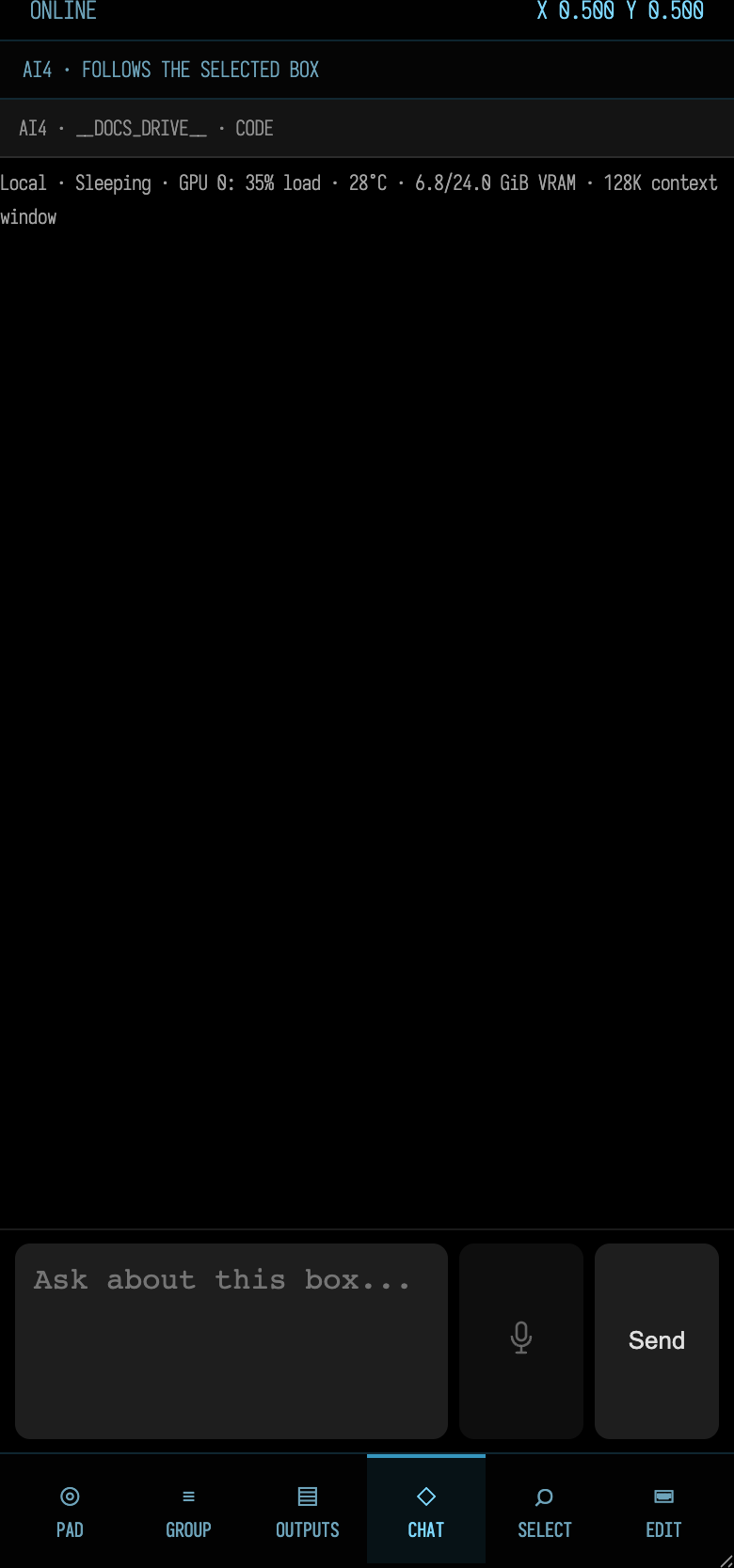
AI4 still needs the same provider credentials and configuration it uses on the desktop. The phone does not create a second AI session or a second copy of the box; it is another view of the running Field document.
Select, then edit
Open Select whenever you want to move elsewhere in the document. It searches the same things as the desktop panel, with larger rows and no preview column, so the results fit above the on-screen keyboard.
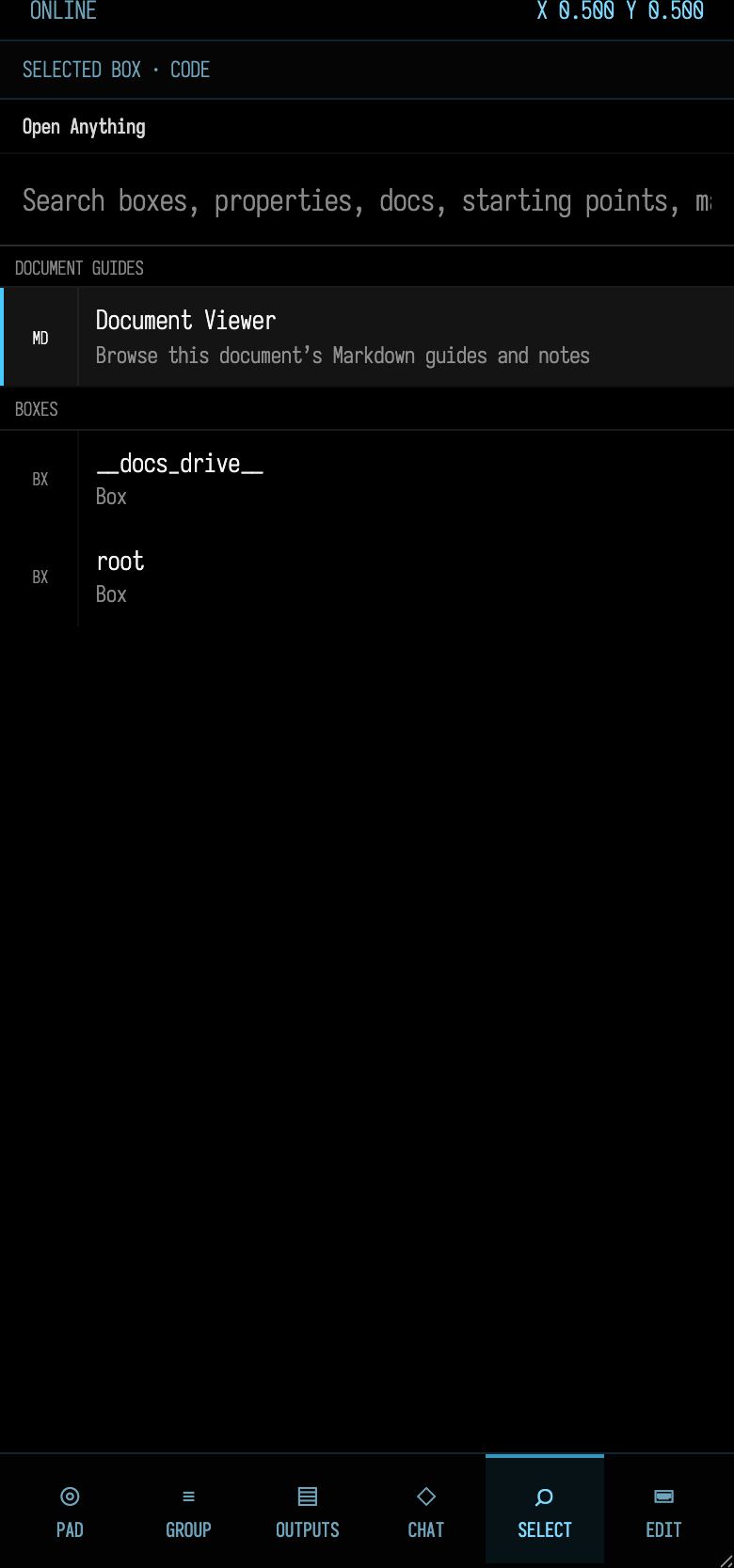
Tap a result to select its box and property. The controller switches to Edit, where Monaco fills the available area. Return to Select to jump again; switching does not discard the editor model.
On the road
- Leave Field running with the working document open.
- Reach the Field machine over your VPN or tunnel.
- Open
/controllers?file=...on the phone and add it to the Home Screen if you use it often. - Use Select to find the box you care about.
- Adjust live parameters in Group, check the result in Outputs, or use Chat for a larger change.
- Use Edit for a small direct correction, then Pad to launch or stop the selected box.
Landscape works, but the controller is laid out for portrait, and it stays usable with the keyboard raised.
Next on the Tour, Automating Field shows how a script or an agent can work with a document through the same kinds of operations.