Installation
Field is distributed as source code. The checkout is the installation; the launcher script in it (./field.sh, or field.bat on
Windows) downloads its own
Java and Node runtimes, builds Field, and opens the desktop app. You do not need to install Java,
Gradle, Node, Python, an AI API key, or the optional submodules to get started.
Once Field opens, Your First Five Minutes takes you from the Welcome page to a moving drawing you can edit. If you are choosing a machine or troubleshooting an installation, the platform requirements and recovery steps are on this page.
Before you clone
Install Git and Git LFS, and run git lfs install before cloning. Field ships its own modified
Kotlin compiler as a large file, and Git LFS (Large File Storage) is how Git downloads large files:
without it, Git leaves a small text pointer where the compiler JAR should be. GitHub's
Download ZIP is not the recommended installation route.
Start with at least 10 GB of free space for the checkout, downloaded runtimes, dependency caches and build output, and at least 16 GB of RAM. The Kotlin compiler is allowed a 10 GB heap, and desktop and graphics work on 8 GB machines has not been tested.
The first launch needs internet access to download dependencies and compile the project; allow
20–25 minutes, depending on your machine and connection. Later launches reuse the downloads and
compiled code. A long-running Gradle task is normal on the first launch. If you see BUILD FAILED,
check the first error in the terminal.
| Platform | Prerequisites and current limits |
|---|---|
| macOS, Apple silicon | Native arm64 Terminal; Git LFS (brew install git-lfs if you use Homebrew), and Apple's Command Line Tools (xcode-select --install). The desktop bridge compiles with xcrun clang++. |
| Linux, x86-64 | A glibc desktop distribution, Git LFS, curl, a C/C++ toolchain, Make, CMake, and the desktop libraries listed below. Run from your desktop session. |
| Windows, x64 | Git for Windows with Git LFS enabled. Use field.bat, or PowerShell as shown below. The launcher provisions its runtimes; a separate C++ compiler is not needed for the default Windows launch. |
| Linux, ARM64 | The launcher has an ARM64 provisioning path, but this release has not yet been validated end to end on ARM64. Treat it as experimental. |
| Intel Macs / native Windows ARM64 | Not supported by the pinned toolchain. GraalVM Community 25.4 supplies no Intel macOS or Windows ARM64 build; the launcher reports this before downloading. |
Linux prerequisites
For an Ubuntu 24.04 desktop (package names vary on older releases):
sudo apt update
sudo apt install git git-lfs curl build-essential cmake \
    libgtk-3-0t64 libnss3 libasound2t64 libgbm1 libxkbcommon0

git lfs install
On Fedora, the build tools are git git-lfs curl gcc gcc-c++ make cmake; on Arch, they are
git git-lfs curl base-devel cmake. Electron also needs GTK 3, NSS, ALSA, GBM, and X11/XKB
libraries, normally present on a full desktop installation. Minimal installations may need more:
the launcher reports missing shared libraries by name. Alpine/musl, WSL and headless desktop
launches are not qualified platforms for this beta.
A Vulkan driver is needed for native graphics examples, rather than for the editor itself. Install your distribution's Vulkan loader and the driver for your GPU. On Linux, Mesa supplies Intel/AMD drivers; NVIDIA users need a matching proprietary driver with Vulkan support. The Vulkan panel on the welcome page checks what Field can actually use. A detected GPU does not prove that a window can open: SSH sessions and displays with no usable monitor can still fail.
Clone and start
On macOS and Linux:
git lfs install
git clone --depth 1 https://github.com/OpenEndedGroup/Field4.git
cd Field4
./field.sh
The shallow clone reduces history downloads and supports ordinary git pull updates. Use a full
clone, or run git fetch --unshallow, if you want the entire development history. You do not need
--recurse-submodules: those services and experiments are optional.
On Windows, from PowerShell:
git lfs install
git clone --depth 1 https://github.com/OpenEndedGroup/Field4.git
cd Field4
.\field.bat
field.bat invokes the checked-in PowerShell launcher with a process-local execution-policy
bypass. You can also run .\field.ps1 directly when your PowerShell policy permits it. On macOS,
field.command is the Finder equivalent of ./field.sh.
Before a full build, ./field.sh --check-install (Windows: .\field.bat --check-install) checks
the platform, required tools and LFS content without downloading or compiling anything. If you
already cloned without Git LFS, install it and run git lfs install followed by git lfs pull in
this checkout; there is no need to clone again.
Downloads come from the Java distribution providers, GitHub releases, Gradle, Maven repositories,
and the Node/npm ecosystem. The pinned GraalVM download is checked against its release checksum.
A proxy or blocked download host can prevent the first build. Later launches reuse the downloaded
runtimes and Gradle's incremental outputs. ./field.sh --offline uses the cache; it cannot prepare
a machine that has never completed an online build.
On the first launch from a terminal, Field asks two things before it builds: whether you want the desktop app (recommended) or browser/server-only mode, and which optional features to prepare. Accepting the defaults and leaving every feature unchecked is a complete installation; Kotlin, JavaScript, Faust, ordinary audio and browser drawing need no extras.
In the checkbox list, Up/Down moves, Space toggles a checkbox and Enter reviews your
choices. Each feature's prerequisites appear on the right. Features with missing tools are
disabled (on Windows, unless setup can install them, below); install the prerequisites and rerun
setup. Features your platform does not support, and NVIDIA-only features without a working
nvidia-smi, are left out. Limited terminals use numbered checkboxes:
type numbers or names to toggle them, then press Enter to review. Leave everything unchecked to skip extras.
Setup then shows the exact package-manager commands and requires you to type INSTALL
before running them. Administrator authentication belongs to your OS package manager; no API keys
are requested. You can leave the commands for later and install them yourself.
The setup list itself is the full catalogue of optional features; most have their own guide in these docs. Installing Python prerequisites does not finish Python boxes: choose the interpreter in the Welcome page's Python panel. Vulkan diagnostics do not install your GPU driver.
Windows: what setup installs through winget
On Windows, setup uses winget when it is available. It offers missing CPython 3.12, uv,
CMake, Rustup and Git LFS with exact package IDs, interactive installers and no upgrades to
existing installations. Selectable rows marked install: need those prerequisites first.
After INSTALL, open a fresh terminal and rerun .\field.bat --setup before optional builds
so the new PATH is visible. In the Python installer, enable Add python.exe to PATH.
Visual Studio C++ Build Tools, GPU drivers and Vulkan SDK setup remain in their feature guides.
Without winget, install or update Microsoft's App Installer, or follow the manual instructions.
For native libraries and learned shaders with a Field preparation task, setup shows that task and checks its build tools. Type BUILD to run it, or leave it for later. INSTALL approves the displayed system packages only. Windows native-library builds need Visual Studio C++ Build Tools and a Developer PowerShell; the default Windows app launch does not.
Large model downloads, GPU SDKs, containers, Python interpreter selection and permission requests are covered in each feature's own guide; setup lists them. Once a feature is prepared, run its example to check that it works on your machine.
Your choices are saved in ~/.field4/first-run.properties. Reopen the tool with ./field.sh --setup
(Windows: .\field.bat --setup); this command configures setup and exits. Noninteractive launches
skip the questionnaire. Automation may also set AFIELD_FIRST_RUN=skip; prerequisite checks still
apply. The helper builds on the wrapper's Java 17, independently of Field's compiler fork.
The terminal shows startup progress and server URLs:
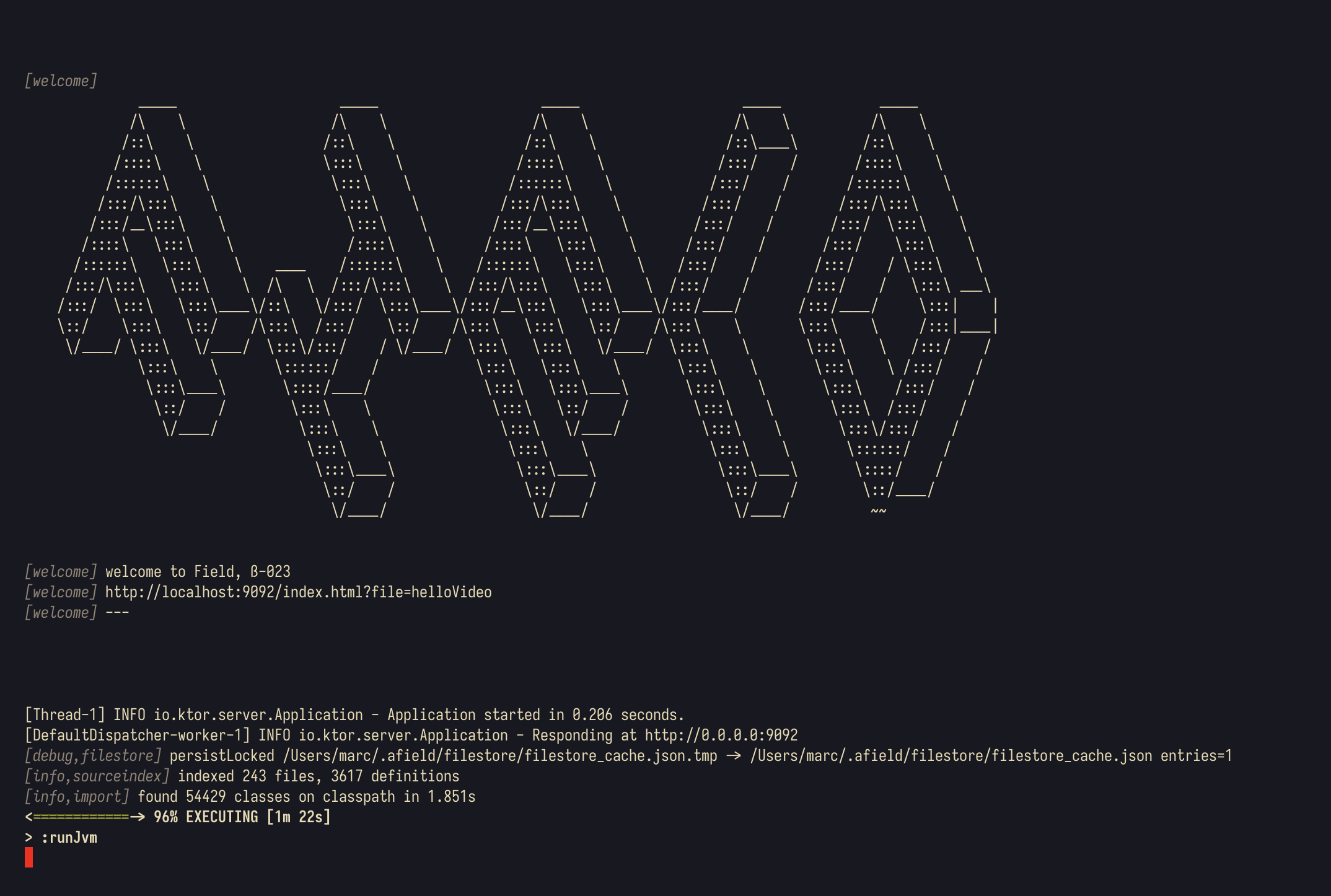
The launcher then opens Field's desktop app. Press ? for help, or consult the
survival guide.
Field in a browser
You can also open
https://localhost:9092/index.html?file=firstDocument
in a browser. The development certificate is self-signed, so the browser may require an
explicit local-certificate exception.
That URL is a web server running inside Field on your machine. If you share a network with anyone else, What Field Exposes, and What Stops It says what it serves and who can reach it.
The welcome page
The first tab in the desktop app is the welcome page, also at https://localhost:9092/welcome in
a browser:
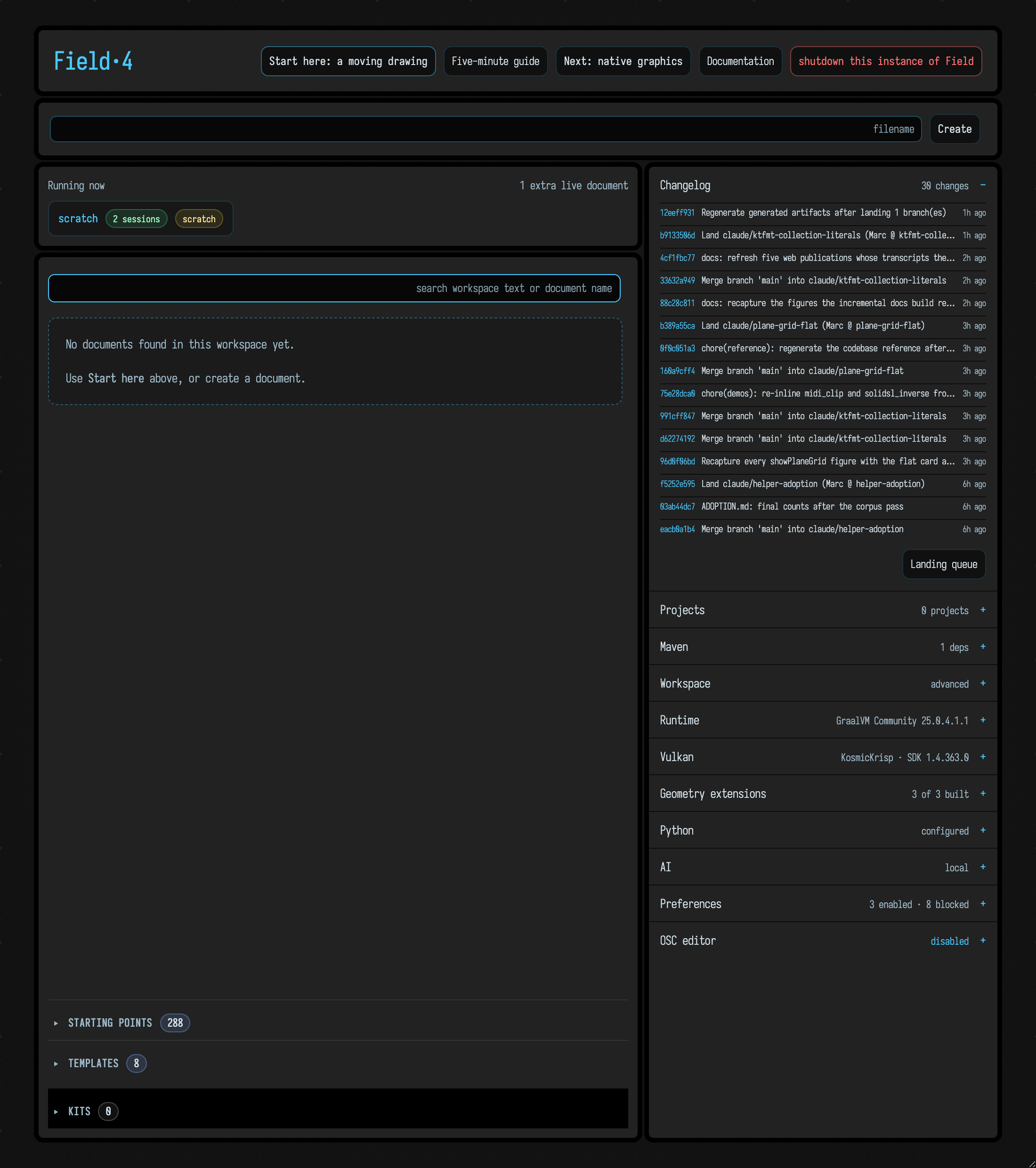
The left side lists your documents. Type a name into the box at the top and press Create to make a new one; the search box above the list searches the text of every document in the workspace as well as their names. Below the list, Starting points and Templates are curated scenes and scaffolds; opening one gives you an editable copy in your workspace, which is the quickest way to see what Field does.
The Kits disclosure below them provides reusable packages and their document starting points. Add a kit folder there; packages that add runtime code become available after a restart. See Kits and Starting Points for installation and updates.
The right side is a stack of collapsible panels, one per part of Field:
- Changelog: the most recent commits in your checkout.
- Projects, Maven, Workspace: what your documents can see, from other projects to extra Java libraries.
- Runtime and Vulkan: the JVM Field is running on, and whether graphics windows will open on this machine. If Vulkan is missing, the panel gives install steps for your OS; the graphics system itself is described in Field 4 Graphics.
- Python: which interpreter Python boxes will use.
- AI: model settings and the background tasks that improve Field's docs and tools, described in Your History with Field; what the models do inside a document is in AI features.
- Preferences and the OSC editor.
Personal templates
You can add your own templates to the Templates list. Field looks in
src/personal/templates/ (relative to Field's working directory) and in
~/.afield/templates/; put each template in its own folder, with its metadata.edn and
document files. Opening one makes an editable copy in the current workspace. The template itself
is left alone, and copies you made earlier are not updated. Opening a copy does not run its boxes.
To keep your templates somewhere else, start Field with
-Dafield.personalTemplates.dir=/path/to/templates. If one of your templates has the same name
as a bundled one, both are listed: yours gets -checkout (from src/personal) or -personal
(from your own directory) added to its name. Git ignores src/personal, so back up those templates
yourself.
The same templates are offered by cmd+t inside a document, which inserts a copy of their boxes
there rather than making a new document; see Templates, which
also says what happens to two templates with the same name.
Browser or server-only use
Use server-only mode when you want Field in your own browser instead of the desktop app, or on a machine you reach over SSH:
./field.sh --server-onlyWindows: .\field.bat --server-only. This builds the server and browser code without installing
Electron or compiling the desktop bridges. Open the printed welcome URL in your browser. The
server keeps running in the terminal; press Ctrl+C to stop it. The development HTTPS
certificate is self-signed, so a browser may require a local certificate exception. This mode
also supports remote development when used with an SSH tunnel; it does not remove GPU/display
requirements from native graphics examples.
Your workspace and local server
With no arguments, a new installation creates ~/Documents/AFieldWorkspace (or the equivalent under
your Windows home directory). Each checkout remembers the last workspace it used, and Field prints its choice at
launch. To choose a new directory, create it first and then pass it:
mkdir -p ~/Documents/MyFieldWorkspace
./field.sh ~/Documents/MyFieldWorkspace
Field saves documents there, outside the checkout. Close Field before updating with git pull.
Ctrl+C, closing the desktop app, or clicking Shut down Field on the Welcome page stops the server;
normal shutdown saves pending edits.
By default, the server listens on 127.0.0.1 and refuses cross-site browser API requests.
To connect a device such as Vision Pro over a trusted LAN, explicitly set AFIELD_BIND_HOST=0.0.0.0
before launching. This exposes an unauthenticated code-execution environment to that network;
use a firewall or a trusted private connection. See Field's server surface
for the deliberate cross-origin exceptions and integration settings.
Troubleshooting
- Git LFS pointer /
zip END header not found: rungit lfs installandgit lfs pull. - Missing
g++, Make, CMake orxcrun: install the platform prerequisites above, or use--server-onlyto skip desktop bridge compilation. - Missing Electron shared library: install the library named by the launcher using your
distribution's package manager;
--server-onlyis also available. - Linux browser GPU problems: the desktop uses Chromium's normal backend selection.
FIELD_ELECTRON_ANGLE_VULKAN=1explicitly requests its optional Vulkan backend; unset it for ordinary desktop use. Field's native Vulkan renderer is configured separately. - No display / SSH: use
--server-onlyand a browser via an SSH tunnel. Run native graphics from a real desktop session. - Port already in use: close your existing Field, or run
PORT=9477 ./field.sh. In PowerShell, set$env:PORT = "9477"first. The launcher does not attach to someone else's Field. - Download or checksum failure: correct the connection/proxy problem and rerun. An incomplete GraalVM download is discarded.
- Out of memory during compilation: close memory-heavy applications and try again. If it still fails, report your available RAM and swap with the first compiler error.
- macOS permissions: accept the permission prompt for the folder you chose, and install the Command Line Tools when asked. Field does not need Gatekeeper, FileVault or other protections turned off.
- An error after startup: include the first error and its context, OS/architecture, and the exact launch command. Review logs before posting them; paths and document output may be private.
Field·4 is still beta software. Report reproducible problems through the public repository's GitHub issue tracker.
Updating
To update Field, pull the latest source into your checkout:
git pullThen start Field again; it will rebuild whatever has changed.
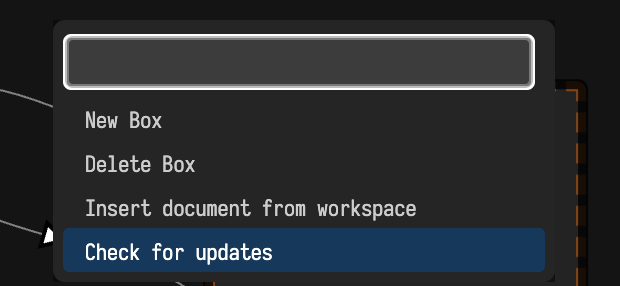
The command palette (ctrl/command-shift-P) includes Check for updates, which tells you whether updating is worth
doing. It reports how many commits you are behind origin, and any local commits that
origin does not have.
It does not pull or change your checkout. If the answer is "7 new commits on origin/main", run
git pull when you are ready.
If it cannot answer (because Field was unpacked from an archive, HEAD is detached, there is no origin,
or the network is down), it explains why rather than reporting that you are up to date.
Agents: making an update announce itself
Most commits should pass without comment — the count is enough. When a commit needs everyone
who pulls it to do something, give it a Field-Notice trailer:
feat(repl): move to the 2.5.255 Kotlin fork

...body...

Field-Notice: the Kotlin fork moved — run ./gradlew clean before your next build
Anyone whose update check spans that commit sees the trailer's text verbatim, instead of the subject of the newest commit. Several notices in one range are all shown, deduplicated.
Project-owned Kotlin extensions
Kotlin code you reuse across documents can live in your own project, outside the Field checkout.
Set AFIELD_EXTENSION_DIRS (or Gradle's -PfieldExtensionDirs) to one or more directories,
separated by : on macOS and Linux or ; on Windows. Each directory holds kotlin/,
resources/, or both. If a directory is missing, the build stops and names it. To launch Field
with one extension directory and a workspace from the same project:
AFIELD_EXTENSION_DIRS="$HOME/my-project/extensions" ./field.sh "$HOME/my-project/workspace"This code is compiled together with src/personal, and boxes can import its classes. After you
change it, rebuild personalJar with the same setting, then run reloadPersonal or restart
Field. Gradle scripts in these directories are not run; third-party libraries are added the same
way as for the rest of Field. To keep the project's templates beside its code, point
afield.personalTemplates.dir (see Personal templates) into the project.