Python in a box
You can write Python alongside Kotlin in the same Field document. A Python box has its own output, can be launched and stopped, and can reach the box it runs in. Field embeds CPython through JEP, so you can use libraries such as NumPy from your Python code.
Python needs an interpreter with JEP installed. If your cells keep running as Kotlin, see Setting Python up at the end of the page.
A Python box is a child of a Python root
A box gets its language from its parent. You mark one box as a Python root, and its children run as Python.
Select a box, right-click, and choose Set Main Language: Python. Every box you connect under it from then on runs as Python. The setting is saved with the document.
Two things follow:
- The root itself is not Python. Its own code is Kotlin; Python goes in the boxes under it, and a compile error in the root says so.
- A cell can have other parents. A box runs as Python as long as any of its parents is a Python root, so a cell connected under both the document root and a Python root is Python.
The code below is a Python box's code, and the picture under it is that box's editor. A single
line of output appears beside the line that printed it; anything longer gets a block of its own
underneath.
:::static
# A single-line print appears inline, beside the line that made it.
import platform
import numpy as np

print("python", platform.python_version())

# A multi-line one gets a block of its own, and keeps its columns.
a = np.arange(12).reshape(3, 4)
print(a)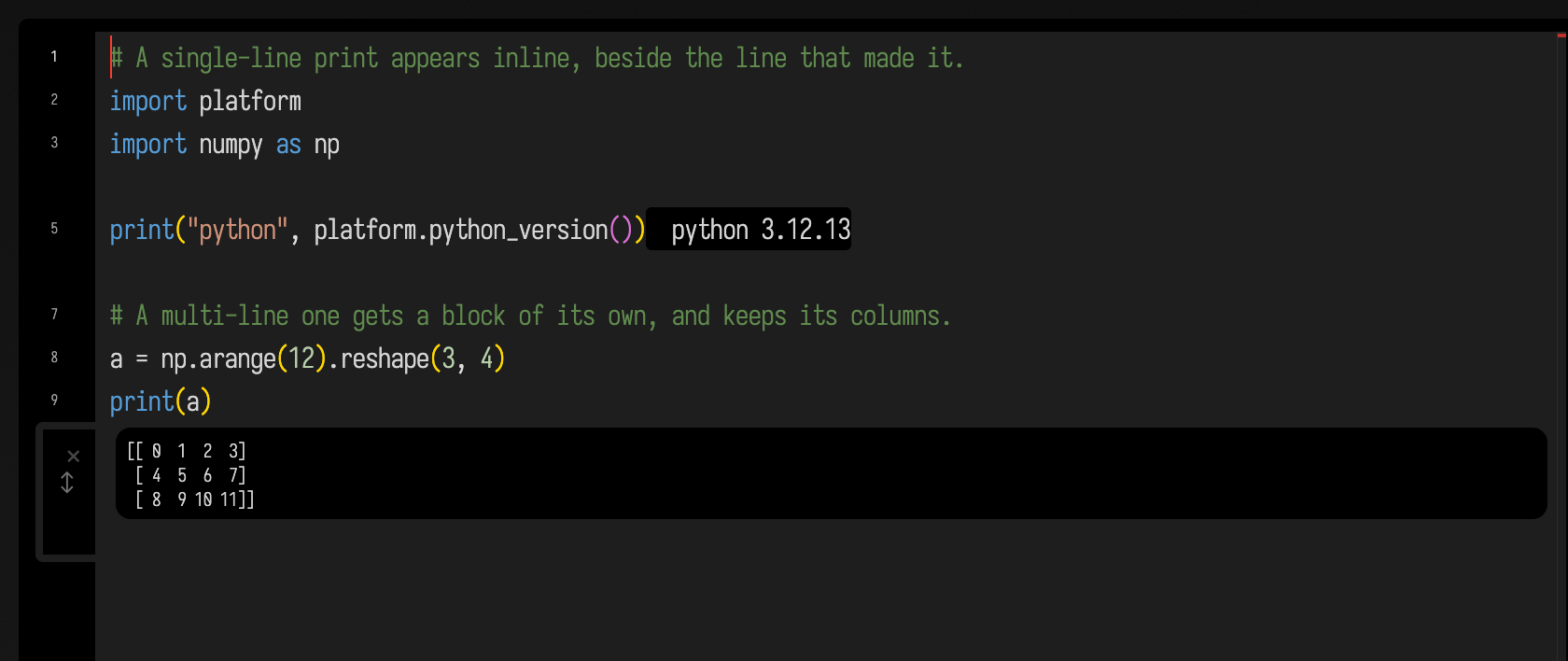
Multi-line output keeps its columns, so a DataFrame or a 2-D array stays legible. See
Output.
One interpreter, one namespace
Field runs one Python interpreter, shared by every Python box in every open document. A name bound in one box is visible in every other box: two Python boxes are two cells of one notebook.
State persists between runs, as in any notebook: import your libraries and load your data in one
cell, and iterate in another. A name you bound earlier stays bound until you del it or restart
Field.
Try it yourself: make a Python root, put two cells under it, bind a name in the first, and read it in the second.
A cell that prints nothing displays the value of its last expression instead:
:::static
# Nothing is printed, so the value of the last line is what you see.
import math

sum(math.sqrt(n) for n in range(1, 11))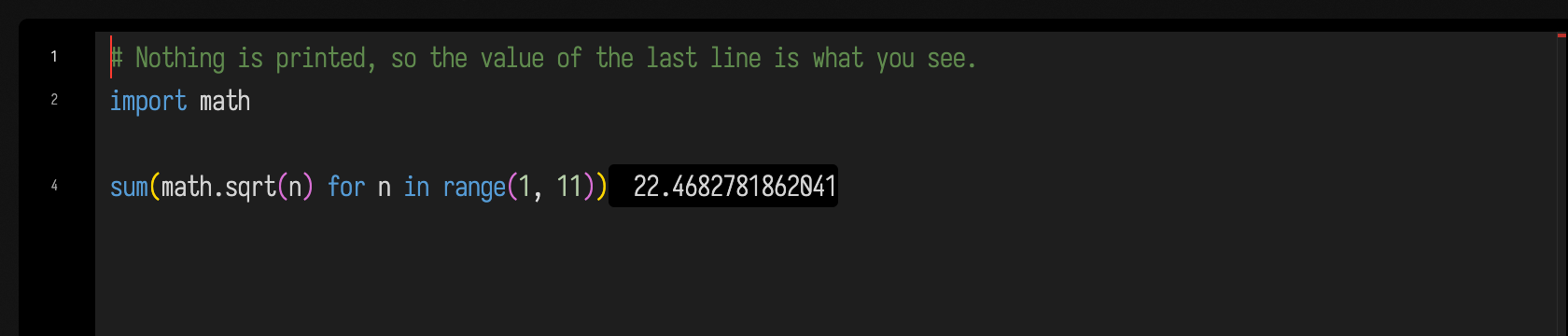
A cell that has printed something does not also show its last value, which is why the array cell
above shows no trailing None.
Stop does not restart the interpreter. It cancels the asyncio tasks this box started, and only
those, so stopping one cell leaves another cell's coroutines running. async def and await work
in a cell; Field drives the event loop from its own frame loop.
Output
print and a cell's last value both go to the box's output, not to the terminal. Very long output
is clipped to its first and last lines, with a marker between, so a huge print cannot lock up the
browser. Multi-line text is shown in a monospace block, so arrays and tables keep their columns.
A tqdm loop becomes a progress bar. A line that ends in a carriage return (\r) rather than a
newline is treated as an in-place update. If it looks like a tqdm bar, Field shows a progress bar
with that percentage; otherwise it shows a bar labelled with the text. Either way you see progress
while the loop runs, not one long string at the end.
An error is marked on the line that raised it
When a cell raises, the red marker goes on the line that raised, as it does in a Kotlin box. If the error happened inside a function the cell defined, the marker is on the line inside that function; if it happened inside a library, the marker is on the cell's line that called into the library.
:::static
# The marker lands on line 6, inside mean(), where the division failed --
# not on line 1, and not on the call on line 8.
readings = []

def mean(values):
    return sum(values) / len(values)

mean(readings)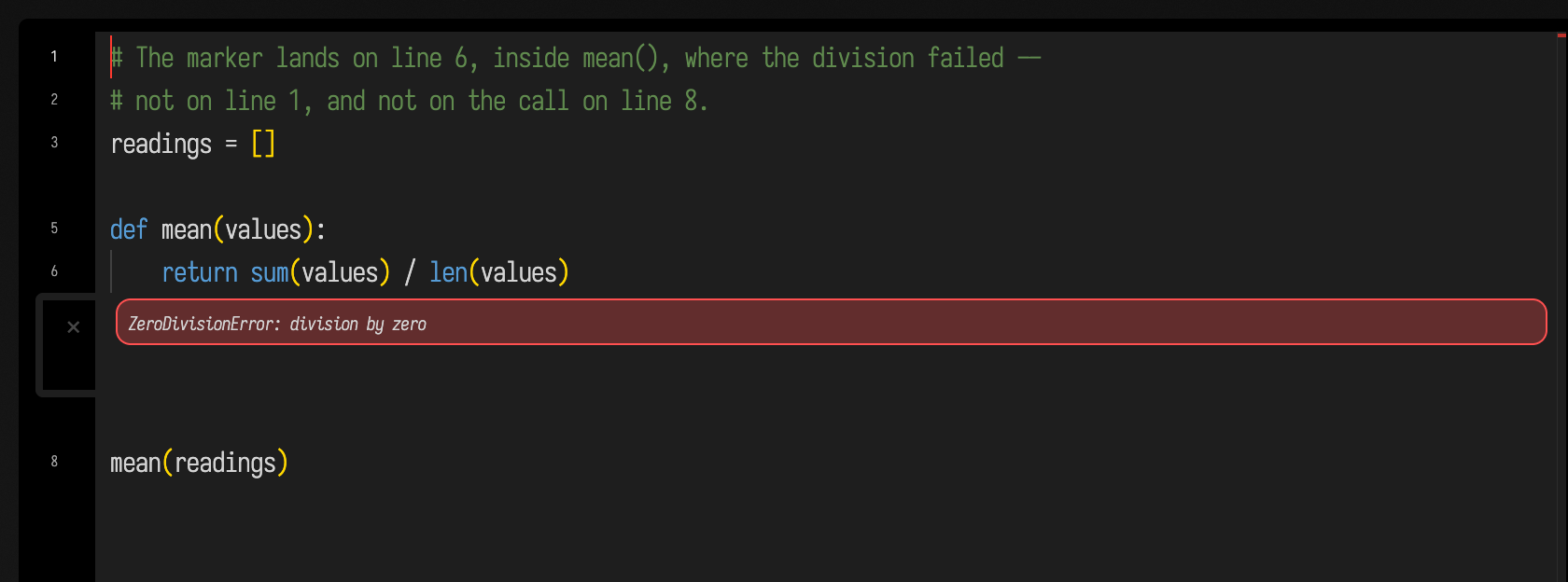
A syntax error is marked on the line Python reports for it.
Sliders and checkboxes
slider and checkbox draw the same controls a Kotlin box's slider(...) and checkbox(...)
draw (Controls), in the box's
controls channel. Write them as decorators: the function runs each time the control changes, with
the new value, and its print and display go to this box.
:::static
state = {"freq": 3.0, "square": False}

def redraw():
    wave = "square" if state["square"] else "sine"
    display("main", f"<b>{wave}</b> at {state['freq']:.1f} Hz")

@slider("frequency", min=1, max=10, step=0.1, value=3.0)
def on_freq(v):
    state["freq"] = v
    redraw()

@checkbox("square wave")
def on_square(checked):
    state["square"] = checked
    redraw()

redraw()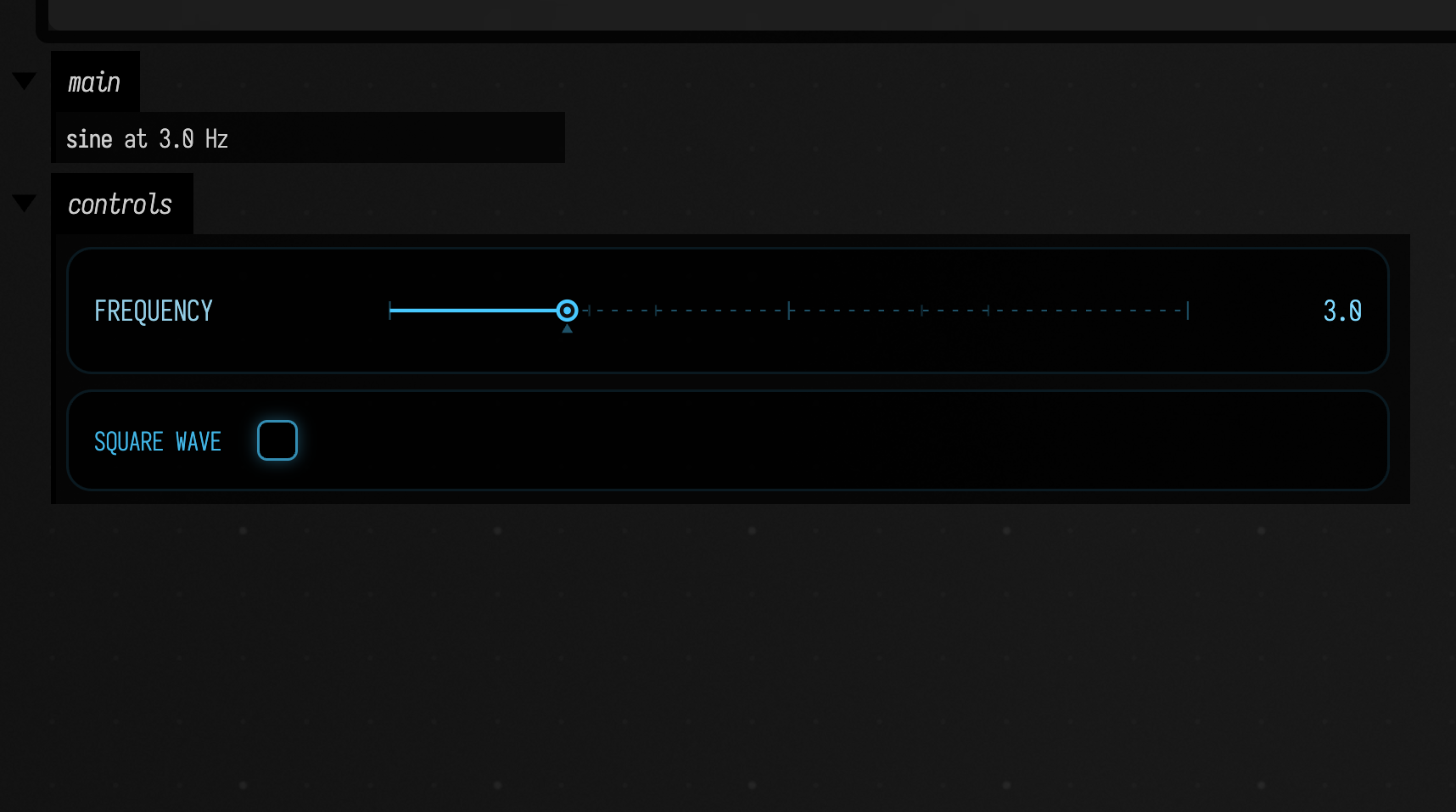
slider(label, on_change, min=0, max=1, step=0.01, value=None, channel="controls") and
checkbox(label, on_change, value=False, channel="controls") also take the callback as an
argument. A cell's controls appear together when it finishes, one group per channel, like a Kotlin
controlGroup { ... }. Running the cell again keeps any value you moved a control to, and calls its
function with that value. An exception in a callback goes to the box's error output.
display takes Kotlin's form too: display("main", "<b>bold</b>"), a channel name and a string of
HTML, shows the HTML in that channel. Any other call is IPython's display(obj, channel="main").
A figure that opens a browser gets embedded instead
Plotting libraries end fig.show() by asking the operating system to open a web browser. In Field,
the page is embedded in the box's output instead, on a channel called browser. This works for
libraries that open a file and for ones, like plotly, that start a small local web server and wait
for a browser to fetch the page.
:::static
import numpy as np
import plotly.graph_objects as go

t = np.linspace(0, 4 * np.pi, 400)
fig = go.Figure(go.Scatter(x=t, y=np.sin(t) * np.exp(-t / 10), mode="lines"))
fig.update_layout(
    template="plotly_dark",
    margin=dict(l=55, r=20, t=25, b=40),
)
fig.show()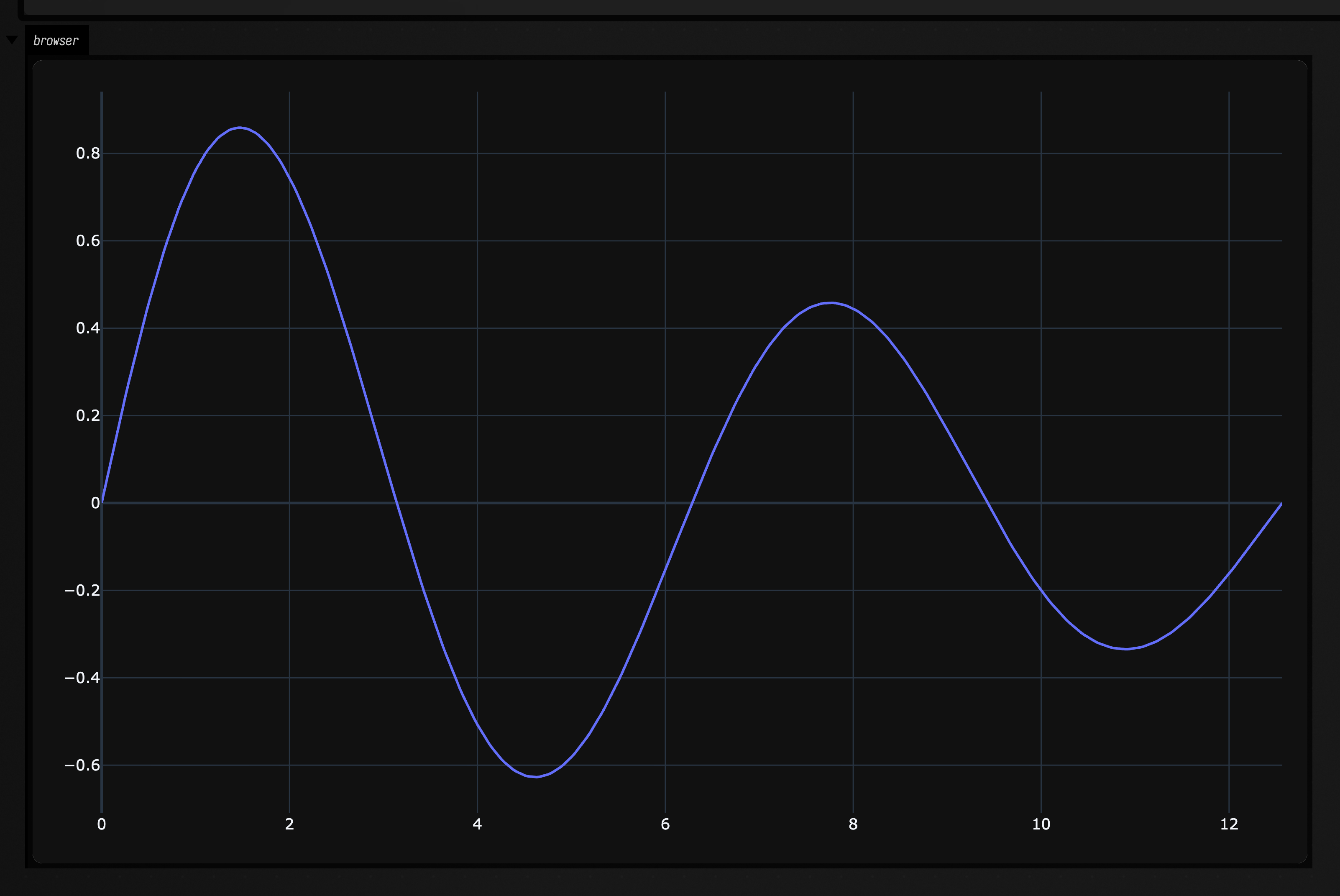
Nothing in that cell is Field-specific; it is the plotly you would write anywhere.
Python and Kotlin in one document
A Python cell can import Java and Kotlin classes: java.lang, and any class Field itself uses, can be
imported as a Python module. The cell below prints the Java version and the name of its own box.
:::static
# java.lang, and anything else on Field's classpath, is importable.
from java.lang import System
from afield.lang.python import PythonInterface

box = PythonInterface.thisBox          # the Box this cell is running in

print("\n".join([
    f"JVM       {System.getProperty('java.version')}",
    f"this box  {box.getName()}",
]))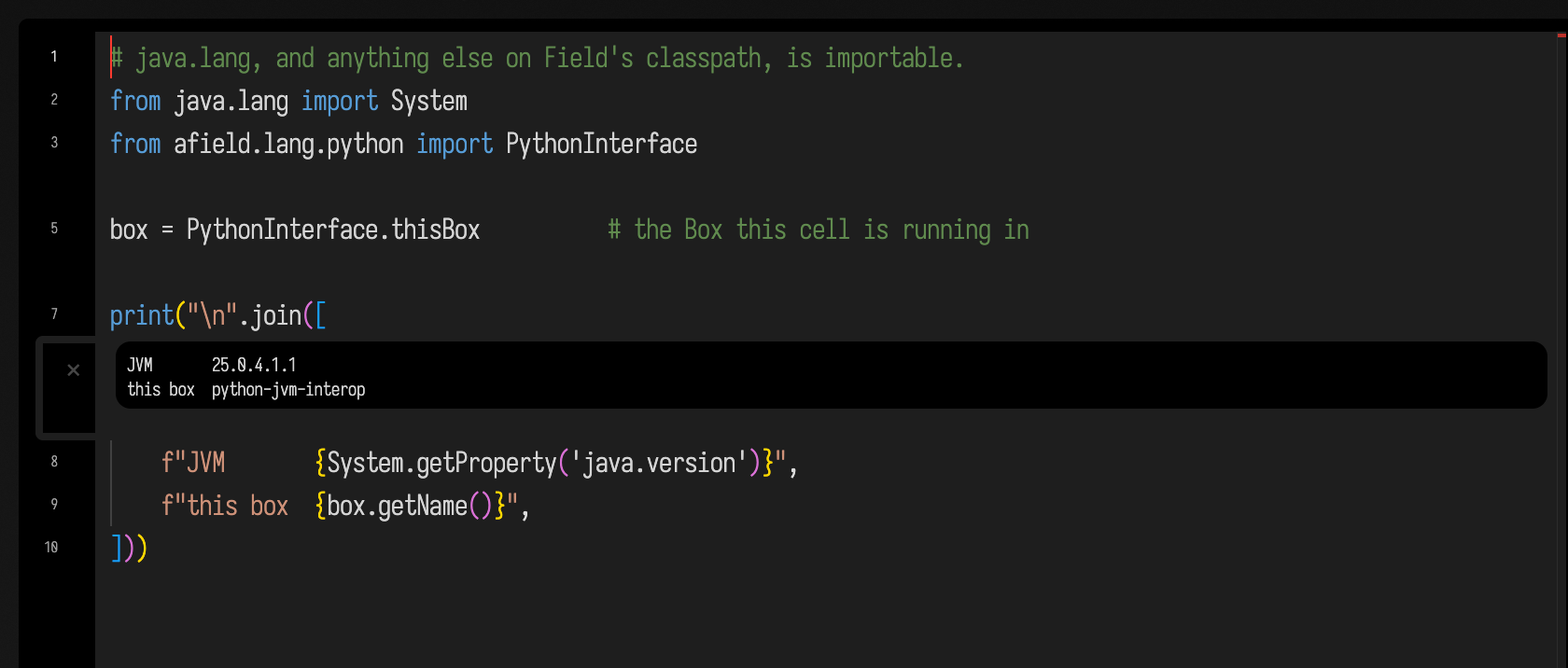
PythonInterface.thisBox is the box the cell is running in, so a Python cell can reach its own box
and, through it, the rest of the document.
The bridge runs one way. Kotlin has no helper for running a string of Python or reading a Python variable out of a box.
Completion inside a Python box comes from jedi. It looks at the
objects your cells have actually created, not only at the source. Run pip install jedi in Field's
interpreter to turn it on.
A notebook is a column of boxes
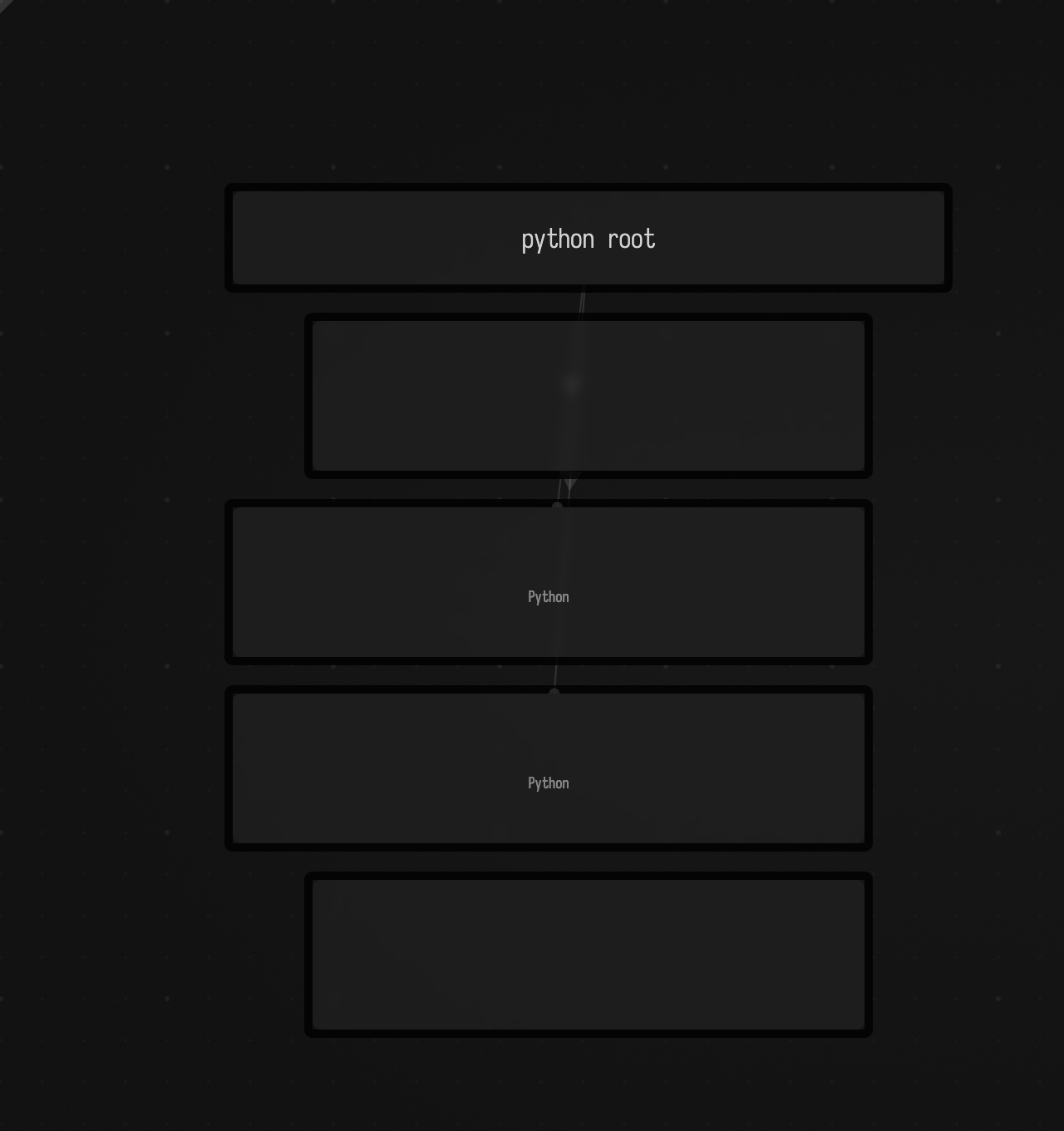
Drag a .ipynb onto the canvas and choose Import as Python cells. Field makes a box named
python root and connects a Python cell under it for each code cell; each Markdown cell becomes a
notes box beside the column, so the prose reads inline. The cells stay connected to the document
root too, which is fine: a cell is Python while
any of its parents is a Python root.
To go the other way, select the python root and choose Export notebook (.ipynb). It writes the column top to bottom as a standard notebook. Import also reads older notebooks (nbformat 3).
Here is dev_docs/examples/notebook_roundtrip_demo.ipynb, two code cells between two Markdown
cells, dropped on an empty canvas and imported. The notes boxes keep the Markdown cells' places in
the column, one above the code cells and one below:
funFeatures has the round-trip in context.
What each line came to
Rest the cursor on a statement and the note beside it says what that statement came to the last time the cell ran: an expression's value, the value a name was assigned, the function or class it defined, or simply that it ran. The value is in bold. Here the cell is
1 2 3 4 5 | |
under a comment line, it has run once, and the cursor rests on total = sum(xs):
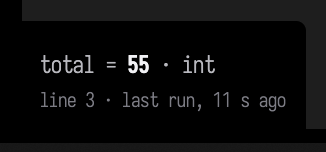
The values are recorded as the cell runs, so asking about a line never runs it again, and a line changed
since the run says so. Only simple values are printed (numbers, short strings, small lists and
dicts of them); anything else, such as a DataFrame or a tensor, is named by its type. To turn the recording off, start Field with AFIELD_PYTHON_LINE_NOTES=0. See
Line notes.
Setting Python up
Field needs a Python where pip install jep has been run, so that JEP's native library (a libjep
file) is in its site-packages.
Field looks for an interpreter in this order, and uses the first one that has libjep:
-Dafield.python.venv=…/-Dafield.python.executable=…FIELD_PYTHON_VENV/FIELD_PYTHON_EXECUTABLEVIRTUAL_ENV, thenCONDA_PREFIX, so an environment active in the shell that started Field wins- whatever
/welcomelast saved, in~/.afield/python.properties python3, thenpython, onPATH
The /welcome panel has an Install JEP button. It installs pip if needed, then runs
pip install jep against Field's own Java, since JEP compiles C code that needs it. The install can
take a few minutes. Your choice of interpreter is saved only if the install worked.
Three things commonly go wrong:
import jepis the wrong way to check. A correctly installed JEP raisesImportError: Jep is not supported in standalone Python, it must be embedded in Java.Look for thelibjepfile instead.- Field picks its Python at startup. After changing the settings, restart Field; until then your cells keep running as Kotlin. The status line says when a restart is needed.
- An old
typingpackage breaks startup. An Anaconda base environment with the PyPItypingpackage installed fails withAttributeError: type object 'Callable' has no attribute '_abc_registry'. Use a cleanpython -m venvinstead. Field reports this as "found but failed to initialize" and names the interpreter it tried.
On macOS, if Xcode is the selected toolchain but Homebrew's Python was built against a Command Line
Tools SDK that is missing from the machine, the jep build fails with fatal error: 'assert.h' file
not found. Building with an explicit sysroot fixes it:
python3 -m venv .venv
CFLAGS="-isysroot $(xcrun --show-sdk-path)" .venv/bin/python3 -m pip install 'jep==4.3.1'
.venv/bin/python3 -m pip install jedi numpy      # completion, and something to print

# then point Field at it, and restart
export FIELD_PYTHON_VENV="$PWD/.venv"
Install the jep version that matches the jar Field ships (libs/jep-4.3.1.jar); Field refuses an
interpreter whose jep is a different release, and says which two versions it found.
Agents: how this page's pictures are made
The docs build runs each Python block in a real Field, as a child of a Python root. Each declares
jep (and python:numpy / python:plotly.graph_objects) in requires; a recapture without them
stops before Field starts, and a cached build keeps the committed pictures. The shell block is
illustration only. The tqdm progress bar and the shared namespace have no picture: a still
after the loop shows an empty bar, and a runner fence builds only one box.
dev_docs/DOCS_PAGE_SNIPPET_COVERAGE.md has the mechanics.