Custom marking menus
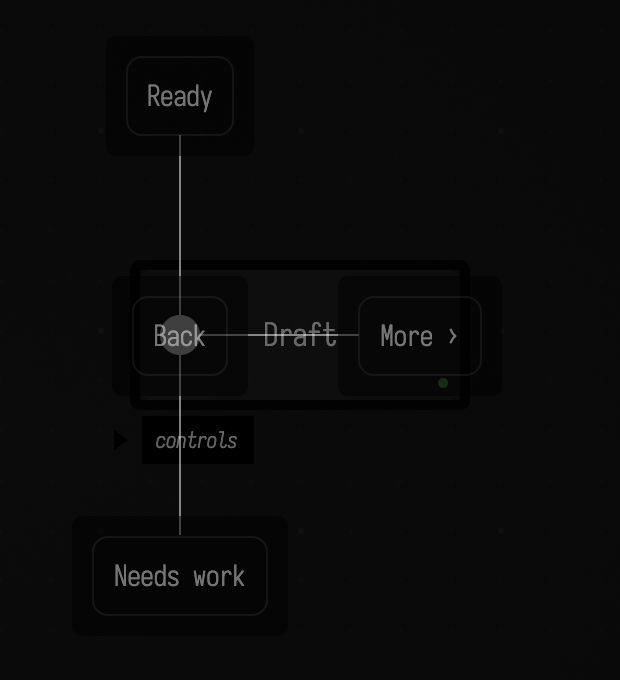
A box can give itself a radial menu of live Kotlin callbacks. Run the installing code, then ⇧+⌥-click the box and move towards a label. Release to choose it. Text frames also open this menu with ⌥-click; regular boxes keep their existing ⌥-click run menu.
markingMenu {
    item("N", "Rename") { name = "Revised draft" }
    submenu("E", "Status") {
        item("N", "Ready") { name = "Ready" }
        item("S", "Needs work") { name = "Needs work" }
        submenu("E", "More") {
            item("S", "Archive") { name = "Archived" }
        }
    }
}
The box is the implicit receiver, so these callbacks update its own name. They can call your
functions, set properties, update an output, or start whatever action the box provides. A leaf closes
the menu before its callback runs. Callbacks execute on Field's runloop with the owning box and
session context, so property and FileManager lookups refer to the right document. Keep callbacks
short; start longer work through your usual asynchronous path.
Directions and submenus
Directions are N, NE, E, SE, S, SW, W, and NW. Append 2 for the outer ring, for
example N2. An item and a submenu both take a direction and a label. Each submenu has its own
compass, and can contain further submenus.
A short hover over a submenu label opens the next level. Releasing on the label opens it too, so you can choose the next item with a click. Opening a level does not execute a leaf beneath the pointer. The circle at the centre returns to the previous level; Esc goes back one level and cancels at the root. Releasing on the centre cancels a root menu.
Rerunning markingMenu { ... } replaces that box's menu and its callbacks. An empty
markingMenu {} clears it. Menu callbacks are runtime state, so rerun the installing code after
reopening the document. This can be part of the box's normal startup code.
The older map API still works alongside the builder:
customMarking["NW" to "Inspect"] = { name = "Inspected" }Clear those entries separately with customMarking.clear(). Built-in text-frame commands and the
Hide / Reveal submenu appear alongside custom entries. Prefer unoccupied directions such as
north or the diagonal positions when adding to a text frame, whose right and down directions open
settings and create a connected frame. Labels at the same direction are spaced apart automatically.
The workspace API reference lists the builder, entry and direction types. Text frames describes the built-in writing and branch-visibility commands.
Controls and visualizers inside a menu
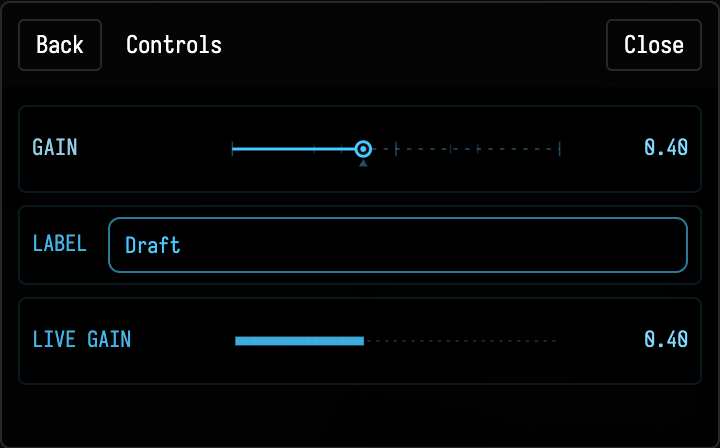
Use output to open a named box output inside the marking menu. Create the output with Field's
usual APIs first. A control group can include controls and a live meter:
var gain = 0.4
controlGroup("controls") {
    slider("Gain", initialValue = gain) { gain = it }
    stringInput("Label", "Draft") { name = it }
    meter("Live gain", source = { gain })
}
displayClose("controls")
markingMenu {
    output("NW", "Controls", "controls", width = 360, height = 180)
    submenu("NE", "Tools") {
        item("N", "Reset") { gain = 0.4 }
    }
}
The same output(direction, label, channel, width, height) call works inside a submenu. Width and
height are in screen pixels and are clamped to the window. Choosing the entry opens a panel; its
Back button or Esc returns to the radial menu. Close dismisses the menu.
The panel borrows the existing output, keeping its DOM, callbacks, canvas state and incoming updates
alive. Closing it returns the output to its disclosure, with its open state and size preserved.
This also works with SVG, canvas visualizers and iframe views made with display; an iframe needs
a browser that supports moving it without reloading. Run the box before opening its output entry.
Nested box canvases and inline-value channels remain on the canvas. Text fields and slider gestures
inside the panel operate their controls without triggering canvas shortcuts.