Field inside VR
Use Field with the headset on: edit Kotlin in Monaco, run a box, inspect its output and move between boxes on the live canvas. The same document stays open in the desktop app and any other connected browser.
The IDE is a high-resolution browser panel inside Field's Vulkan/OpenXR scene. Controllers point, click, scroll, move and resize it. On Quest 3 with WiVRn, a keyboard and mouse connected to the headset provide ordinary text editing and a cursor inside the panel, without desktop window focus. This workflow has been used for development in the headset on the Linux/NVIDIA setup below.
Start it
Launch 1 — VR IDE renderer, then 2 — Live IDE in VR. The starting point defaults to a
desktop companion. For the headset, connect your OpenXR runtime first, set useHeadset = true
in box 1, restart Field and launch both boxes again. Eye targets use the runtime's actual dimensions.
The browser opens this same document, including ephemeral session identity when needed. Select Playground, open its editor, change the message or colour and press Run box in the panel toolbar. The result appears as an ordinary Field output.
Desktop headset preview
The starting point opens a second native window, Field · headset preview, alongside the interactive browser companion. It shows an aspect-correct left-eye view of the scene. In box 2, Side-by-side eyes shows both eyes instead. The preview samples the same eye layers sent to OpenXR; it does not run the scene a second time.
Close the preview window to hide it and suspend its presentation. Show headset preview in box 2 reopens it. Its presentation uses a best-effort path so an unavailable desktop image does not hold up headset rendering. Keyboard and mouse focus still belong to the front-on companion; the scene preview is for viewing the headset image.
Point, edit and run
Either controller can hover over the panel. Pull the trigger to click or drag; A on the right controller or X on the left also clicks. The hand that starts a drag keeps control until release. The thumbstick or trackpad scrolls in both axes: a small deflection moves slowly, and a full deflection moves faster. Release it to stop. Losing tracking releases a held mouse button. Tracked hands do not point or click in the IDE, so moving your hands over the keyboard or mouse cannot reclaim its cursor through the hand-tracking fallback.
Aim at any part of the panel and hold grip to pick it up. Moving and rotating that controller moves and rotates the whole panel, preserving the initial attachment offset. Release grip to leave it in place. Browser clicks are suspended while moving the panel; losing tracking drops it safely at its last pose.
While holding the panel, aim the other controller at it and squeeze its grip too. Move your hands apart to enlarge the panel or together to shrink it. Its aspect ratio stays fixed, and moving both hands together moves its centre. Release either grip to continue moving it with the remaining hand, or release both to leave it in place. Recenter preserves the resized dimensions. This changes the plane's physical size; the browser's pixel resolution stays the same.
The toolbar's Keyboard button opens text, punctuation, arrows, selection, clipboard and undo keys. It keeps the editor or palette search focused while you click its keys. Run line executes the current line or selection (Alt+Enter); Run box launches the whole selected box (Alt+Up). Commands opens Field's palette; Esc dismisses it. A physical keyboard also works while the native mirror window has focus. The virtual keyboard is a basic ray keyboard; there is no dictation or predictive typing.
Click Recenter in the toolbar along the bottom of the panel to place it upright in front of your current head position, keeping its chosen size. It stays in the room as you move your head. Stop box 2 to close the offscreen browser and remove the panel's input hooks. Restart Field to change OpenXR mode or eye dimensions.
Choose your input
For Apple Vision Pro through ALVR, see the SteamVR launch setup below.
| Input | What receives it | Desktop window focus |
|---|---|---|
| Controller trigger | The control under the ray on the VR panel | Not required |
| Keyboard and mouse attached to the PC | The front-on companion window | Required |
| Keyboard and mouse attached to the Quest | The VR browser through WiVRn HID forwarding | Not required after setup |
The headset mouse has a cursor confined to the browser page. It does not steer the Linux desktop pointer or the other browser client's pointer. Clicking a text field or editor in the panel chooses where the headset keyboard types. Switching between these inputs does not change which Field document the panel displays.
A real keyboard
For a keyboard attached to the PC while OpenXR is active, set headsetInput = false in the
FieldVrWorkspace(...) constructor in box 2, then stop and relaunch that box. This selects the
desktop focus behaviour below. The default Linux/OpenXR mode uses the dedicated headset input path.
FIELD_VR_INPUT=desktop selects this default for all panels in a Field process;
FIELD_VR_INPUT=wivrn explicitly selects WiVRn on Linux/OpenXR. An explicit constructor argument
overrides the environment choice.
A USB or Bluetooth keyboard attached to the desktop uses the native companion window's key and text callbacks, forwarded into the focused Chromium editor. The companion displays the same page front-on, with aspect-correct direct mouse input. Real keyboard explicitly requests desktop window focus. Controller clicks choose the focused browser control without changing the desktop's focused app. If the window manager refuses the explicit request, focus Field · VR IDE on the desktop once. This does not capture keys globally from other applications. Ordinary modifiers, arrows, shortcuts and Unicode text use the existing browser input path.
Alt-Tab to another app returns the physical keyboard and mouse to that app. Alt-Tab back reactivates the companion's keyboard input; focus loss releases its held keys and buttons. The mouse cursor is also visible on the VR panel. Moving a controller resumes its ray cursor; a held mouse drag keeps ownership until release or an explicit controller press.
Headset keyboard and mouse, without desktop focus
On Linux/OpenXR, FieldVrWorkspace automatically listens for WiVRn's virtual WiVRn Keyboard
and WiVRn Mouse devices. It captures those identified virtual devices and sends their events
directly to this Chromium panel. A headset mouse
moves a cursor inside the page; clicks, held drags and vertical/horizontal scrolling use that
cursor. Moving the panel leaves the cursor at the same page coordinates. An explicit controller
press can take over; controller hover cannot interrupt a mouse drag.
The desktop window does not need focus. In this mode Real keyboard focuses the browser control path without requesting desktop window focus. Keys go to the panel's focused editor, palette or input. The toolbar reports waiting, capture and permission status. Disconnects and input overflow release held keys/buttons; reconnecting does not replay already-held presses. The desktop-connected devices still use the ordinary companion-window focus described above.
Install the narrowly scoped Linux device rule once, as the user who runs Field. The command is a
dry run unless --install is present. From the Field repository, inspect the plan, then install:
python3 tools/setup_wivrn_input.py --user "$USER" --serve-port 8443
sudo python3 tools/setup_wivrn_input.py --install --user "$USER" --serve-port 8443
This grants your user access only to WiVRn's two identified virtual devices, excludes them from desktop
libinput, enables WiVRn HID forwarding, and adds a private Tailscale HTTPS listener on the unused
port 8443. It registers that exact hostname and port with Field's browser-origin guard; restart
Field after installation so it loads the registration. Existing listeners are preserved; an occupied or public target port is refused. Omit
--serve-port 8443 when only input setup is wanted. Reconnect WiVRn afterwards so the desktop
sees newly created devices with the rule applied. Stop the VR panel to release Field's grabs;
the device rule continues excluding those forwarded devices from the desktop.
Attach the keyboard and mouse to the Quest by USB-C hub or Bluetooth. WiVRn must capture and forward the devices; its Android client forwards relative mouse events, rather than an absolute Android system pointer. Headset-connected keyboard and mouse input has been tested on Quest 3 with this setup. The keyboard layout settings below apply to these forwarded devices. See WiVRn's HID configuration and its Android input handler.
The default keyboard layout is US. Set FIELD_VR_KEYBOARD_LAYOUT,
FIELD_VR_KEYBOARD_VARIANT and FIELD_VR_KEYBOARD_OPTIONS before launching Field to select XKB
layout, variant and Compose options. Shift, Ctrl, Alt, Meta, AltGr and dead-key composition are
translated without relying on a desktop keyboard seat. For example, use layout us, variant
intl for international dead keys, or layout fr for a French keyboard.
A remote browser on the same document
If you installed the helper before hostname registration was added, register the existing private listener as your ordinary user, then restart Field. This does not change the listener:
python3 tools/setup_wivrn_input.py --register-serve-host 8443The setup helper prints a Private Field URL after installing the listener. Open that address
from a browser with access to the same tailnet. Set its file query parameter to the document
shown in your VR panel; for example, ?file=Field-VR-IDE. If Field runs on a different port, pass
--field-port with that port to the helper when configuring the listener.
Use the same document name in both clients. Each browser retains its own selection, caret, scroll and keyboard/mouse focus while edits flow through the shared Field server. Remote text updates preserve focus in another input or palette; they must not pull focus back into Monaco. This is shared document editing, not a streamed desktop or remote mouse.
Nobody needs to operate the PC display. Field still requires a working graphics/display session for Vulkan and Chromium, and WiVRn must be running and paired. This workflow does not remove the Linux display-session requirement. Start Field, connect WiVRn and launch the two starter boxes before working from the headset. These can be managed remotely; no person needs to operate a window on the PC. The helper adds a private listener while preserving existing listeners.
Apple Vision Pro through ALVR
The host path is Field OpenXR → SteamVR → ALVR → Vision Pro. Use the same starting point and high-resolution browser panel. This is a prepared integration path; Vision Pro rendering, controller bindings and hand interaction have not yet been tested with Field.
Install the visionOS ALVR client and a compatible Linux ALVR streamer on the rendering PC. Install SteamVR, start the ALVR dashboard, register its driver and connect/trust the headset. Follow ALVR's version compatibility instructions for the client you actually have installed. The dashboard manages the connection; Field's launcher does not install or start ALVR.
Stop the existing Field process before replacing a server on the same port. From the Field checkout:
# Read-only: find SteamVR and print the exact environment and command.
uv run python tools/field_alvr.py --check -- /path/to/workspace -d Field-VR-IDE
# Once ALVR is connected, launch Field with the SteamVR runtime for this process.
uv run python tools/field_alvr.py -- /path/to/workspace -d Field-VR-IDE
For a Steam library that discovery cannot find, add --steamvr /path/to/SteamVR before --.
The launcher sets XR_RUNTIME_JSON for Field and FIELD_VR_INPUT=desktop; it leaves the system's
default OpenXR runtime and the WiVRn configuration untouched. Set useHeadset = true in starter
box 1, then launch box 1 followed by box 2. Restart Field when changing runtimes.
Use the PC's keyboard and mouse with the companion window focused, or the in-panel virtual keyboard. Headset-attached keyboard and mouse forwarding is not provided by this integration. The inspected visionOS client has an unfinished keyboard handler and does not expose WiVRn's HID devices (client source). The Quest udev helper does not apply to ALVR. Full focus-independent headset typing and mouse input needs an additional visionOS input bridge. Hand joints and emulated controller actions also depend on what ALVR and SteamVR expose; the Quest interaction results below do not verify them.
This streamed Linux renderer is separate from Field's native visionOS frontend.
What has been verified
The Quest 3, WiVRn and Linux/NVIDIA workflow was tested on-headset on 2 November 2026. Keyboard and mouse attached to the headset supported editing and running Field code without interacting with a desktop window. Controller clicks, two-axis scrolling, grip positioning and two-controller grip resizing were also confirmed usable in the headset. Hand pointing and pinch are disabled in the IDE to preserve mouse ownership.
The private Tailscale listener also served two real Chromium clients that exchanged document edits while preserving independent focus. That check used two clients on one host; a second physical remote computer has not yet been checked. Field still needs the graphics/display session described above, even when nobody is using the PC screen.
Rendering and input checks
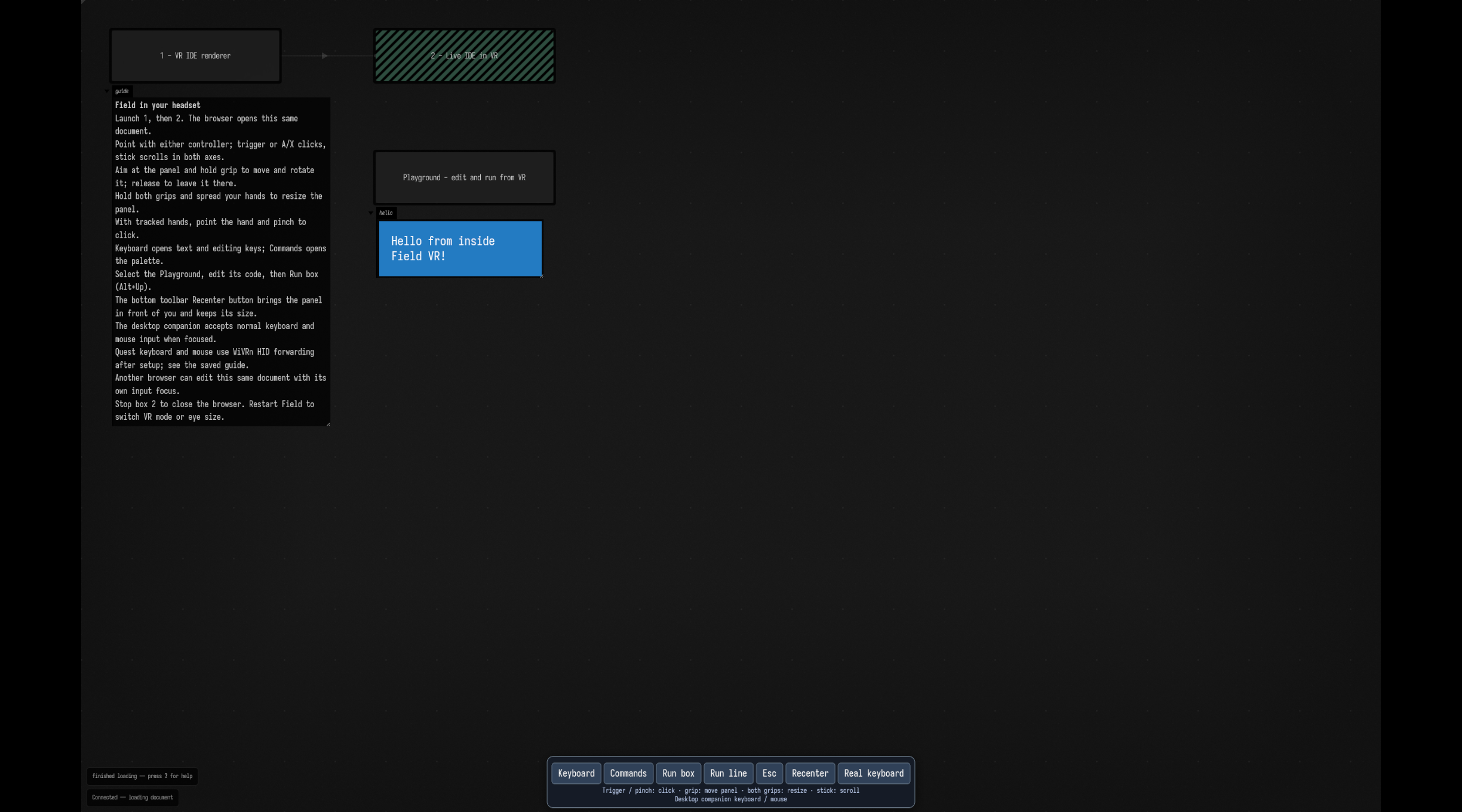
The companion figure is captured from the real Chromium-to-Vulkan browser path. It shows the desktop companion; it is not a through-the-lens headset photograph. Automated checks cover pointer ownership, keyboard translation, scroll batching, grip handoff, resized hit testing and browser-origin policy. A separate pixel check confirmed the background is opaque on first load, before scrolling. The source browser normally runs at 30 frames per second on Linux; head tracking and stereo rendering continue at the headset's rate.
Readable text
The browser's default is 2560 × 1600, on a two-metre-wide panel 1.35 metres away. Browser
resolution controls the source text raster; WiVRn render resolution independently controls the
headset's eye targets. Increasing only one can leave the other as the limiting factor. Change the
constructor's width/height, widthMeters and distanceMeters to suit your setup.
The browser viewport is set explicitly after page readiness so desktop scaling or a native window size limit cannot silently change the texture extent. The background is repainted after Chromium finishes changing the viewport, so no initial scroll is needed to make the canvas draw correctly. The panel samples Chromium directly without FXAA or temporal filtering of the text. On Linux this checkout uses the explicit bitmap browser fallback, normally at 30 browser frames per second; head tracking and stereo rendering continue at the headset's rate. On macOS the existing IOSurface transport stays on the GPU. See the browser transport.
val vr = FieldVrWorkspace(
    renderer = renderer,
    url = FieldUiBrowserTexture.fieldDocumentUrl(thisBox),
    width = 2560,
    height = 1600,
)

// Construct after the initial renderer frame, then run the renderer normally.
// Close vr when its owning box stops.
Multiview scene rendering
This path requires Vulkan multiview support; the current functional check used Linux/NVIDIA.
The workspace uses one multiview scene pass for both eye layers. Browser upload/input runs once
per frame, and graphics modules share eye matrices through a uniform buffer. OpenXR copies the
two layers directly to its eye swapchains. workspace.stereo.mirrorToScreen(windowIndex = 1)
adds an aspect-correct left-eye preview to an existing second renderer window; pass
stereoPair = { true } to show both eyes. Controller, grip-resize and keyboard/mouse focus
behavior use the same input path.