Local AI
AI4 can use a model running on your computer or another machine you own. For example, Field can run on a laptop while a desktop GPU runs Qwen. Choose Local in Welcome → AI, enter the model server's address and model ID, and save. Chat, code edits, completion and AI4's Field tools then use that endpoint.
The address is reached by the Field backend, not by your browser. The computer running Field needs a route to the model server over your network or a private VPN such as Tailscale. Field on a Mac can connect to inference on a Linux desktop this way.
Connect Field to a model server
Start the model server first, then open /welcome in Field and expand AI.
- Select Local.
- Enter the API base URL, including
/v1. - Leave API key blank unless your model server requires one.
- Click Check connection. Field asks the endpoint for its available model IDs.
- Enter one of those IDs in agent. The fast and fallback roles use the same model when left blank; enter other IDs if your server offers suitable alternatives.
- Click Save, then open a box's AI4 chat and send a short prompt.
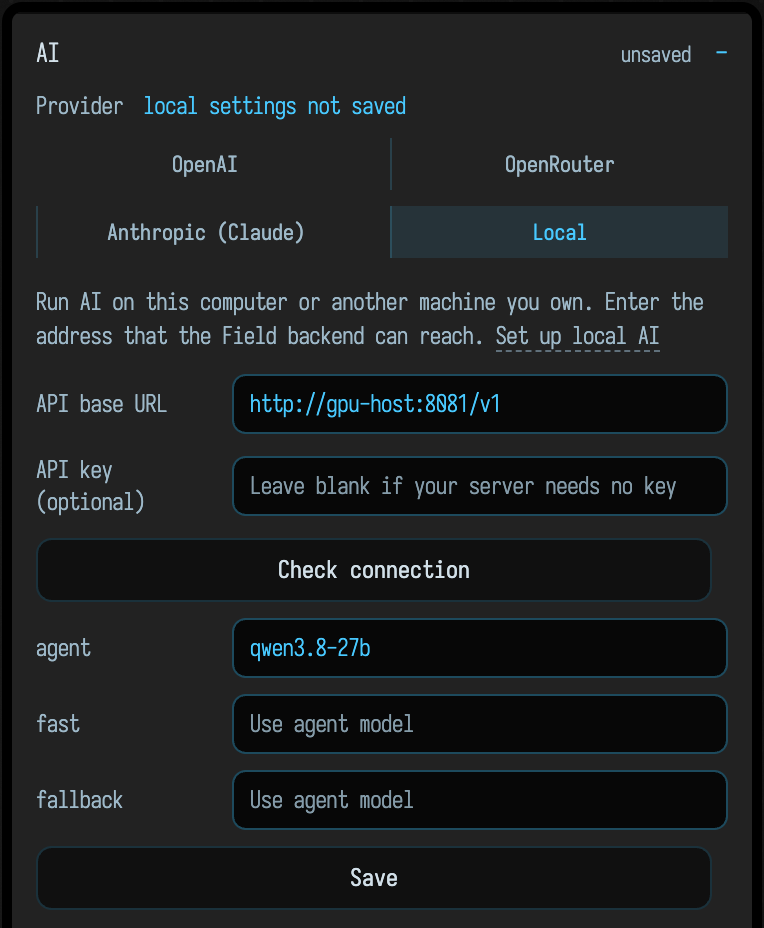
Use the address appropriate to where Field's backend runs:
| Model location | Example API base URL |
|---|---|
| Same computer as Field | http://127.0.0.1:8081/v1 |
| Another computer on your LAN | http://gpu-host:8081/v1 |
| Another computer on Tailscale | http://gpu-host.example.ts.net:8081/v1 |
Replace the example hostname with your model computer's actual address. If you open
Field's browser UI on a different computer, 127.0.0.1 still refers to the machine
running the Field backend.
The connection check performs model discovery. A successful check confirms that
Field can reach the server and find the selected model; your first AI4 conversation
also exercises generation, streaming and tool use. The server must support the
OpenAI-compatible Responses API (POST /v1/responses) and function calls.
A server that only offers Chat Completions is insufficient for AI4.
Local and hosted provider settings are stored separately. Saving Local applies to the next AI request; finish an active turn before switching. You can return to OpenAI, OpenRouter or Anthropic from the same panel. If you previously launched Field with provider, endpoint or model environment overrides, the panel lists them: remove those overrides and restart Field to use the saved settings.
Run Qwen with llama.cpp
The following example uses Qwen3.8-27B Q4_K_M and its matching image projector. It was tested with llama.cpp b11719 on a 24 GB RTX 4090, with a 64K context and one request slot. Use a smaller model or context if your GPU has less available memory. Allow about 20 GB of disk for the model files, plus room for the runtime and caches.
Install a suitable GPU build from the llama.cpp releases.
This example assumes llama-server is on your PATH. The
Hugging Face CLI downloads
the two model files. Run this on the computer that will perform inference:
hf download bartowski/Qwen3.8-27B-GGUF \
  Qwen3.8-27B-Q4_K_M.gguf mmproj-Qwen3.8-27B-f16.gguf \
  --revision 87410e7b9a5c21e6ca70c0c9cc5237de909fe621 \
  --local-dir models/qwen38
Start a server accessible from your private network. It remains in this terminal until stopped with Ctrl+C:
llama-server \
  --model models/qwen38/Qwen3.8-27B-Q4_K_M.gguf \
  --mmproj models/qwen38/mmproj-Qwen3.8-27B-f16.gguf \
  --alias qwen3.8-27b \
  --host 0.0.0.0 --port 8081 \
  --ctx-size 65536 --parallel 1 \
  --gpu-layers all --flash-attn on \
  --cache-type-k q8_0 --cache-type-v q8_0 \
  --batch-size 512 --ubatch-size 256 \
  --image-max-tokens 4096 --jinja \
  --temp 1.0 --top-p 0.95 --top-k 20 --min-p 0 \
  --chat-template-kwargs '{"reasoning_effort":"medium"}' \
  --sleep-idle-seconds 600 --metrics
In Field's Local settings, enter your GPU computer's address with port 8081 and
the /v1 suffix, and use qwen3.8-27b as the agent model ID. The server's
--alias supplies that ID; it is not the GGUF filename.
Binding to 0.0.0.0 makes the server listen on every network interface. Restrict
access to your own machines through your firewall or private VPN. For a server used
only on the same computer, use --host 127.0.0.1. If the server needs authentication,
set llama.cpp's LLAMA_API_KEY environment variable before starting it and enter the
same key in Field's optional API-key field. Do not expose an unauthenticated model
server to the public internet.
The server releases its model memory after ten idle minutes and reloads on the next request. That first request can take longer. Stop the process when another GPU task needs its memory.
See the model files and the llama.cpp server documentation for the model and runtime options.
Live feedback in AI4
With Local selected, AI4 and Welcome's Local settings show live feedback from your inference machine when its optional monitor is running: GPU temperature, load and used/total VRAM, model readiness or sleep, queued requests and generation speed. GPU readings include other applications using that GPU. The context window shown is its capacity, not the amount currently used by your conversation.
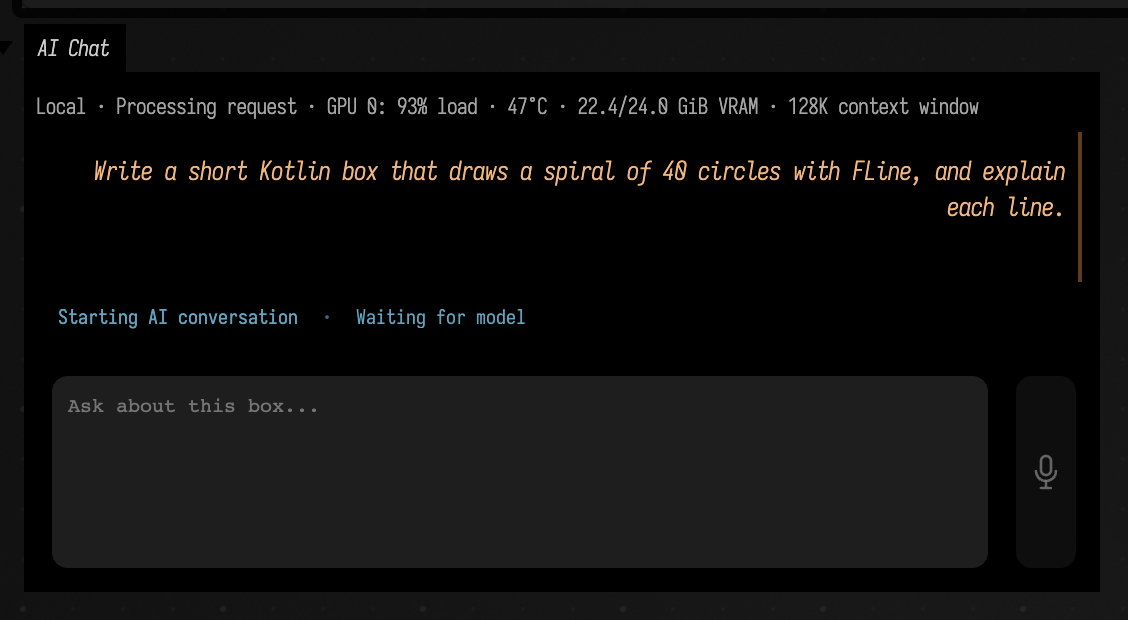
How this picture was made
The docs build has no inference machine, so it keeps this committed capture.
tools/capture_local_ai_feedback.py --base-url http://<gpu-host>:8081/v1 retakes it from a
running llama.cpp server and monitor; this one is Qwen3.8-27B on an RTX 4090.
On the GPU machine, run the monitor from a Field checkout in a second terminal:
python3 tools/local_ai_monitor.py --host 0.0.0.0 --port 8082 \
  --backend http://127.0.0.1:8081
The monitor uses Python's standard library and nvidia-smi. Without NVIDIA tools,
model status still works and GPU readings are marked unavailable. Enable llama.cpp's
--metrics option, as in the recipe above; if it needs an API key, give the monitor
the same LLAMA_API_KEY environment variable. Polling does not wake a sleeping model.
Field reaches /status on the model server's hostname, one port above its API
port: an API at http://gpu-host:8081/v1 uses http://gpu-host:8082/status.
Allow that additional port through your private network or VPN. This read-only
monitor has no authentication; keep it accessible only to your own machines.
For a different port or reverse proxy, set AFIELD_LOCAL_AI_MONITOR_URL on the
computer running Field to the monitor's full /status URL and restart Field.
Model credentials are not sent to the monitor.
The display refreshes about every three seconds while a panel is visible. Lost connections and old samples are marked unavailable or stale. Generation remains usable without the monitor. Hosted OpenAI, OpenRouter and Anthropic providers do not show this display or contact the monitor.
Images and screenshots
For image input, the language model needs its matching vision projector. The
--mmproj option above loads it. Field passes images supplied to AI4 to the selected
endpoint, so you can discuss a screenshot of a drawing, shader output, diagram or UI.
The image path has been tested through Field's streaming Responses bridge.
The example limits an image to 4,096 visual tokens. Large images can be reduced to fit that budget; crop a detailed region when small text or fine structure matters. Images also consume part of the conversation's context. The 64K window covers the prompt, tool results, images, thinking and answer together. If the Local server rejects a request for exceeding that window, or finishes with no answer or tool call, AI4 shows a notice, omits older exchanges and retries the rejected model request, up to twice. It keeps the current prompt, initial file context and latest tool results; it does not replay completed tool calls. The omitted exchanges are not a summary, so the model may need to re-read older details. If that input still cannot fit, start a fresh conversation or reduce the material sent.
If it does not connect
Run this from the computer hosting Field's backend, replacing the hostname:
curl --fail http://gpu-host:8081/v1/models- Connection refused or timeout: check that the model server is running, listens on a network interface reachable from Field, and is allowed through the firewall.
- HTTP 401 or 403: check the endpoint's API key.
- The model is not listed: use the exact ID returned by
/v1/models, or load the model on the inference server. - Discovery succeeds but chat fails: check for
/v1/responses, streaming and function-call support in the model server. Use the tested llama.cpp build as a reference. - Out of memory: stop other GPU jobs, reduce the context, or choose a smaller model. A larger image budget can also increase memory use.
Where your code goes
With Local selected, Field sends model requests to the endpoint you entered. The requests can include code, conversation history, images and results from tools the agent uses. When the endpoint is another computer you own, that computer receives this material. Review its server logs and access settings as you would Field's. See Your code, AI and local history for Field's local records and the context its tools can retrieve.