Keyboard shortcuts
You can change Field's keyboard shortcuts to suit the way you work. They live in one file:
~/.afield/keybindings.yamlField writes that file itself, from its own list of commands, so every command Field has is
in there, including the ones that ship with no shortcut at all. Change a line, save, and the
shortcut moves immediately: the file is watched, like ~/.afield/theme.css, and nothing
needs restarting.
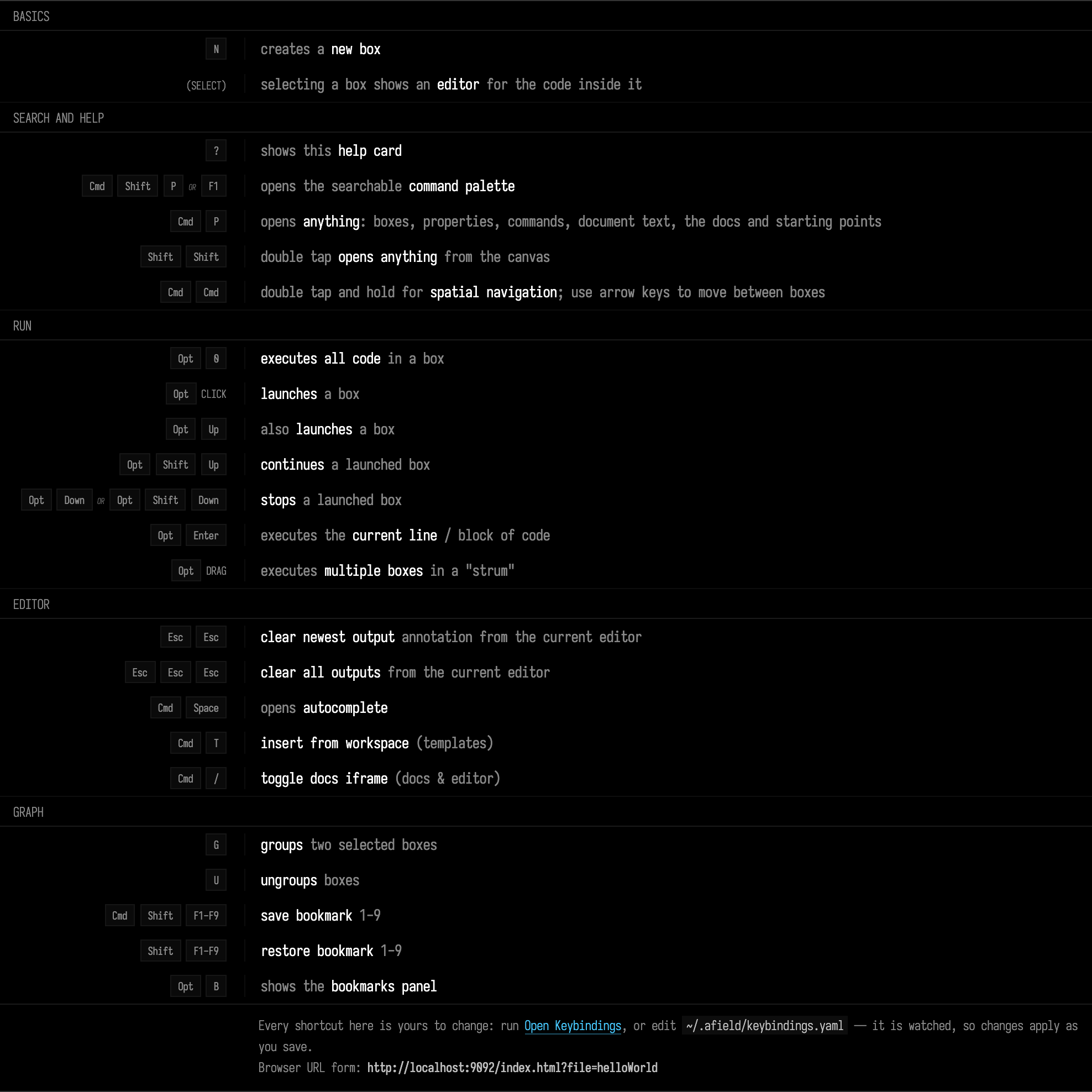
Press ? on the canvas to see the shortcut card. It reads your current bindings, so any changes
you make to the file show up there too.
What you can rebind
Everything Field itself does: the canvas commands (new-box, copy-selection, …), the
editor's actions (execute-fragment, ai-assist, …), the four global ones that work
wherever you are (open-command-palette, open-anything, toggle-docs, show-cheatsheet)
and all eighteen bookmark slots. Commands that only make sense with something selected, such
as connecting two boxes, are in the file too, and you can rebind them at any time.
A command that ships without a shortcut appears in the file as "", and giving it a chord
is the same edit as changing one:
bindings:
  macro-transcript-panel: "cmd+shift+r"   # was: no shortcut at all
Two things are not in the file:
- Gestures. alt/option-click to launch a box, alt/option-drag to "strum" several, and the
multi-taps —
Esc Escto clear the newest output,Esc Esc Escto clear them all,Shift Shiftto open anything from the canvas,Cmd Cmd-and-hold for stepping between boxes. These are not single chords, so there is no way to write them in the shortcut syntax described below; they are hard-wired. - Monaco's own editor bindings. Autocomplete (
Ctrl+Space), undo, find, multi-cursor and the rest belong to the text editor Field embeds, not to Field's command list.
Two-key chords, such as cmd+k cmd+s, can be written in the shortcut syntax: see
Writing a two-key chord. No default uses one, so every chord in
your file is one you wrote.
Getting a file to edit
You already have one; Field writes it on first run. Two ways to get to it:
- Run Open Keybindings from the command palette (
ctrl/command-shift-P). Field opens the file as a box on the canvas, so you can edit your shortcuts in Field, with Field. - Or open
~/.afield/keybindings.yamlin any editor you like.
Saving is all it takes. Field notices within a second, re-resolves every binding and re-registers them in the editor and on the canvas at once, then tells you it has done so. If you would rather not wait, or you changed the file while Field was not running, there is a Reload Keybindings command that re-reads it on the spot.
If you delete the file, Field writes a fresh copy with the defaults on its next run. You can use the same trick to start over: move your edited file aside and let Field make another.
Writing a shortcut
The value is a spec: some modifiers and one key, in any order, joined by +.
bindings:
  new-box: "cmd+alt+b"            # one shortcut
  execute-all: ["alt+0", "f5"]    # several, all of which work
  search-docs-and-code: ""        # no shortcut at all
  # (delete a line)               # back to Field's default
Modifiers are cmd, alt and shift. cmd means Command on macOS and Control
everywhere else, so one spec covers both platforms; ctrl means the same. alt is Option
on macOS. Case does not matter, and +, -, a space or a comma all
separate tokens, so cmd-shift-d, CMD + SHIFT + D and cmd shift d are the same
shortcut as cmd+shift+d.
Keys are a–z, 0–9, f1–f24, one of
enter escape backspace delete space tab up down left right home end pageup pagedown insertor a punctuation character written as itself:
[ ] ' ; , . / \ - = `Those last two rows have friendly spellings too, if you would rather not put a bare
backslash in a YAML file: return, esc, del, spacebar, arrowup, bracketleft,
quote, semicolon, comma, period, slash, backslash, minus, dash, equal,
backquote, backtick and plus all resolve to the key they name.
A shifted character stands for Shift plus its key, which is much nicer to read than
spelling the modifier out. ? is exactly shift+/, and that is how the cheatsheet's own
shortcut is written. The same goes for ~ ! @ # $ % ^ & * ( ) _ { } : " < > |.
Three characters that are also separators need a word about them: a lone ,, - or + is
read as a key only when it is the last thing in the spec. So cmd+, binds the comma key
(that really is one of Field's defaults, "Previous Property"), cmd+- binds the minus key,
and cmd + k is just cmd+k with room to breathe.
Writing a two-key chord
Two specs separated by a space make a chord: press the first, let go, press the second.
bindings:
  open-user-keybindings: "cmd+k cmd+s"   # Cmd+K, then Cmd+S
  toggle-docs: "cmd+k d"                 # Cmd+K, then a bare D
Every key ends a chord, and the modifiers written before a key belong to it. That is why
cmd shift d is still one shortcut, Cmd+Shift+D: it has one key. cmd+k cmd+s has two keys,
so it is a chord. A chord is at most two keys.
After the first key Field shows it at the bottom of the window ("Cmd+K … (waiting for the second key)") and waits one second. Then:
- the second key completes a chord: that command runs, and nothing bound to the second key on its own does;
- another key cancels the wait. If the first key is a shortcut on its own, it runs now, and the new key does whatever it normally does;
- Escape cancels without running anything;
- nothing, for a second: the first key runs as an ordinary shortcut, if it is one.
So a key can be a shortcut and the first half of a chord at once (cmd+k and cmd+k cmd+s), and
the cost is that the plain cmd+k now fires a second late. This is the same in an editor and on
the canvas. Which chords work while you are typing is covered under
Where a shortcut is live.
Where a shortcut is live
Some shortcuts should not fire while you are typing, and the file records that as a comment Field wrote for you:
  new-box: "n"                    # New Box  #scope canvas
  execute-fragment: "alt+enter"   # Run Line / Selection  #scope editor
  edit-hashtag: "cmd+h"           # Edit hashtag
#scope canvas means the shortcut only fires when the canvas has focus. That is why
new-box can be a bare n: pressing n in an editor types an n. #scope editor means
the opposite; no comment at all means both. The scope belongs to the command, not to your
spec, so it is not something you edit, but it does tell you whether a bare letter is a
sensible thing to bind a command to.
The same goes for chords. In an editor, a chord whose first key has no cmd or alt does not
fire, because that key is typing. The second key may be bare, so cmd+k d works in an editor
too.
One line of your file sets the shortcut for both the editor and the canvas. Shortcuts follow the key's position on the keyboard, not the character it types.
Finding a command's id
The file is the index: every entry carries the command's own label as a comment, so searching it for "Bookmark" or "Format" is usually the fastest route from what you want to what to write.
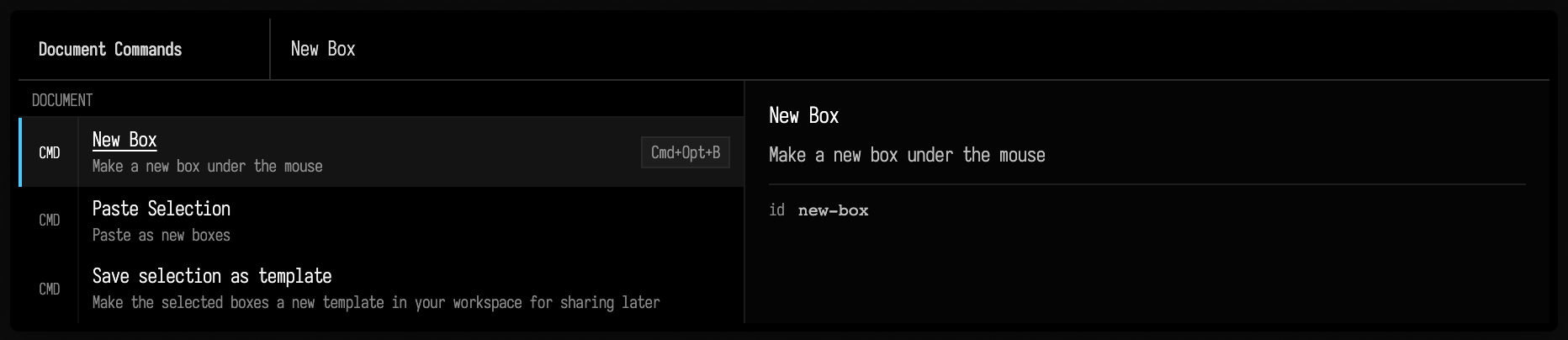
The command palette works the other way round: search for the command by name, and its current shortcut is shown on the right of the row. That makes it the real test of a rebind, since those labels are drawn from the same binding your keypress would use:
The ? card is the quickest way to see your current shortcuts for the twenty or so commands
you will use every day.
When you get it wrong
If a binding cannot be applied, Field tells you what went wrong.
-
A spec it cannot read is reported with the reason, as a notification and in the log — and the other lines in the file still apply, so one bad shortcut does not cost you the rest:
keybindings.yaml: 'cmd+k cmd+s cmd+d' (for 'open-anything') is not a shortcut
  — a chord is at most two keys, like `cmd+k cmd+s` — this one has more
The command keeps its default. A line Field cannot read is ignored, not taken as an unbind:
open-anythingabove is still oncmd+p. Only an empty value,"", removes a shortcut. -
A command id it does not recognize — usually a typo — is logged as a warning naming the id, and the binding is kept anyway, because the selection-only commands are not registered most of the time and their shortcuts still have to work.
- YAML that does not parse leaves your previous shortcuts in force and says where the file is broken. A stray bracket cannot lock you out of your own keyboard.
- Two commands on one chord logs which two, and warns you that only one of them will win. Field checks this whenever your file is involved; the defaults are our problem, not yours.
If a shortcut silently does nothing at all and there is no complaint anywhere, the usual cause is scope: a canvas-only command bound to a chord you are pressing inside an editor.
Asking Field directly
When the file says one thing and your fingers report another, a box can read the resolved bindings, the same ones the keypresses themselves consult, and settle it:
// Point the watcher at ~/.afield/keybindings.yaml — a no-op unless something moved it,
// which the rebinding figure further up this page does.
afield.app.settings.UserKeybindingsManager.watchFile(null)

val live = afield.app.settings.UserKeybindingsManager.resolved
val ids = ["new-box", "open-command-palette", "show-cheatsheet", "execute-fragment", "connect"]
// A command with no binding yet is the interesting row, so it says so in a role rather than
// looking like any other cell.
val bound =
    Table(["command", "bound to"])
        .rows(
            ids.map { id ->
                [id, (live.effective[id] ?: live.bindings[id])?.joinToString(" or ") ?: "not registered yet"]
            },
        )
        .roleBy("bound to") { if (it == "not registered yet") CellRole.WARN else null }

markdown(
    "main",
    """
    {muted:${live.displayPath.md}}

    {muted:${live.problems.size} problem(s) in it}

    ${bound.h}
""",
    width = 560,
)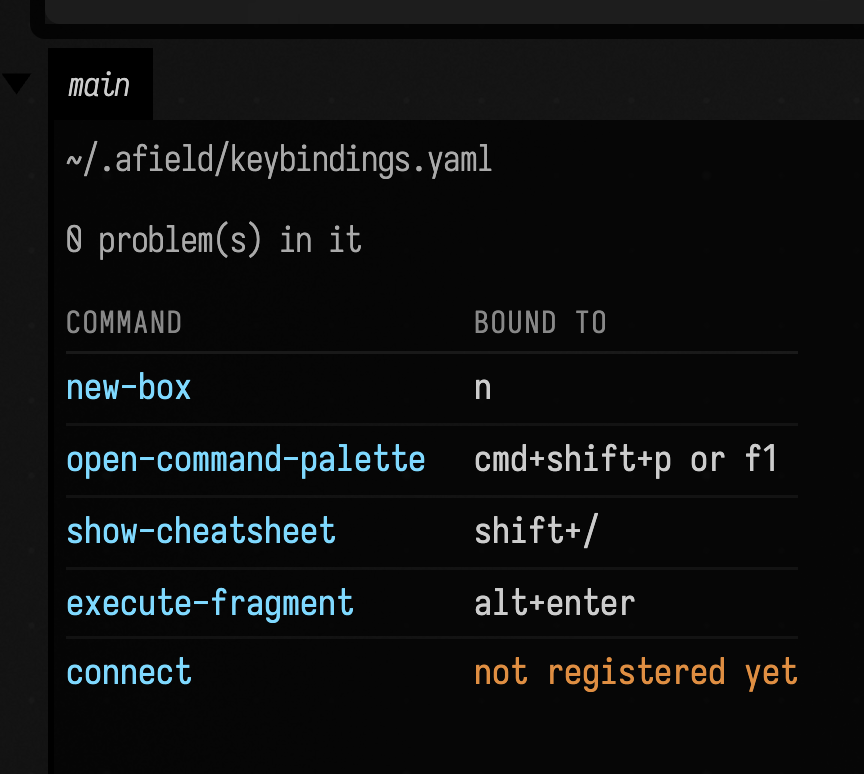
effective is the answer for every command Field has seen this run, override or default
already applied; bindings is only what your file changed. A command in neither, such as a
selection-only one with nothing selected, is reported as dormant instead of unbound, which is
why the ? card leaves that legend at its written default rather than claiming the key is
dead.
Limits
- Two keys per chord, one second apart.
cmd+k cmd+sworks; a third key is refused with that explanation rather than half-obeyed. The one-second wait is fixed. f13–f24and some rarer keys are accepted on the canvas but may have no counterpart in the editor, where the binding is Monaco's to make. If a shortcut works on the canvas and not in an editor, that is the likely reason.- One file per user, not per document or per workspace, and it is not synced anywhere.
- The gestures and multi-taps listed at the top are not in it, and neither are Monaco's built-in editor bindings.
The defaults, in full
This is the same inventory that writes your file, read out of a running Field, so it is
exactly what a fresh keybindings.yaml says.
133 rebindable commands, 56 of them with a shortcut out of the box.
Agents: regenerating this table
Regenerate this table against a running Field with tools/keybindings_defaults_table.py.
Global
| Command id | Default | Where | What it does |
|---|---|---|---|
open-anything |
cmd+p |
both | Open Anything |
open-command-palette |
cmd+shift+p or f1 |
both | Command Palette |
show-cheatsheet |
? |
both | Show Cheatsheet |
toggle-docs |
cmd+/ |
both | Toggle Documentation |
toggle-drawing-layer |
alt+d |
both | Toggle Drawing Layer |
Canvas
| Command id | Default | Where | What it does |
|---|---|---|---|
-copy |
(none) | both | Duplicate box(es) |
-layout-boxes |
(none) | both | Lay out selection |
-layout-document |
(none) | both | Lay out whole document |
-update-check |
(none) | both | Check for updates |
add-document-note |
(none) | both | Add Note to This Document |
add-editor-to-output |
(none) | both | Add Editor to Output Area |
align |
(none) | both | Align boxes |
anchor-drawing-to-boxes |
(none) | both | Anchor Drawing to Boxes |
auto-display-editor |
(none) | both | Auto-display Editor |
connect |
g |
canvas | Connect boxes |
copy-box-guide-link |
(none) | both | Copy Markdown Link to Box or Line |
copy-selection |
cmd+c |
canvas | Copy Selection |
delete-box |
cmd+backspace or cmd+delete |
both | Delete Box(es) |
disable-auto-displaying-editor |
(none) | both | Disable Auto-displaying Editor |
disconnect |
u |
canvas | Disconnect boxes |
edit-hashtag |
cmd+h |
both | Edit hashtag |
export-document-edn |
(none) | both | Export document (.edn) |
export-ipynb |
(none) | both | Export notebook (.ipynb) |
export-selection-edn |
(none) | both | Export selection (.edn) |
fmt-kotlin |
(none) | both | Format Kotlin |
fmt-property |
(none) | both | Format |
frame-selected |
alt+f |
both | Frame Selected |
insert-from-workspace |
cmd+t |
both | Insert template |
macro-transcript-panel |
(none) | both | Macro: Recorder Panel |
macro-transcript-run |
(none) | both | Macro: Run on Selection |
macro-transcript-save |
(none) | both | Macro: Mark End & Save |
macro-transcript-start |
(none) | both | Macro: Mark Start |
macro-transcript-undo |
(none) | both | Macro: Undo on Selection |
make-function-study |
(none) | both | Make a Function Study |
make-rectsl-scene |
(none) | both | Make a RectSL Scene |
make-stacksl-program |
(none) | both | Make a StackSL Program |
move-forward |
(none) | both | Move selected boxes forward |
nest-into |
(none) | both | Nest selection into a box |
new-box |
n |
canvas | New Box |
normalize-nested-pan |
(none) | both | Normalize Nested contents |
open-user-keybindings |
(none) | both | Open Keybindings |
open-user-theme |
(none) | both | Open User Theme |
paste-selection |
cmd+v |
canvas | Paste Selection |
provisional-accept-all |
(none) | both | Accept All Provisional (Everywhere) |
provisional-reject-all |
(none) | both | Reject All Provisional (Everywhere) |
record-selected-box-mp4 |
(none) | both | Record Selected Box MP4 |
record-selected-editor-mp4 |
(none) | both | Record Selected Editor MP4 |
record-window-mp4 |
(none) | both | Record Window MP4 |
relink-pane |
(none) | both | Relink Pane |
reloadPersonal |
(none) | both | Reload personal/ classes |
reload-user-keybindings |
(none) | both | Reload Keybindings |
remove-canvas-split |
(none) | both | Remove Canvas Split |
reset |
(none) | both | Reset Kotlin Environment for Box |
reset-canvas-zoom |
(none) | both | Reset Canvas Zoom |
reset-view |
alt+h |
both | Reset View |
route |
(none) | both | Route (position-guided) |
save-as-template |
(none) | both | Save selection as template |
search-docs-and-code |
cmd+shift+d |
both | Search Documentation & Code |
select-all-boxes |
(none) | both | Select All Boxes |
set-main-language |
(none) | both | Set Main Language |
set-main-language-clojure |
(none) | both | Set Main Language: Clojure |
set-main-language-csound |
(none) | both | Set Main Language: Csound |
set-main-language-datalog |
(none) | both | Set Main Language: Datalog |
set-main-language-fieldml |
(none) | both | Set Main Language: FieldML |
set-main-language-forth |
(none) | both | Set Main Language: ForthField |
set-main-language-kotlin |
(none) | both | Set Main Language: Kotlin |
set-main-language-kotlinjs |
(none) | both | Set Main Language: Kotlin → head |
set-main-language-lua |
(none) | both | Set Main Language: Lua |
set-main-language-morpho |
(none) | both | Set Main Language: MorphoHDL |
set-main-language-nano |
(none) | both | Set Main Language: Nano |
set-main-language-pd |
(none) | both | Set Main Language: Pure Data |
set-main-language-python |
(none) | both | Set Main Language: Python |
set-main-language-rectsl |
(none) | both | Set Main Language: RectSL |
set-main-language-remotejs |
(none) | both | Set Main Language: Javascript |
set-main-language-stacksl |
(none) | both | Set Main Language: StackSL |
show-all-layers |
(none) | both | Show All Layers |
show-document-guide |
(none) | both | Show Document Guide |
show-document-history |
(none) | both | Show Document History |
show-layers-panel |
alt+l |
both | Show Layers Panel |
show-profiling-timeline |
(none) | both | Show Profiling Timeline |
snap_tidy |
(none) | both | Snap + tidy boxes |
solo-next-layer |
alt+] |
both | Solo Next Layer |
solo-previous-layer |
alt+[ |
both | Solo Previous Layer |
split-canvas-columns-here |
(none) | both | Split Canvas Columns Here |
split-canvas-here |
(none) | both | Split Canvas Here |
split-canvas-rows-here |
(none) | both | Split Canvas Rows Here |
switch-to-docs-iframe |
(none) | both | Read the Field Documentation |
switch-to-monaco-editor |
(none) | both | Switch to Monaco Editor |
toggle-box-snapping |
(none) | both | Toggle Box Snapping |
toggle-keypress-display |
(none) | both | Toggle Keypress Display |
toggle-notes-markdown-preview |
cmd+shift+m |
both | Toggle Markdown Preview |
un-nest |
(none) | both | Un-nest selection |
unlink-pane |
(none) | both | Unlink Pane |
unlink-pane-horizontally |
(none) | both | Unlink Pane Horizontally |
unlink-pane-vertically |
(none) | both | Unlink Pane Vertically |
Editor
| Command id | Default | Where | What it does |
|---|---|---|---|
ai-assist |
alt+o |
editor | Apply Intelligence |
ai-assist-error |
alt+shift+o |
editor | Apply Intelligence to Error message |
ai-chat |
cmd+3 |
editor | AI Chat in editor |
ai-chat-panel |
cmd+4 |
editor | AI Chat (panel) |
back-next-property |
cmd+, |
editor | Previous Property |
continue-all |
alt+shift+up |
editor | Continue Box |
execute-all |
alt+0 |
editor | Run Box |
execute-fragment |
alt+enter |
editor | Run Line / Selection |
forward-next-property |
cmd+. |
editor | Next Property |
history-lens-selection |
alt+shift+h |
editor | Show Code History for Line / Selection |
launch-all |
alt+up |
editor | Launch Box |
launch-fragment |
alt+1 |
editor | Launch Line / Selection |
paired-shader-definition |
f12 |
editor | Go to Paired Shader Definition |
provisional-accept-current |
(none) | editor | Accept All Provisional (This Editor) |
provisional-reject-current |
(none) | editor | Reject All Provisional (This Editor) |
send-to-preamble |
alt+shift+p |
editor | Move code to preamble |
stop-all |
alt+down or alt+shift+down |
editor | Stop Box |
toggle-fold-current-line |
cmd+' |
editor | Toggle Fold on Current Line |
update-shader |
alt+shift+enter |
editor | Update Shader |
Bookmarks
| Command id | Default | Where | What it does |
|---|---|---|---|
restore-bookmark-1 |
shift+f1 |
both | Restore Bookmark 1 |
restore-bookmark-2 |
shift+f2 |
both | Restore Bookmark 2 |
restore-bookmark-3 |
shift+f3 |
both | Restore Bookmark 3 |
restore-bookmark-4 |
shift+f4 |
both | Restore Bookmark 4 |
restore-bookmark-5 |
shift+f5 |
both | Restore Bookmark 5 |
restore-bookmark-6 |
shift+f6 |
both | Restore Bookmark 6 |
restore-bookmark-7 |
shift+f7 |
both | Restore Bookmark 7 |
restore-bookmark-8 |
shift+f8 |
both | Restore Bookmark 8 |
restore-bookmark-9 |
shift+f9 |
both | Restore Bookmark 9 |
save-bookmark-1 |
cmd+shift+f1 |
both | Save Bookmark 1 |
save-bookmark-2 |
cmd+shift+f2 |
both | Save Bookmark 2 |
save-bookmark-3 |
cmd+shift+f3 |
both | Save Bookmark 3 |
save-bookmark-4 |
cmd+shift+f4 |
both | Save Bookmark 4 |
save-bookmark-5 |
cmd+shift+f5 |
both | Save Bookmark 5 |
save-bookmark-6 |
cmd+shift+f6 |
both | Save Bookmark 6 |
save-bookmark-7 |
cmd+shift+f7 |
both | Save Bookmark 7 |
save-bookmark-8 |
cmd+shift+f8 |
both | Save Bookmark 8 |
save-bookmark-9 |
cmd+shift+f9 |
both | Save Bookmark 9 |
show-bookmarks |
alt+b |
both | Show Bookmarks |
See also
- Survival Guide — the shortcuts worth learning first.
- Feature Overview — what the commands in that table actually do.
- Layers — the layer commands (
alt+l,alt+],alt+[) in use.