Box Output: print, display and channels
Want to check a value while your code runs? Use print or println and the result appears beside
your code in the editor. For something larger—a table, a picture, or any HTML—use display or
markdown to put it in a panel under the box.
You can have several panels, each with a name, and open, close or remove them with the mouse or from code. Let's start with printing.
If your panel has disappeared after reopening a document, jump to When a panel is gone. For drawing and inspecting values inside those panels, see Visualizers & Controls.
Printing beside the code
Try printing a value and a few results from a loop. This run collects its output in a block under the first line that printed. Close the block with its ×; it comes back the next time the code prints.
val petals = 7
println("petals: $petals")
for (i in 0 until 3) println(i * i)
petals * 2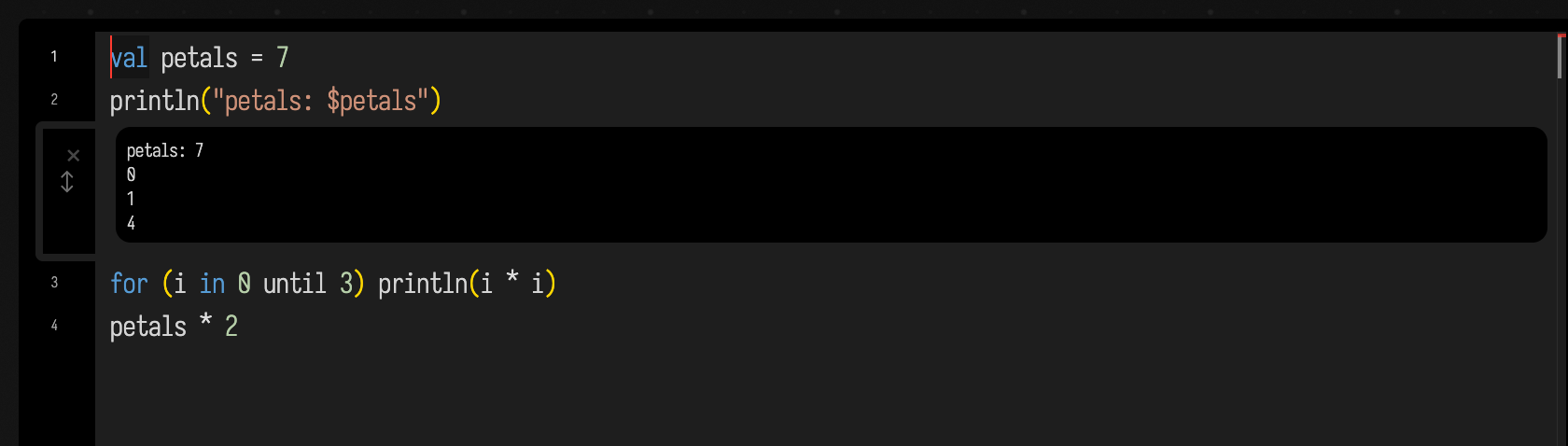
Printed text belongs to the editor and never appears on the canvas. To show something that stays visible under the box, display it.
Displaying into a panel
display("name", content) puts content in a panel titled name under the box. That name is the
panel's channel. markdown("name", text) does the same with Markdown, which is usually the
easier way to write a caption or a table.
This box writes into two channels:
markdown(
    "summary",
    """
    | reading | value |
    |---|---|
    | tempo | 122 |
    | voices | 4 |
    | key | D minor |
""",
)

display("raw", "<pre>tempo=122 voices=4 key=Dm</pre>")
displayOpen("raw")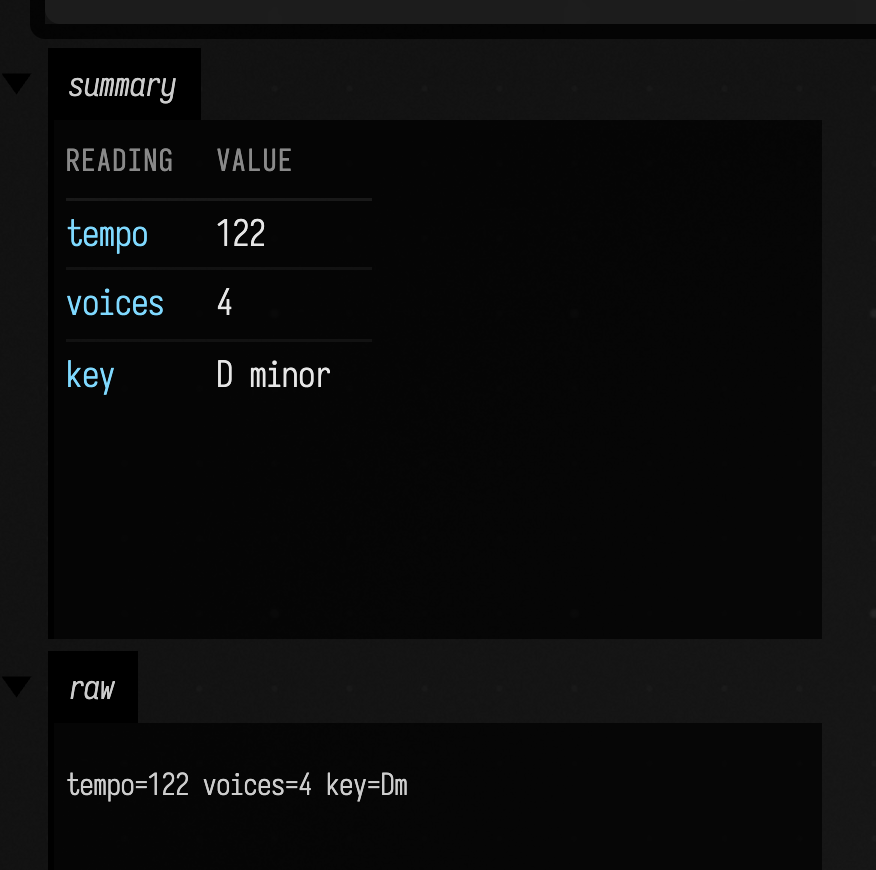
A panel made by display starts closed, showing only its title. Click the title to open it, or
call displayOpen, as the last line does here.
markdown opens its panel for you, unless you pass open = false.
A few rules cover the rest:
- Same channel, same panel. Displaying into a channel that already has a panel replaces what
is in it. The panel keeps its place, whether it is open, and its size. A
loop { }that displays every frame updates one panel; it does not stack up new ones. - Panels are listed in the order their channels first appeared. Replacing a panel's content does not move it.
display(content)with no channel name uses the channeloutput.- Running the box again does not remove panels. A channel the new code no longer writes to keeps its last content until you remove it (below).
What display accepts
A String is treated as HTML and inserted into the panel as it is, <script> tags included, so
display is also the way to put a small interactive page in a box. Anything else is turned into
HTML with .h first, which gives a readable view of numbers, lists, maps and most of Field's own
types. display("info", someMap) and display("info", someMap.h) show the same thing.
To show plain text that might contain < or &, wrap it in Markdown or escape it; a bare string
is HTML. Visualizers & Controls lists what Field can draw into a panel: .h,
.h2 explorers, Markdown cards, plots, images, sliders and other controls.
Opening, closing and removing panels
From code, four functions act on a box's panels by channel name:
| call | what it does |
|---|---|
displayOpen("name") |
opens the panel. If the channel has no panel yet, it makes an empty one and opens it. |
displayClose("name") |
closes the panel to its title bar. Its content and size are kept. |
displayClear("name") |
removes the panel and its content. The next display into that channel makes a new, closed panel at the end of the list. |
displayClearAll() |
removes every panel the box has. |
The box below makes three panels, opens two of them, and then removes the third. Only notes
and chart are left:
display("notes", "<p>three passes, no retries</p>")
display(
    "chart",
    (1..5).joinToString("", "<svg width='220' height='90'>", "</svg>") {
        "<rect x='${it * 40 - 30}' y='${90 - it * 16}' width='28' height='${it * 16}' fill='#4a90d9'/>"
    },
)
display("scratch", "temporary")

displayOpen("notes")
displayOpen("chart")
displayClear("scratch")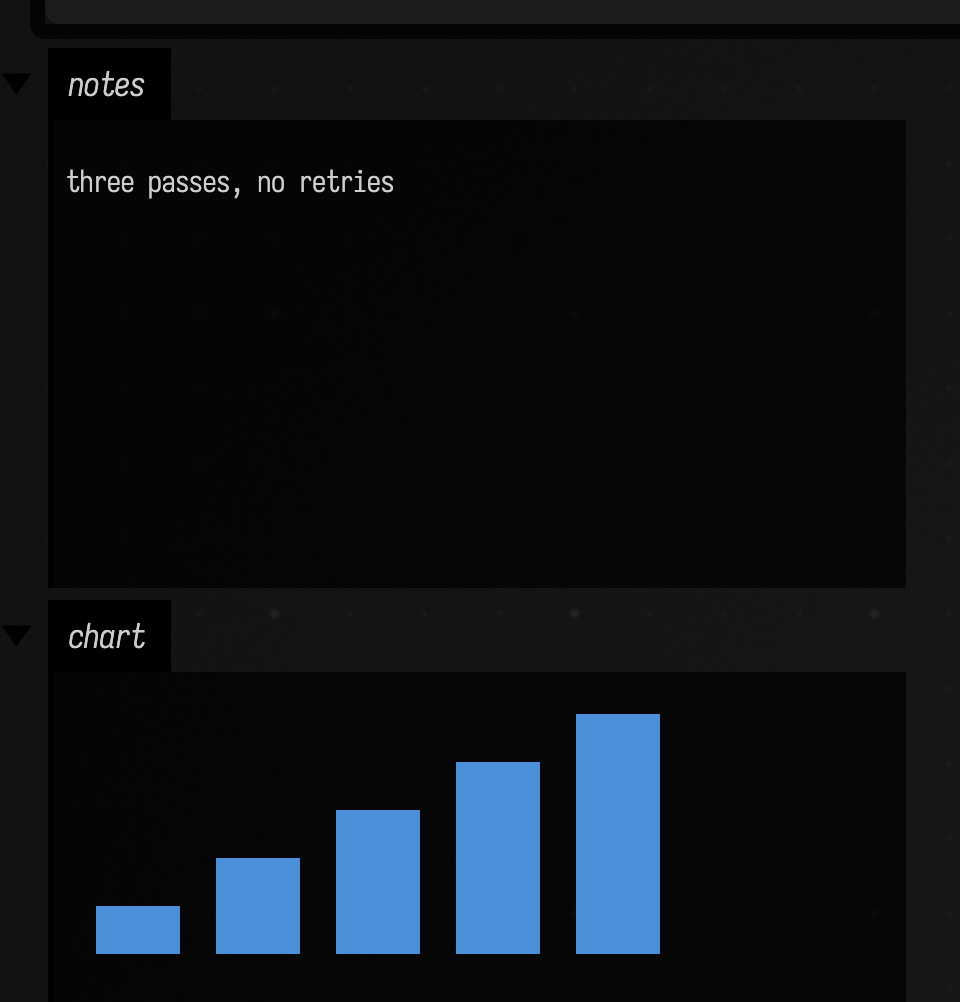
displayClearAll() at the top of a box's code is a common way to start each run with no leftover
panels.
With the mouse, on a panel's title bar:
| gesture | what it does |
|---|---|
| click | opens or closes the panel |
| Shift-click | opens this panel and closes all the others |
| alt/option-click | removes this panel |
| alt/option-Shift-click | removes every other panel |
Holding alt/option or alt/option-Shift while the pointer is over a title marks the panels that a click would
remove. Removing a panel with the mouse is the same as displayClear: it comes back the next time
the code displays into that channel.
One-line channels
Start a channel name with * and it appears as a single line under the box. Its name sits on the
left, without the *, and its content on the right. It stays visible, which makes it handy for a
counter or status you want to see at a glance.
display("*status", "<span style='color:#7fd77f'>converged</span>")
progressBar("done", 0.66)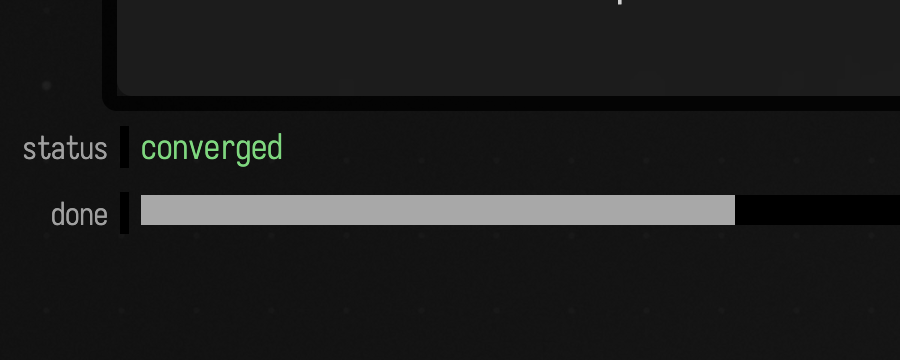
progressBar("done", value) is built on this: it displays into *done, and
progressBarClear("done") removes it again. displayClear("*status") removes a one-line
channel, and alt/option-click on it does too.
How big a panel is
An open panel sizes itself to its content as the content loads, up to 80% of the window's height,
and scrolls past that. Drag its bottom-right corner to resize it; from then on it keeps the size you
gave it, whatever is displayed into it. Content that sets its own pixel width (an <svg
width="…">, an <iframe style="width:640px">) gets a panel that wide. Content with no width of
its own (width:100%) gets the width of the box.
Output Panel Sizing explains the measurement in detail and what to do when a panel comes out the wrong size.
When a panel is gone
Panels are not saved with the document. They are made by running code, so a document you open shows no panels until its boxes run. While a box is running, Field remembers its latest panels, so reloading the page or opening the document in a second browser window shows them again without running anything. That memory keeps the most recent 128 panels per box.
A few channel names belong to Field: nested holds a box's nested child boxes (the display
functions never remove it), ai-chat is the box's AI chat, layers is the layers palette, and
editor:<property> is an embedded editor for one property. Pick other names for your own output.
Publishing a document
Run the boxes whose outputs you want to share, then choose Publish document for the web (.zip)
from the command palette. The publication panel reports how many output channels were captured
and lists any capture warnings. Download the archive, unzip it, and serve the folder with any
static web host. Open its index.html to browse the boxes, notes, code and captured outputs.
The published document works without Field or an internet connection once served locally.
| Output | Published form |
|---|---|
| FLine and SVG drawings | Vector markup at the captured view |
HTML and .h values |
Rendered contents, styles and images |
| Plotly, including charts inside local iframes | Frozen trace data with browser zoom and hover |
.h2, tree and column inspectors |
Current view and materialized rows |
| Three.js | Frozen geometry with orbit, zoom, parts visibility, X-ray and local GLB download |
Plots that depend on external image or map data are captured as still images and listed with a capture warning.
Published Three.js views use the same renderer as Field. Drag to rotate, scroll to zoom, expand Parts to hide or restore geometry, or enable X-ray and adjust its opacity. Camera linking, review notes and editing controls are hidden because they need Field. A view with custom viewer tools or an animated shot falls back to a still image with its controls removed.
Controls that call back into Field are disabled. Inspector rows that have not been loaded are outside the snapshot. A channel that cannot be captured is listed with its reason in the publication panel and in the published document. Cross-origin frames and live audio/video need their own exported media.
See also
- Visualizers & Controls: what to display, from
.hto sliders. - Output Panel Sizing: how a panel decides its width and height.
- Connecting an output iframe to its box: an iframe in a panel that sends requests back to its box's Kotlin.
- Graphics in an Output Area: Vulkan rendering inside a panel.
- Where Field's Output Goes: output that is not a box's own, from the server and its logs.